
WEBD 150 – CSS Columns & Web Inspector
April 4, 2024 1:44 pm Leave your thoughtsCSS Columns & Web Inspector
So far we have seen the ease of use with CSS Grid and flex box. With these tools we can take elements and easily deploy them into content in a way that any new element that is added will be added as a new item with ease of use and management. These tools are great for both dynamic and static content whenever new content is to be added, both of these tools take the guesswork out of the equation. There are some further tools we can use to mitigate content within containers to keep things neat if and when needed.
One of those tools we can use is CSS columns. Where Grid is used for layouts or bigger parts of the page and flex box is used for more 1 dimensional content going either across the page or down the page, CSS columns are used in a simpler way. This method takes a div and just splits it up into columns. This is different from Flex box in the sense that flex box deploys flex items (any elements that are in the flex parent) whereas CSS columns just takes the content within the div and splits it up without having child div elements.
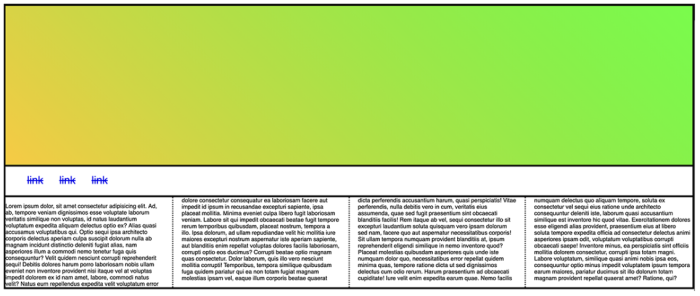
To use this, we can simply create a div and in the css tell it:
columns
The Columns property will split the div into the amount of columns we tell it to. There are extra things we can add to this.
column-width: 300px
This can be used in place of a number of columns. It will set the column to a set size and make every column the same.
column-gap: 50px
This will add space between the columns.
column-rule-style: solid | dotted | dashed | double | inset | outset | groove | none
This will add a border between the columns.
column-rule-width: 5px
This will change the size of the border between the columns.
column-rule-color: chartreuse
This will change the color of the border between the columns.
column-rule: 5px dashed chartreuse
This is the shorthand form of width style and color.
column-span: none | all | initial | inherit
This will span an element within the div over the columns.
Intro to Using the Web Inspector
As you probably know by now, part and parcel of being a developer is debugging. As such we use different tools to find issues and see what’s wrong with our code so we can fix it more efficiently. One of these things we use is the Web Inspector.
Every browser has one and they are usually very similar, but not all are as good. I recommend using the Brave browser.
To inspect anything that is not working/showing up properly right click on that element and select “Inspect”.
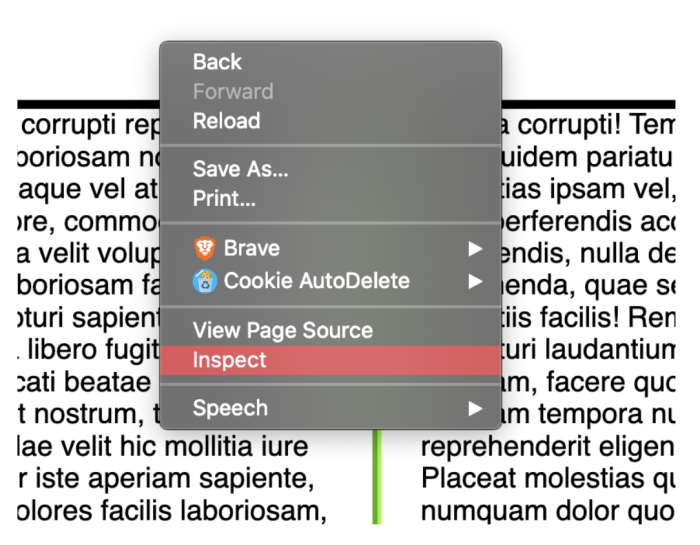
Once you do this a panel will open up. That panel can be moved around for convenience. If you click the 3 dots in the top right corner you can change the “Dock side”.
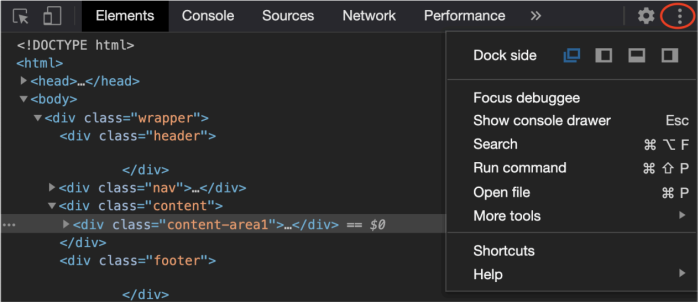
The dock side will pop out the window or dock it to the left, bottom, or right of the screen.
Next, we can inspect any part or parts of the DOM by mousing over the part within the HTML.
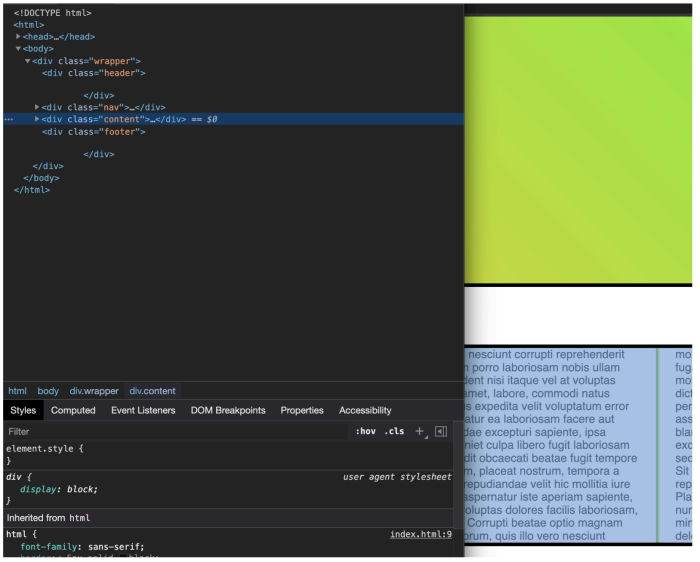
Note the mouse is over the content section and it is highlighted.
We can expand it as well to see what’s inside; to do so, click the little triangle arrows on the side of each element.
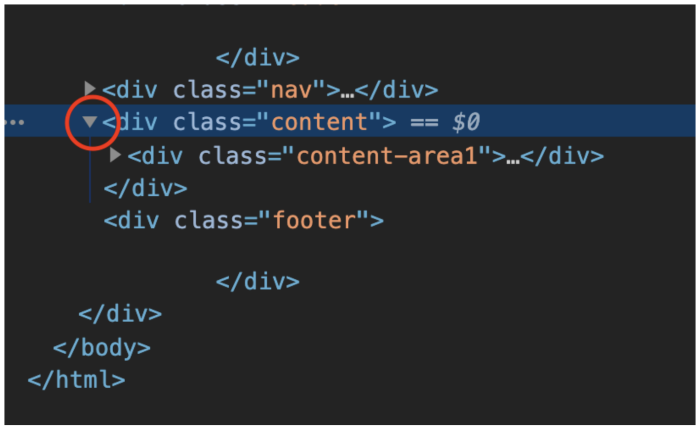
As we expand more and more into elements it will highlight the thing we mouse over.
When you click on an element it will show you the CSS for that element, you can also toggle on and off the CSS rules for that element as well as write in new ones.
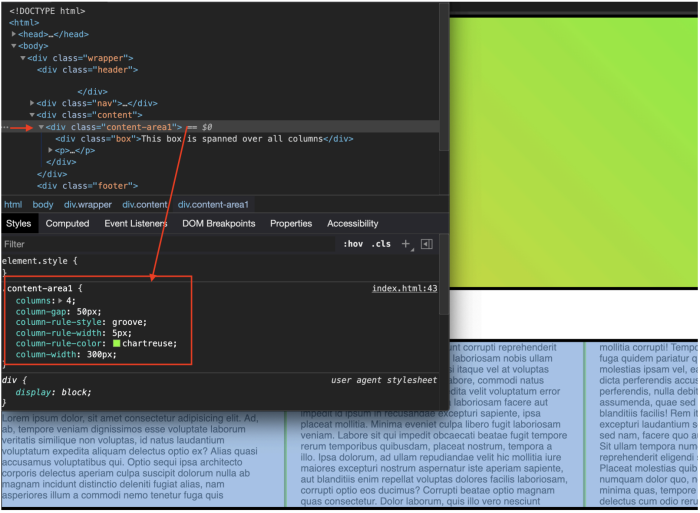
You can write new rules onto any elements here.
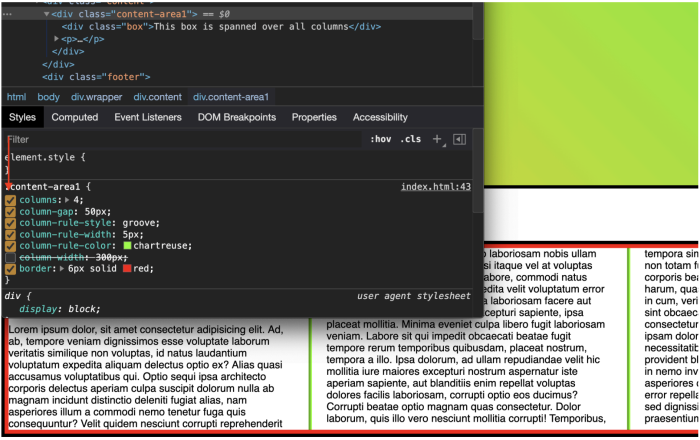
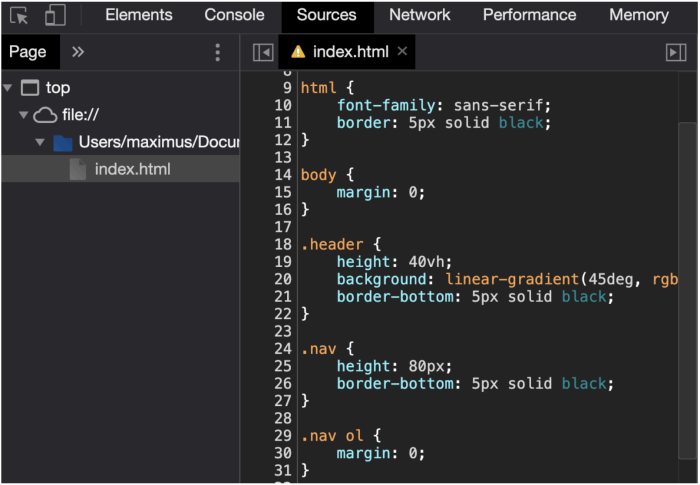
You can also see the CSS file as well and edit it as long as it is in its own CSS file; if the CSS is written in the HTML you will not be able to edit it.
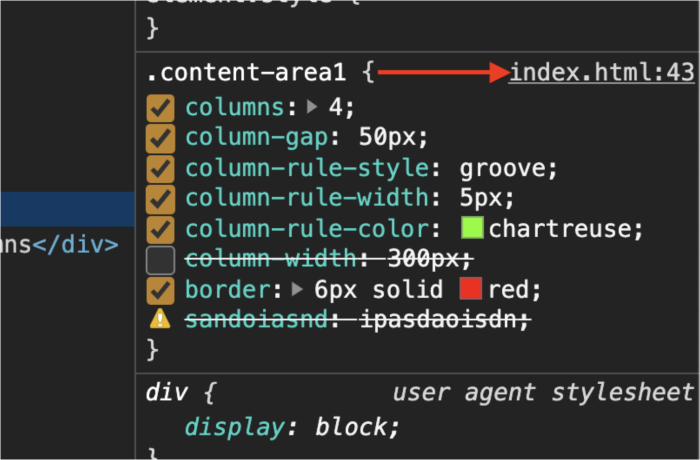
Click on CSS file info here and it will reveal the CSS in the inspector. If the CSS is stored in its own CSS file it can be directly edited within here and when done editing you can copy and paste the entire thing into your CSS file.
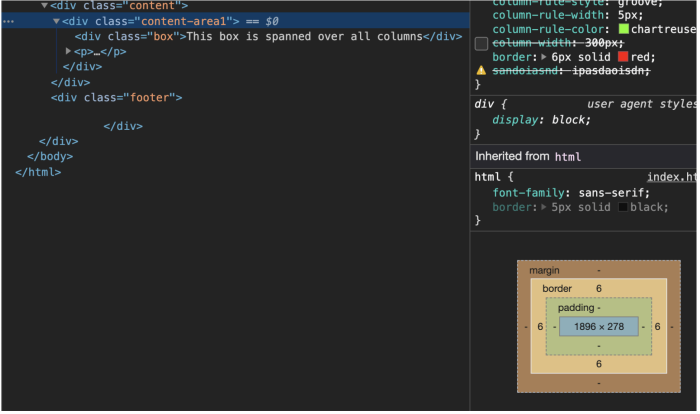
The inspector also shows you if there is margin, border, padding and the width and height of elements.
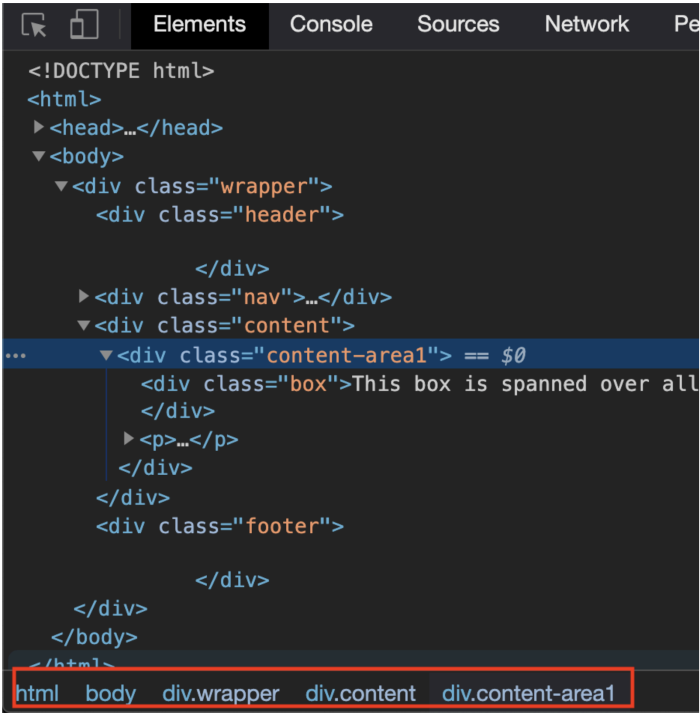
Note at the bottom of the inspector it shows you the breadcrumb path of the DOM.
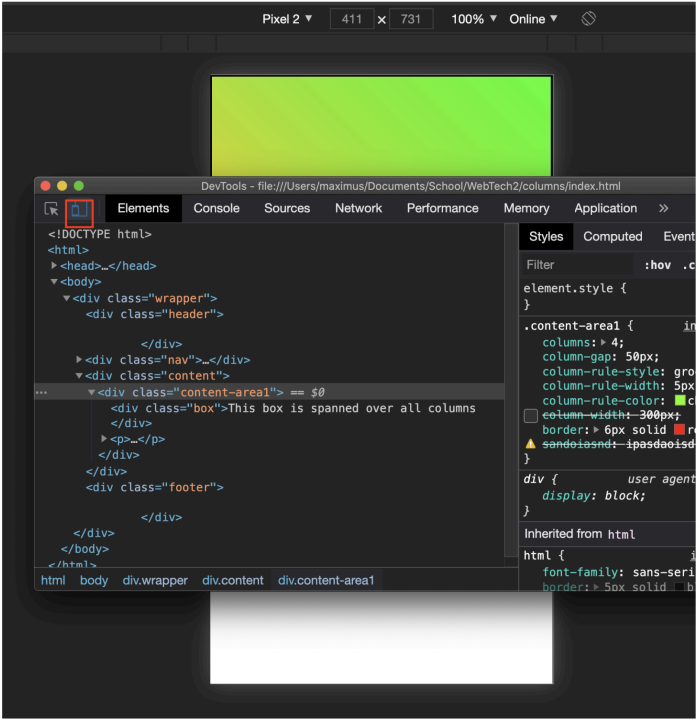
There is also a button that can toggle on and off a phone simulator. When this is toggled on you can select what phone you want to emulate.
Categorised in: Lectures, WEBD 150
This post was written by amax