Intro to VS Codium & VS Code
October 4, 2026 11:50 pmYou are going to code. As such you need an editor. Personally, 99.9% of the time I write any code, I do it in Codium. My favorite editor 🥰 and for many reasons. It is open source. (If you don’t know what that is, I will add a new post that will explain and I will link it here when done).
1st off, Codium does not track you. You need to understand that VS Code is a Microsoft product. As such, being a big tech product. It tracks and collects data from you. VS Codium is open source and exactly the same as VS Code. But, does not collect your data. This is clearly the winner.
My gripe is that wide eyed students that do not understand the nuances and intricacies of these things and tech in general, have no idea about any of these things. And no one tells them. (I do though).
You are not an animal to be data farmed.
-
- VS Code (Microsoft Build): Microsoft takes the open-source code, injects telemetry, packages it under a Microsoft license, and distributes it to track usage. Even if you turn telemetry “off” in the settings, some network requests can still leak to Microsoft services (such as marketplace updates or sync features).
- VSCodium: The community pulls the exact same open-source repository before Microsoft adds those custom tweaks. They build the app from scratch with all tracking hooks, telemetry keys, and Microsoft telemetry endpoints completely deleted from the codebase. It literally cannot call home to Microsoft because those addresses don’t exist in its code.
While VS Codium will not run 100% of all the plugins that VS Code will run, it will still run the vast majority of them. I have never had any issues not being able to run what I need and in some odd cases, hack my way through running what is not “supposed” to run. Not being data farmed is well worth it. But as a novice you dont even need to worry about that.
In this post, I will walk you through the basics of using this editor. What you learn here will apply to using both VS codium and VS code as they are identical (minus the tracking stuff).
You can download VS Codium here
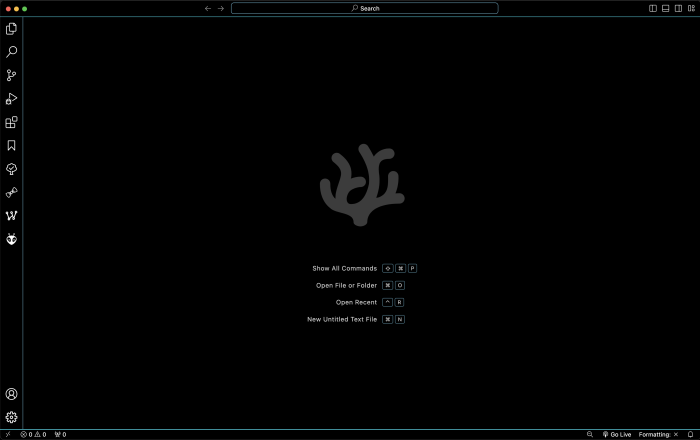
Off the gate, when you open VS Codium, you basically see a window with seemingly nothing really on it:
Let’s take a look around.
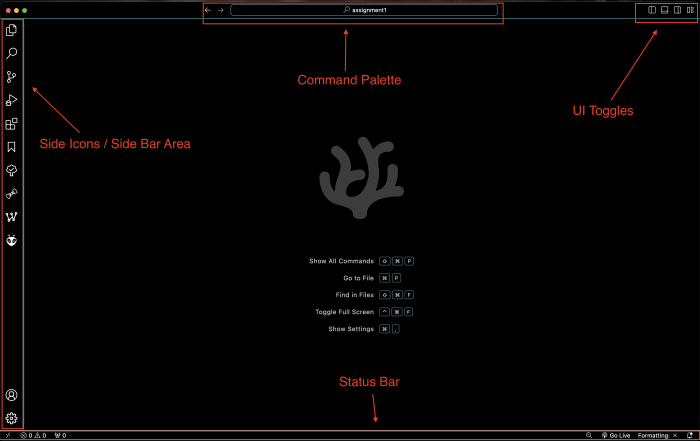
The top bar, there is a search bar where you can, you guessed it! Search. You can also do other stuff too.
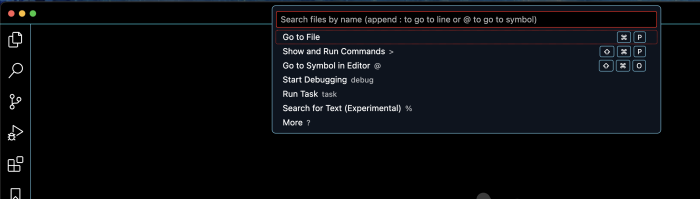
The search bar (Command Palette)
At the top is like the command center of the program. By typing special characters in there, it changes what it does. It functions as a file finder, a command execution terminal, a code navigator, and a calculator. So for example you type a particular character into it and that character tells it what you are attempting to do.
>)> at the beginning of the bar (or open it with Ctrl+Shift+P / Cmd+Shift+P), it enters Command Mode.@)@, the bar instantly lists every function, variable, class, or method inside your currently open file.#)# followed by the name. VS Code will scan your entire workspace to pinpoint it instantly.:): followed by a number (e.g., :42) and press Enter. The editor will instantly snap your cursor to line 42. You can even add a second colon to jump to a specific column character (like :42:10).%)% into the bar, it triggers Quick Search. This acts like a fast, lightweight version of the global sidebar search, letting you hunt for specific words or text strings anywhere in your project repository.?)?. It will display a helpful dropdown menu of all the prefix commands and navigation workflows you can use right there.The Side Bar
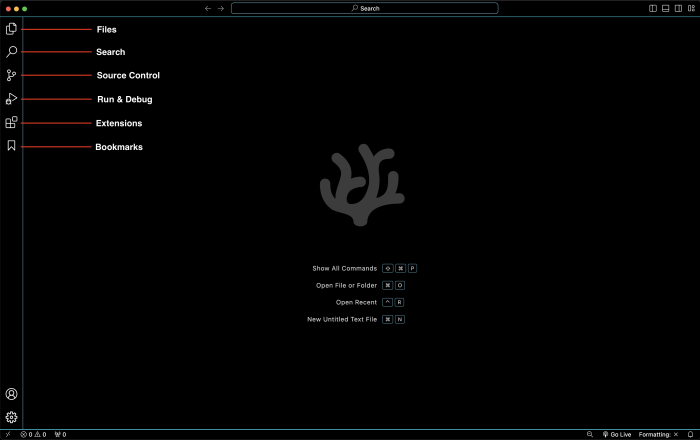
The side bar is activated by clicking one of the side icons. The one will use the most is the files one. Once you click an icon, the side bar will open up, in VS Code you can also just click the line and slide it over to open the side panel. This small caveat does not also work in Codium. But in either once the side bar is open you can slide to resize it and slide it all the way closed.
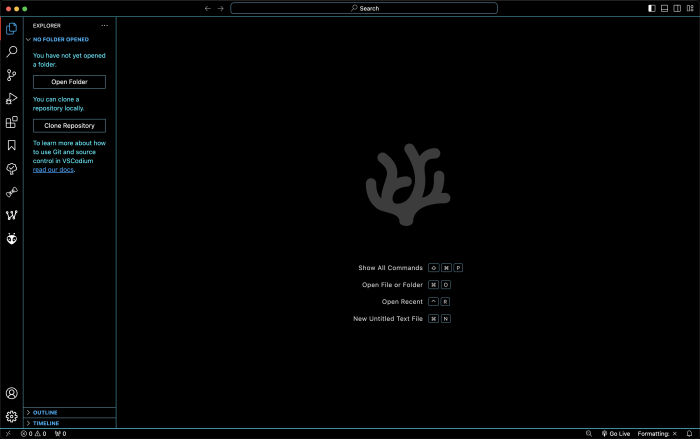
Files
As far as the files side bar panel goes, here is where you can open a folder and see the files and sub files within. You can also drag and drop a folder (or a single file) onto the VS code window and it will open it. Understand that you can open literally any folder in your computer here and it will show the contents and allow you to navigate around. Even the root folder of your entire computer.
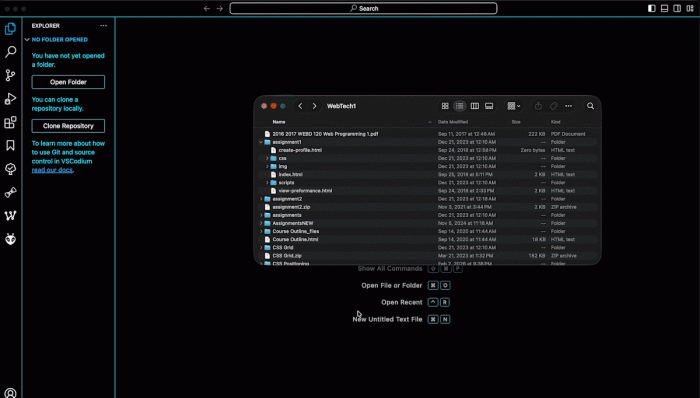
You can also open a folder by clicking the open folder button.
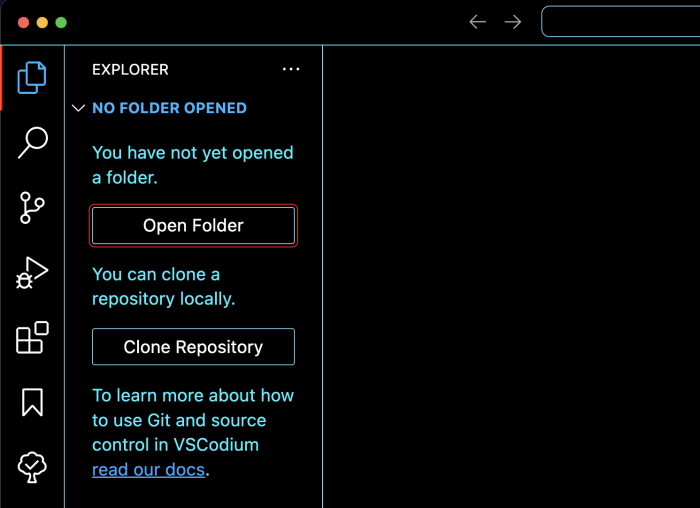
When you start a project. ALWAYS make a new folder in your finder/file explorer named appropriately as in the name of the project, website or whatever and then drag and drop that folder onto Codium or click the “Open Folder” button. DO NOT just make unorganized loose files. Do things the right way!
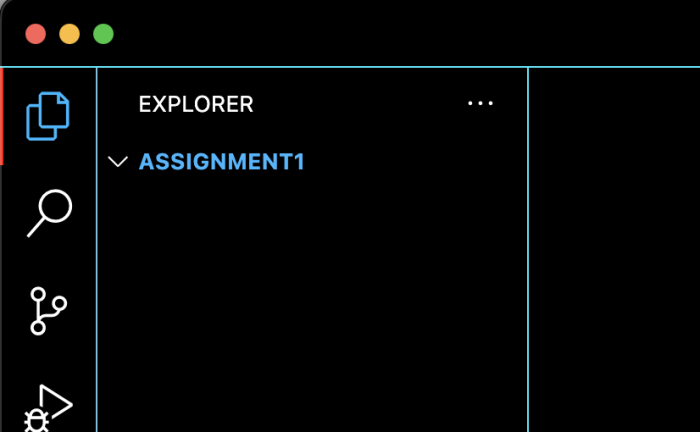
Once the folder is loaded in Codium you can then create new files and folders in the parent folder. (The parent folder in this case means the main folder IE the one you dragged and dropped into Codium).
To make new files and folders there are a couple ways you can do this:
- Use the new file/new folder icons
- Right click the empty space in the explorer and click new file or new folder
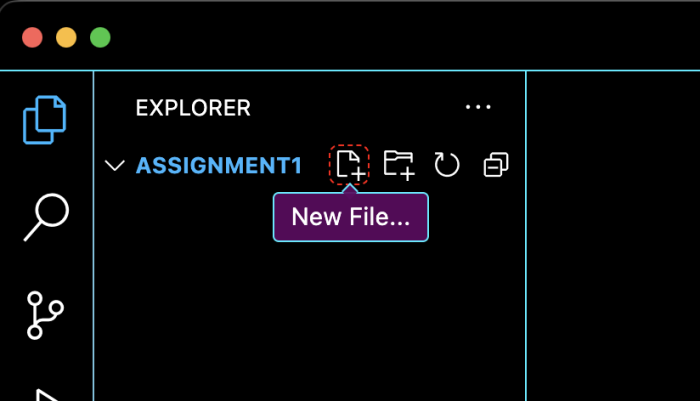
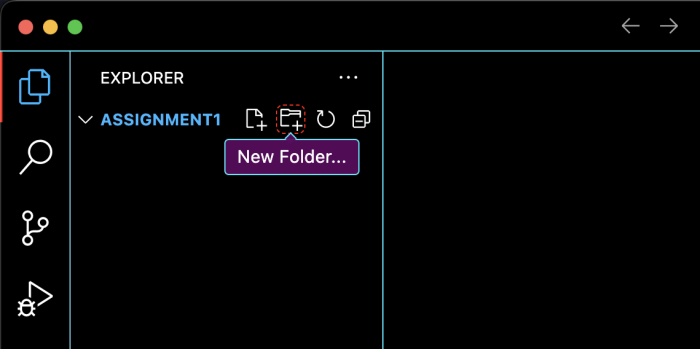
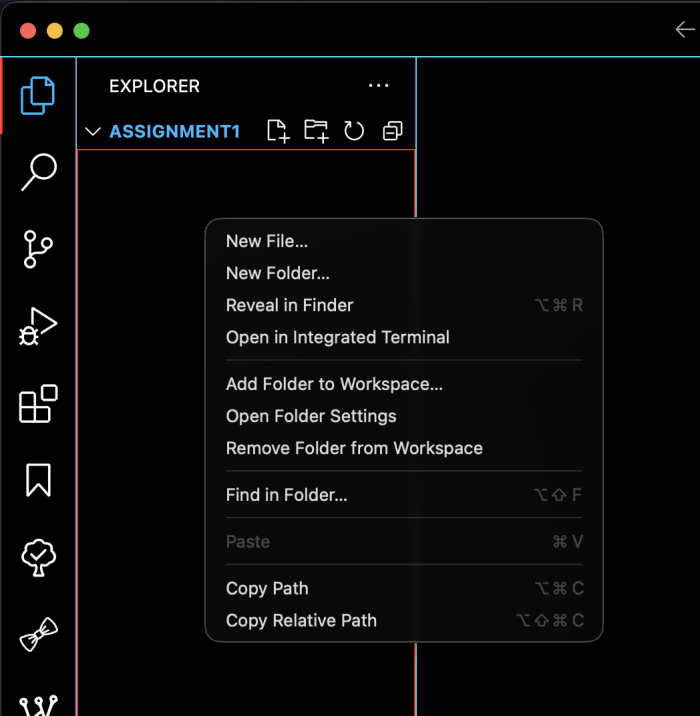
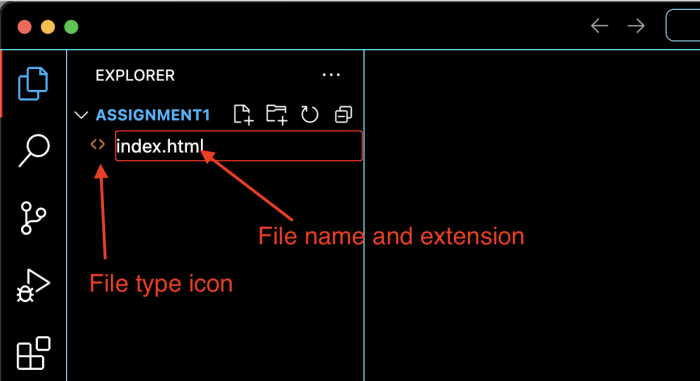
When you make a new file or folder, you can then start typing the name, you have to also enter the extension Eg: .html .css .js .py .cpp or whatever. You can also edit plain text (.txt) and Rich Text (.rtf) files, Doc Files (.doc) and more.
When you put the file name and the extension you will notice an icon will appear showing what kind of file it is.
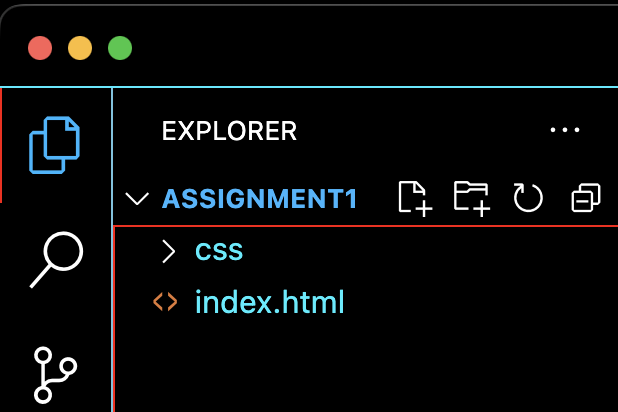
Next add a folder, You know something in the explorer is a folder because it has an expandable > symbol instead of a file type icon.
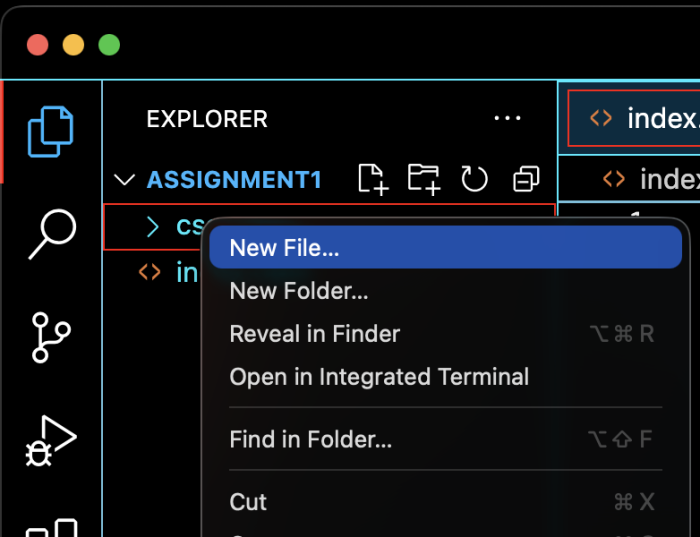
You can make a file in a folder or a child folder by right clicking the folder and then clicking new file or new folder.
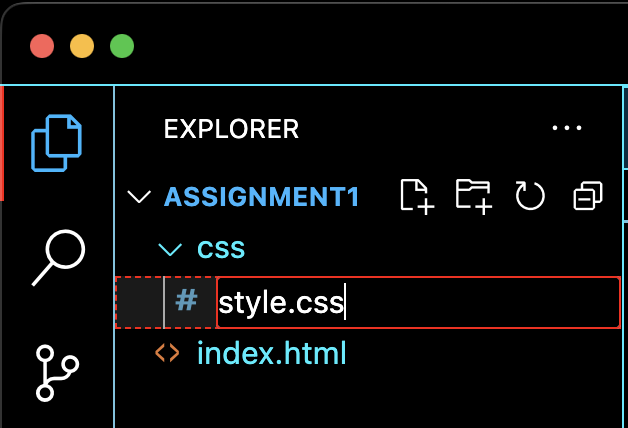
Name the folder or file name and extension. Again you will either see a file type icon or a >
Understand that when you make files and folders in Codium, it creates these files on your computer, you can see them in your finder/windows explorer or terminal.
In the explorer you can refresh the files and folders list by clicking the refresh icon. Use this if you changed something outside of Codium IE in the finder/windows explorer or terminal and the change did not reflect in the Codium explorer.
Open files
When you create your initial folder and file structure for your project. You can click any file and it will open and then you can start writing your code. Note the files tab. You can do a few things with the tab and also note the tab will let you know if a file is saved or not:
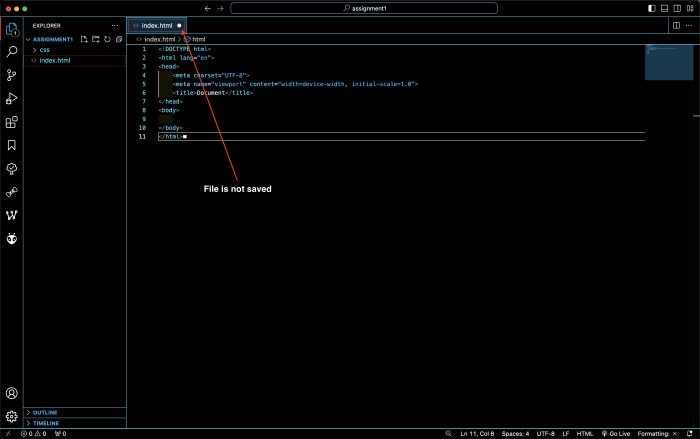
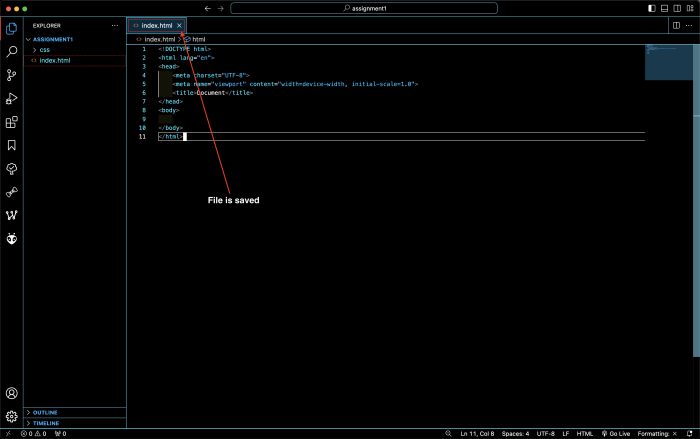
You can also right click on the tab:
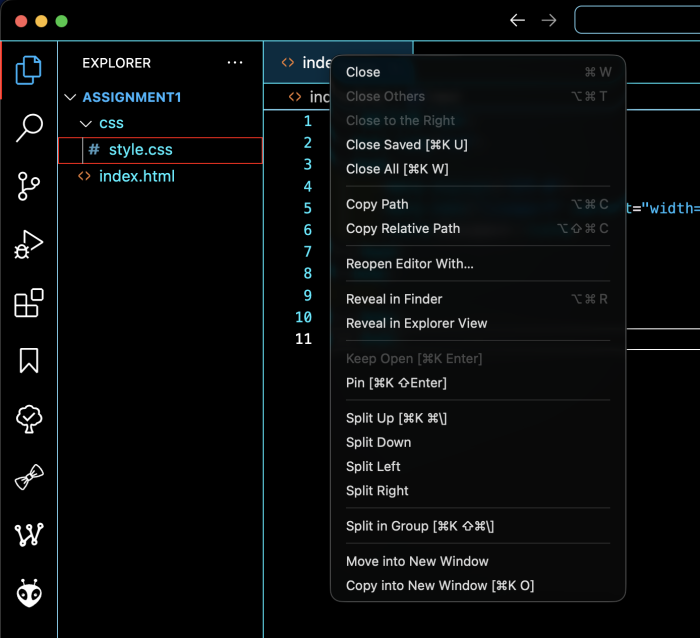
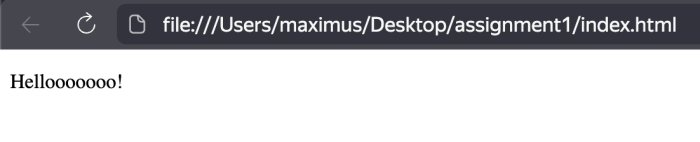
In the case of an HTML file, you can quickly and easily just click on “Copy path” and paste that path in a web browser to see the file in action.
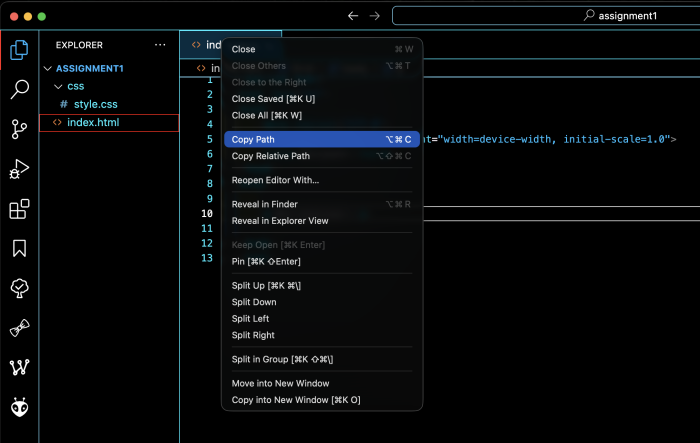
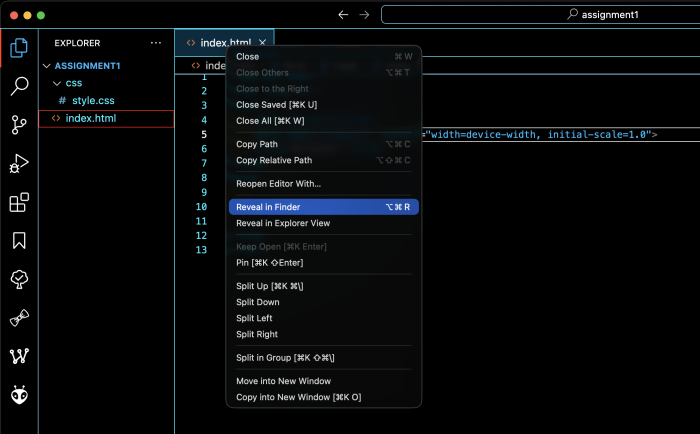
You can also right click on a tab and then click “Reveal in Finder” / “Reveal in Windows Explorer” and it will show that file in your computer.
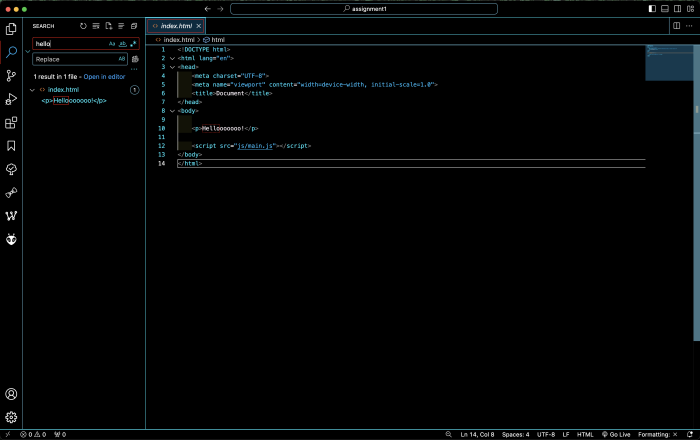
Search
In the search side bar tool you can search and replace.
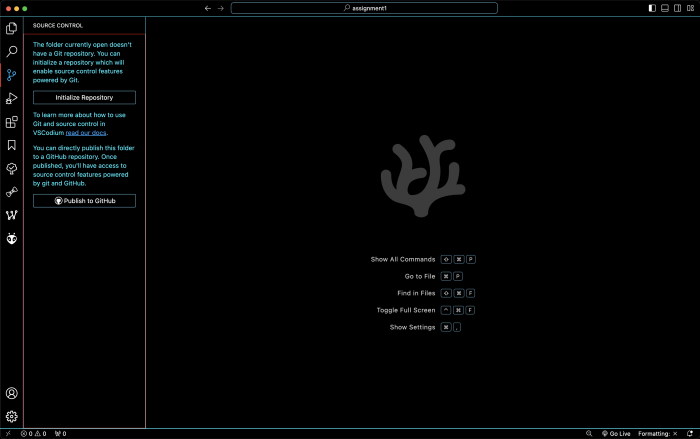
Source Control
Here you can connect to git.
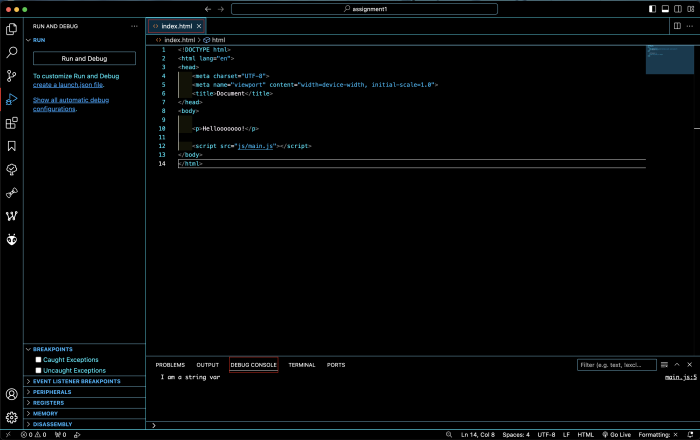
Run & Debug
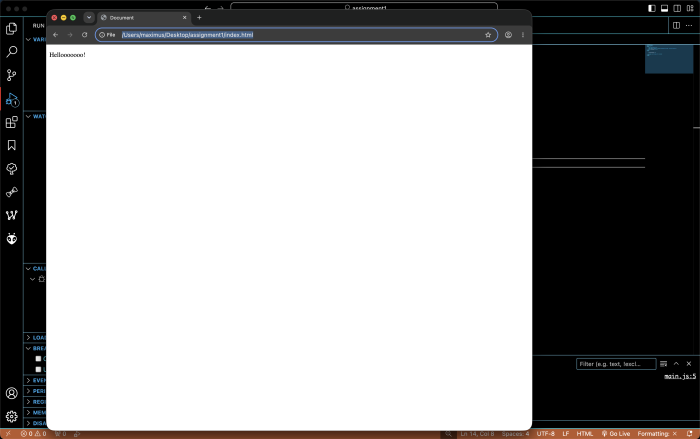
Here you can run a file. If you use this on an HTML file it will open it in a browser and show whatever is running on that page/run whatever is integrated with on that page (For example JS).
Extensions
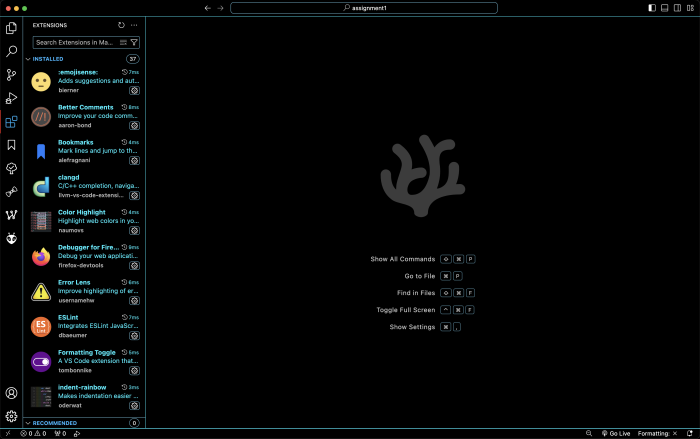
Here you can browse and
install extensions / plugins
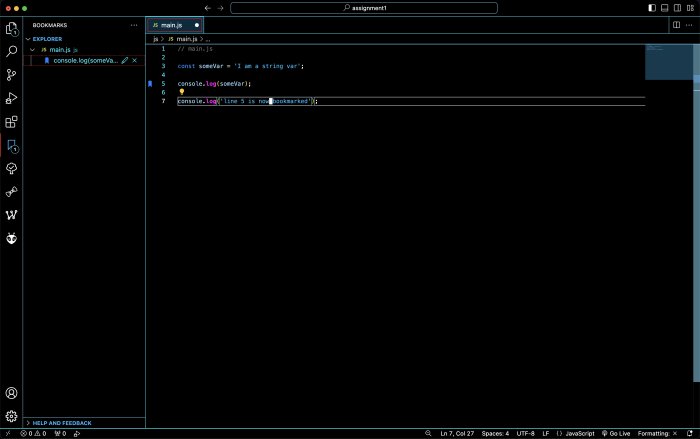
Bookmarks
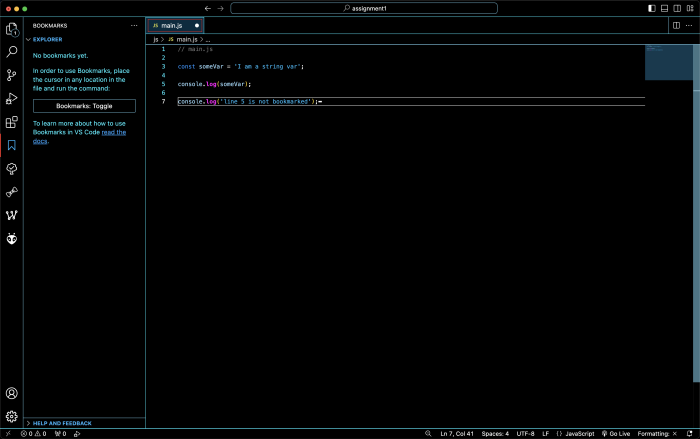
here you can bookmark lines of code so you can easily get back to them.
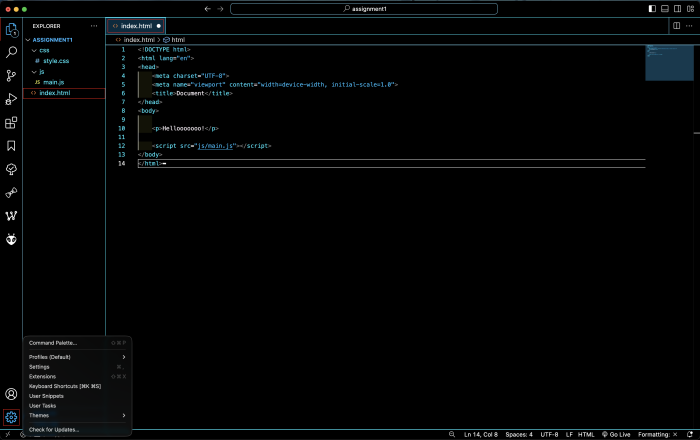
Settings
Here you can access settings, themes, command palette, check for updates and so on.
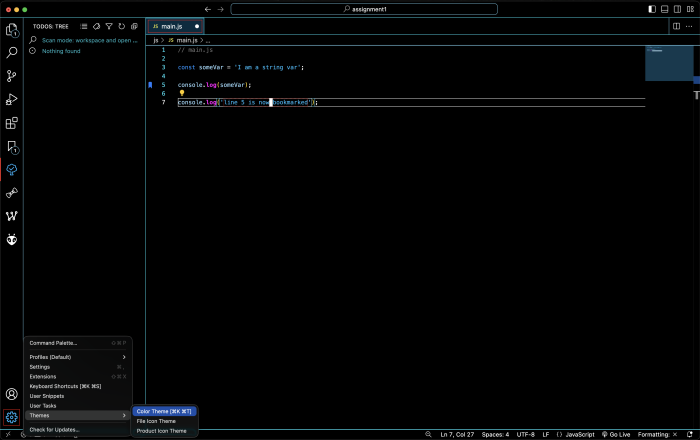
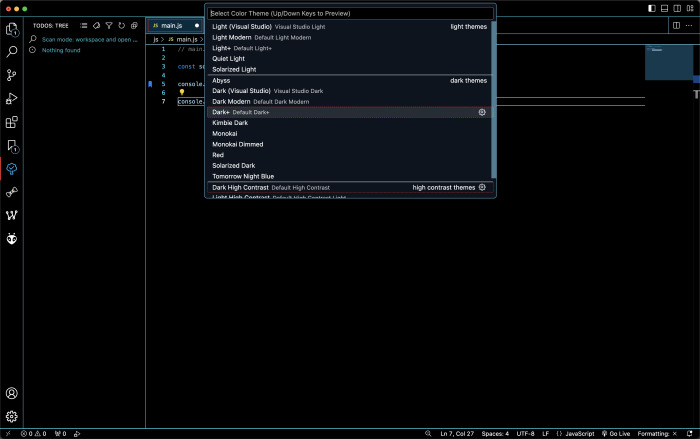
Change the Theme
In that settings gear icon you can get to where to change the theme of the UI.
Toggle Panel Buttons
On the top right there are 4 icons with one more beneath them. These are toggle buttons and the split editor buttons.
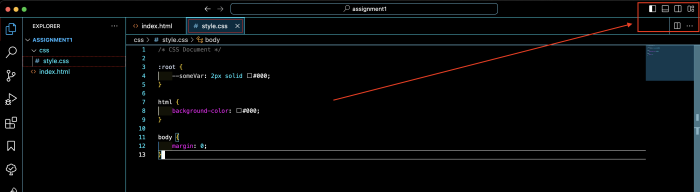
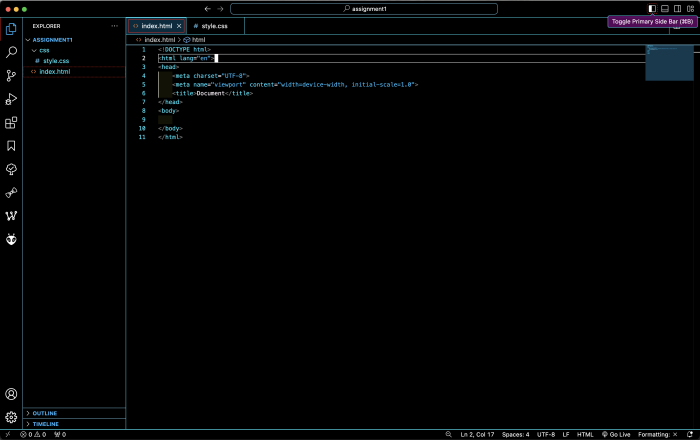
Toggle Primary Side bar – Opens and closes the left side bar.
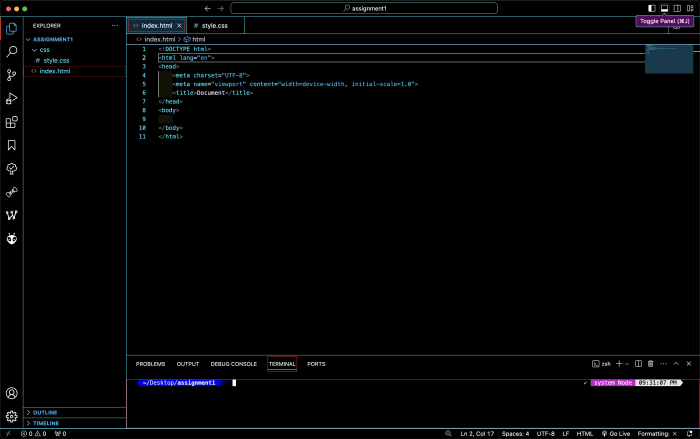
Toggle Panel – Opens and closes the bottom panel (this is where the Terminal, debug console and other like tools are).
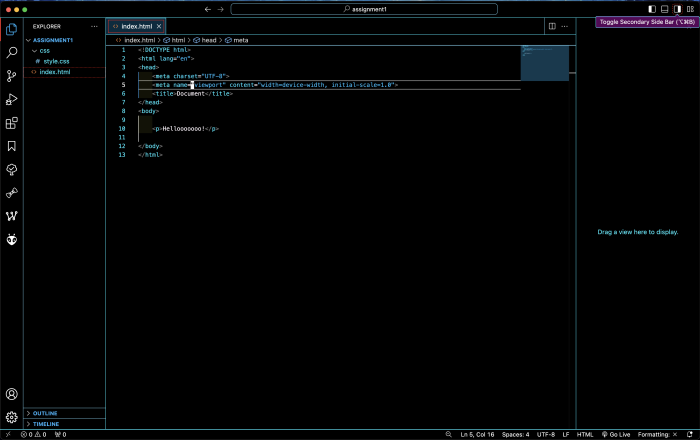
Toggle Secondary Sidebar – Toggles the right hand sidebar.
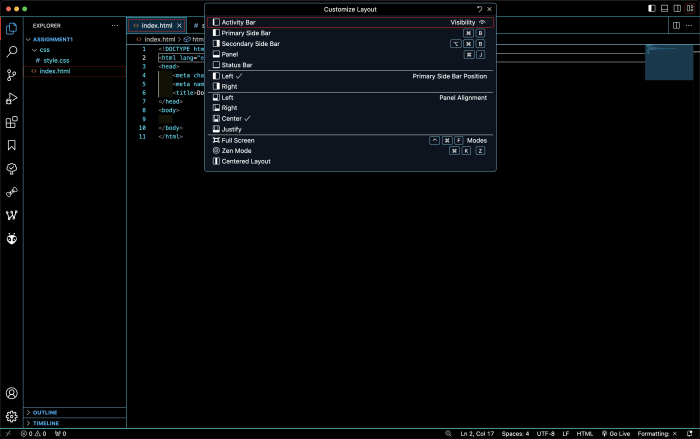
Customize Layout – Where you can change the layout, make the window full screen and so on.
Split Editor
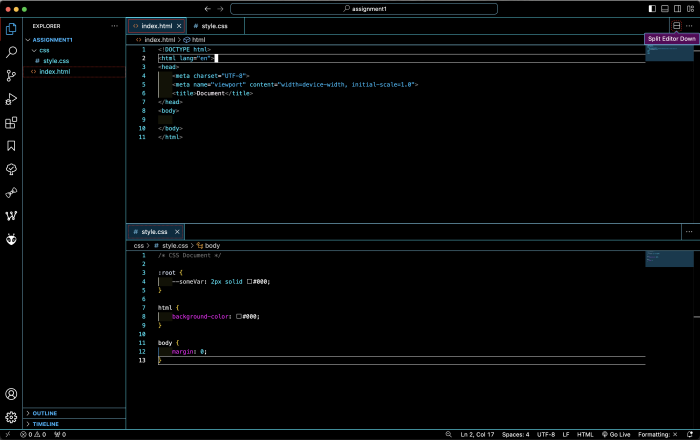
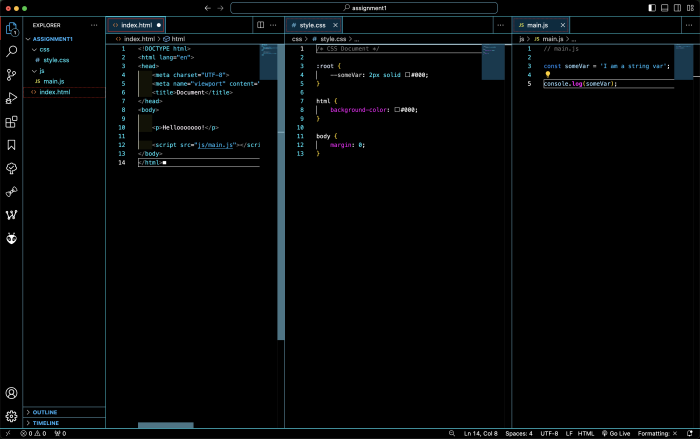
If you like, you are able to split the editor. To do this use this button. Note that if you hold the shift key it will toggle the split to be horizontal or vertical. After which you can work on 2 or more files at the same time.
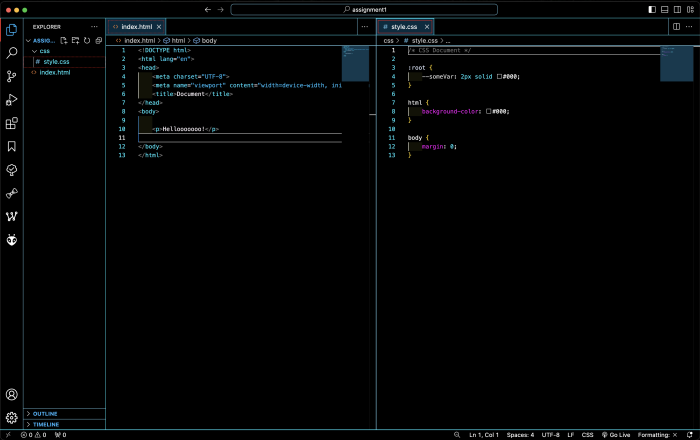
Click the X on any files tab to reduce the open files.
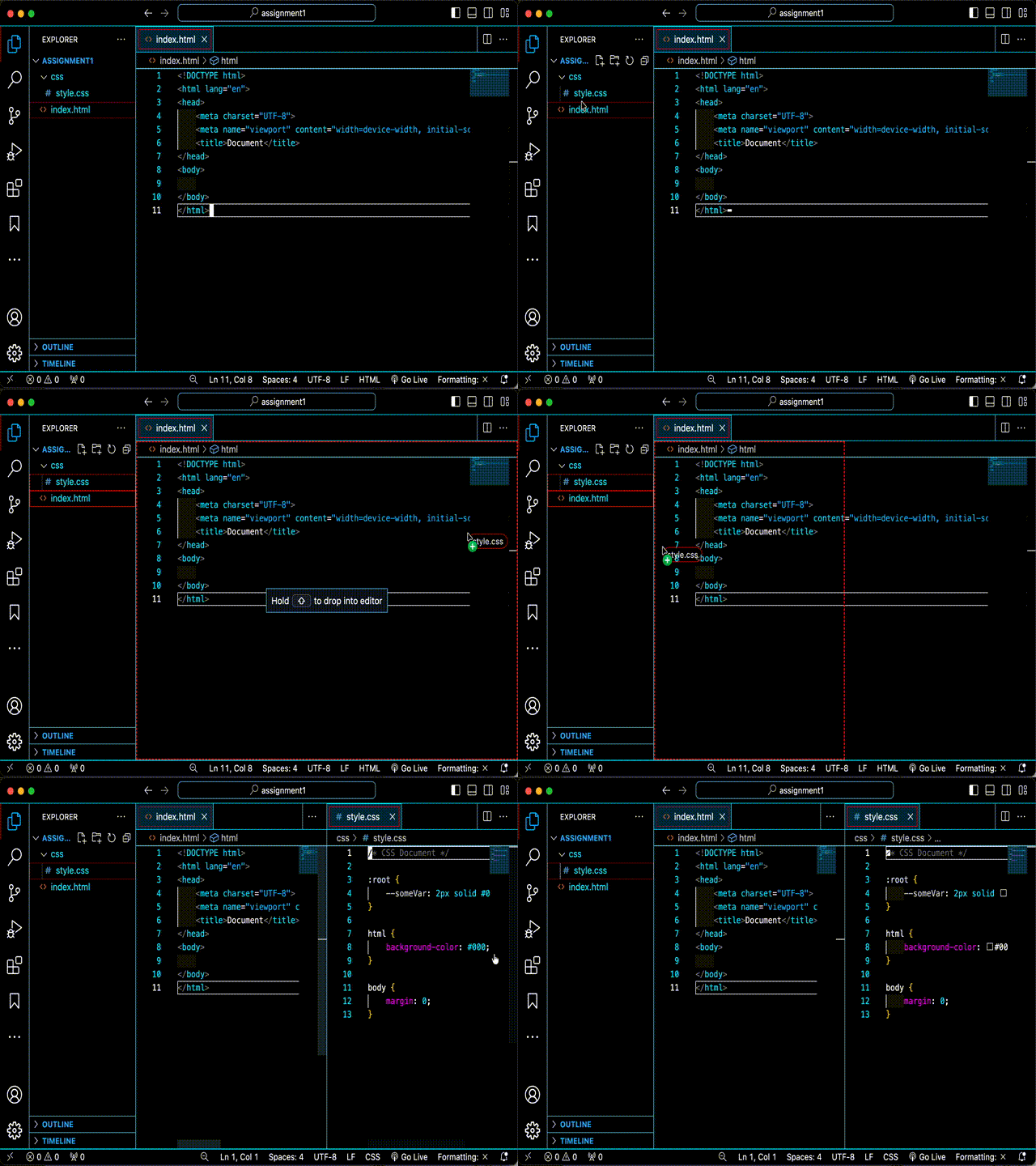
You can also drag and drop a file from the Explorer panel to one side or another to open multiple files.
Essential Shortcuts
-
Cmd/Ctrl + P: Quick Open (search file by name).
-
Cmd/Ctrl + S: Save file (and mention Auto Save via
File > Auto Save). -
Cmd/Ctrl + /: Toggle line comment.
-
Cmd/Ctrl + B: Toggle side bar visibility.
- Cmd + +: Make the text and UI bigger.
- Cmd + -: Make the text and UI smaller.
Categorised in: Blog
This post was written by amax
Comments are closed here.