WEBD 100 & MDCP 102 – Intro to CSS 3
April 2, 2024 12:12 pm Leave your thoughtsIntro to CSS 5 – Positioning
Positioning Methods
In CSS there are different methods we can use to place things where we want them to be:
- Static
- Relative
- Fixed
- Absolute
- Sticky
Lets break them down one by one.
Static
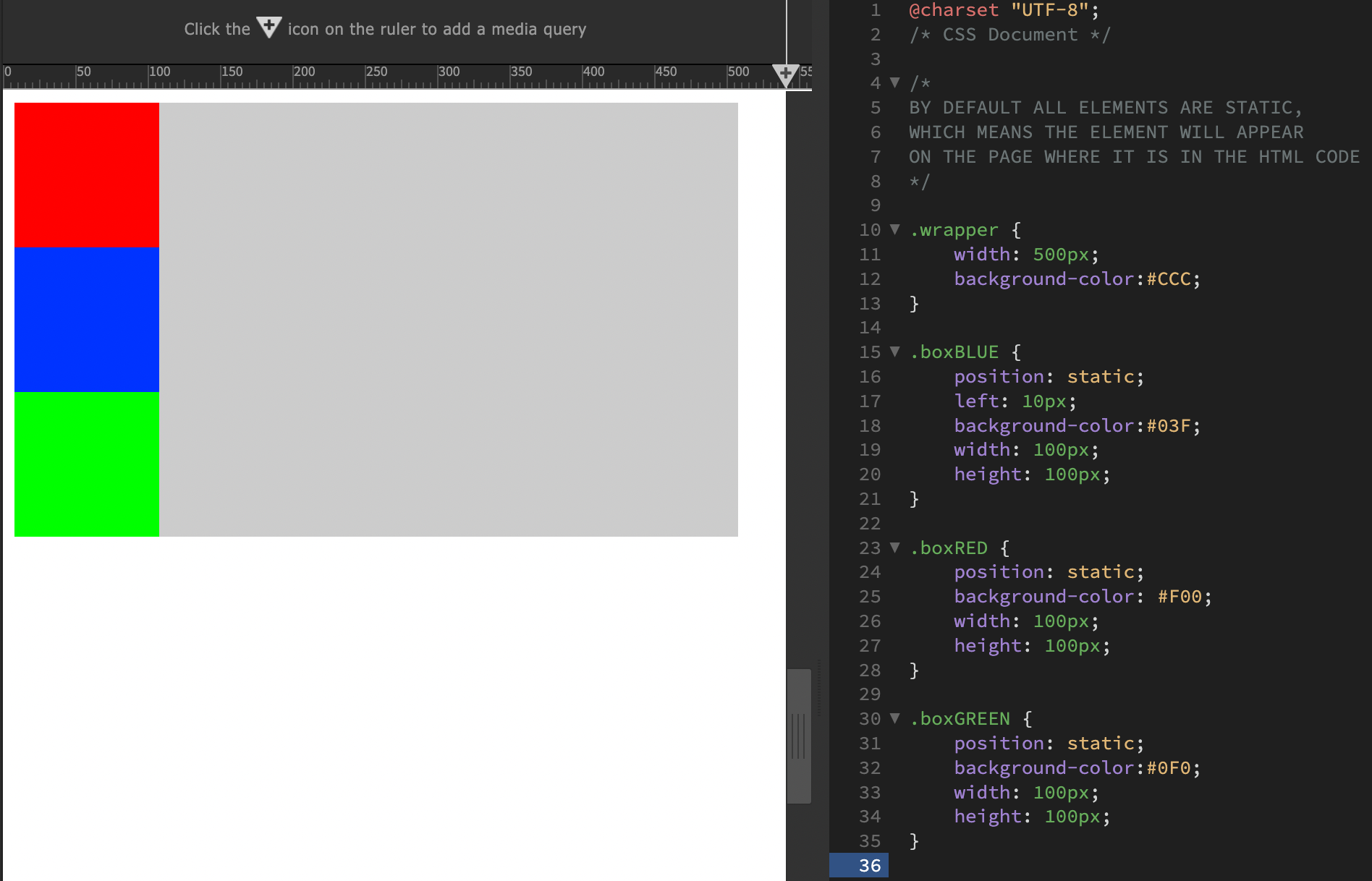
Elements by default are positioned using this method so, if you don’t specify in your CSS what method you want, this will be it, same as if you specify it to be so (position: static;). Static elements do not use the left, right, top or bottom attribute. Rather, they flow with the webpage based on where they are in the HTML code. So think of the reference point for this one to be just as it is laid down in the HTML code.
Refer to the contents of the folder “1 Static Elements” for example.
Relative
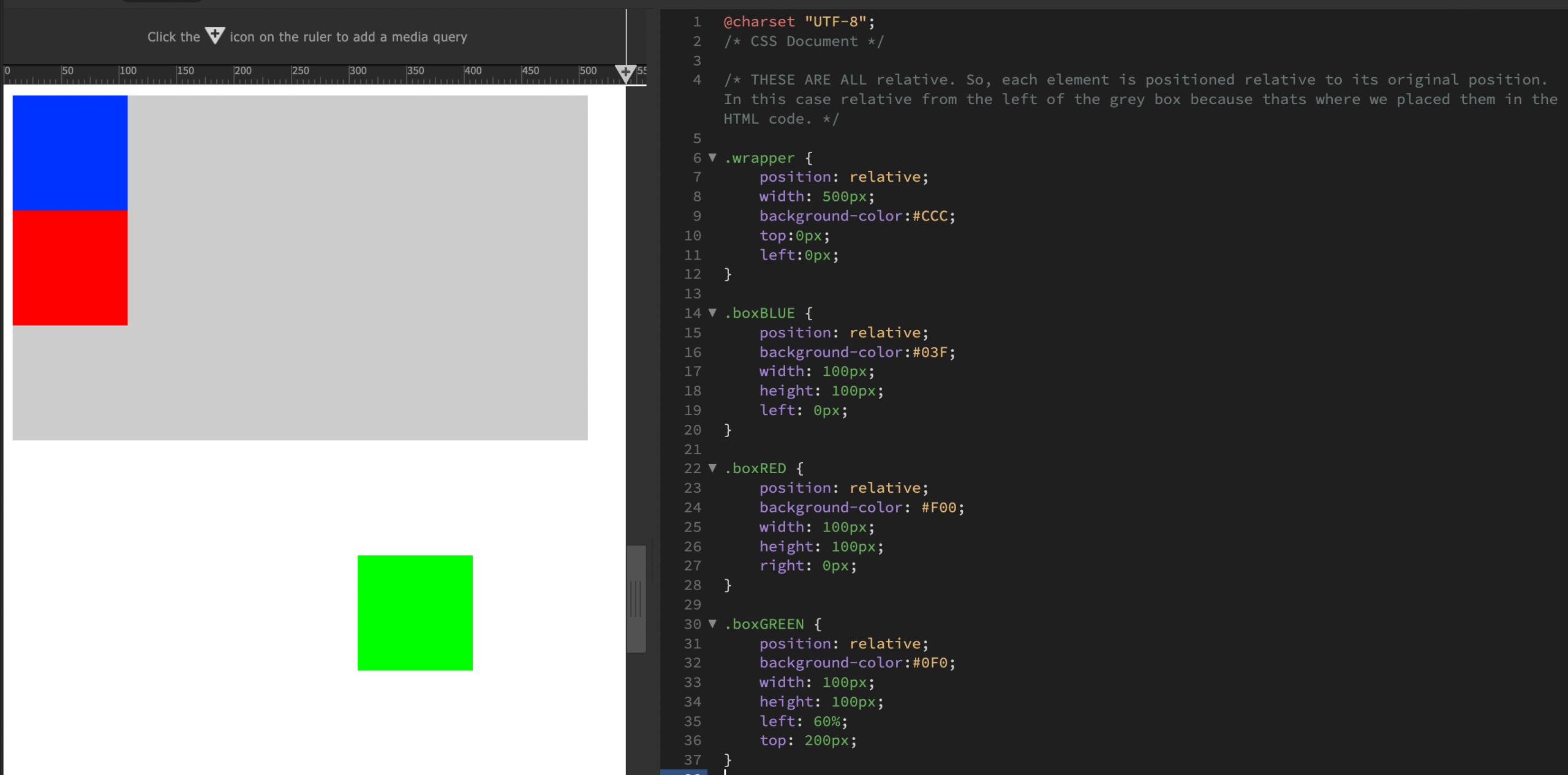
Relative positioning can be confusing and often gets misconstrued. Basically a relative position is in relation to itself. So when you move something in a relative position it moves from its original location. If it is in a parent object it will move from that location in the parent object. Think of the reference point as from where it originally was in the 1st place.
Refer to the contents of the folder “2 Relative Elements” for example.
Fixed
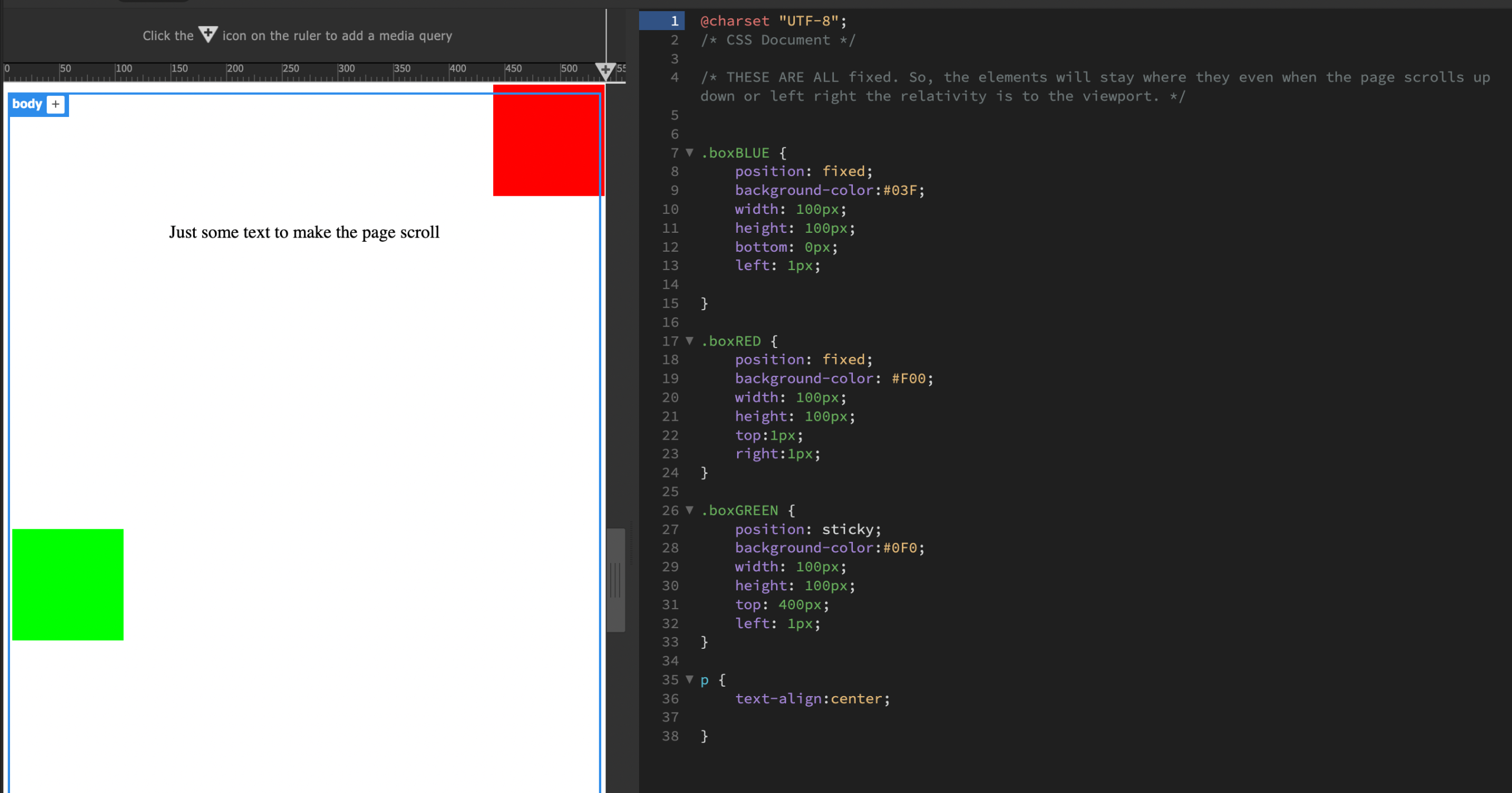
Fixed elements when placed move to a location with the relativity being to the viewport. So when you scroll the page it will stay fixed to the one spot and stay there. Use this for sticky headers and other elements you want to stay fixed. So here we can think of the reference point from the position of the web browser walls.
Refer to the contents of the folder “3 Fixed Elements” for example.
Absolute
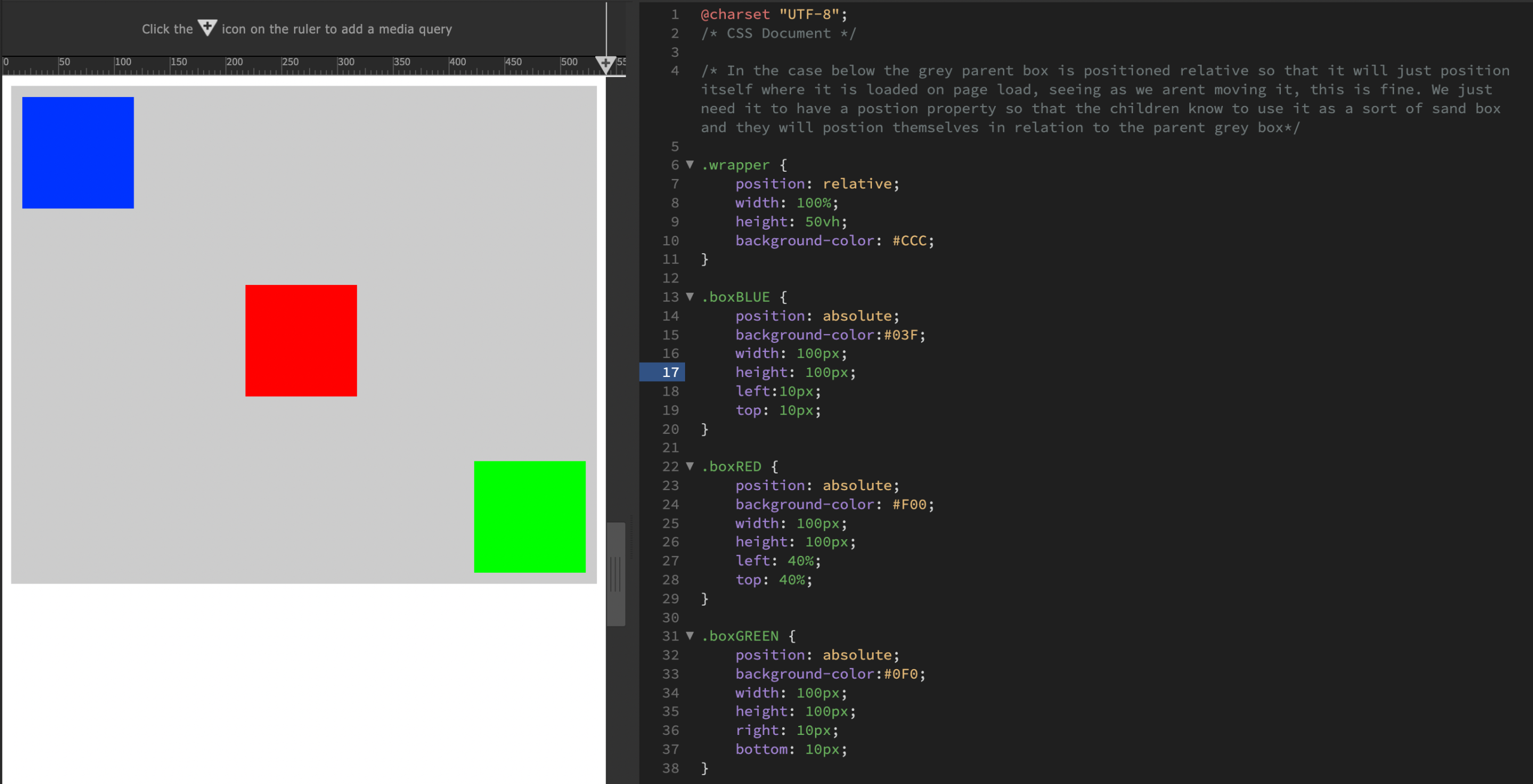
Setting the position: absolute; will make it position itself relative to the nearest positioned parent item. If there is no positioned parent item, it will be absolute from the origin placement of the body tag. You can reference these points of relativity in the “rules” panel in DW. So here we can think of the reference point as being from its parent item.
Refer to the contents of the folder “4 Absolute Elements” for example.
Sticky
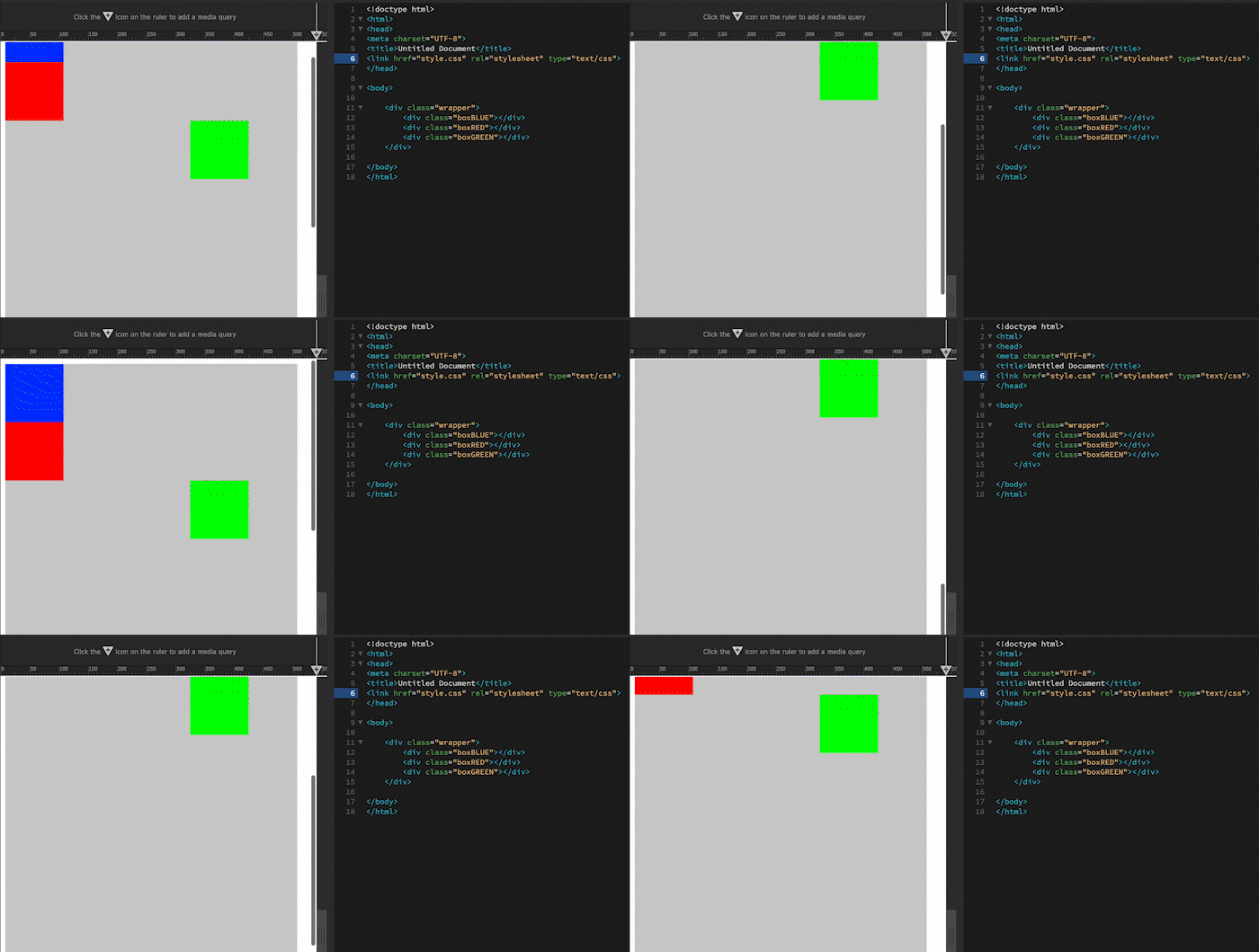
The sticky position, when used the element will sit in its static position until it hits the sticky position. Once it hits the sticky position it will stick to it and not move regardless of scrolling.
Understanding left, right, top, and down
We touched briefly on this before but lets take a look again in better detail. When we write left: 10px; this means we will be moving the object 10px from the left. So, it will move right. This is also the case with right, up and down. Always think of it in the context of moving “from the” whatever you specify.
Z-Index (Overlapping elements)
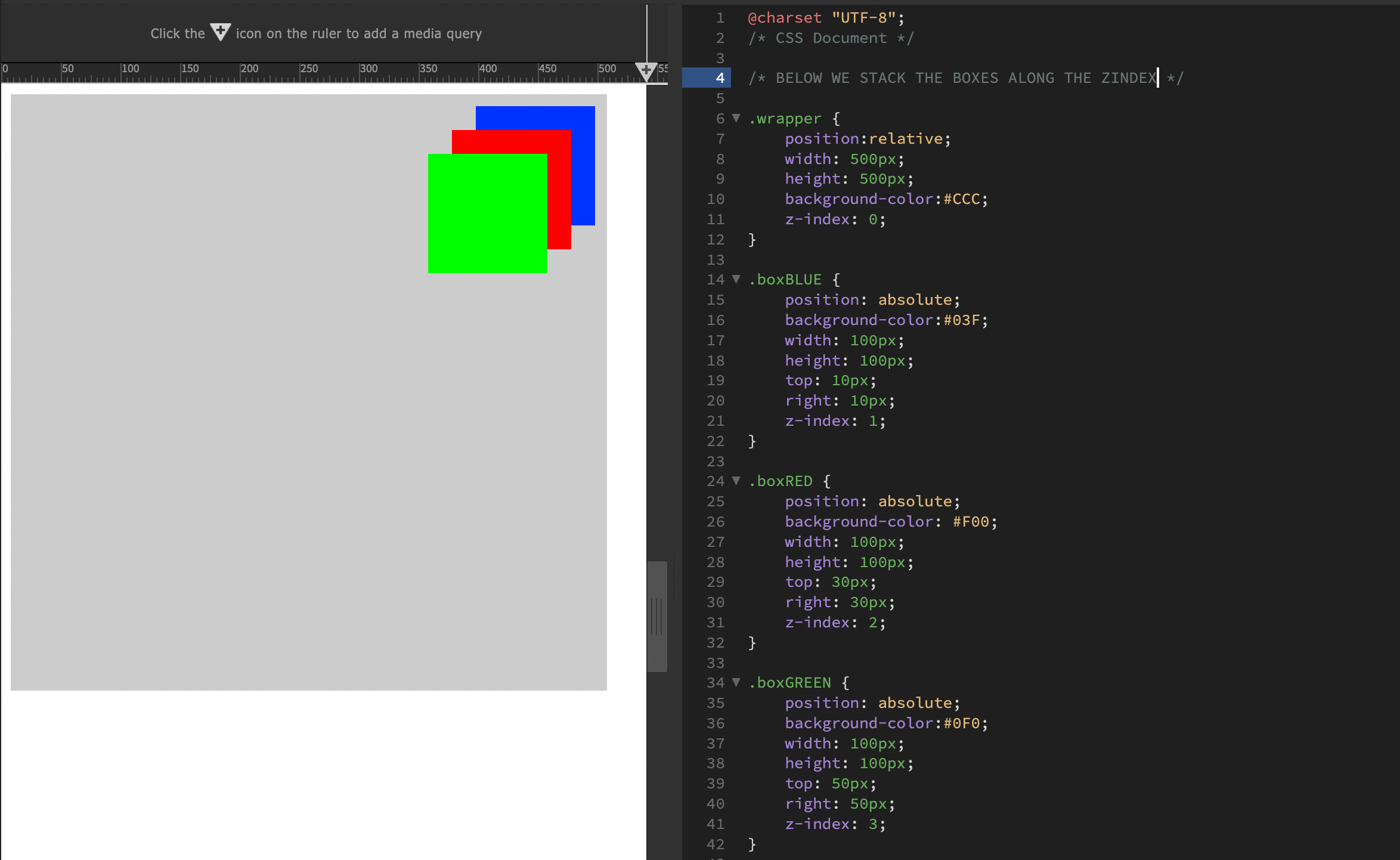
Sometimes we want to place things on top of each other. We can stack things like this by using the z-index and stack in any order we choose. This will allow you to stack some text over a background image or whatever else you need to stack. The lower the z-index number is, the deeper down it will be.
Refer to the contents of the folder “5 Z Index Elements” for example.
Float
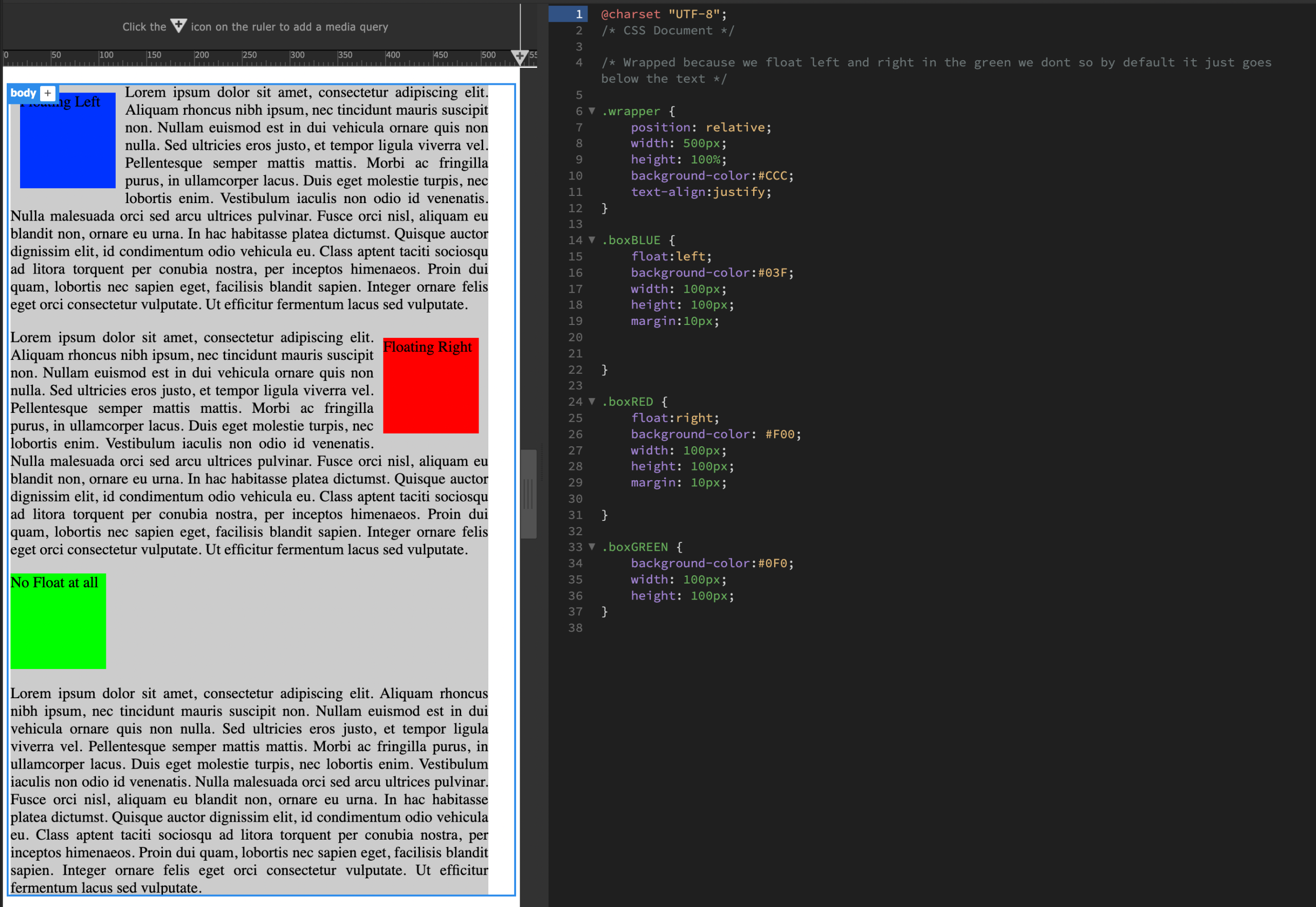
We can use float to wrap text around an image, or to stack things. If you float an image left and wrote text the text would wrap around it, same if we do it to the right. Than you could give the box some margin to keep the text a little bit away from it. Keep in mind that there is no longer a need to use floats to stack elements horizontally anymore, now that we can use FlexBox which is more efficient at doing this. But back in the day before CSS3 people would use float to stack elements horizontally.
Refer to the contents of the folder “6 Float” for example.
Remember again, this can be applied to divs, images, tables and so on.
Clear
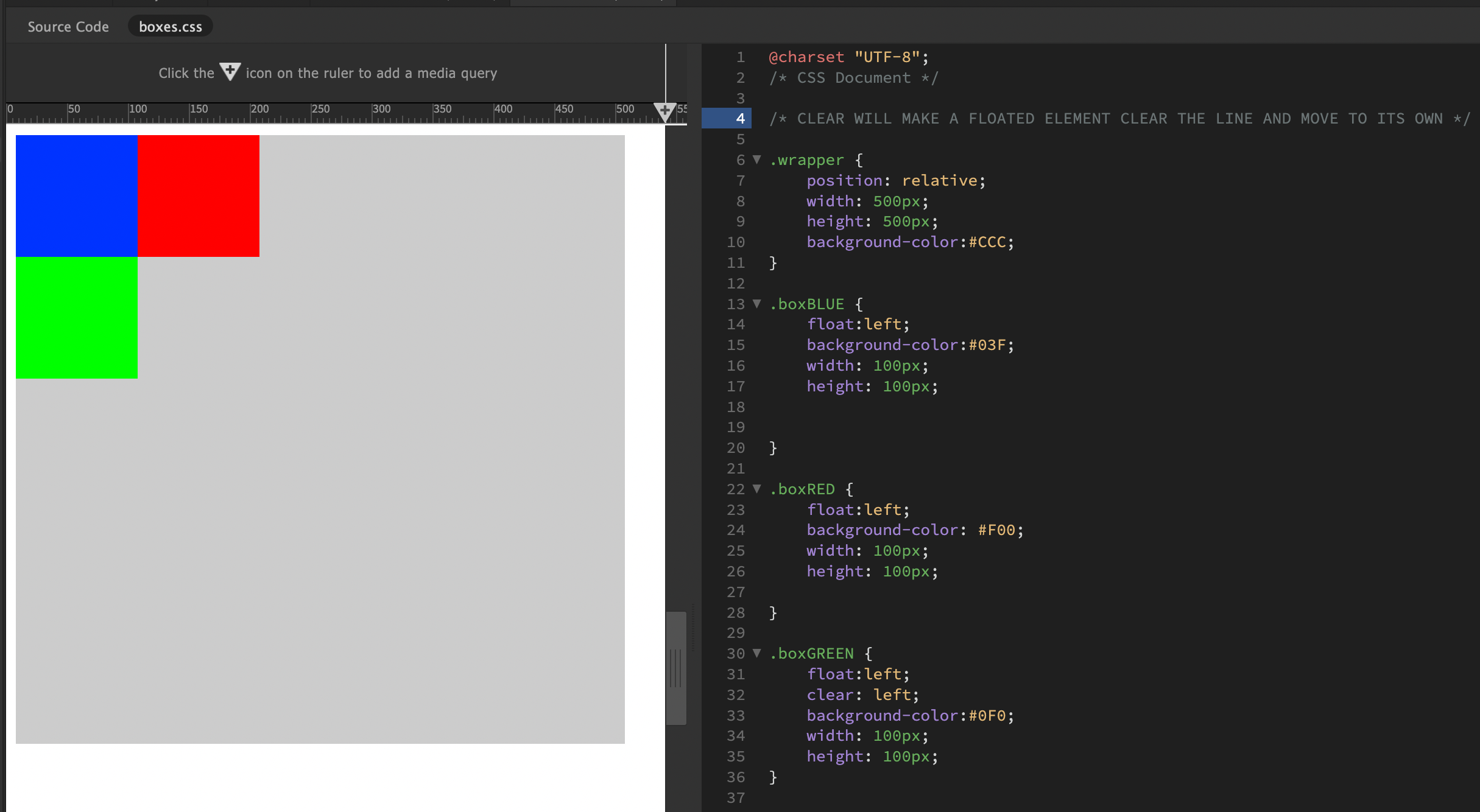
We can further control our floating with clear. When we use the float method it makes other objects flow around it, we can make it not do this by telling it to clear the object. We can clear left, clear right or both. So, lets say we want the green box to still float left but to clear the 2 boxes to the left. We clear: left; and end up with this.
Refer to the contents of the folder “6 Float/boxes-Stacked-clear” for example.
Alignment
You can easily centre an element by using margin: auto;. In this case we make the grey box in the BG aligned
Categorised in: Lectures, MDCP 102, WEBD 100
This post was written by amax