MMDD 102 – Type in Motion
April 7, 2024 7:56 pm Leave your thoughtsType in Motion
Character Panel
The character panel in After Effects is similar to what you would see in Photoshop or Illustrator.

Character Panel Options:
- Font
- Font Option
- Font Size
- Kerning
- Stroke Width
- Vertical Scale
- Baseline Width
- Bold
- Italic
- All Caps
- Small Caps
- Fill
- Stroke
- Leading
- Tracking
- Horizontally Scale
- Tsume
- Subscript
- Superscript
Here we can handle all of the things we need to do with the characters we use in After Effects.
Paragraph Panel
The Paragraph Panel is also there to use to adjust the text how you need to.

Paragraph Panel Options:
- Align Left
- Align Center
- Align Right
- Justify Left
- Justify Center
- Justify Right
- Justify All
- Indent Left Margin
- Indent Right Margin
- Add Space Before Paragraph
- Add Space After Paragraph
- Indent 1st Line
- Text Direction
Grids and Snap to Grids
If needed, we can use rulers and the grid this will appear on the video screen.
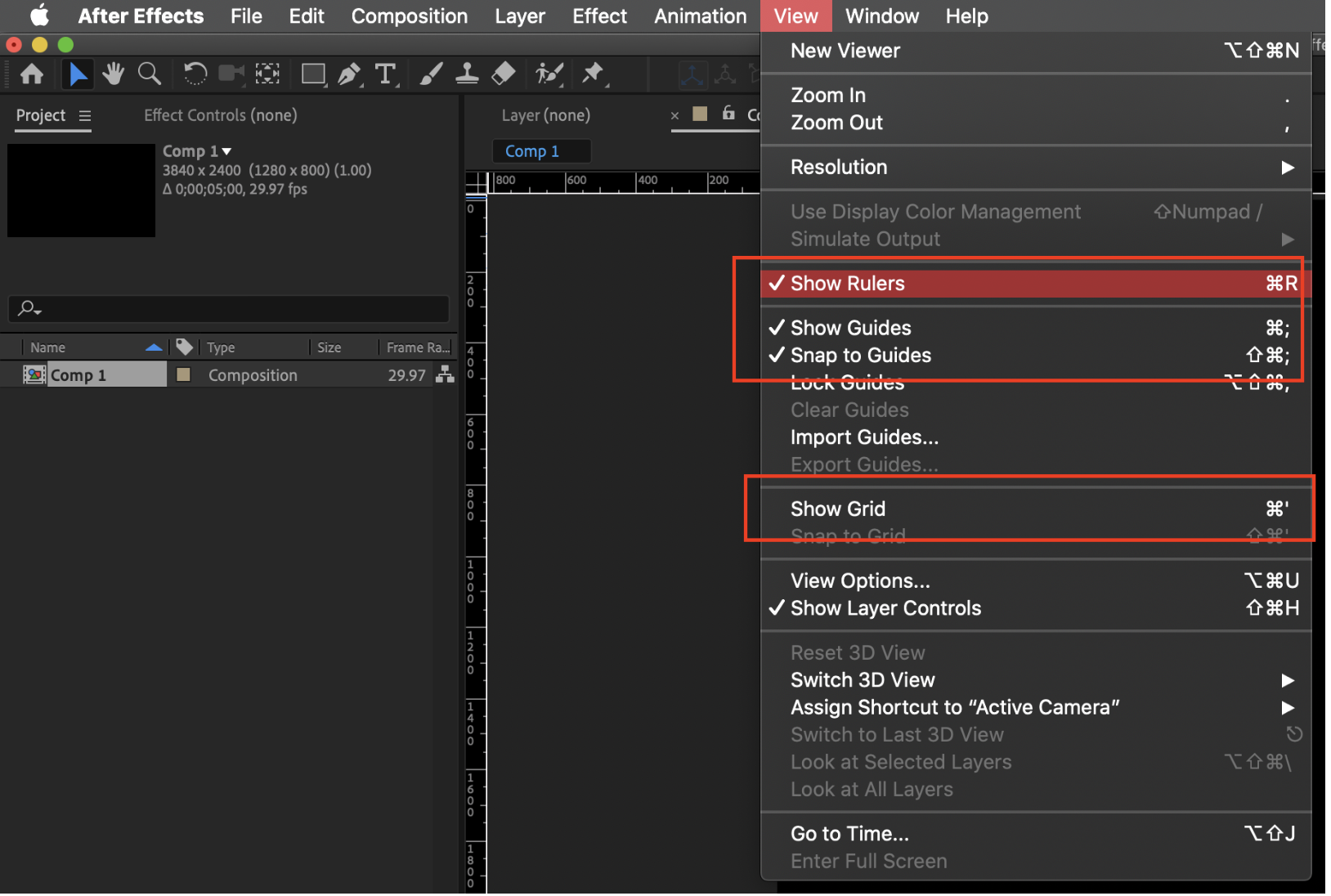
They can be toggled on and off in the “View” options.

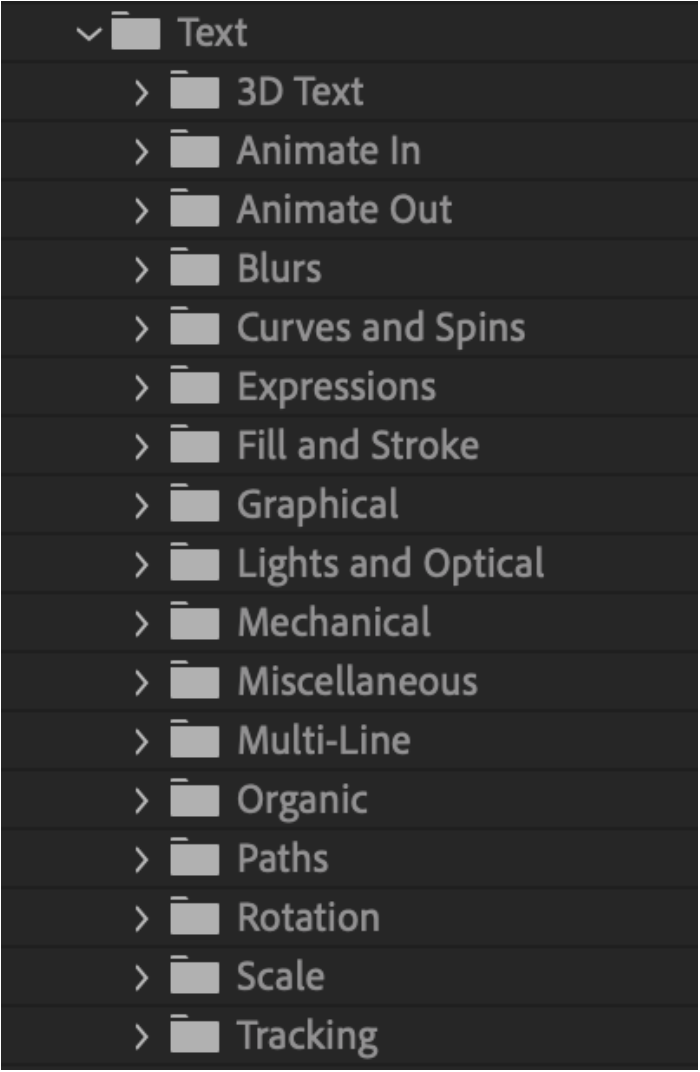
Text Animation Presets (Part 1)
Text animation preset folders include:
- 3D Text
- Animate In
- Animate Out
- Blurs
- Curves and Spins
- Expressions
- Fill and Stroke
- Graphical
- Lights and Optical
- Mechanical
- Miscellaneous
- Multi-Line
- Organic
- Paths
- Rotation
- Scale
- Tracking
There are plenty of animation presets made for text. These presets can be dropped on any text and will automatically animate them in various ways. From 3D Text to animate in, out, Blurs, Expressions and more. There are so many that it is best to go through them and play around with them to see what you can do.
These can be found in:
Effects & Presets > Animation Presets > Text
Animating Paths
We can easily animate paths in After Effects, using trim paths. If we make any path…

We can go down to the layer and expand the shape layer. In the contents there will be a button that is marked “add”.

Click the add button and click “trim paths”. This will add a new property to the layer.
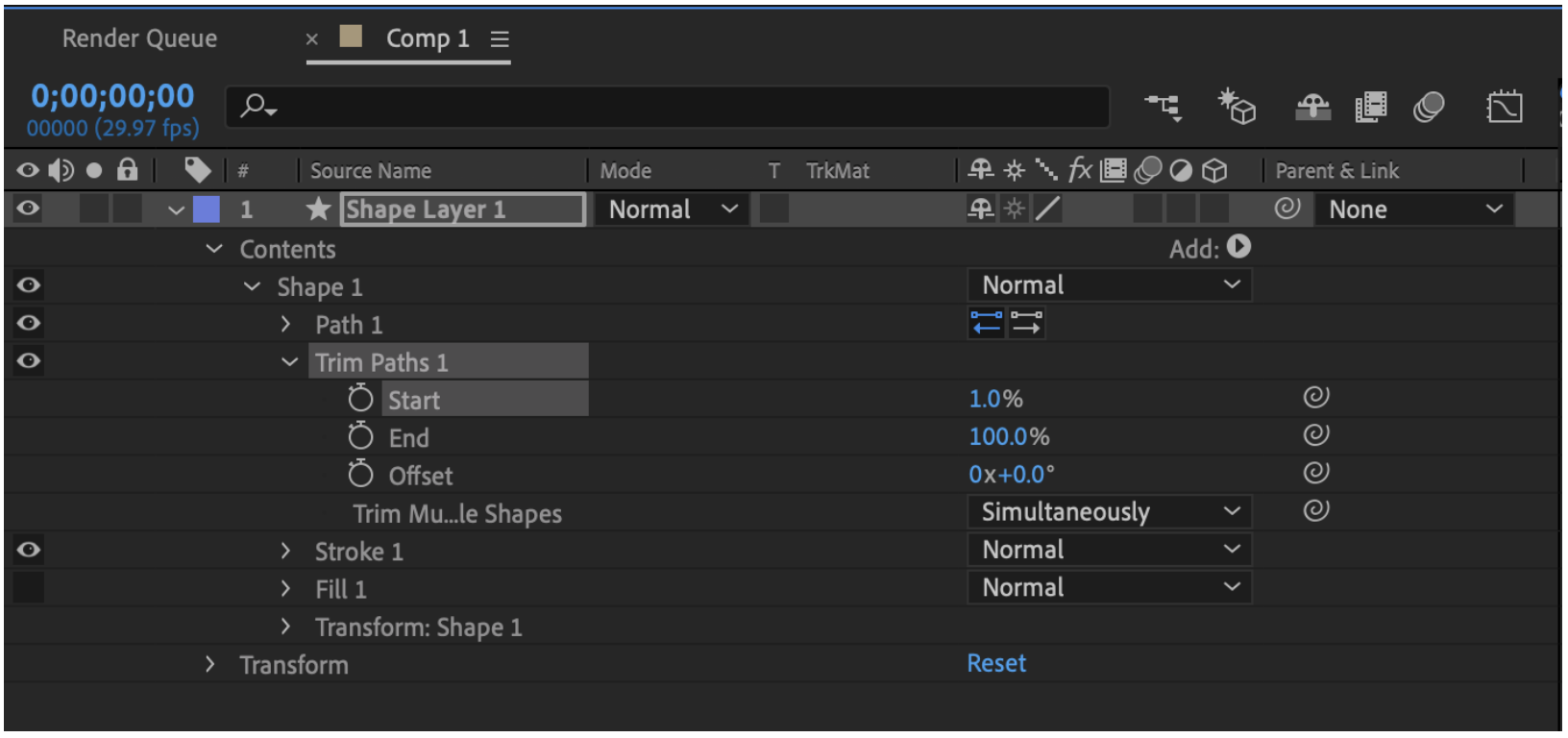
This can be used to animate the path from the start or the end of the path.
Visual Rhetoric
- Determine the audience; who the intended readership/viewer of the text.
- Determine the purpose; the importance of the message behind the image.
- Determine the context and meaning(s) behind the image/text.
When you write content, you want to be writing it in an effective way. Remember that in motion graphics, you are presenting something in order to gain an effect. In most cases you are “selling” something. How are you going to do this in the most effective and efficient way in the small amount of time and space you have to do it? You are creating a motion graphic to sell something and the point of doing the work is to get feet in the door and sales at the register for the most part.
You have to also remember that in motion graphics you are dealing with a limited time and/or space to convey a message and “sell” the message. You have to be more to the point and efficient in the text that you are using within the time and space allotted.
People have a limited attention span, they will not watch an extended advertisement in most cases. You may be working within a very limited time frame. Advertisements seem to be getting even shorter as time goes on. When ads were mostly TV commercials they were longer. Currently on platforms like YouTube some ads are pushing 5 to 10 seconds because most people click the “skip ad” button within the 5 second time.
You can present an argument and upon presenting this argument, present your proposed solution to the problem. When doing this you must remember to use proper reasoning whether inductive or deductive. This can be done using multiple avenues to appeal to an audience.
- Ethos is the appeal to ethics or integrity
- Pathos is the appeal to emotions
- Logos is the appeal to logic or reason
Categorised in: Lectures, MMDD 102
This post was written by amax