MMDD 102 – Masks & Keying
April 7, 2024 7:52 pm Leave your thoughtsMasks & Keying
Using Masks and video to create VFX elements.
Keying
Keying is when you select a specific color in a video footage shot and then making any pixel with that color value (or similar values) transparent. This allows you to merge footage with other footage. Green screens all use this. Keep in mind that this will also work with blue screens or other color screens. These can also be artificially created by making a certain color shape on top of footage and then using that footage with the screen in it to merge with another shot.
Useful Keying Effects:
- Keylight: Green and blue screen keying algorithm, which comes bundled with After Effects Professional Edition and is used on Academy Award-winning films. If you have Keylight installed, many of the other color effects will be redundant or less effective.
- Color Difference: Divides the frame into two matte images. The B matte creates transparency on areas that contain the key color, and the A matte creates transparency on areas that don’t contain a second color, unrelated to the first. Then, the two mattes are combined to produce precise transparency results.
- Color Range: Selects a specific range of colors and keys them out. This can be useful on an uneven background, or a background with multiple colors.
- Difference Matte: Compares a source layer with another layer (called a difference layer), and then keys out everything in the source layer that isn’t present in the difference layer. This is a highly effective way to key out a static background, while still retaining your subject.
- Extract: Instead of removing colors, this effect keys out a brightness range, which is useful for black-and-white shots and highly exposed backgrounds. Using a built-in histogram, you can specify which brightness values to adjust, ranging from 0 (darkest) to 255 (brightest).
- Inner/Outer Key: By creating a mask in After Effects, you can isolate a section of your frame (such as an object) and key it out, as well as any similar background colors around the mask’s border.
You can access the Keying effects in the menu: Effect > Keying.
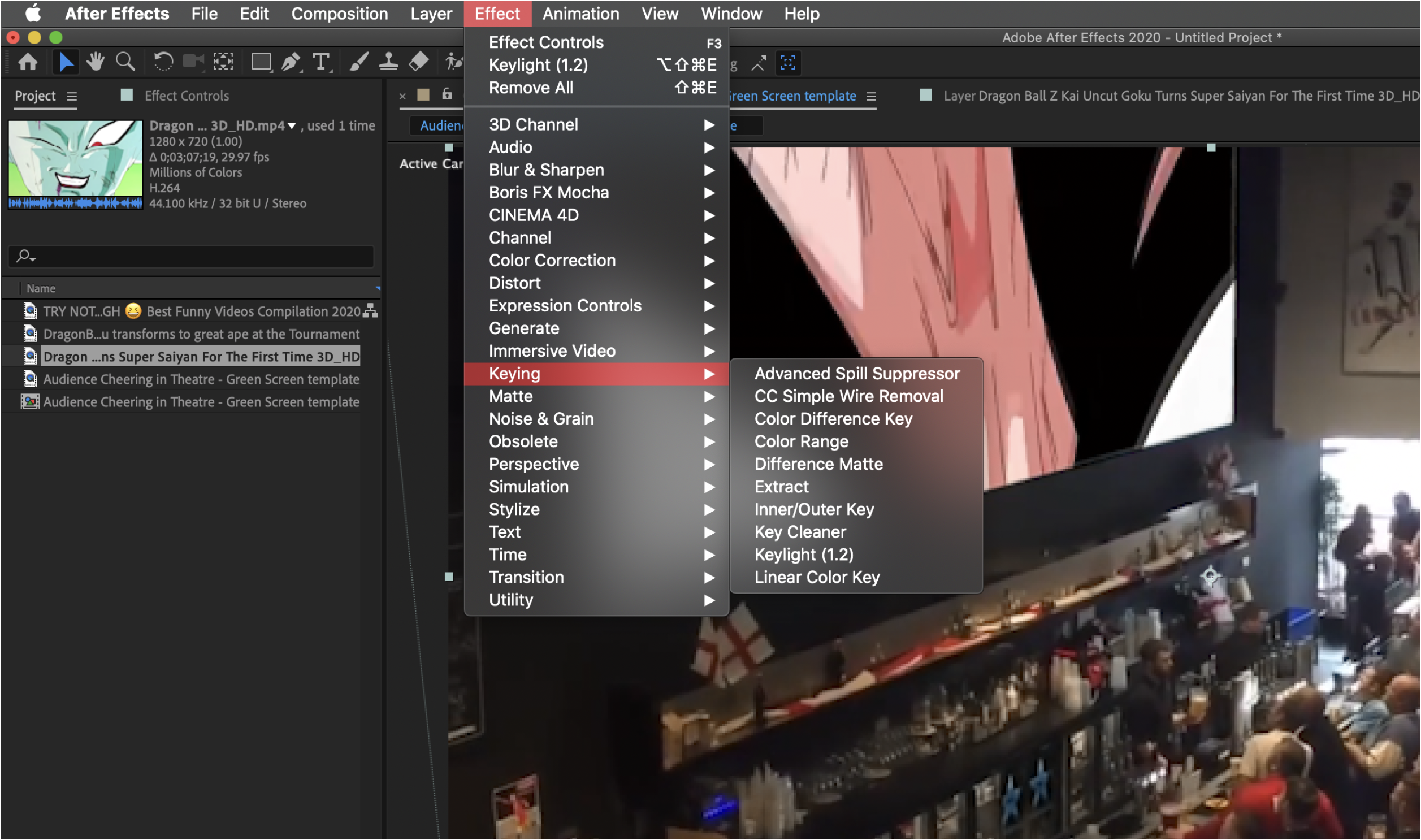
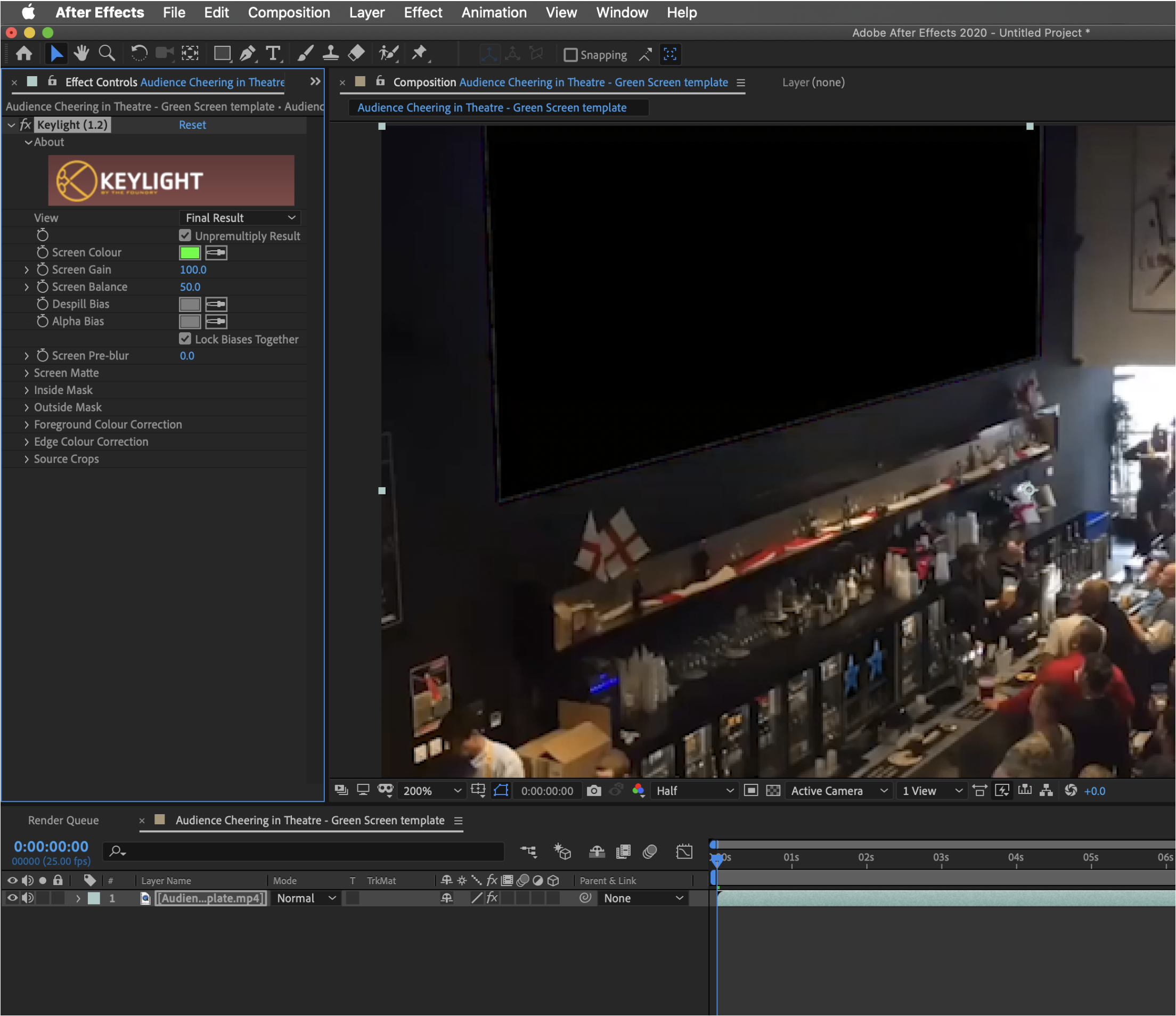
From there, there are a few options to choose. Keylight(1.2) is a commonly used tool for keying effects.
If you select Keylight(1.2) you will get the options on the layer you choose to put it on.
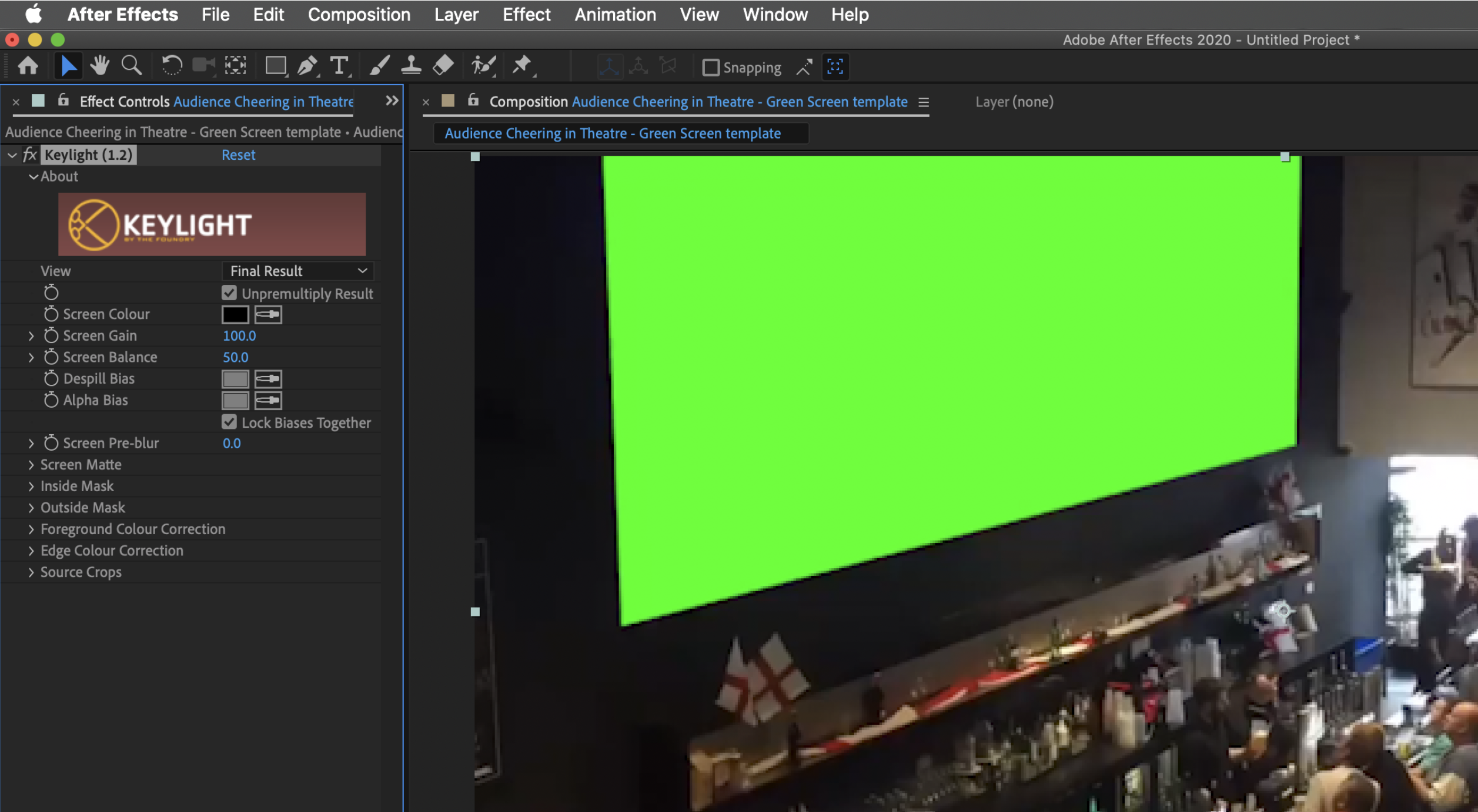
Once it’s on the layer you can use the “Screen Color” setting to select the color of the screen being used.
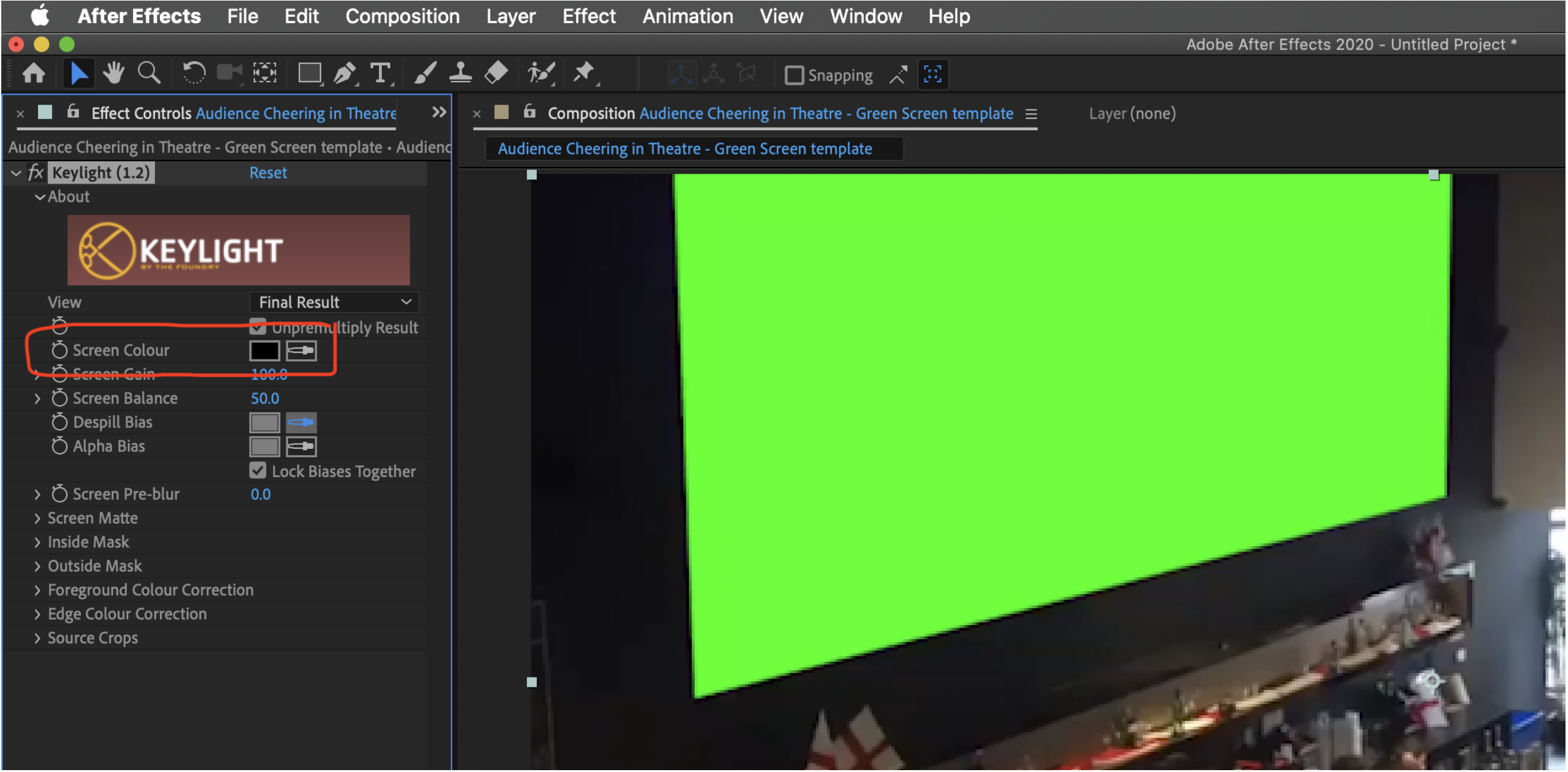
Once the green screen colour is selected it will make that part of the footage transparent. Now we can use this footage as a screen for another layer.
Drag another layer of footage under the original one and you will be able to put onto the green screen area.
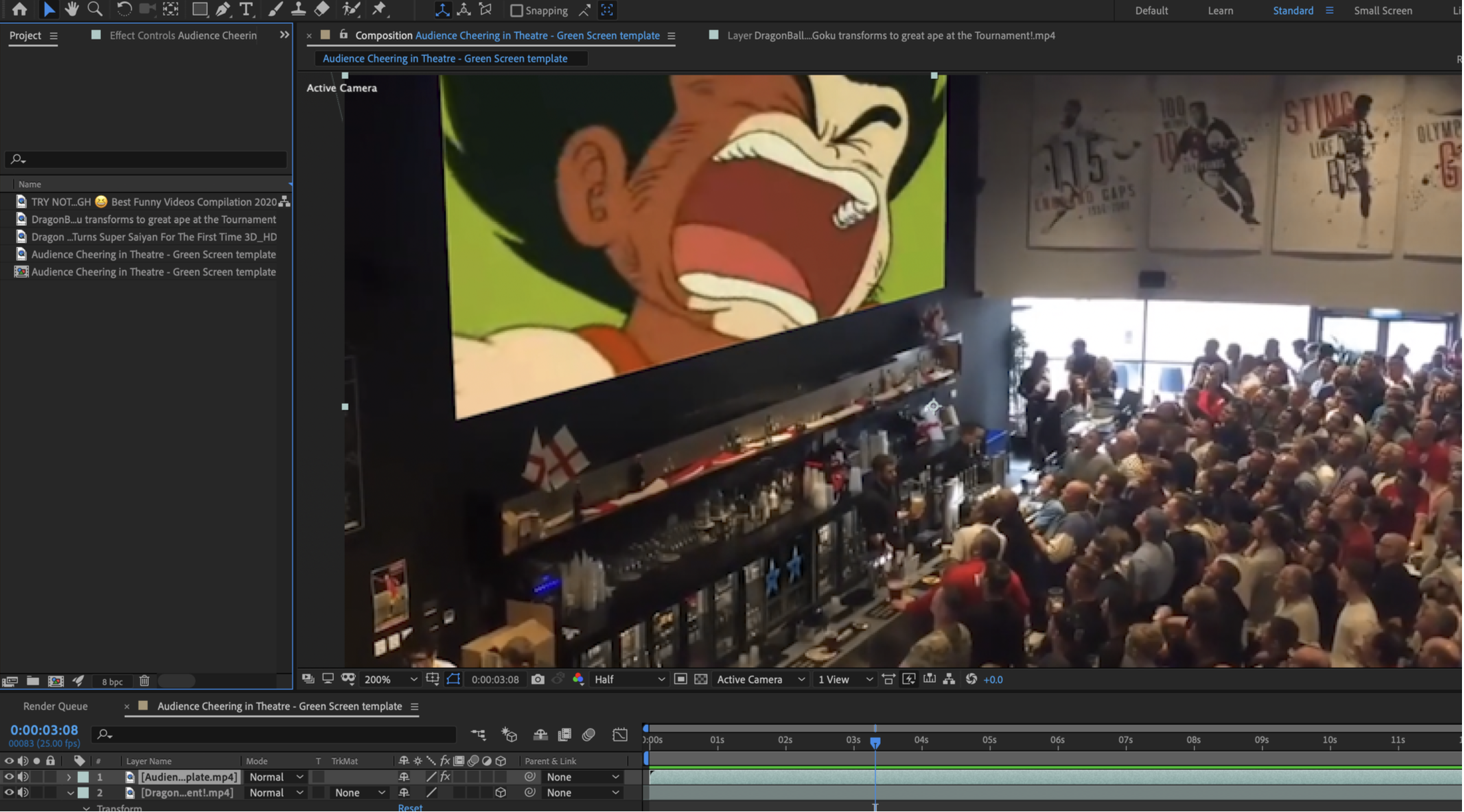
From this point you can see the video underneath.
Tips:
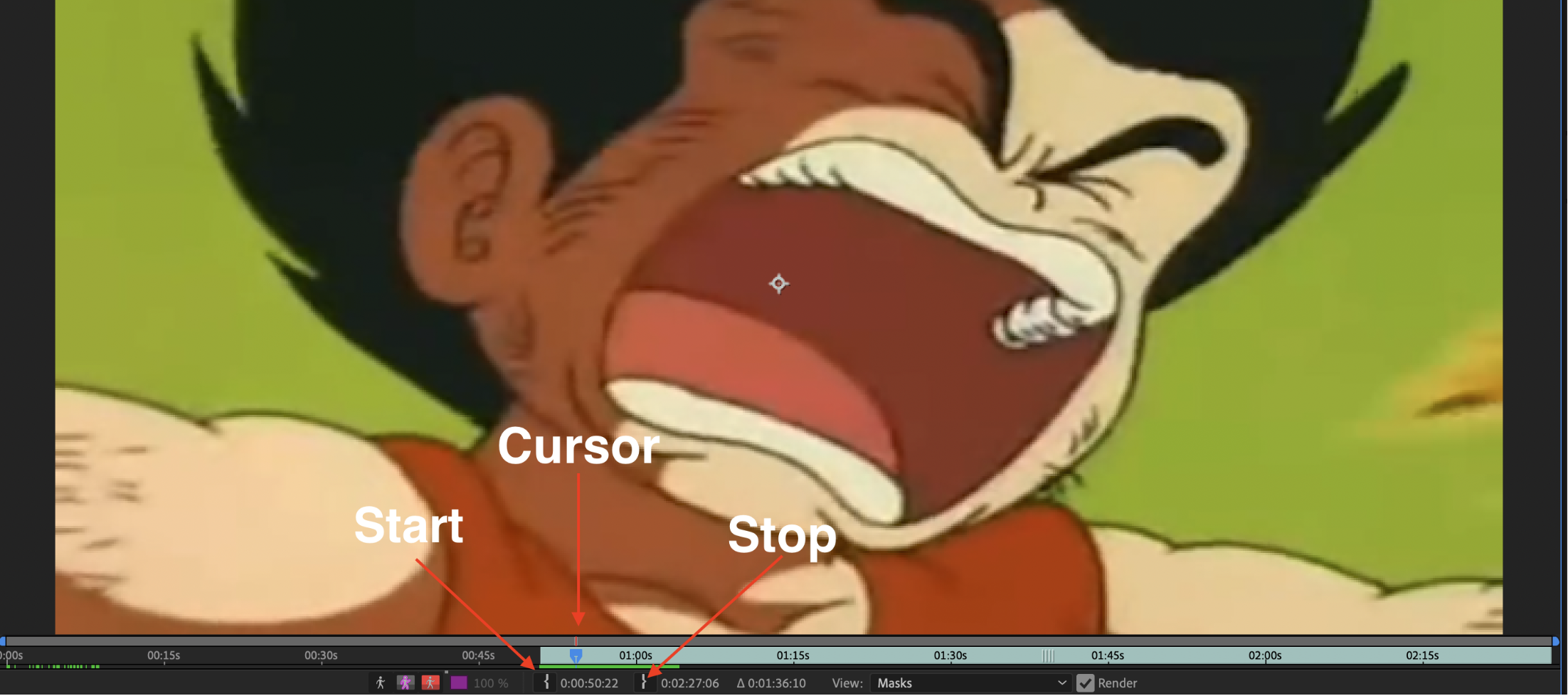
The video under you can change where it starts and stops if you need to on the video itself. Double click the video and it will show up. Use the cursor to put the clip where you want it to start and hit the start bracket button (set IN point to current time).
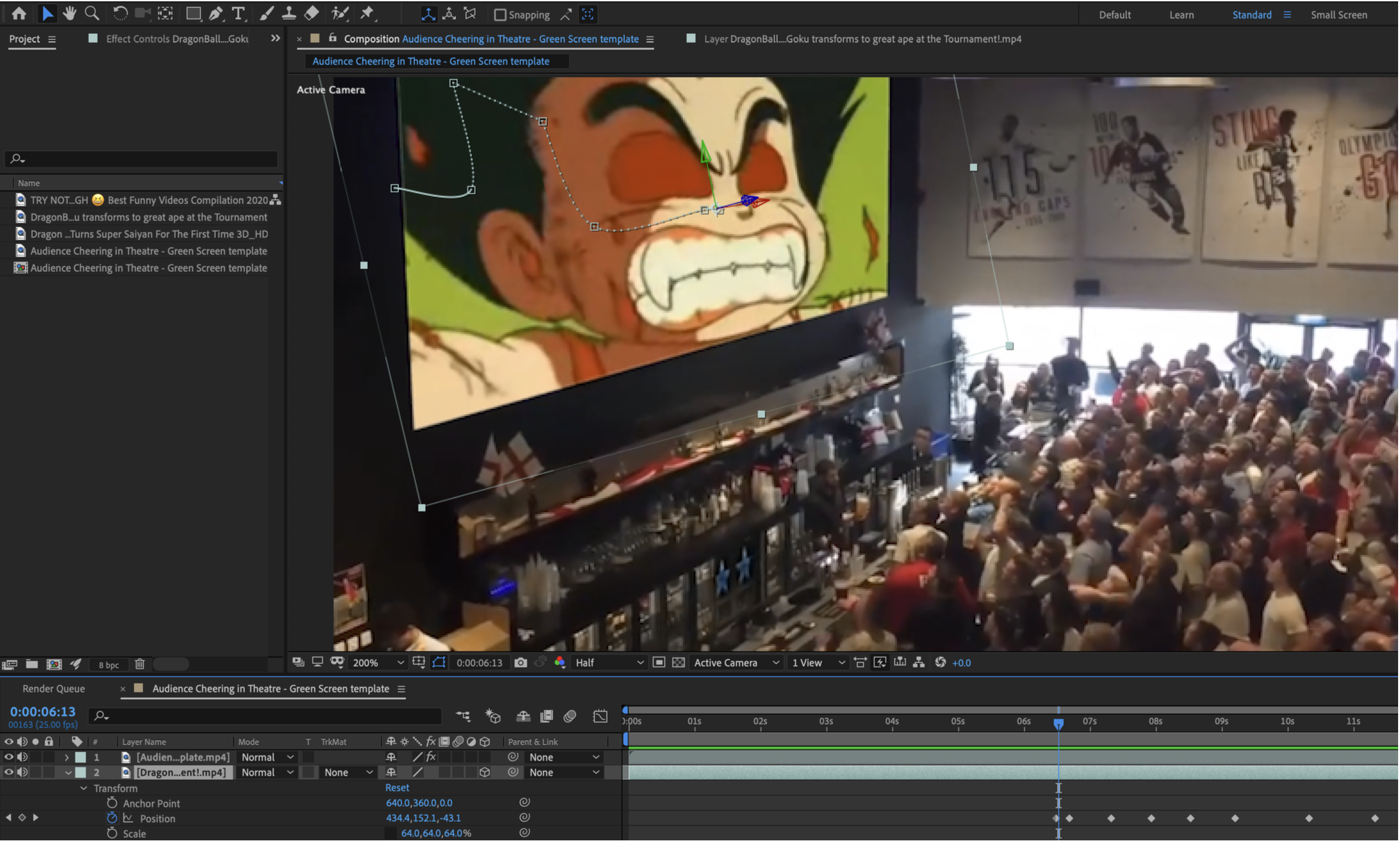
You may also need to move the video around with keyframes if the video footage moves.
Shapes
In After Effects we can make and animate shapes. We can use presets or use the pen tool to make shapes we want. Shapes can be made on their own layer or made on the same layer.
Use the shape tools in the toolbar to create.

Any tool that has a small arrow in the bottom right corner can be long pressed to expand for different options.

If more shapes are added to the same layer, they will show up in the layer’s contents.
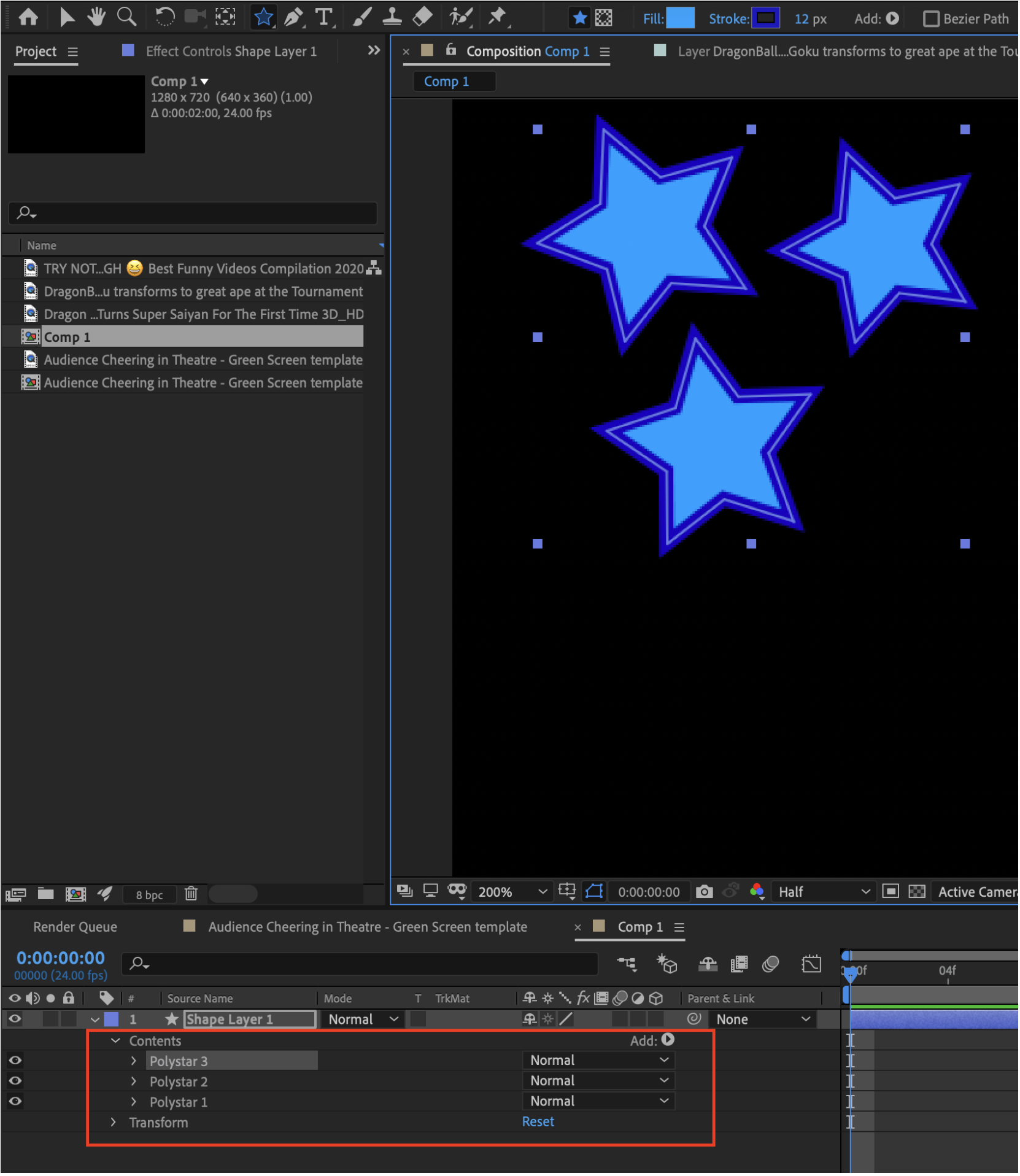
Fills and strokes can also be added in the toolbar on the top.

Also note, depending on the shape, it will have different properties that you can edit in the shape’s layer.
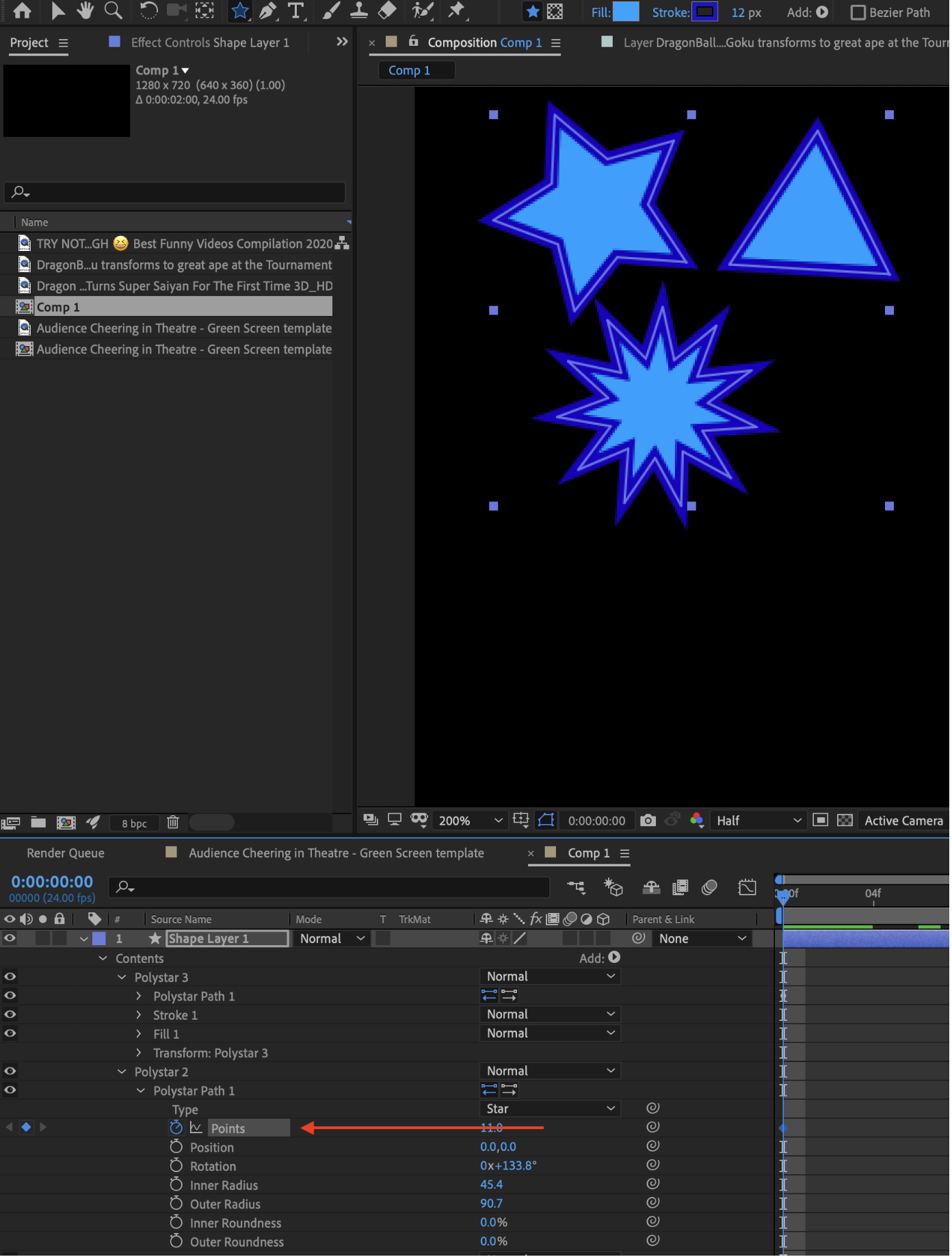
Masking
In After Effects we can use layer masks similar to Photoshop.
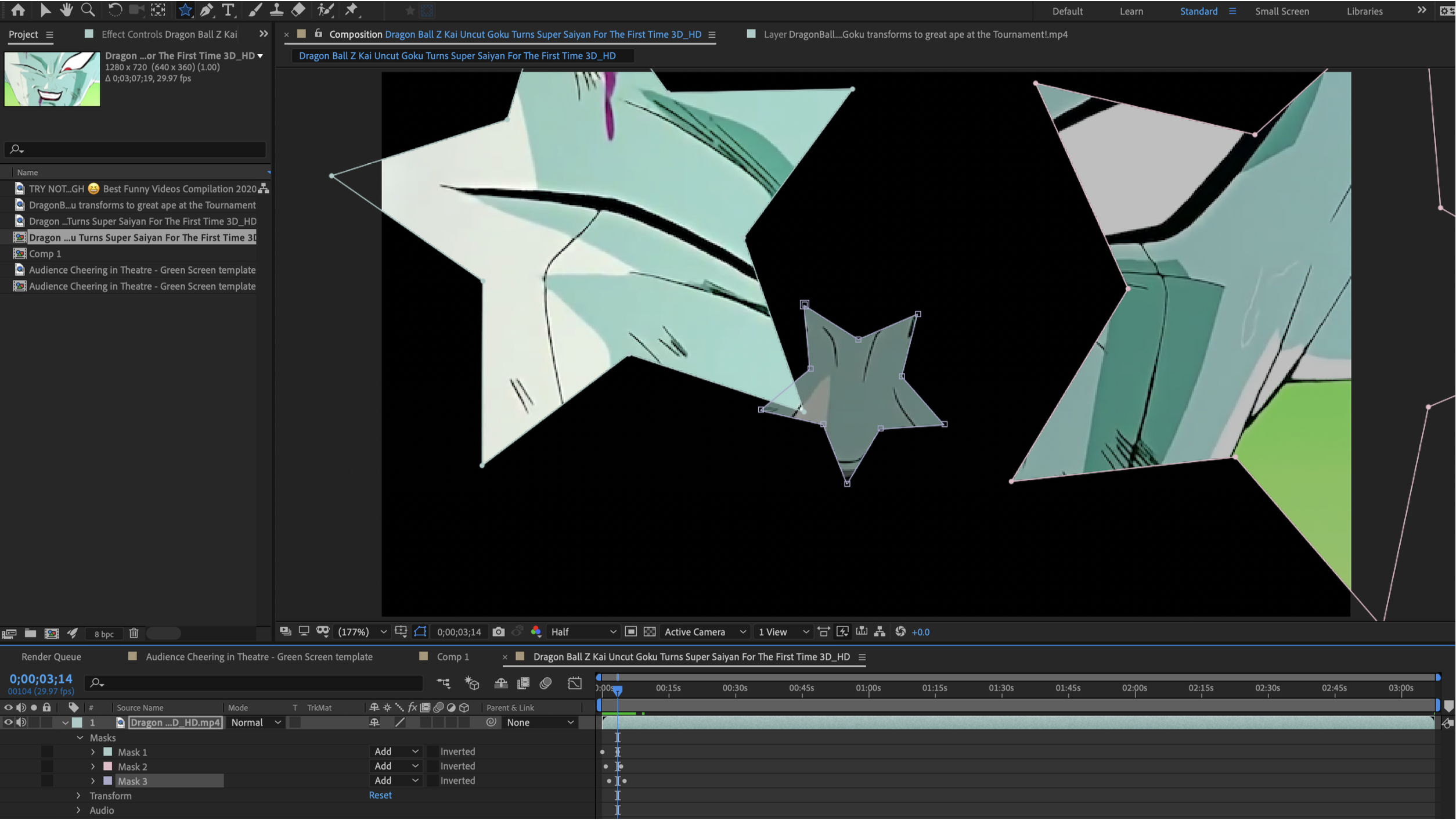
Masks are easy to make in After Effects. Simply place a shape over a layer and it will become a mask. You can then see the layer’s masks in the layer.
Categorised in: Lectures, MMDD 102
This post was written by amax