MMDD 102 – Intro to AfterEffects
April 7, 2024 7:48 pm Leave your thoughtsINTRO TO AFTER EFFECTS
A tour of the After Effects interface
When you open After Effects you will be prompted with a welcome window.
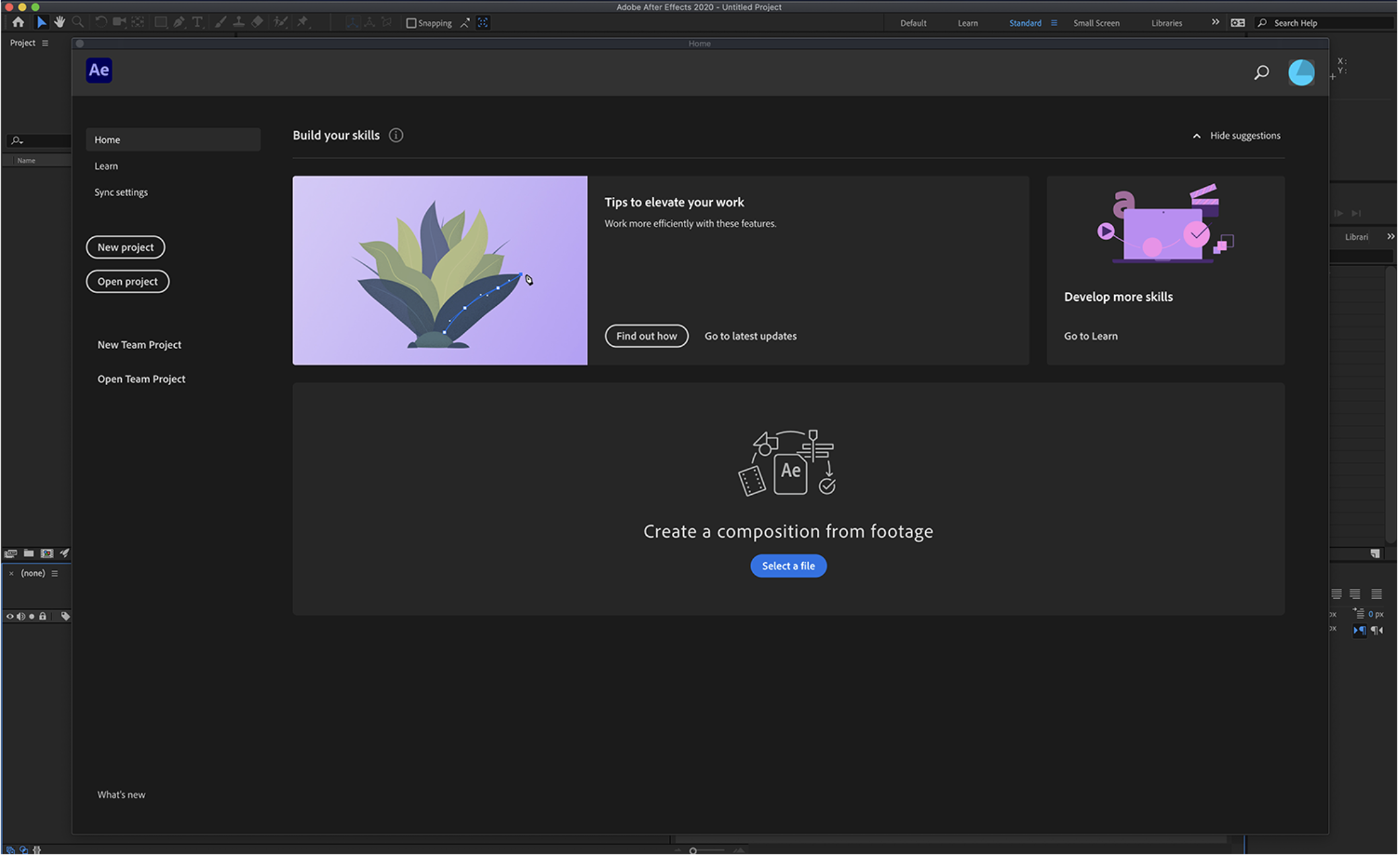
Here you can start a new project
Open an existing project
Create a composition from footage
We can just click new project and start off.
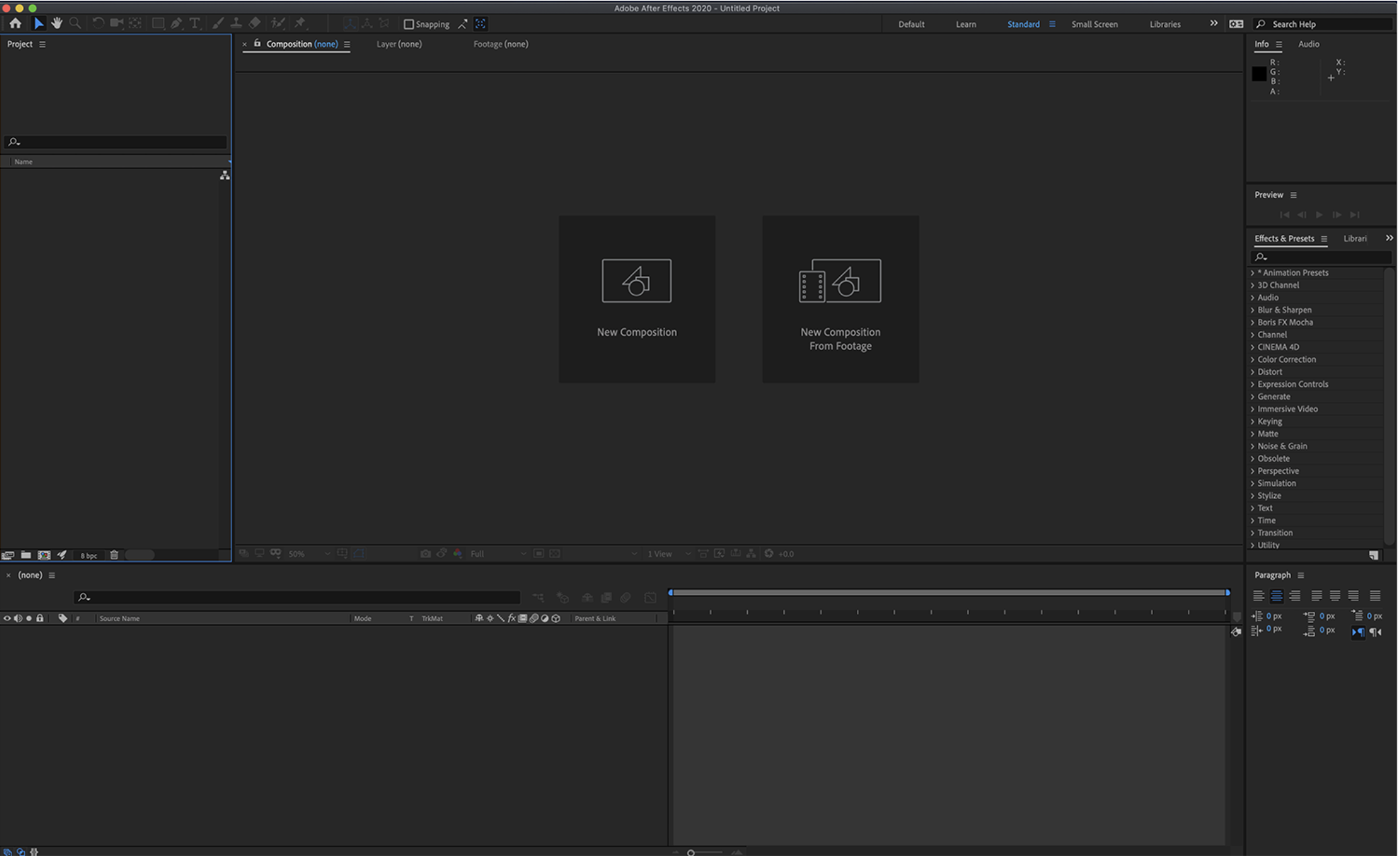
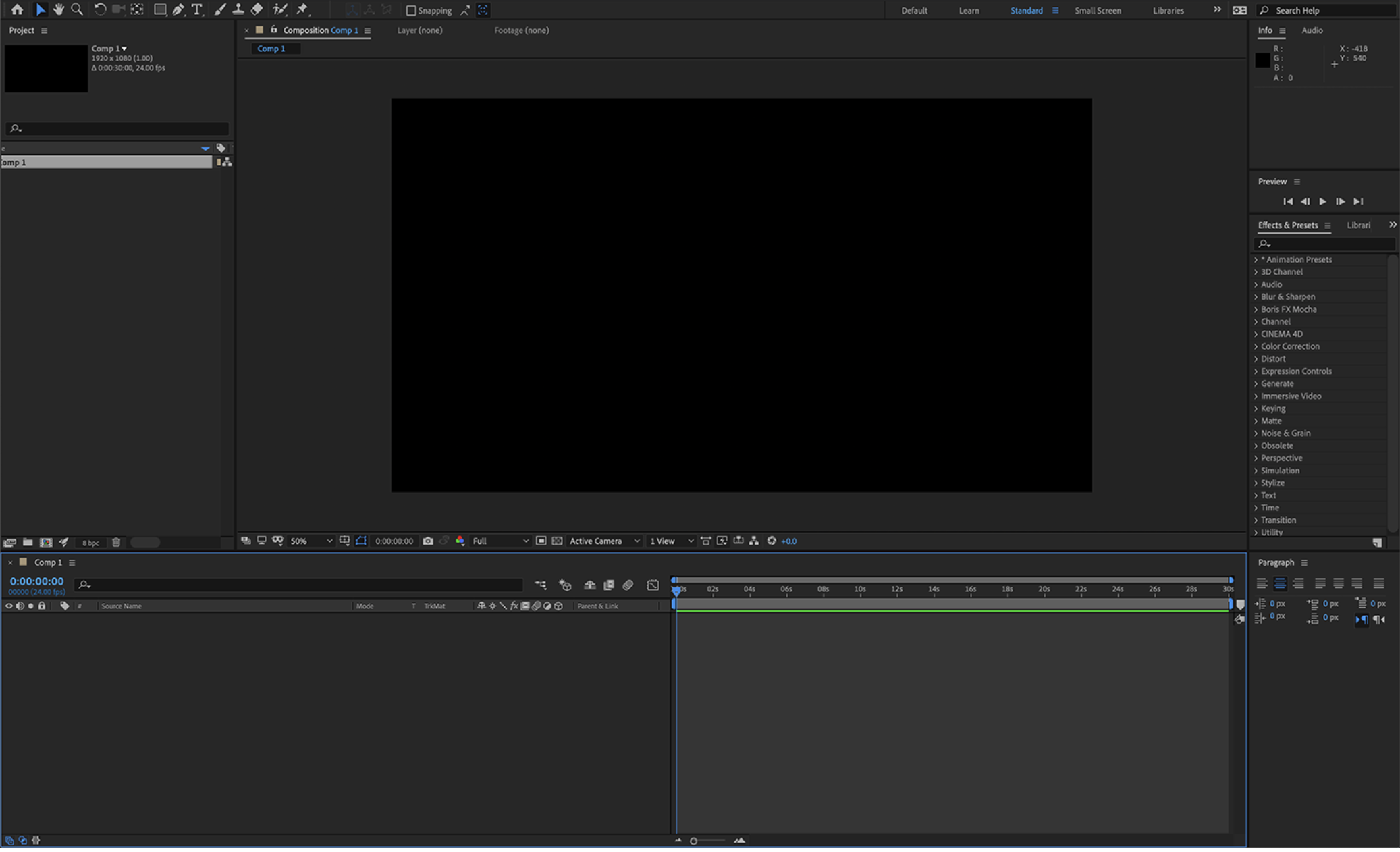
Here we can see the interface. This is where all our work will be done. Let’s take a look.
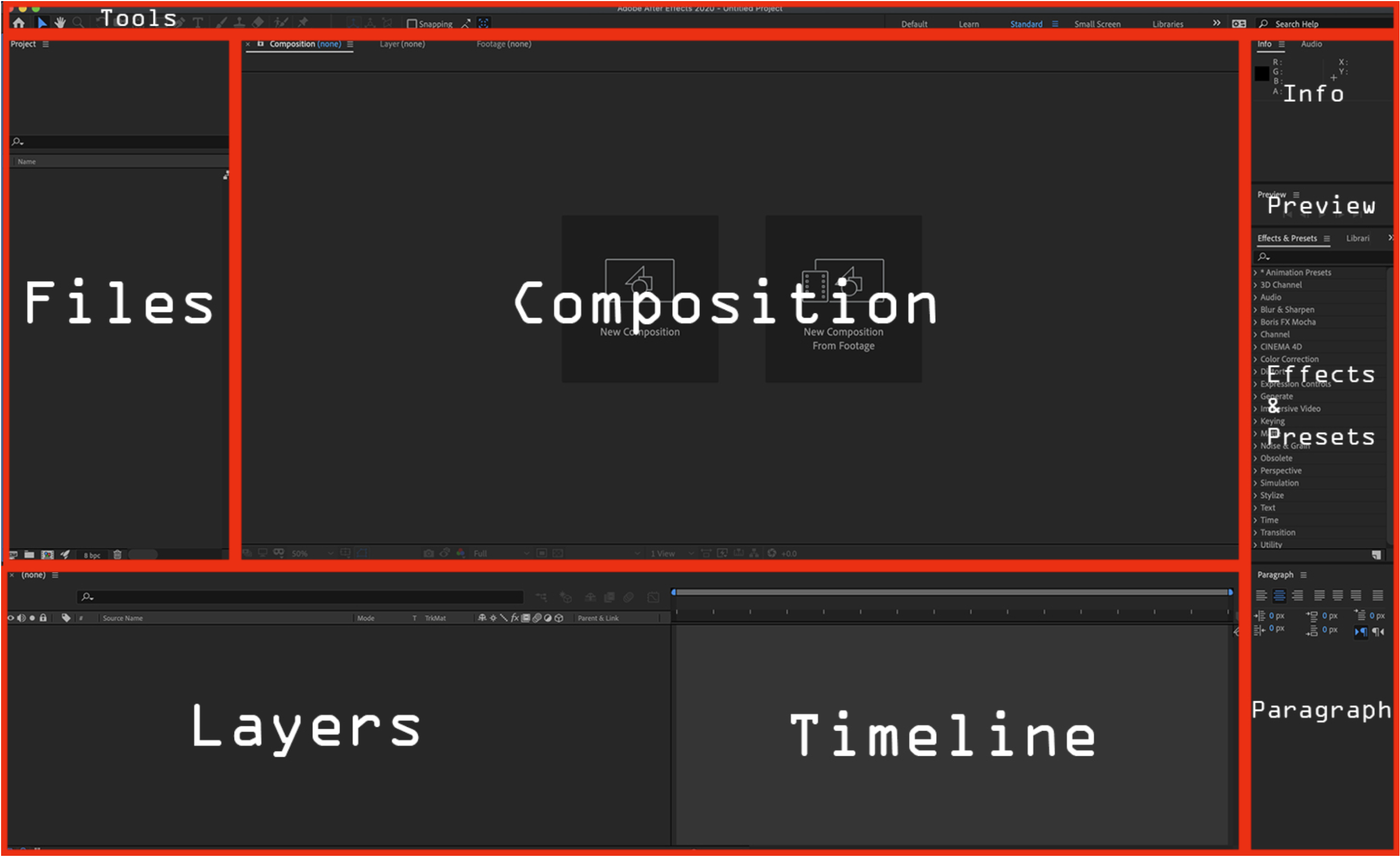
- Tools
- Info
- Preview
- Files
- Composition
- Effects & Presets
- Layers
- Timeline
- Paragraph
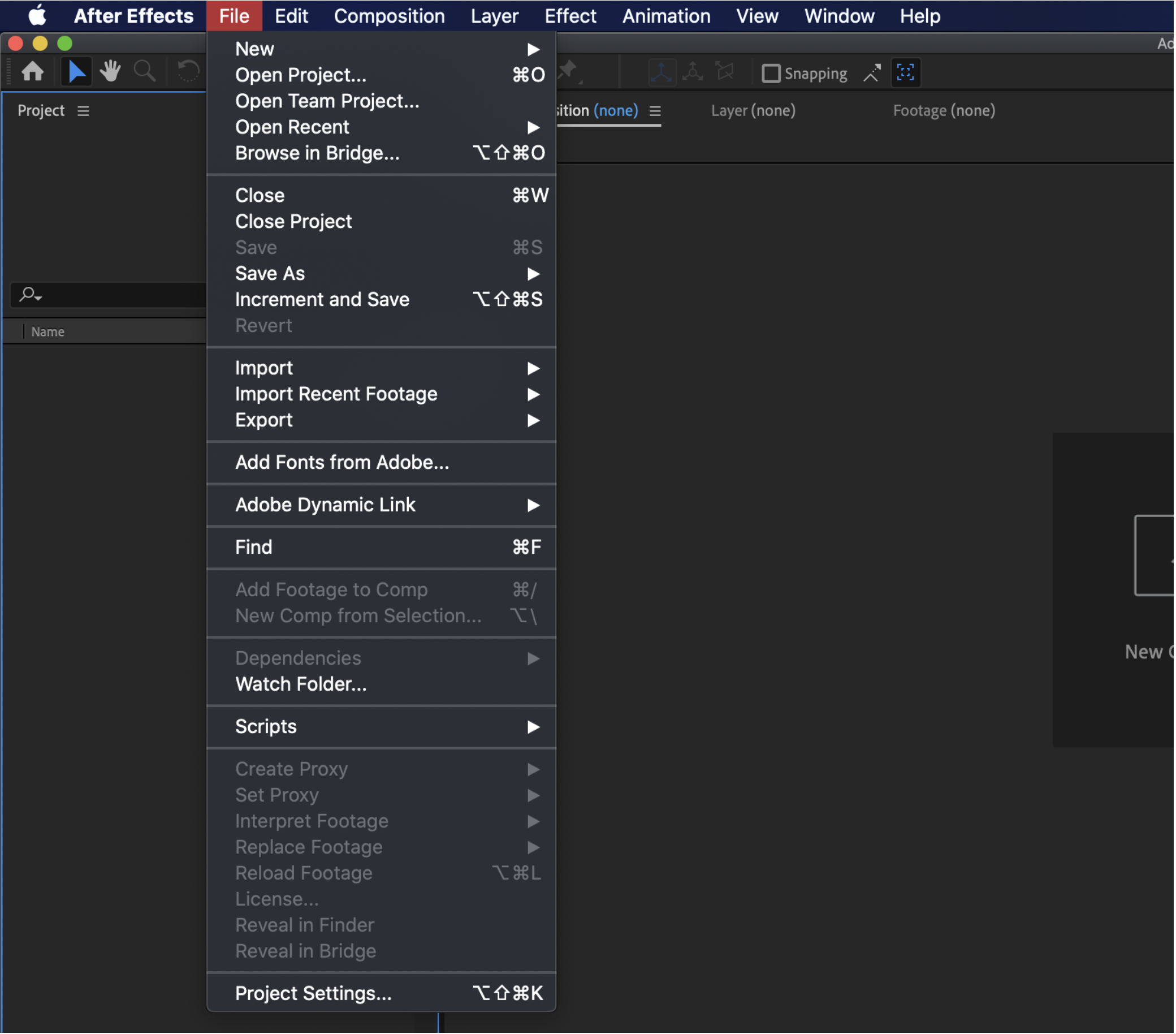
In the “File” tab we can handle working with our file and various different things.
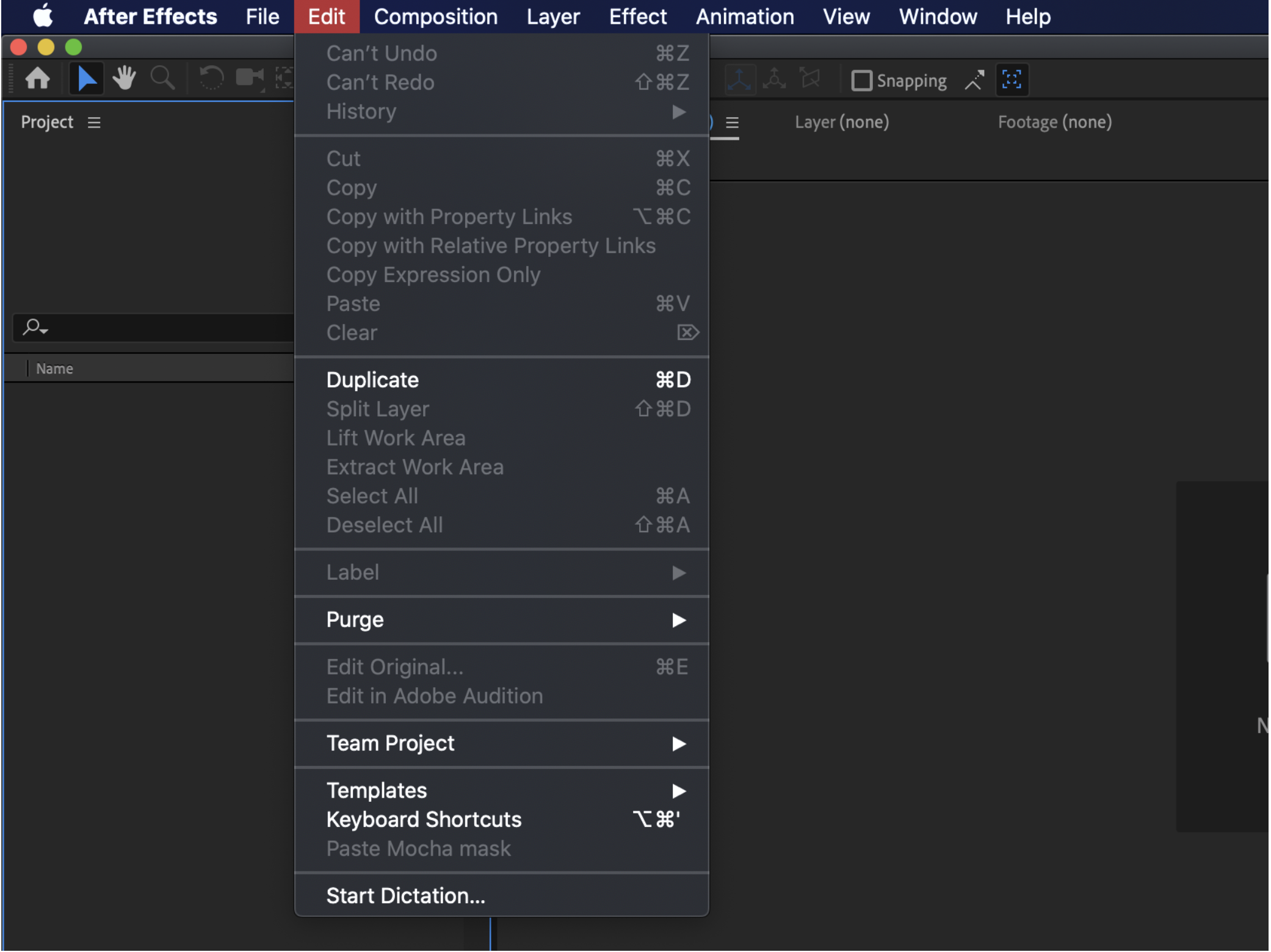
In the “Edit” section we can edit things we are working on.
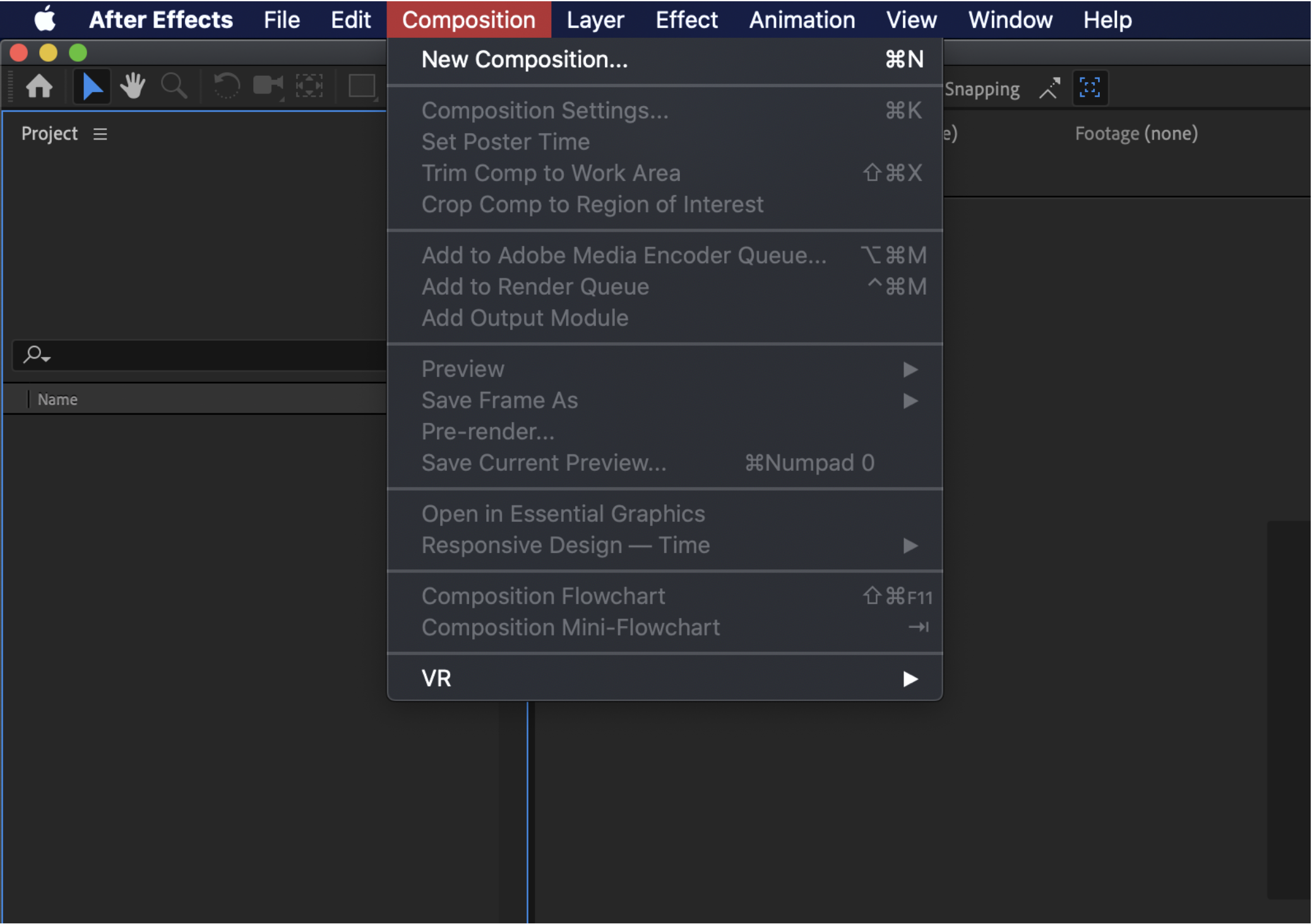
In the “Composition” tab we can add a new composition, change composition settings and so on.
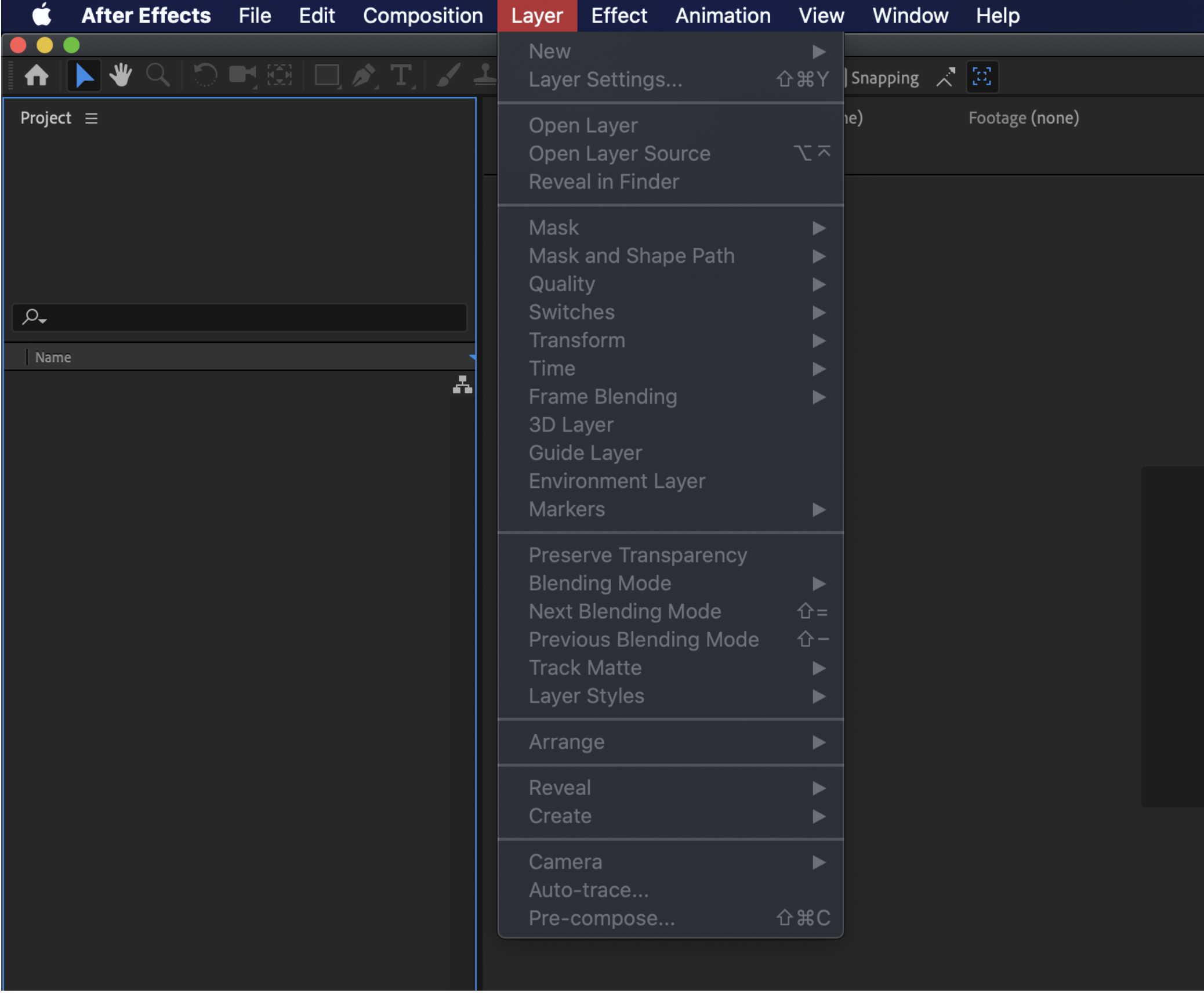
In the “Layer” section we can add new layers, edit layers and add different things to our layers.
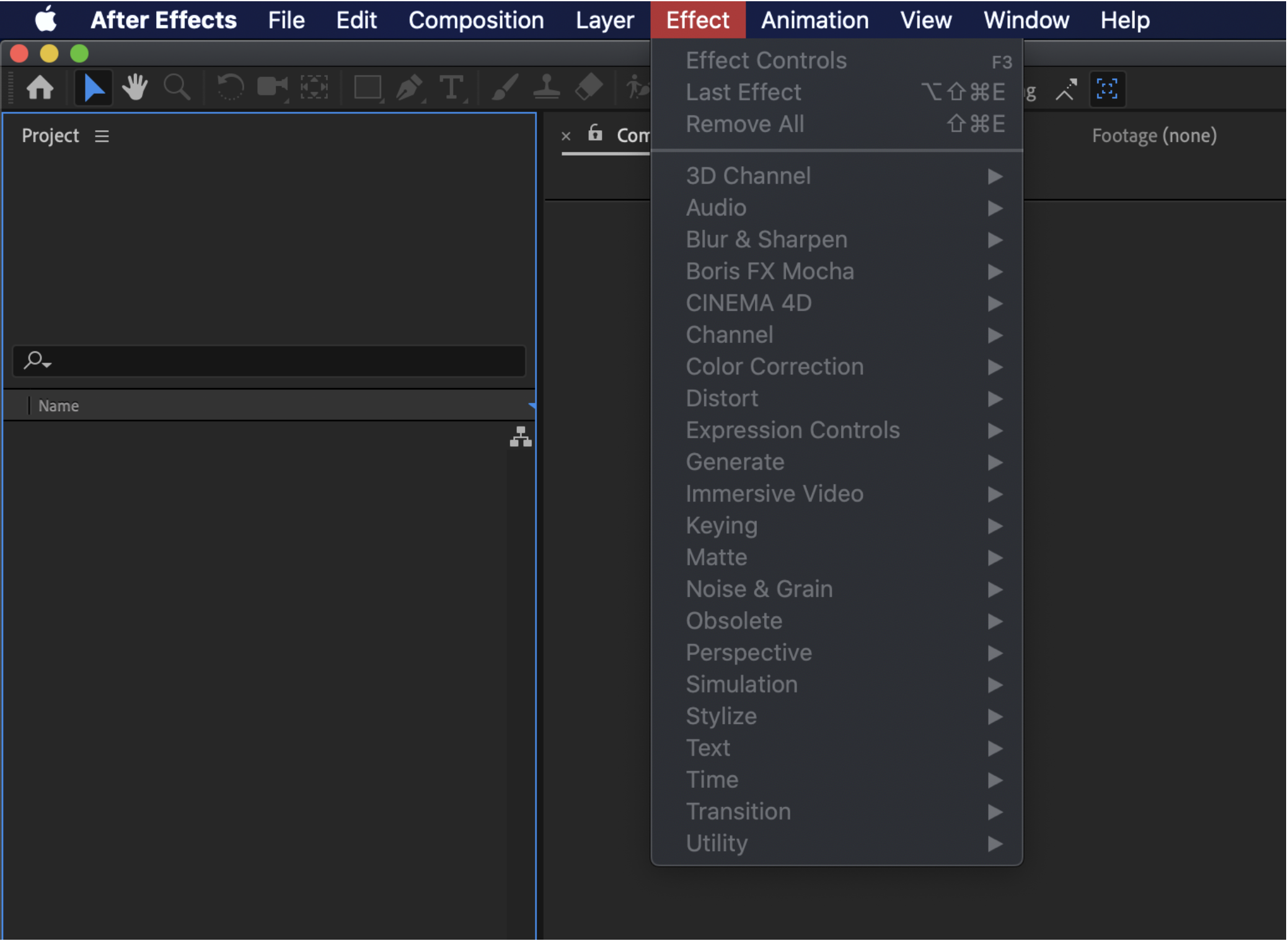
In the “Effect” tab we can add in different effects to our composition.
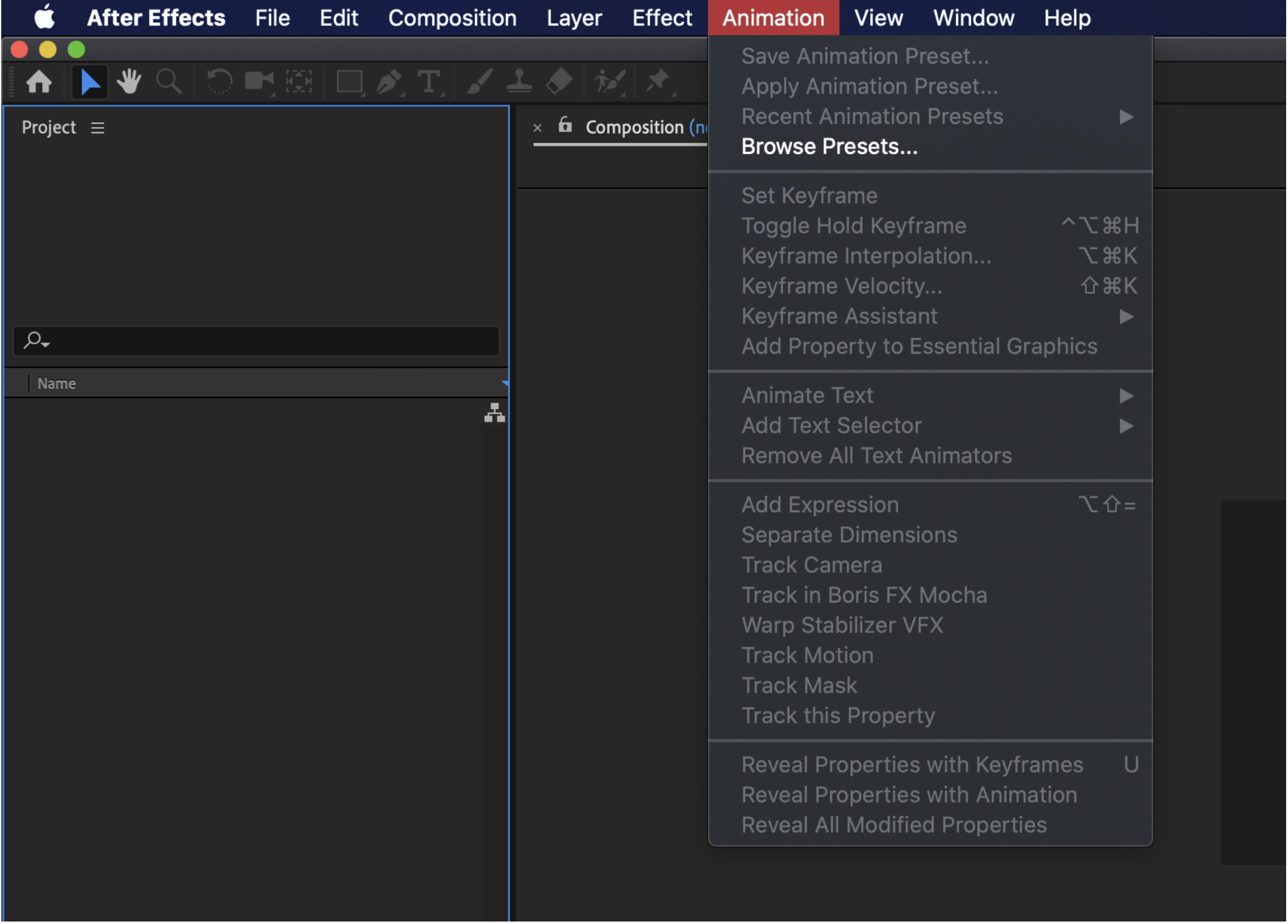
In the “Animation” tab we can add and control various animation aspects like keyframes, animate text, add expressions and so on.
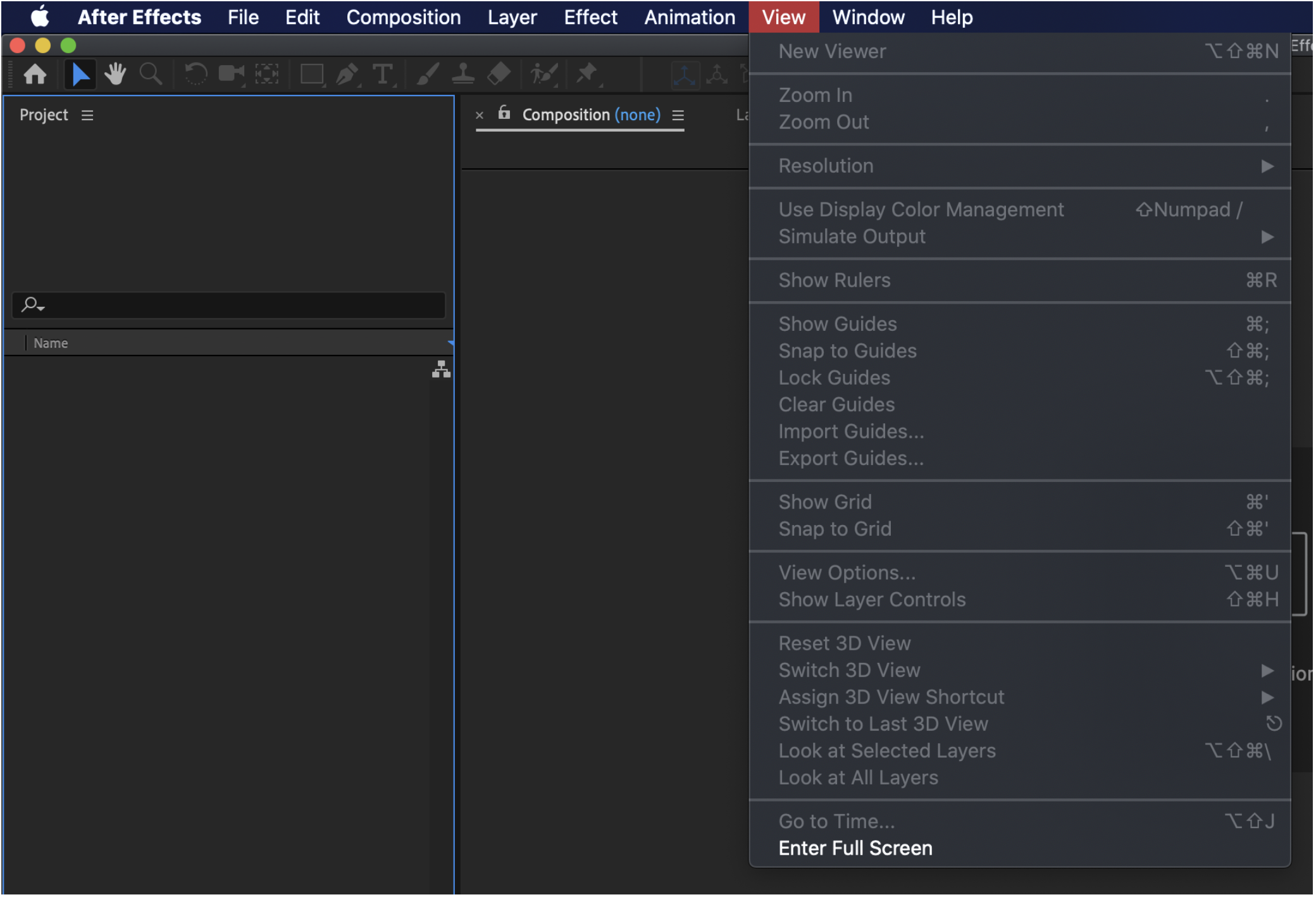
In the “View” tab we can change various view options.
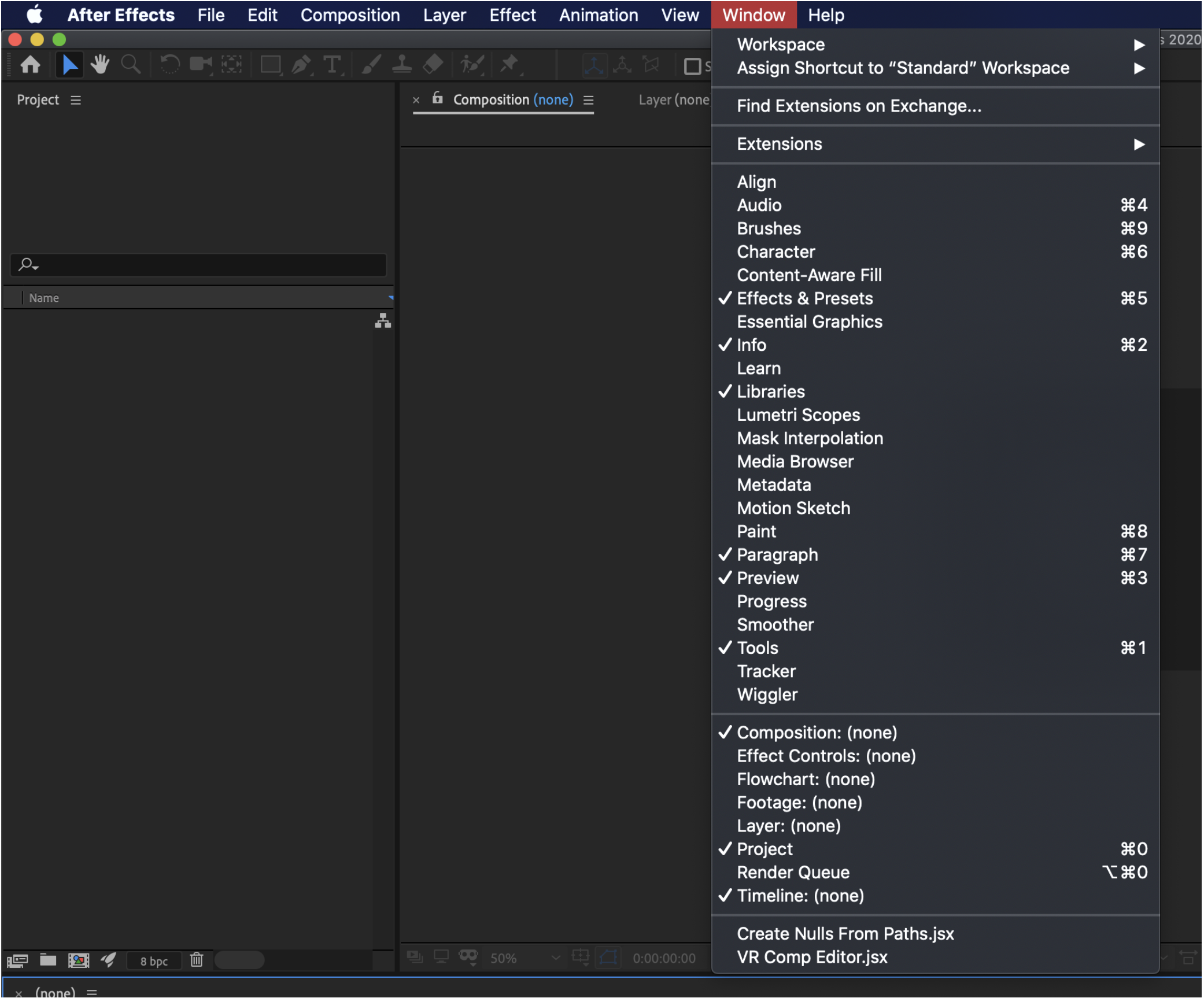
If we click on the “Window” option we can add more things if we need them to the interface.
Compositions
In After Effects, when we make a video, the video itself is a composition. This composition can be a simple video with keyframes. However, this finished product can also be a more complex video made up of multiple compositions or even compositions within compositions.
For example, we could make a composition and then bring that composition into a new one as part of that new bigger composition.
To make a new composition, simply select “File” and select “New Composition”. When you do a new window will pop up.
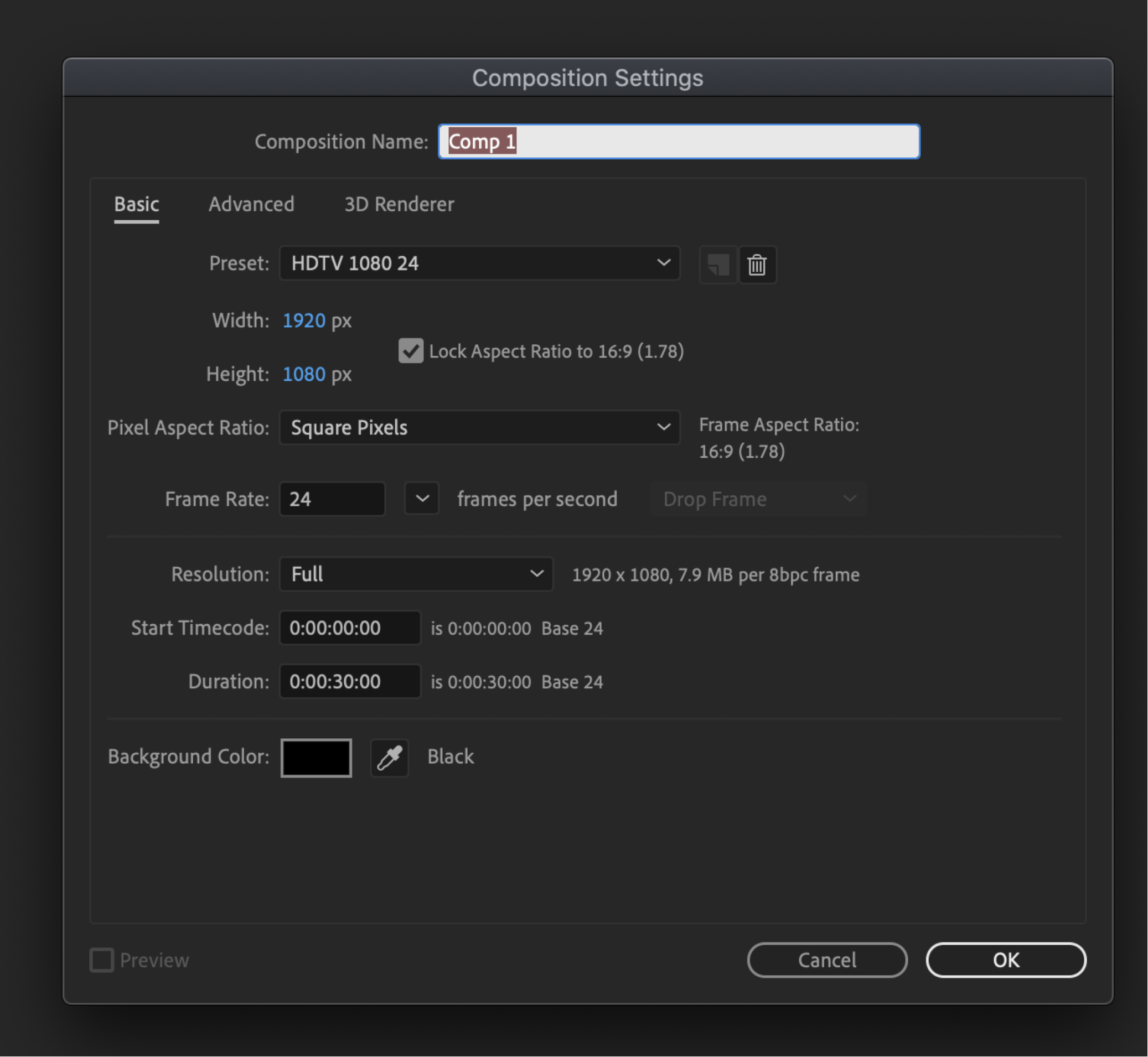
- In the composition name, we can name it. We should name it as what it will be.
- In the preset, we can select from various presets or make a custom one. We can customize the width and height of the composition.
We can change the pixel aspect ratio.
We can change the frame rate.
We can change the resolution. - We can set the start time.
We can set the stop time. - We can change the background color of the composition.
Once we are done press OK and we will have our first composition.
Timeline
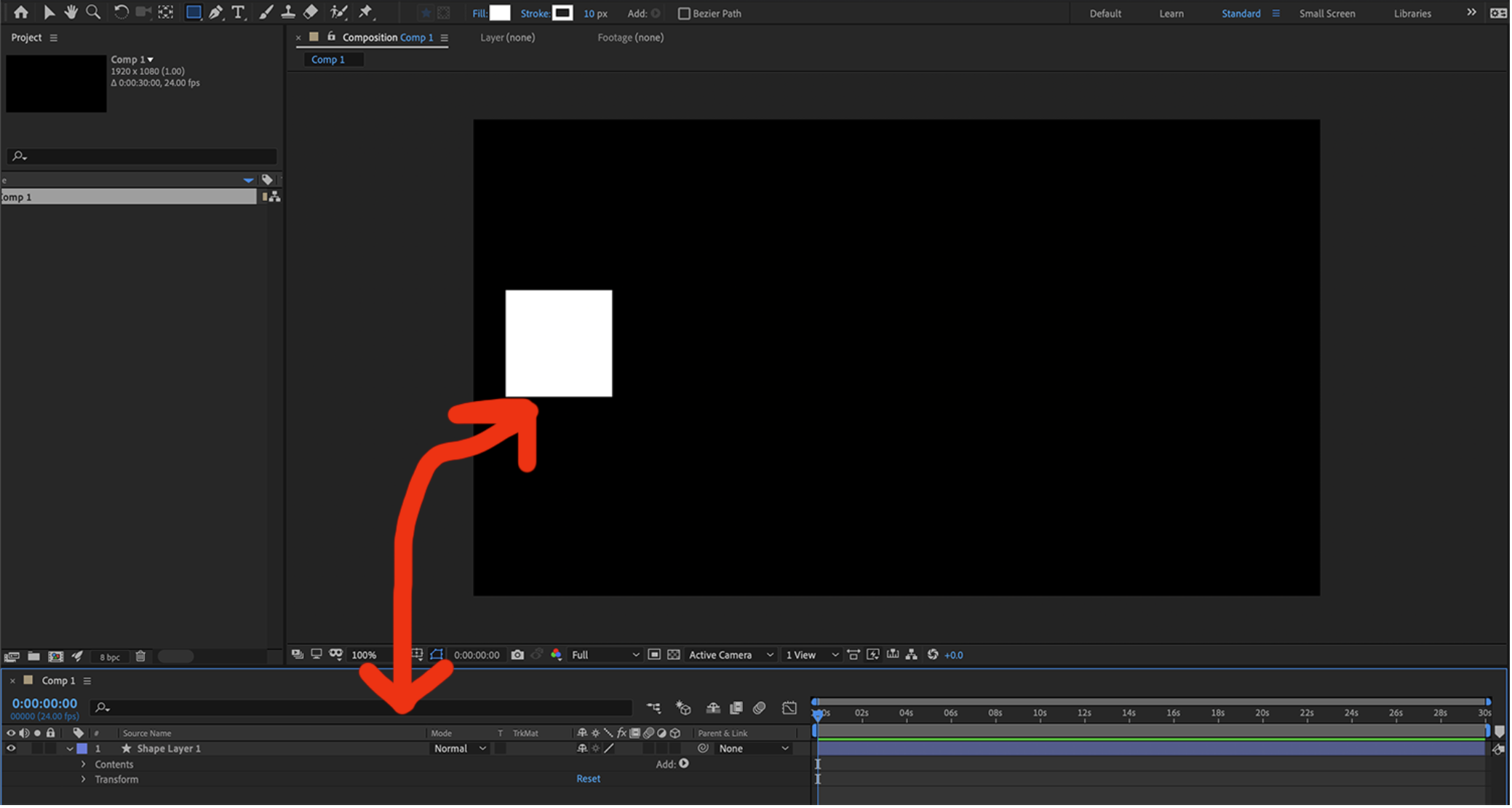
The timeline is where we actually create our animations. We do this with keyframes.
Let’s say we draw something on the composition, that thing we draw will become a layer within our timeline and we can animate on that.
Layers
The layers in After Effects are anything we add in to our composition, this can be something we create right in the program itself using one of the tools or something we import in. The more things we bring onto the timeline, the more layers there will be.
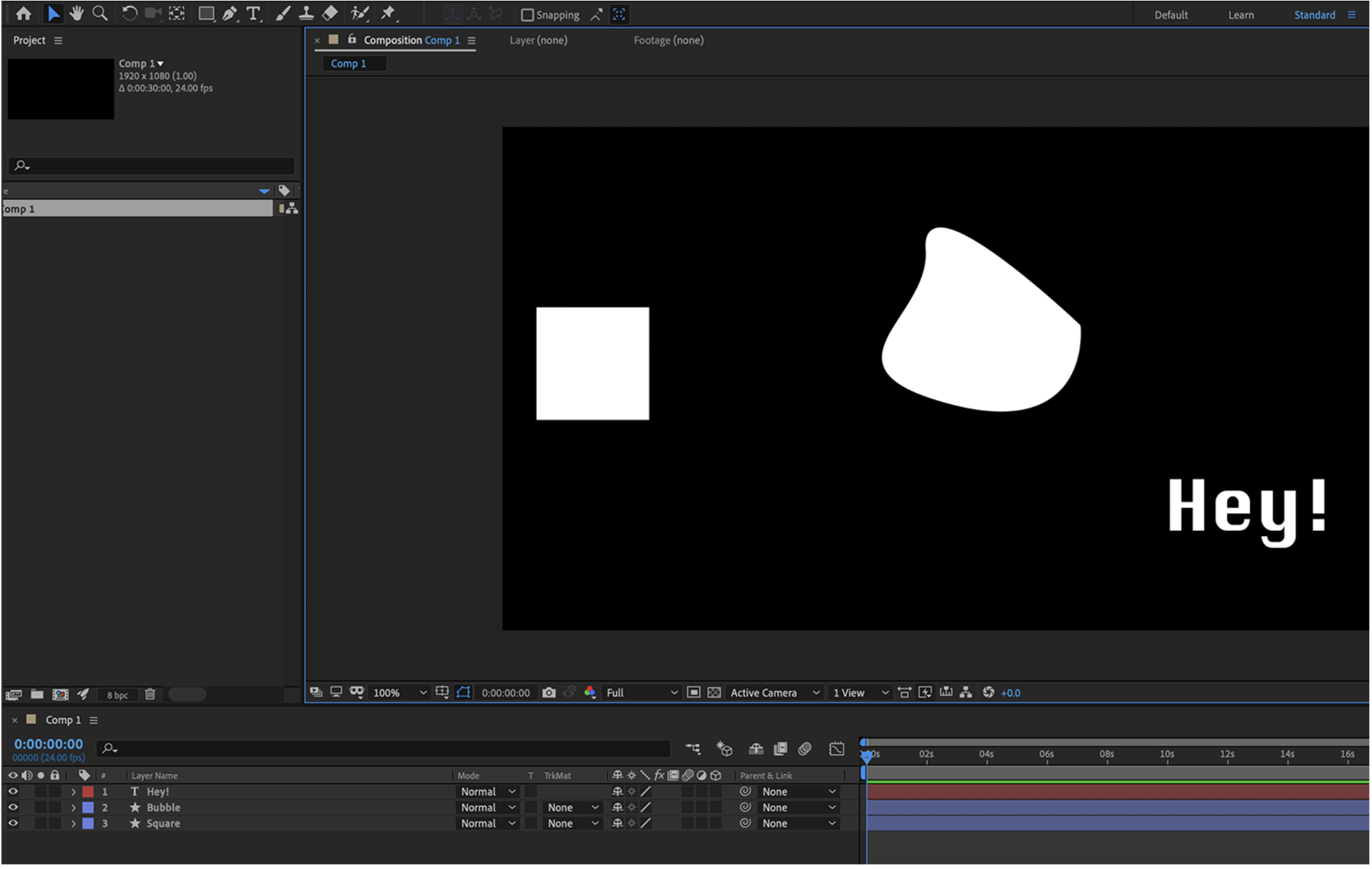
Layers can be expanded to show the options for the things that can be manipulated for that layer.

Tools

In the tool bar we have various tools we can use.
From left to right:
- The home button brings up the welcome window
- The selection tool is the default tool used to select items
- The hand tool is used to move the composition around or move the timeline
- The zoom tool is used to zoom the composition
- The rotation tool is used to rotate any item, the item will rotate around its anchor point
- The camera tool is used to move a camera if there is one being used
- The anchor tool is used to move an anchor point
- The rectangle tool is used to make a rectangular shape
- The pen tool allows you to make shapes using points
- The text tool allows you to type onto the composition
- The brush tool
- The clone stamp tool
- The eraser tool
Effects and presets
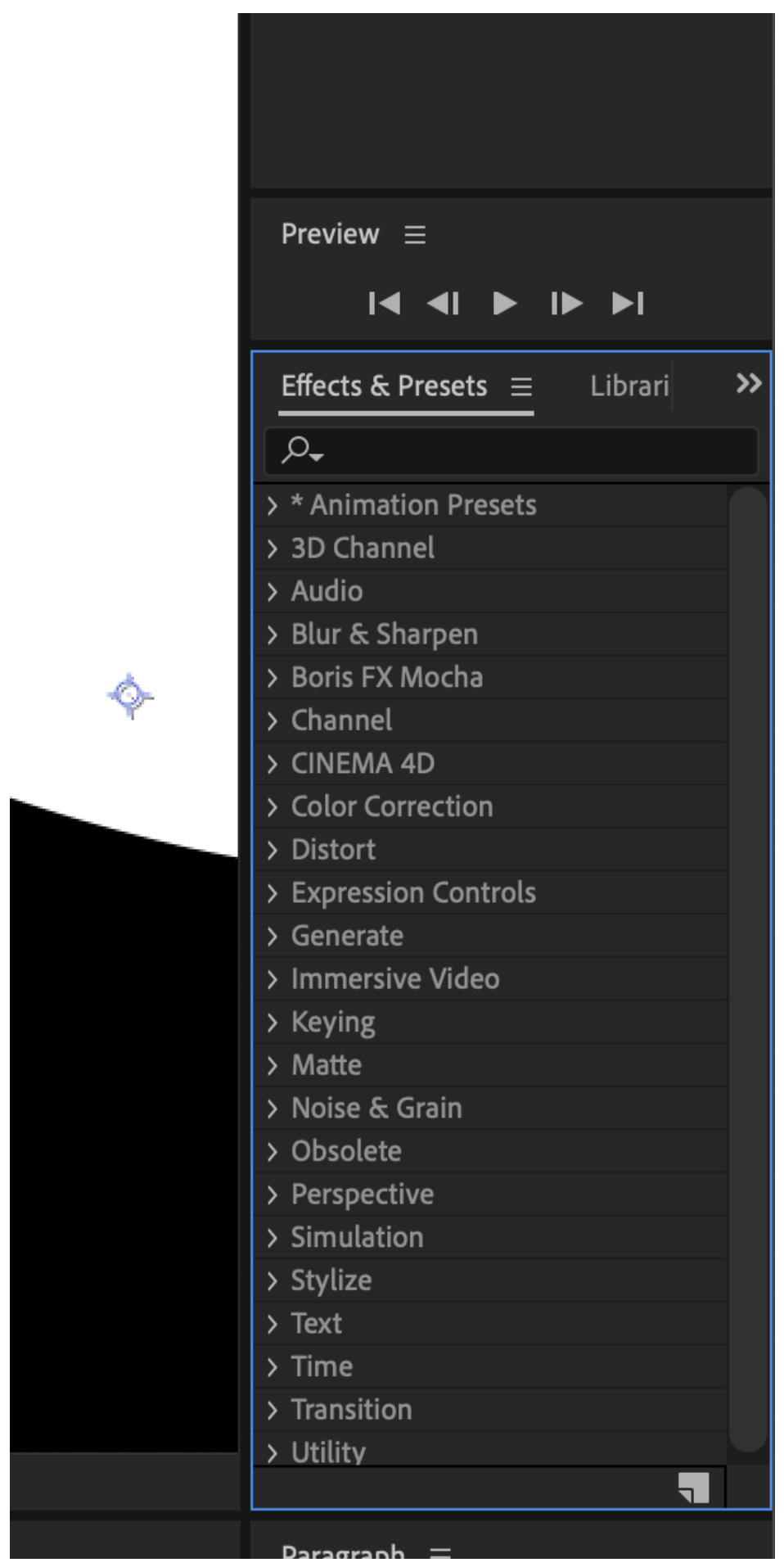
The effects and presets section we can select effects and drag / drop them onto different things on our timeline or directly onto something in the composition.
Once you drop an effect on, options will be visible to edit.
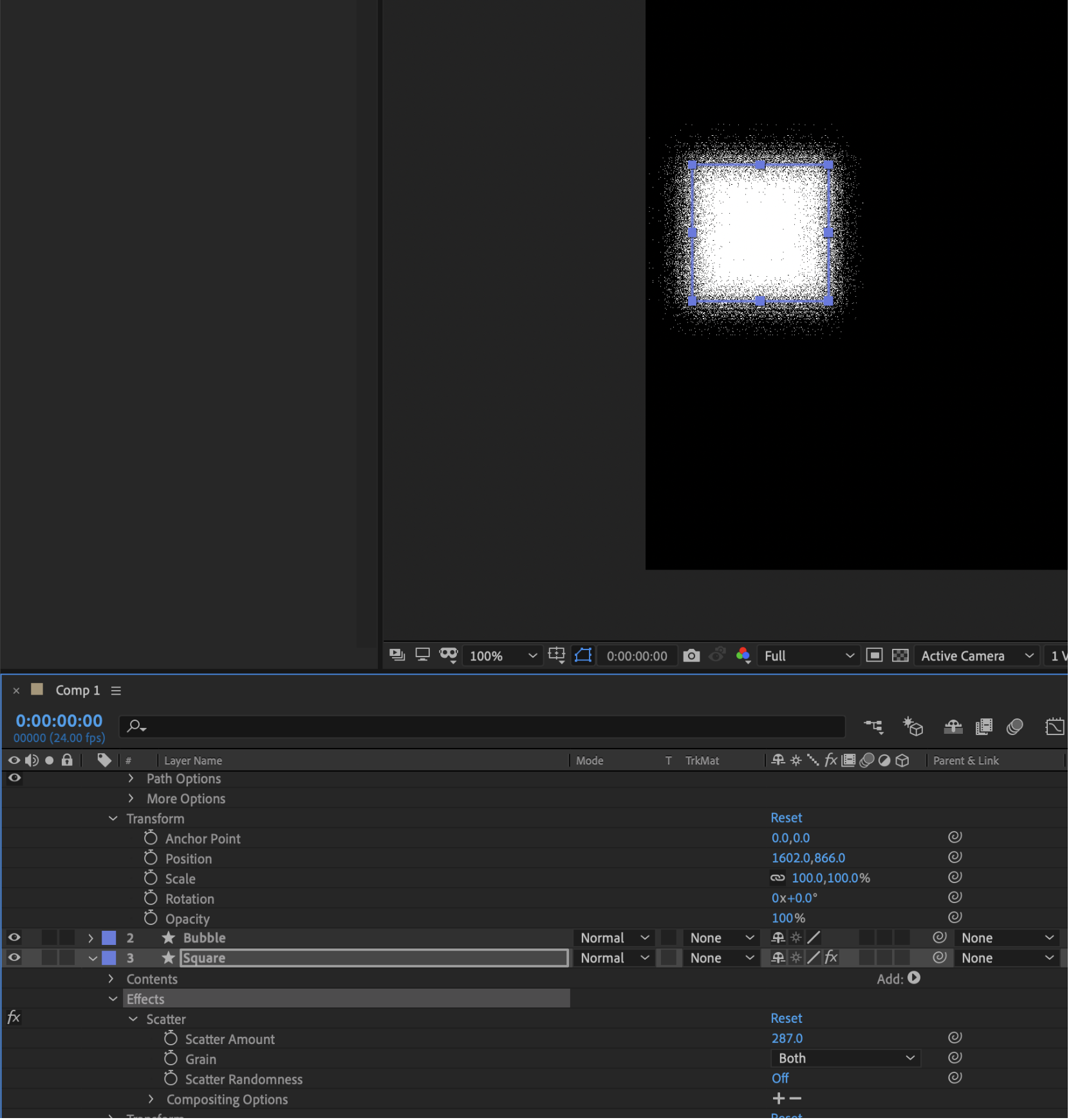
Video Formats
After Effects supports various video and image formats. See the list here.
https://helpx.adobe.com/ca/after-effects/kb/supported-file-formats.html
Importing Content
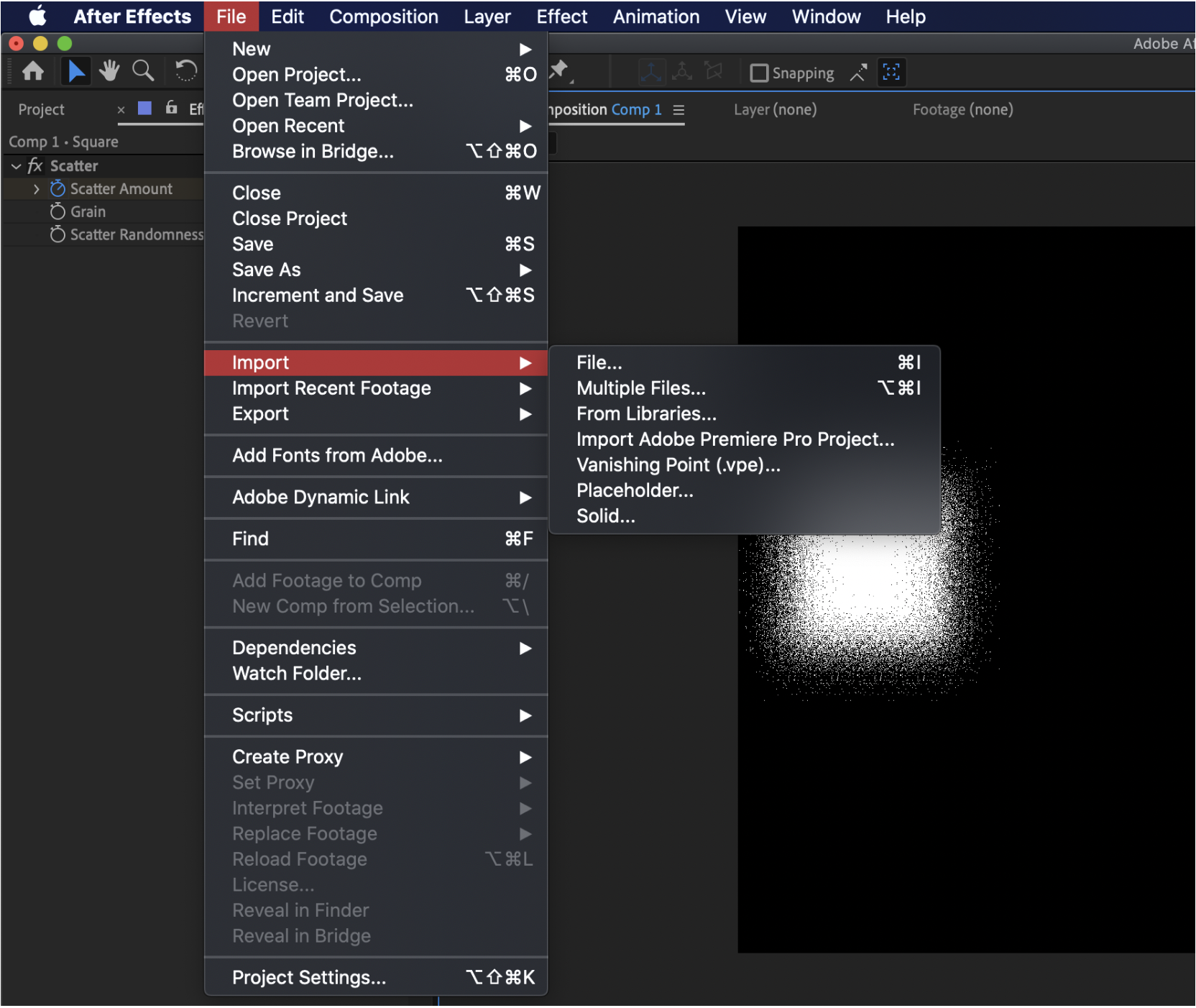
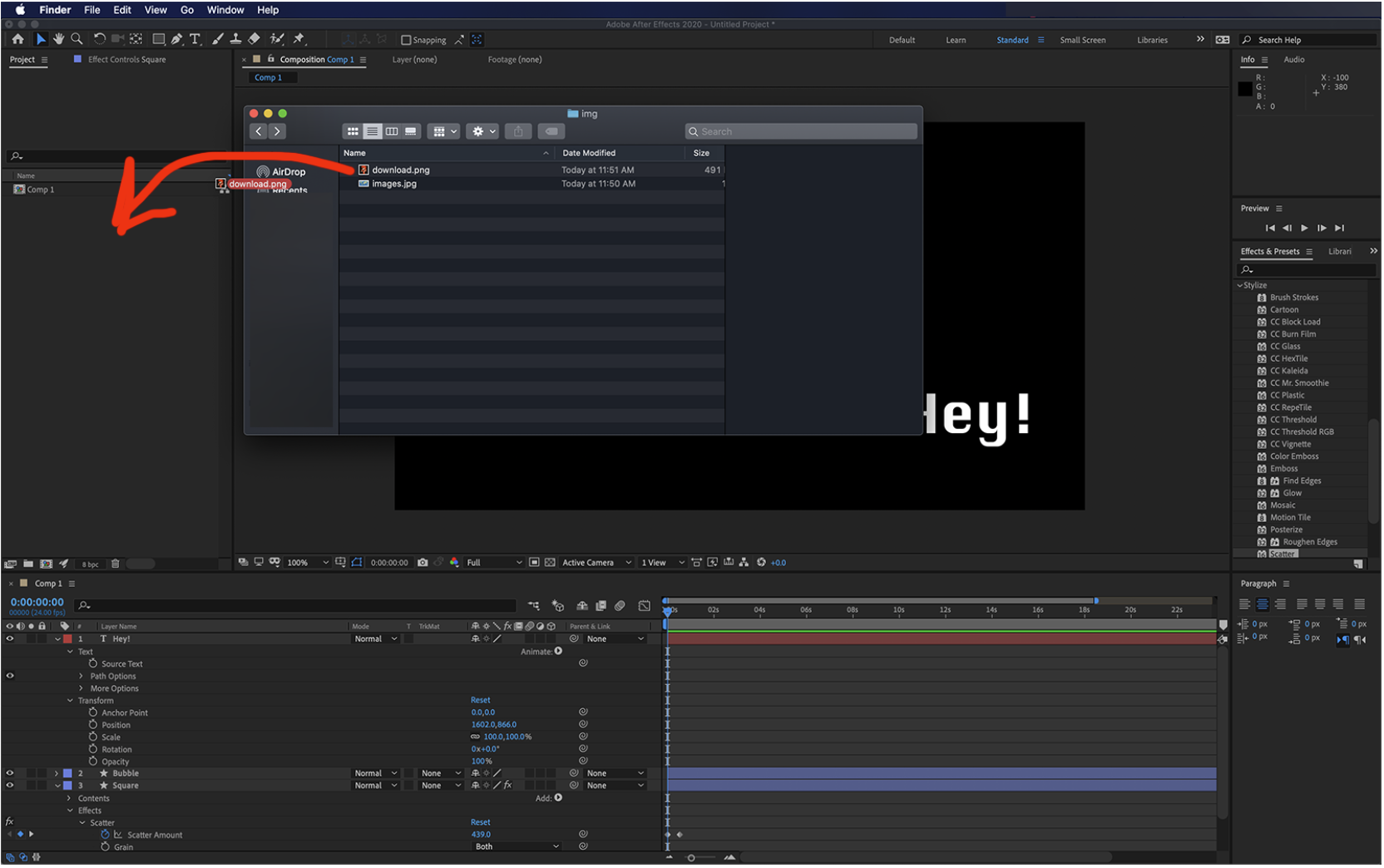
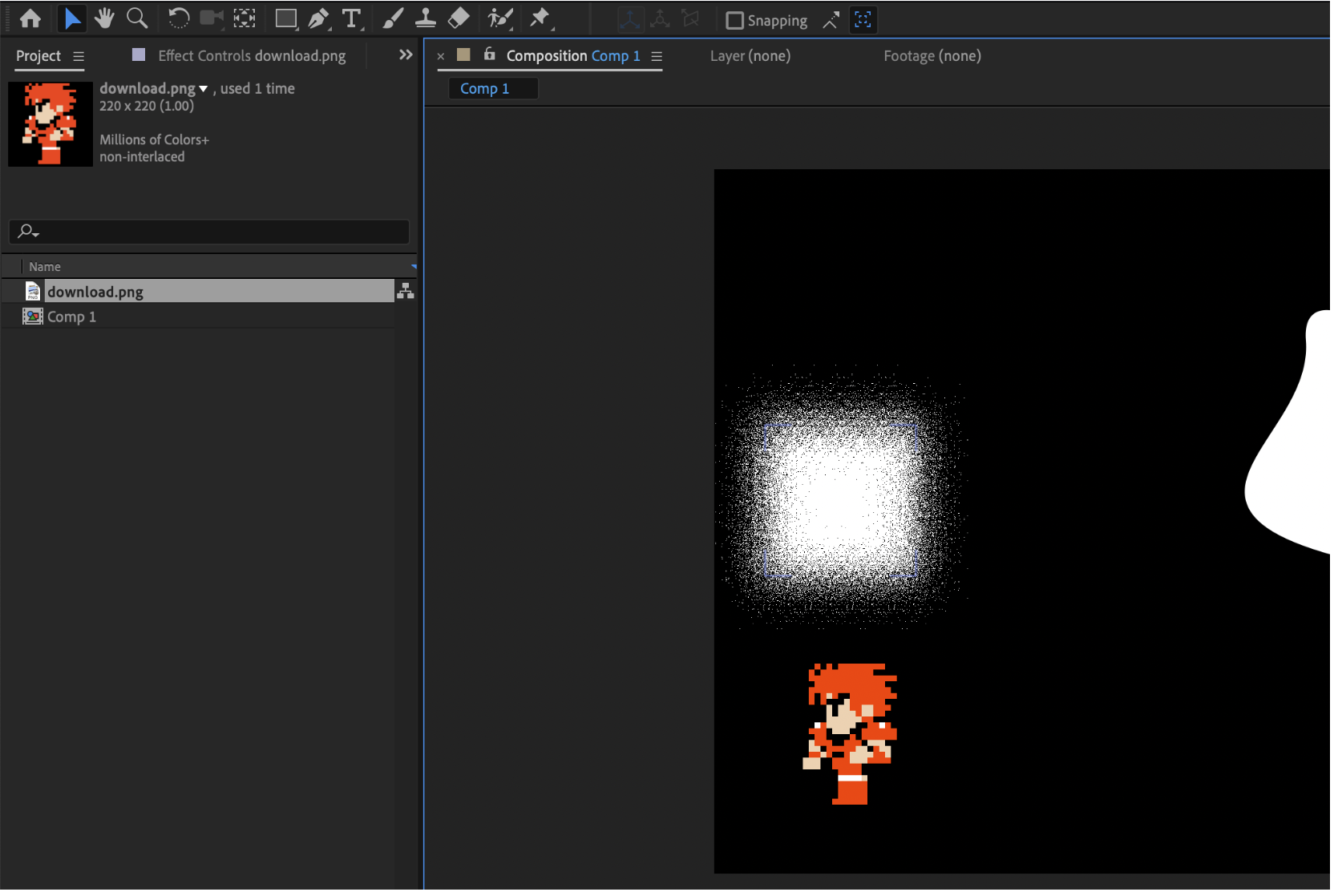
In After Effects, we can drop in assets we may need, this can include images, videos, audio. To do this we can either:
Import using the menu
Drag and drop a file
Properties
Every layer in After Effects has properties. These can be expanded with the arrow in the layer.

Click the layer to expand.
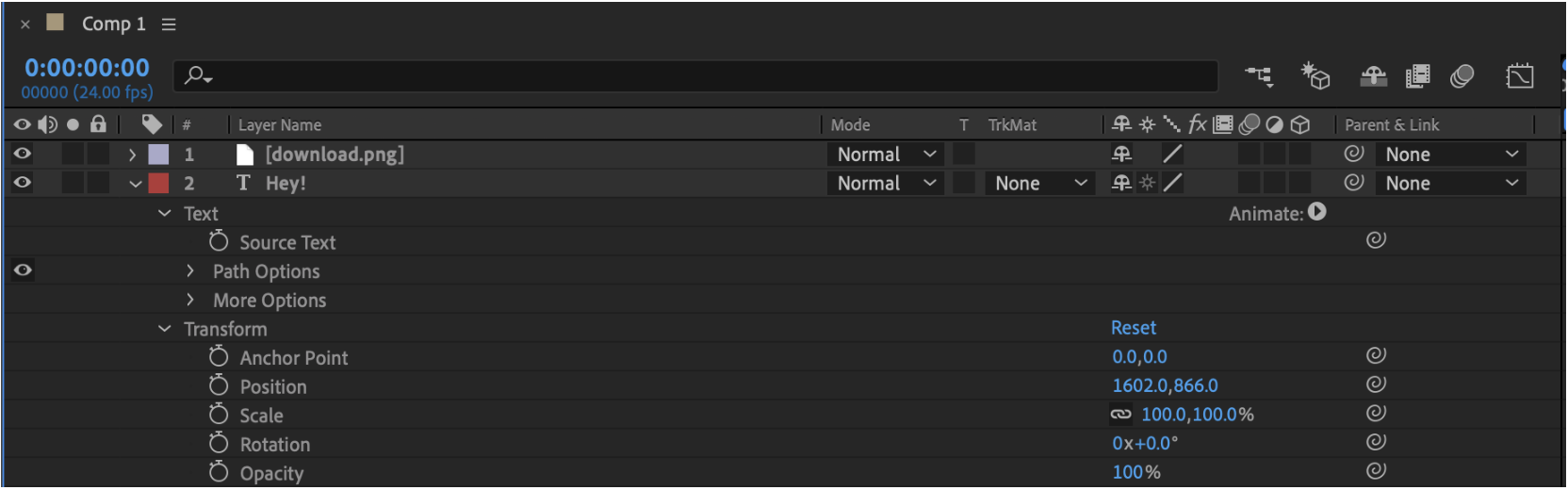
In here you can edit the properties of that particular layer. Various things can be changed like the path options (if there is a path) and transform options. You may also edit effects in here if you add one from the effects and presets panel.
Output to Media Encoder
The media encoder is used to export your composition. To get to it, go to File > Export and add to media encoder.
The media encoder is a separate program.
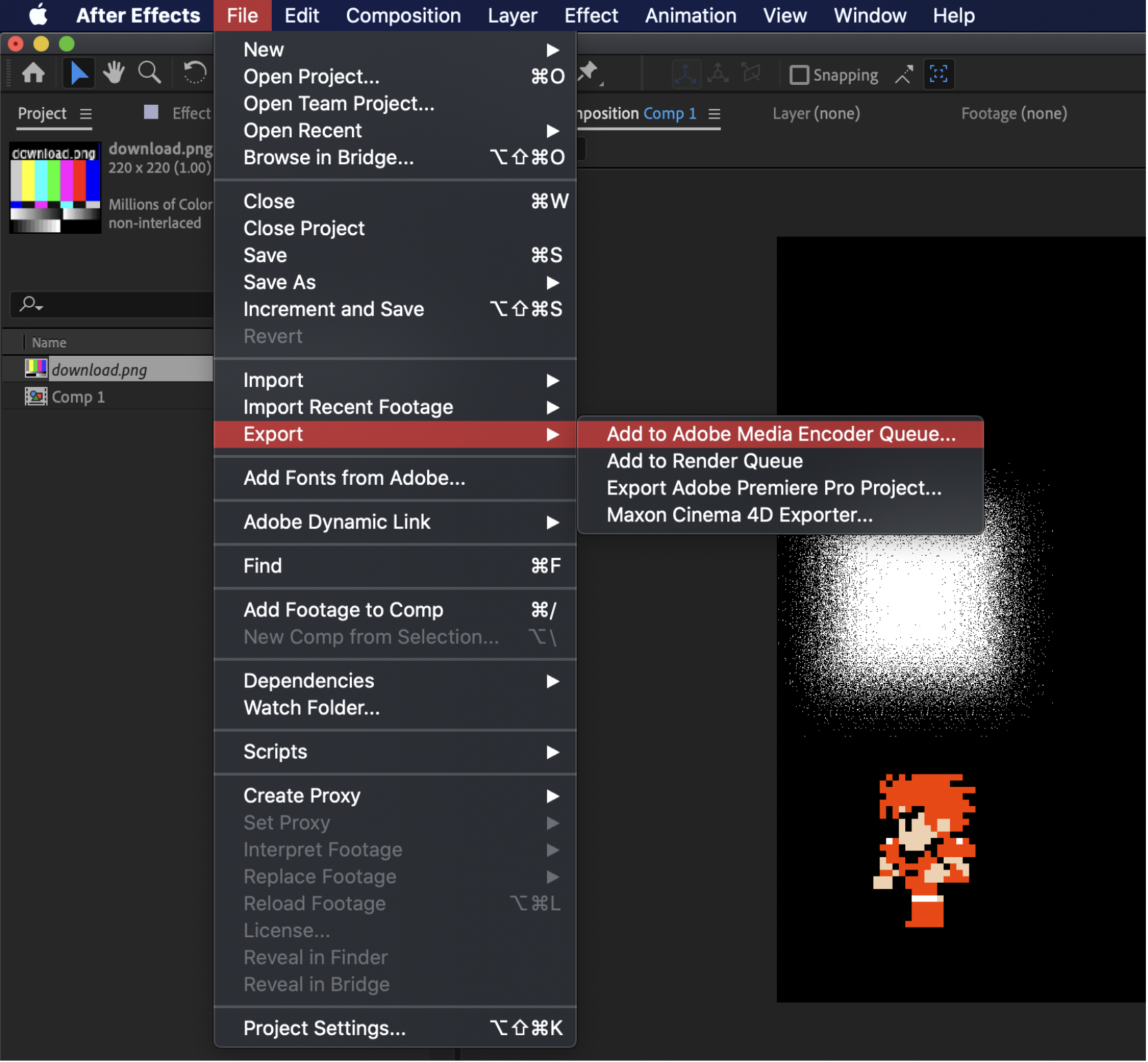
Once you do this the media encoder will pop up.
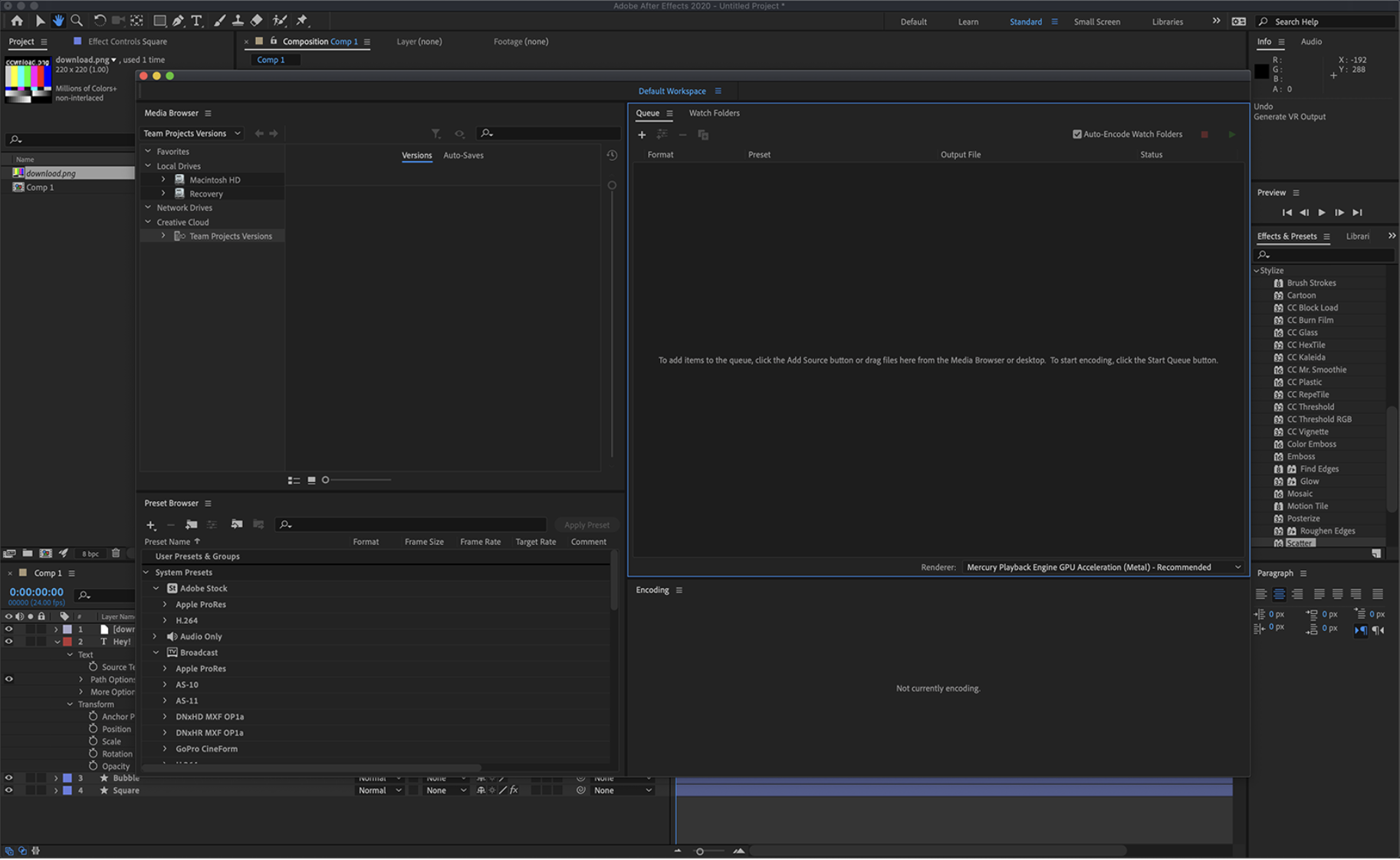
Here is a breakdown of this window.
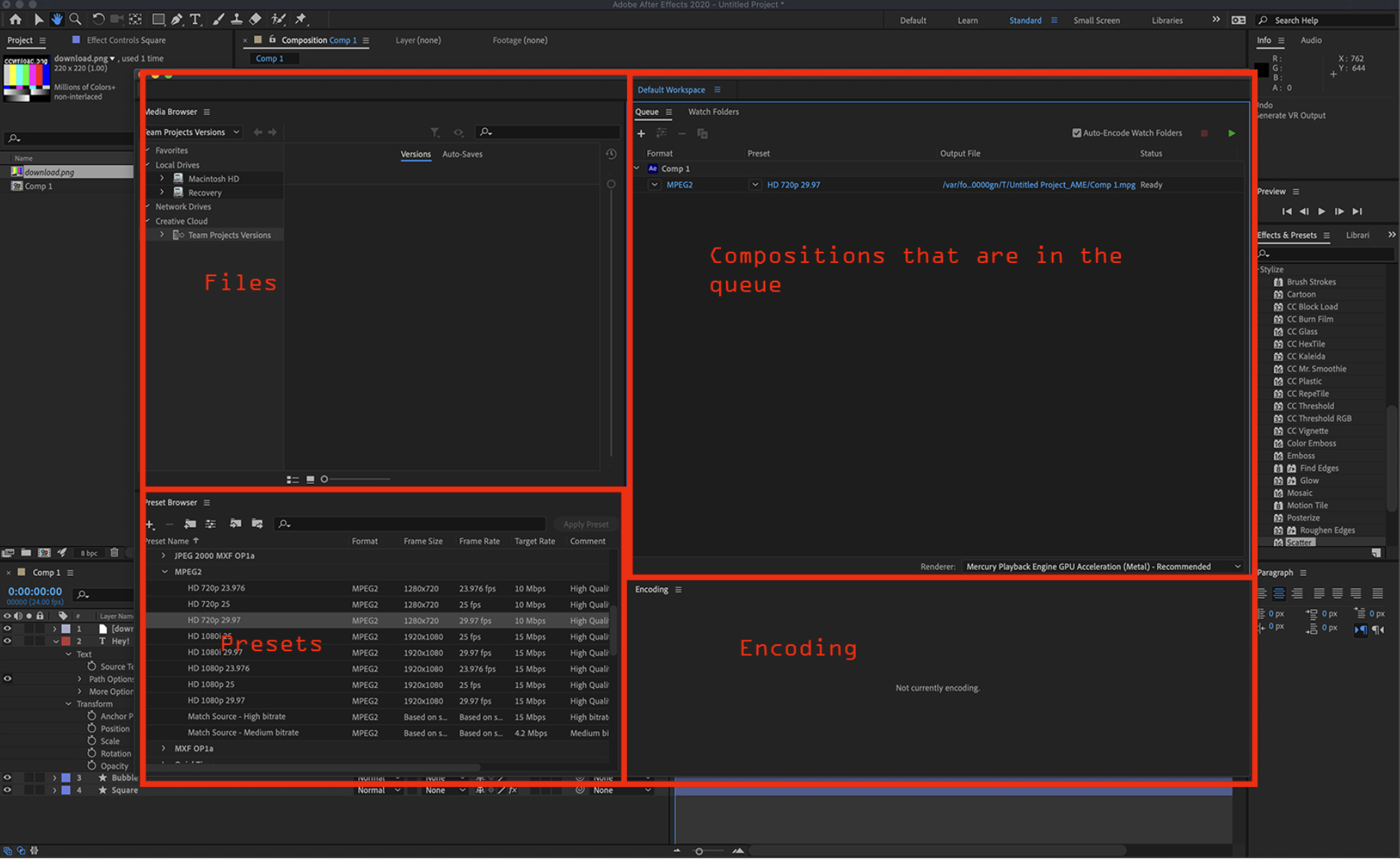
- Files
- Compositions that are in the queue
- Presets
- Encoding
You can drag and drop presets onto a composition within the queue to set it. When you are ready to run the queue press the play button.
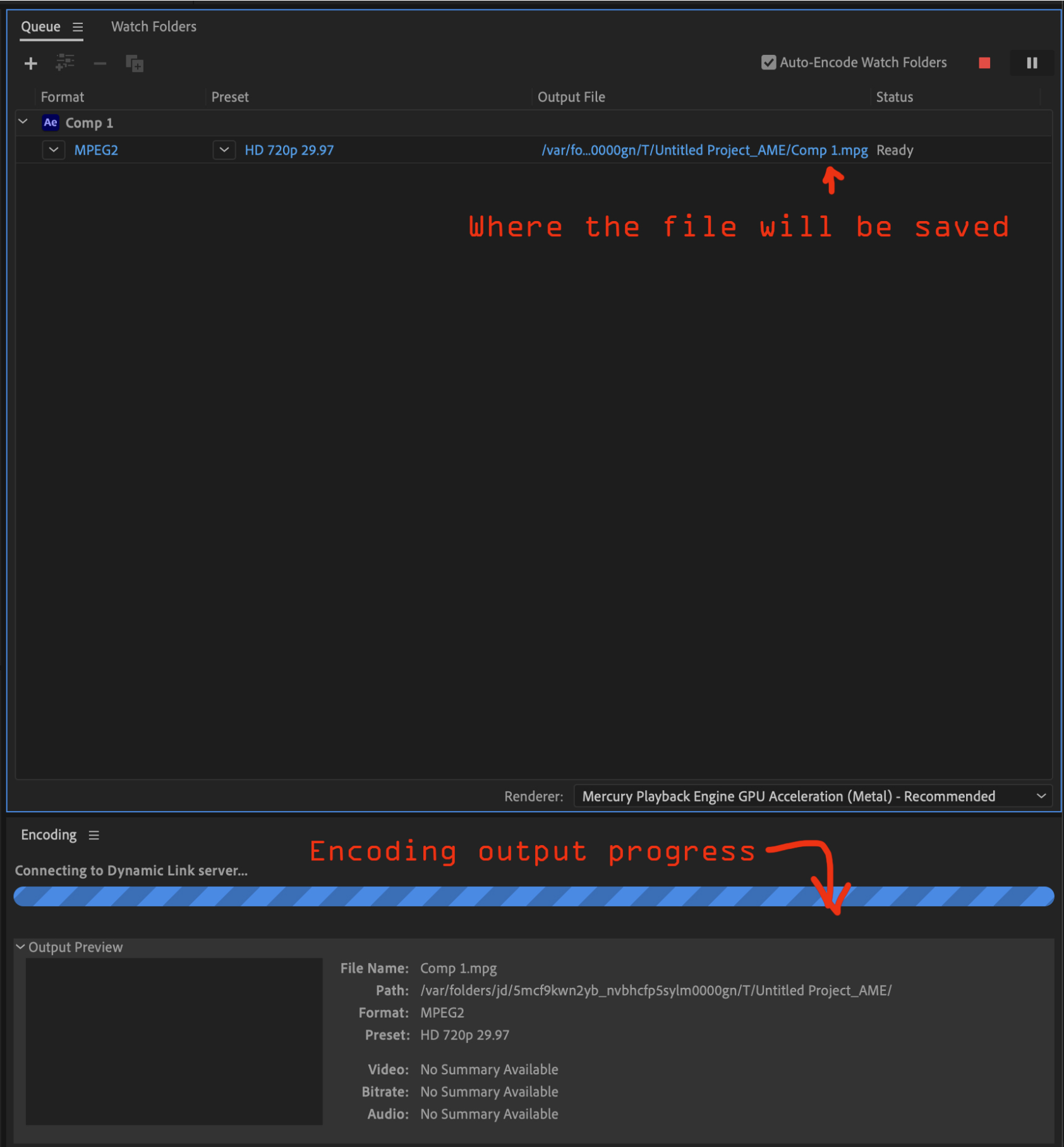
Where the file will be saved
Encoding output progress
Below you can download a zip with 3 images. Using these images you can create a simple motion sequence where the stars look like they are moving toward the camera and the image of Earth can be converted to a globe that spins by:
- Importing the images to After Effect’s Project Files.
- Make a new comp.
- Drag the image of space onto the comp.
- Make a keyframe at 00:00:00 for Scale but do not edit the scale on that keyframe just leave it after you create it.
- Move the timeline cursor to the end of the comp.
- Make a keyframe on the stars for the stars at the end of the comp timeline where you just moved the cursor.
- Slightly scale up the scale of the stars image (now it will look like the camera is slowly moving forward through space).
- Move the cursor back to the start of the timeline.
- Place the image of earth on the comp.
- Go to Effects and Presets.
- Search/Select CC Sphere, then drag and drop it onto the image of earth.
- It will now be a globe.
- Play with the settings (X, Y and Z Rotation in the Rotation property which you can find if you expand the > button on that layer).
It does not have to be perfect. Just play with it and get a feel for it!
Download Practice Image files
Categorised in: Lectures, MMDD 102
This post was written by amax