MMDD 102 – Deeper Motion
April 7, 2024 7:56 pm Leave your thoughtsDeeper Motion
Illustrator Import and Motion
We can import assets from Illustrator into After Effects. To start the process, all you have to do is drag and drop our AI file into the project window on After Effects. Upon doing so, you will get a prompt.
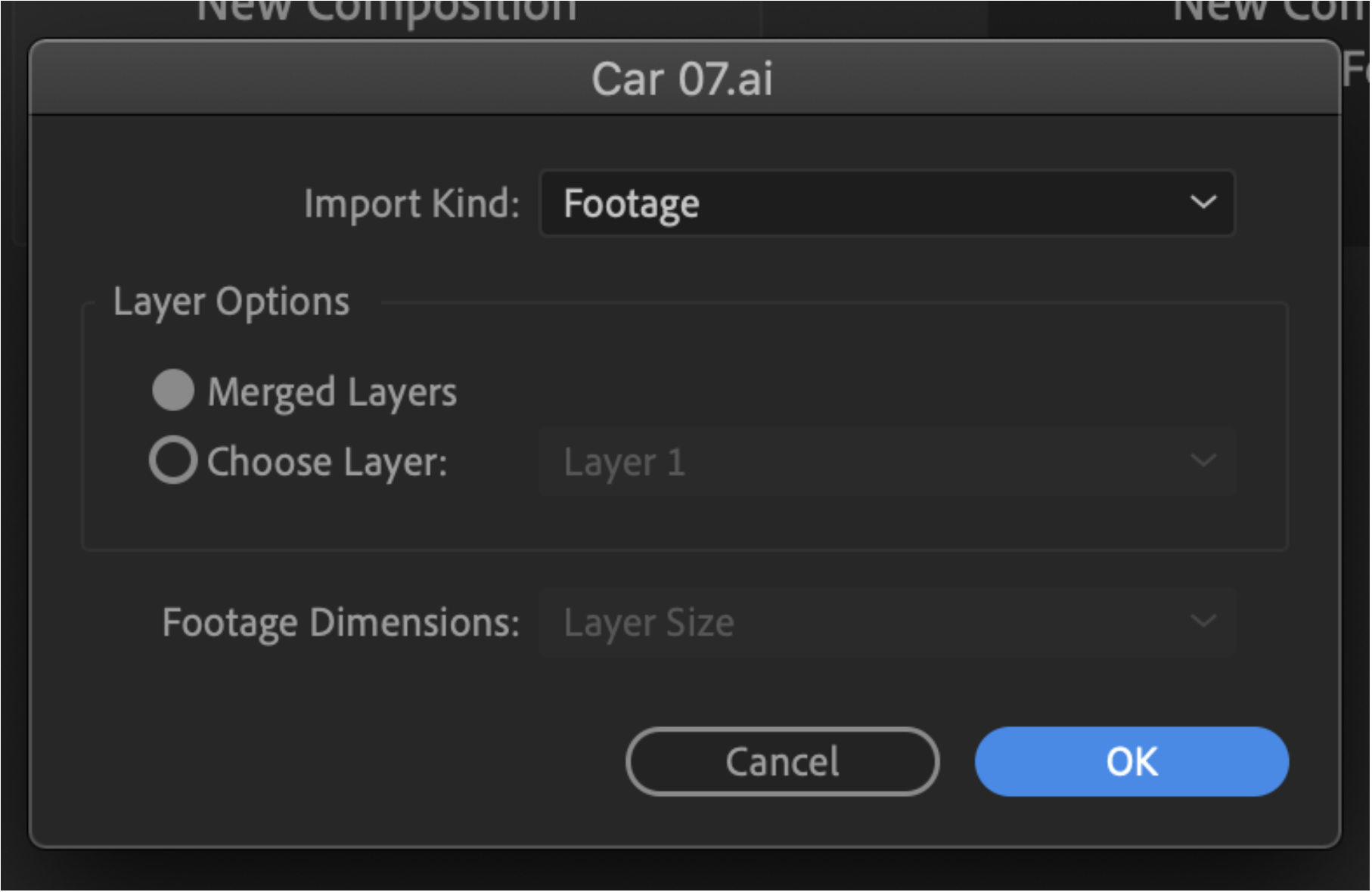
On this prompt, there will be a couple options. Choose “Footage” for the Import Kind. There is also the option to import a specific layer or merged layers. To import the whole image, choose Merged Layers and press OK.
Once we have the file brought in, there are a couple things we can do to get access to the layers of the vector.
Once it is imported, drag and drop the AI file onto the layers. When you right-click it, you can go to Create > Create Shapes from Vector Layer.
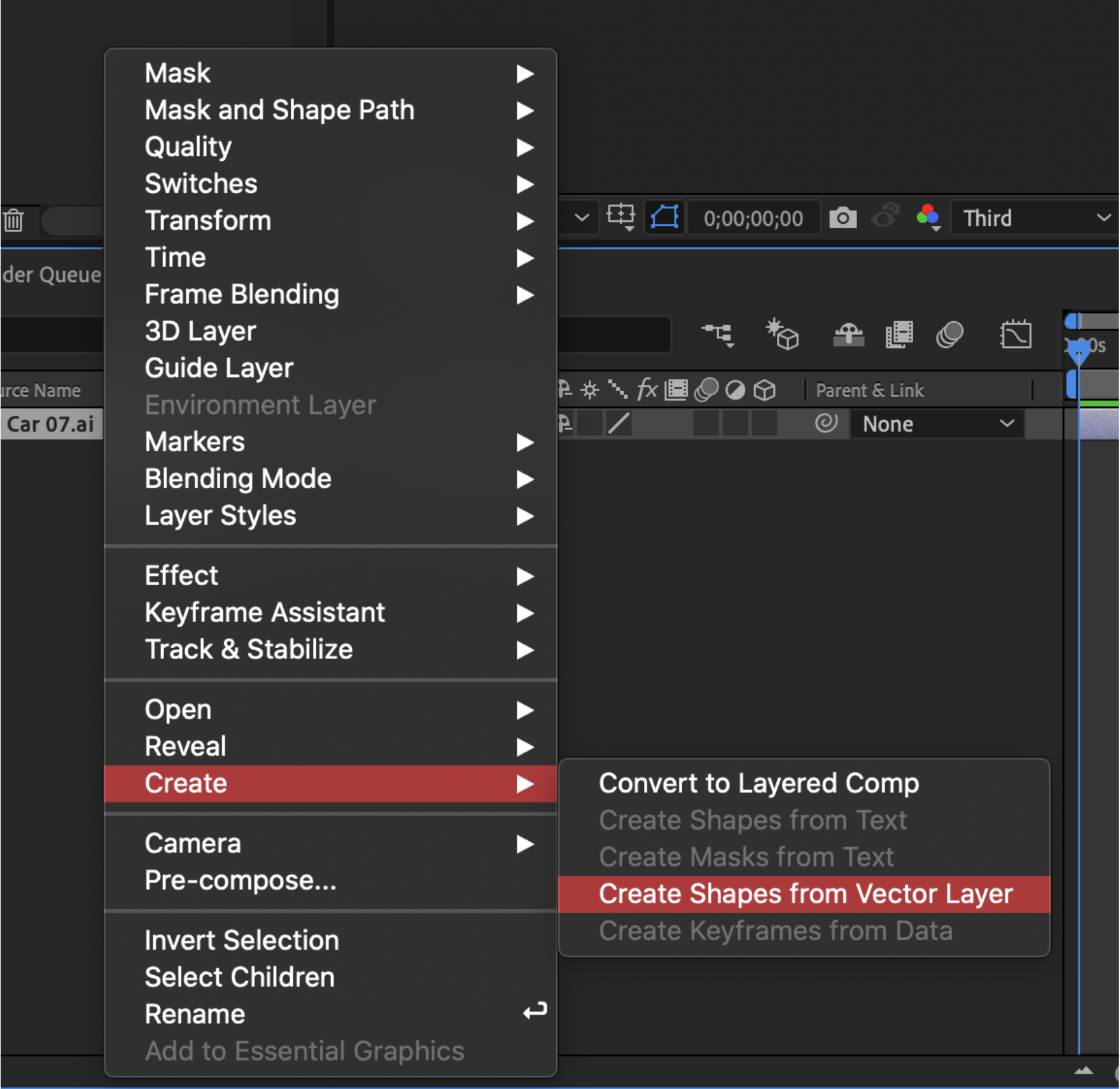
This will separate the layers into groups on a single layer, which can be accessed in the Contents tab on the layer.
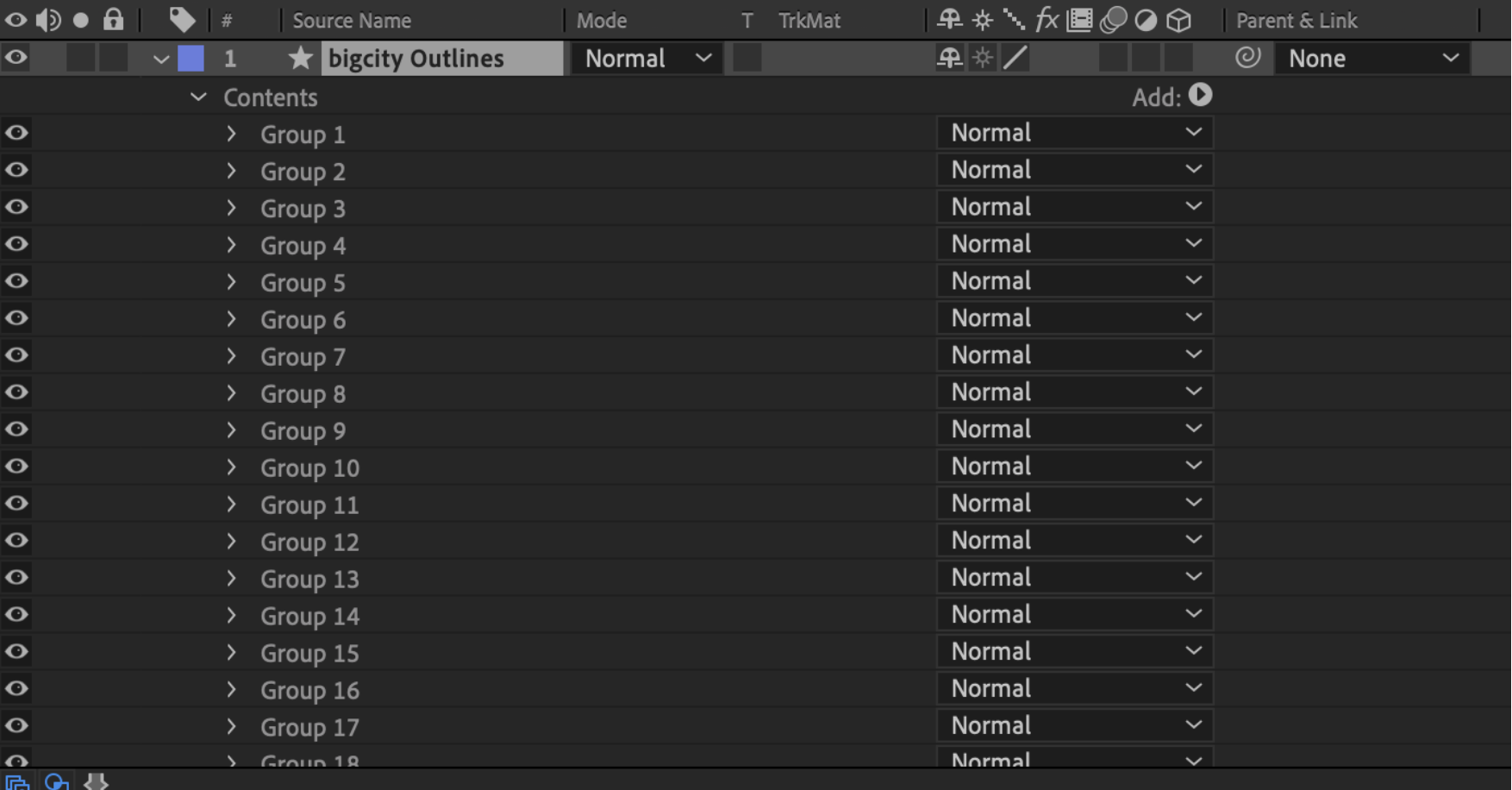
This method may work for what you need to do if you want to import all the layers to a single layer. The downside is that the grouped layers within the one layer can’t be separated out.
A different way to do this is to use the Convert to Layered Comp selection when you right-click the AI layer.
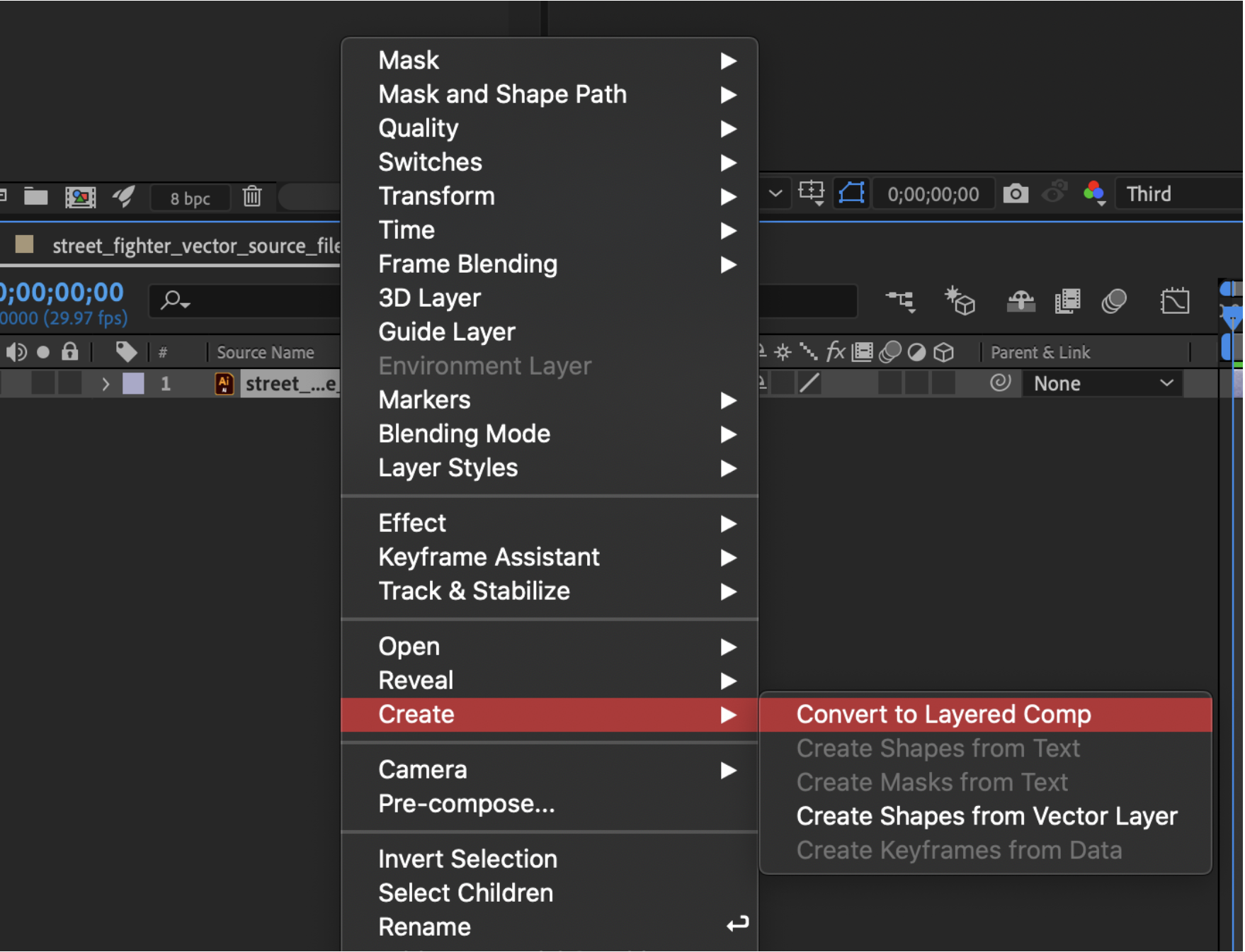
This will make a new composition with the layers within it separated.

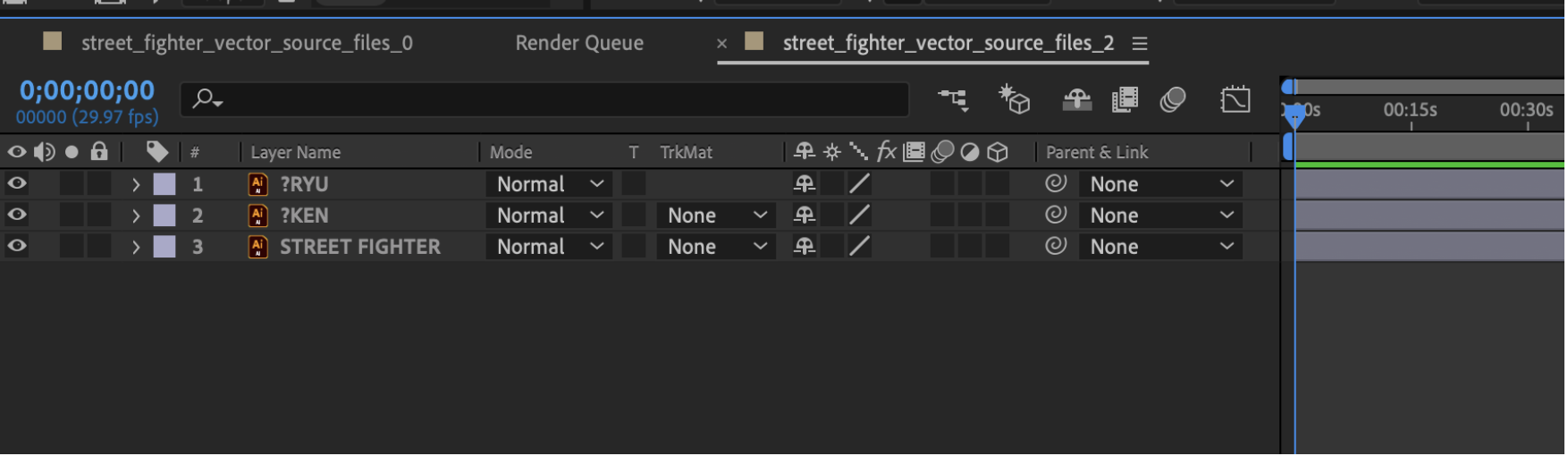
Conclusion: These 2 methods are easy ways to import our assets in from Illustrator. The first method gives us one layer with the separated layers within the contents of the 1 layer. The second method gives us a composition with multiple normal, separate layers in it. Both methods can then be used to animate accordingly.
Photoshop Import and Motion
Just like we can import from Illustrator into After Effects, we can also do the same from Photoshop.
The same way we did with the AI file, we can drag and drop the .psd file onto After Effects Project Panel. Once we do this, the same window will pop up asking us how we want to import it. In this case, we can select “Composition” for “Import Kind” and select “Editable Layer Styles”.
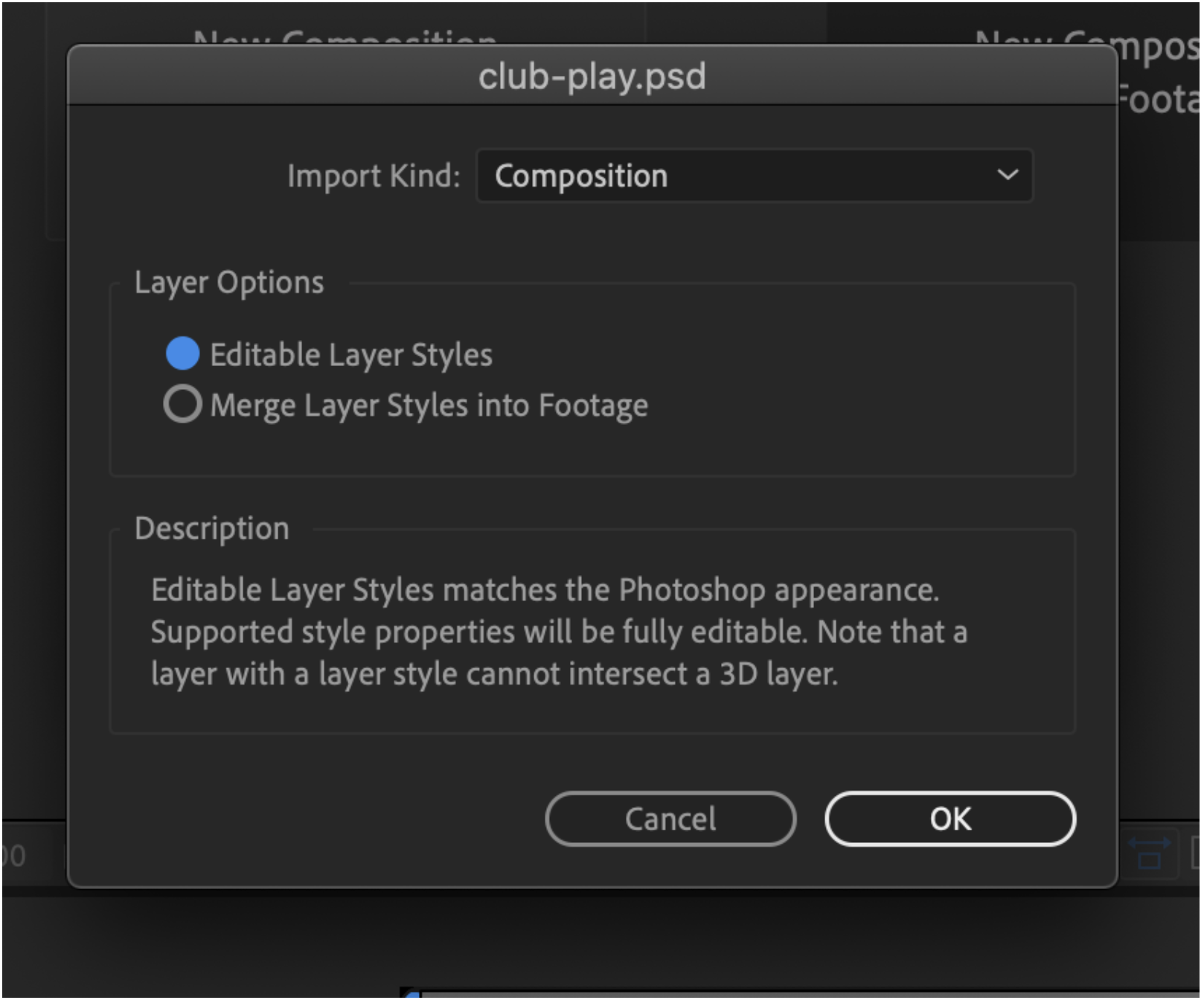
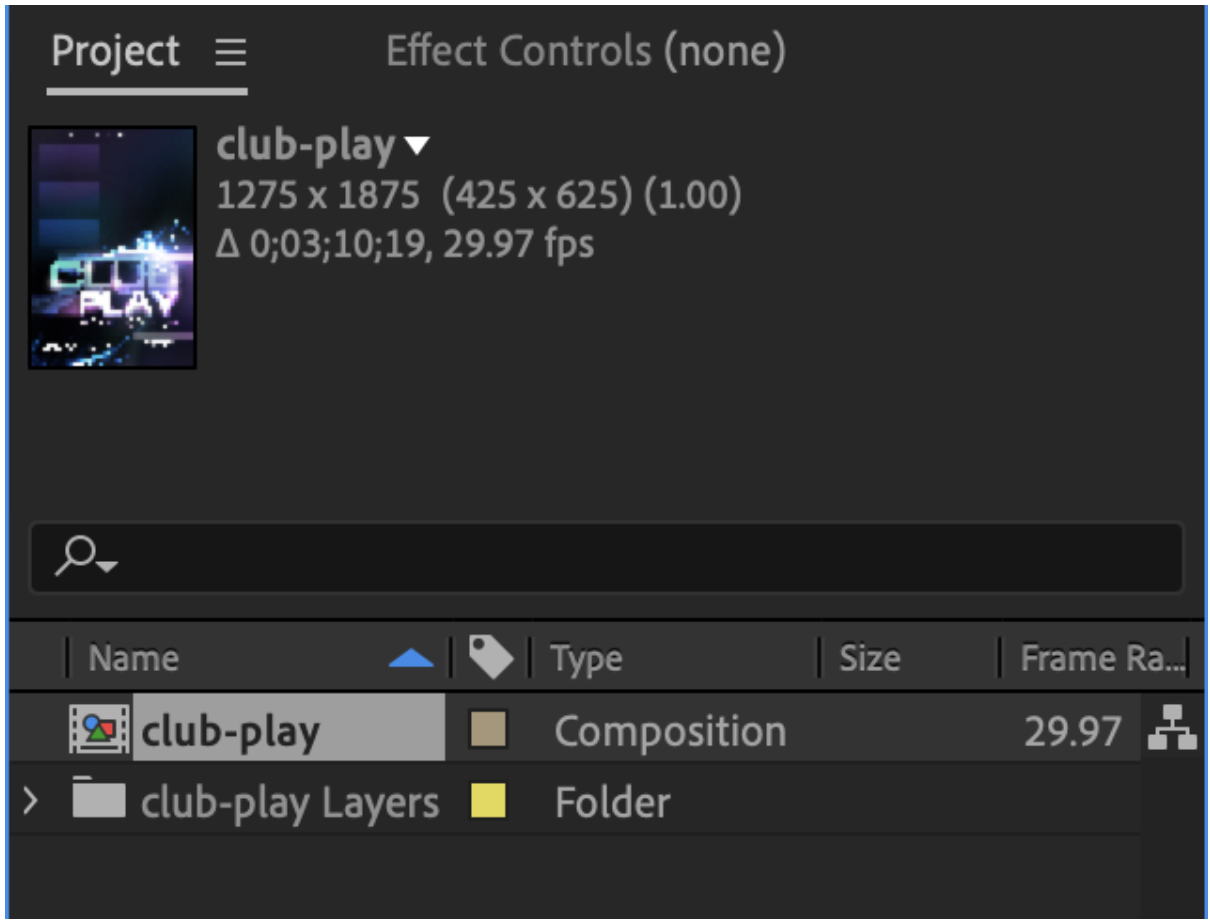
Once this is done, there will be a composition in the Project Panel.
If we look in that composition, we will see multiple layers of the .psd file are now layers within the composition. Some of these layers are also compositions that can be looked into, edited, and animated as well.
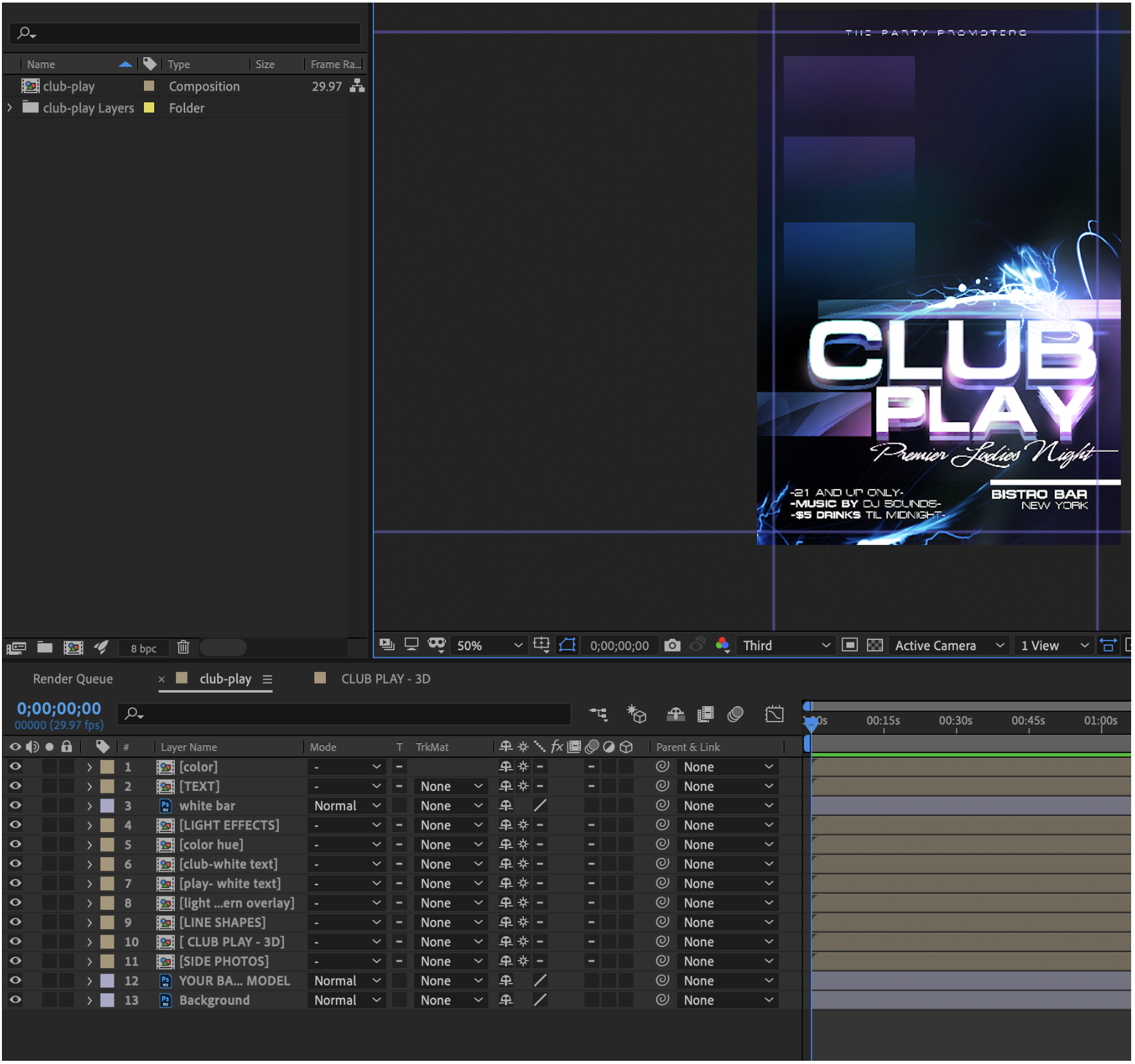
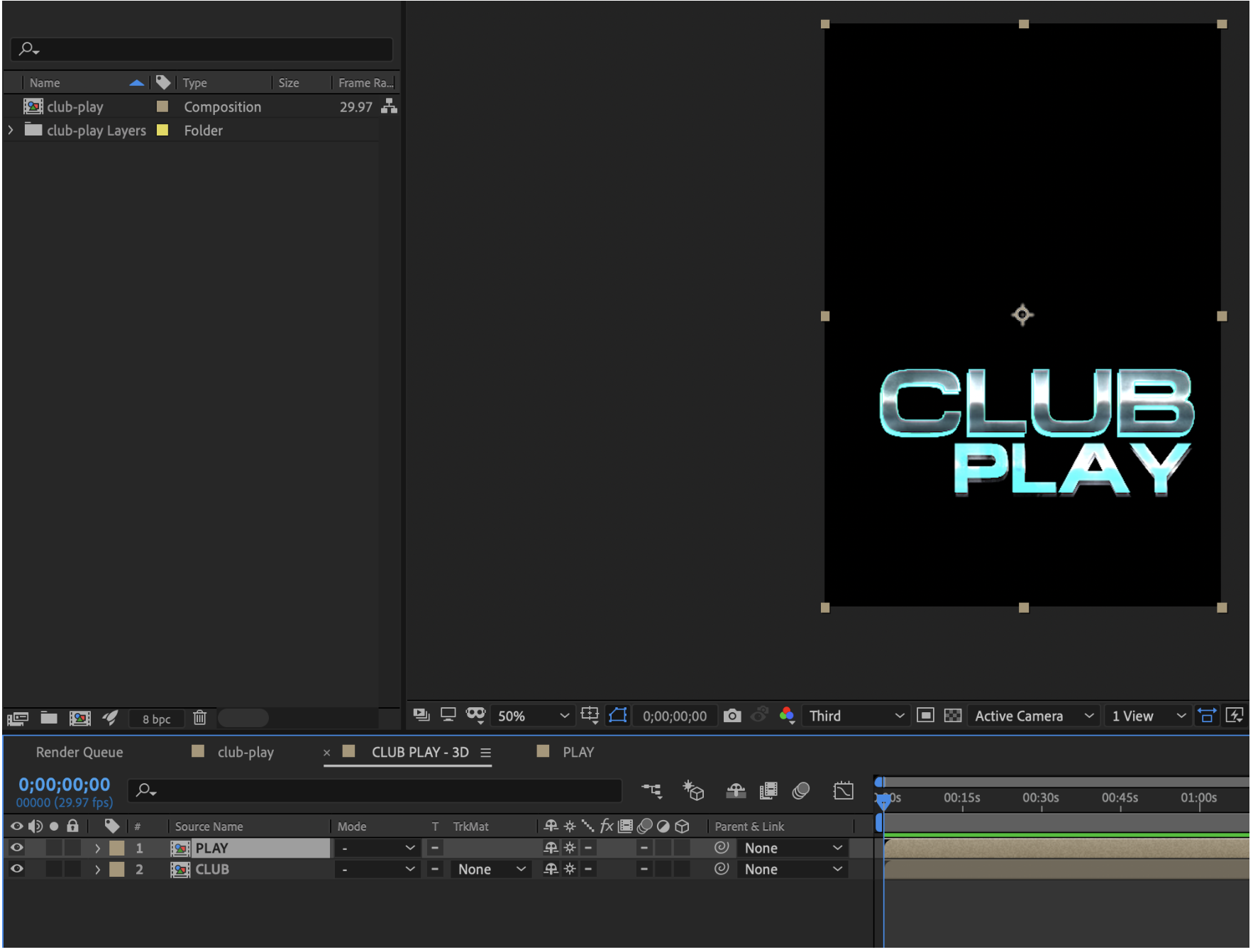
From here, you could animate any part of this .psd file you may need to using keyframes, effects, or presets.
Parallax
The parallax effect is a technique wherein any given interactive digital presentation, elements further back scroll or move at a slower rate to give the perception of 3D depth. This can be done on webpages and also in After Effects compositions using multiple layers to make a scene.
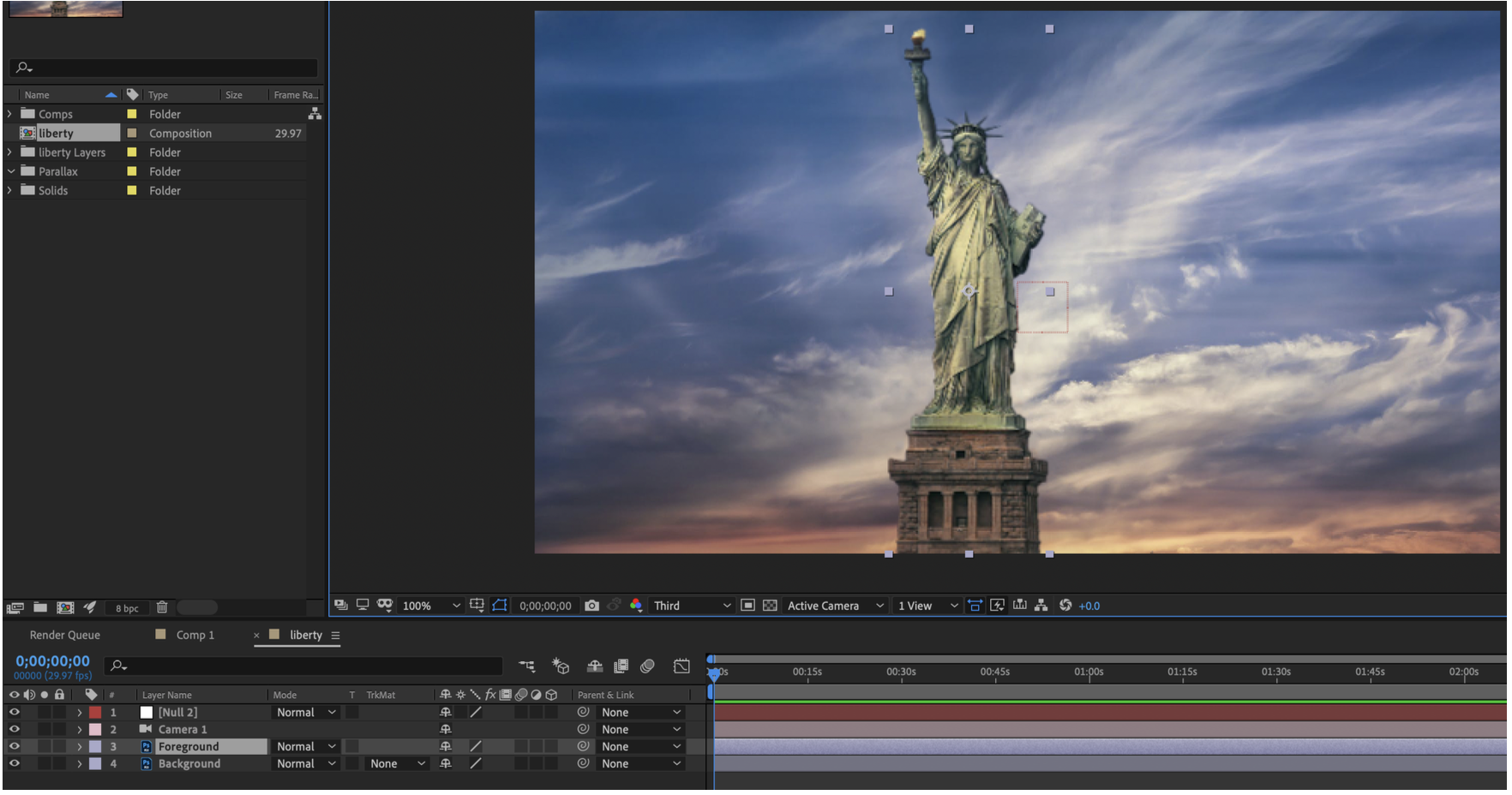
Here in this example, we have a scene made of 2 layers: Foreground and Background, which are 2 Photoshop layers. We can use these layers from foreground to background to make a parallax effect.
The first thing we need to do is turn all the layers 3D using the 3D toggle.

We can also select 2 views so we can see the 3D layers.
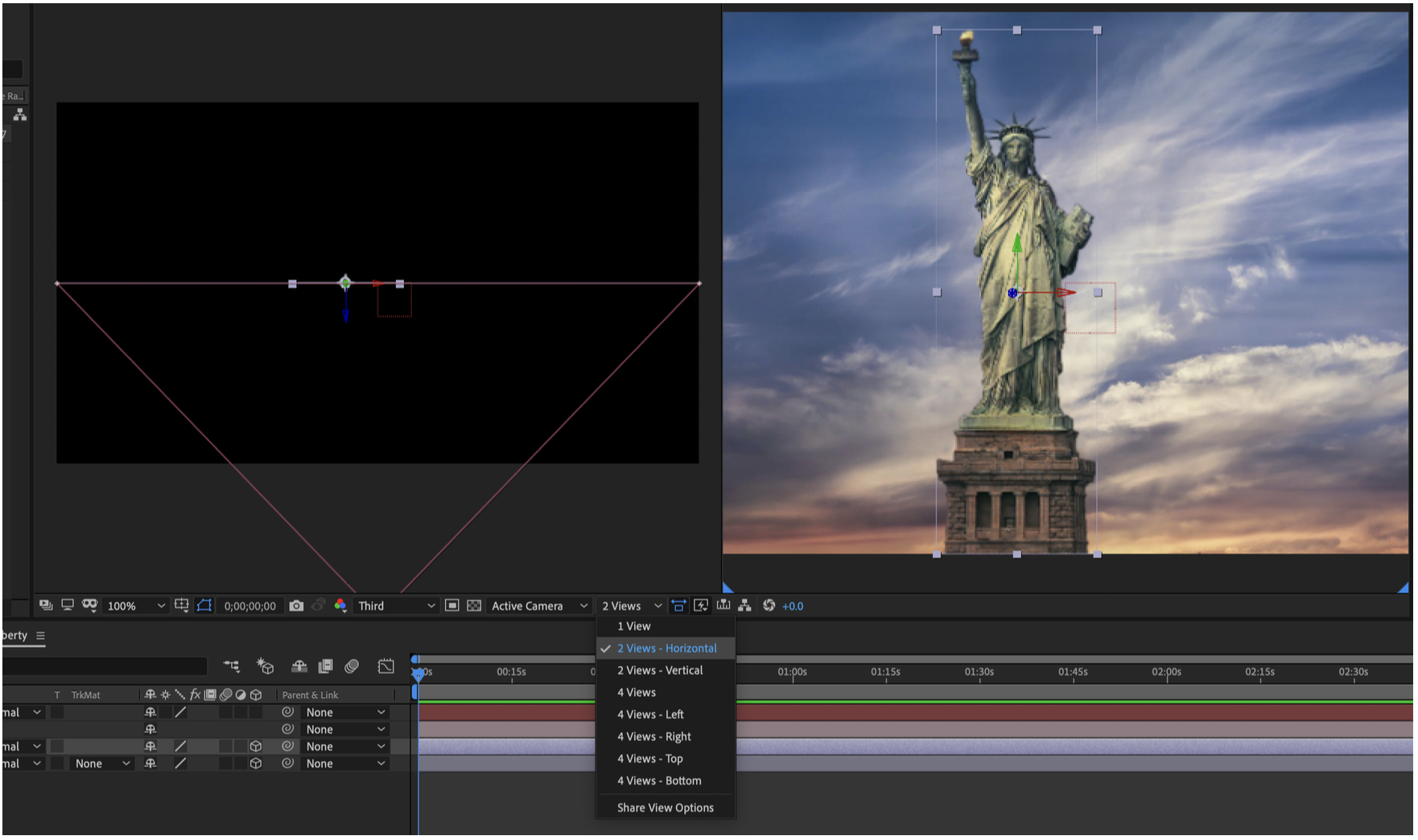
Alternatively to this view, we could change the active camera to Custom View 1.
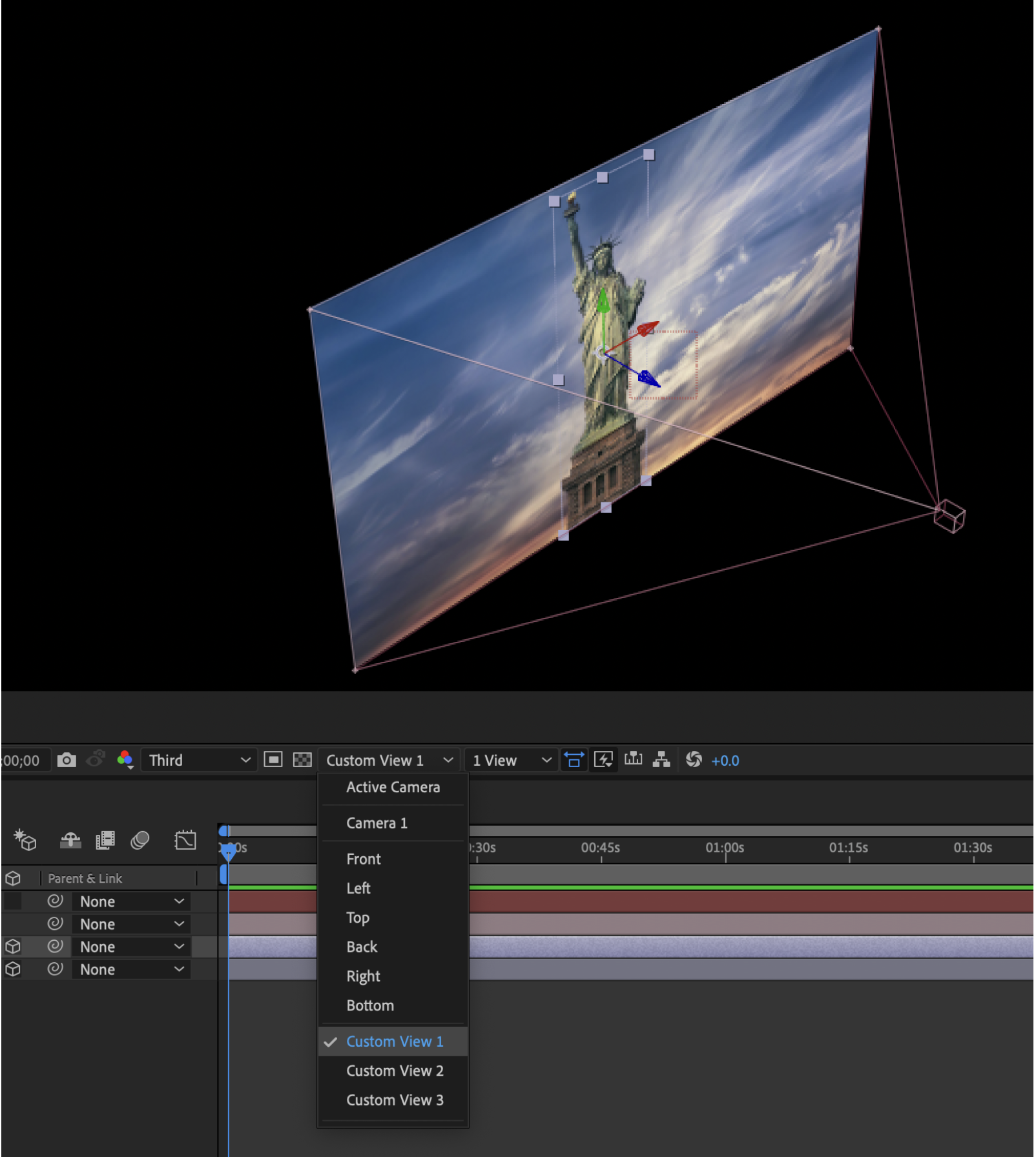
We will also need to create a new camera and a new null object.
A camera allows us to simulate a camera in After Effects.
A null object is a 0 layer that allows us to control another object.
To create them, go to:
- Layer > New > Camera
- Layer > New > Null Object
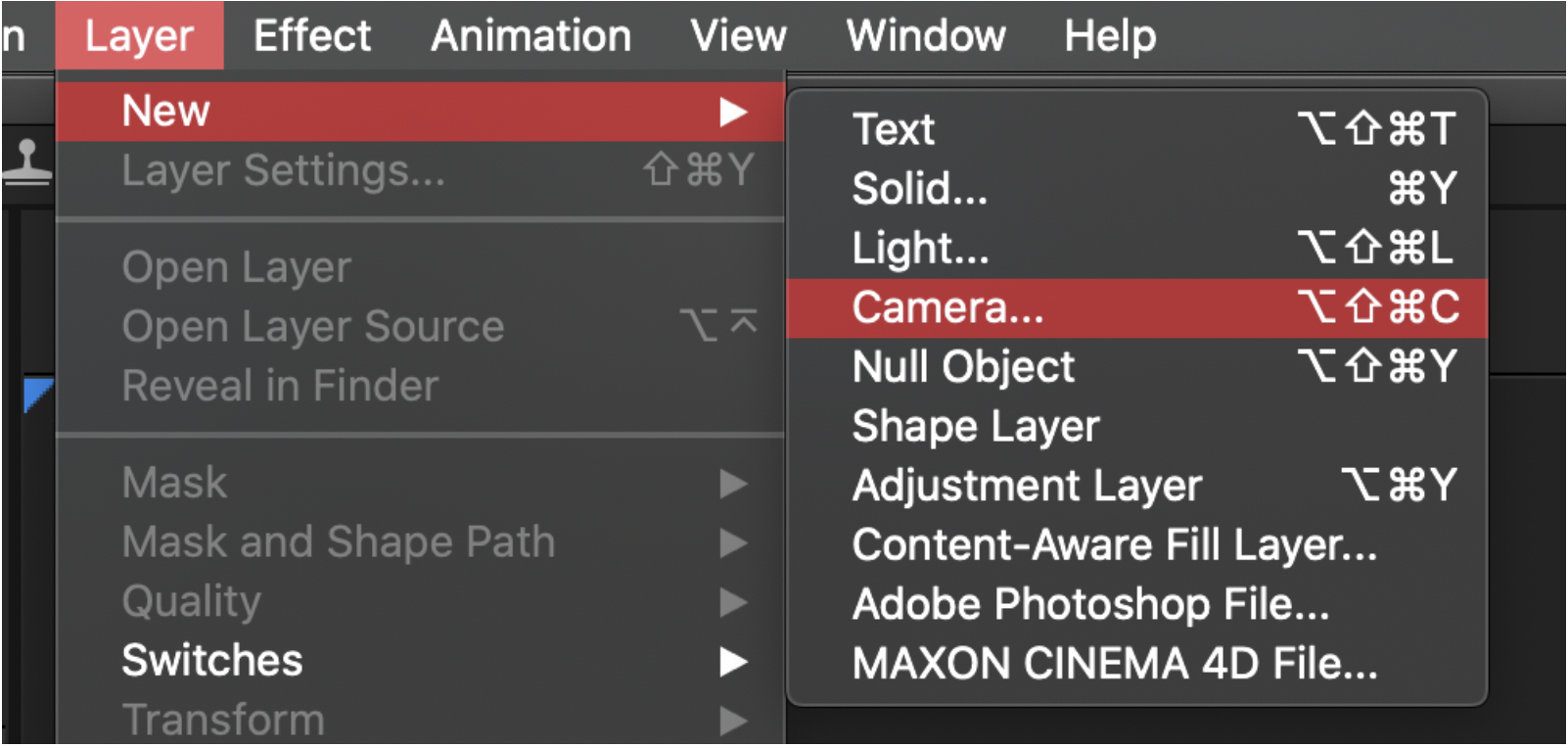
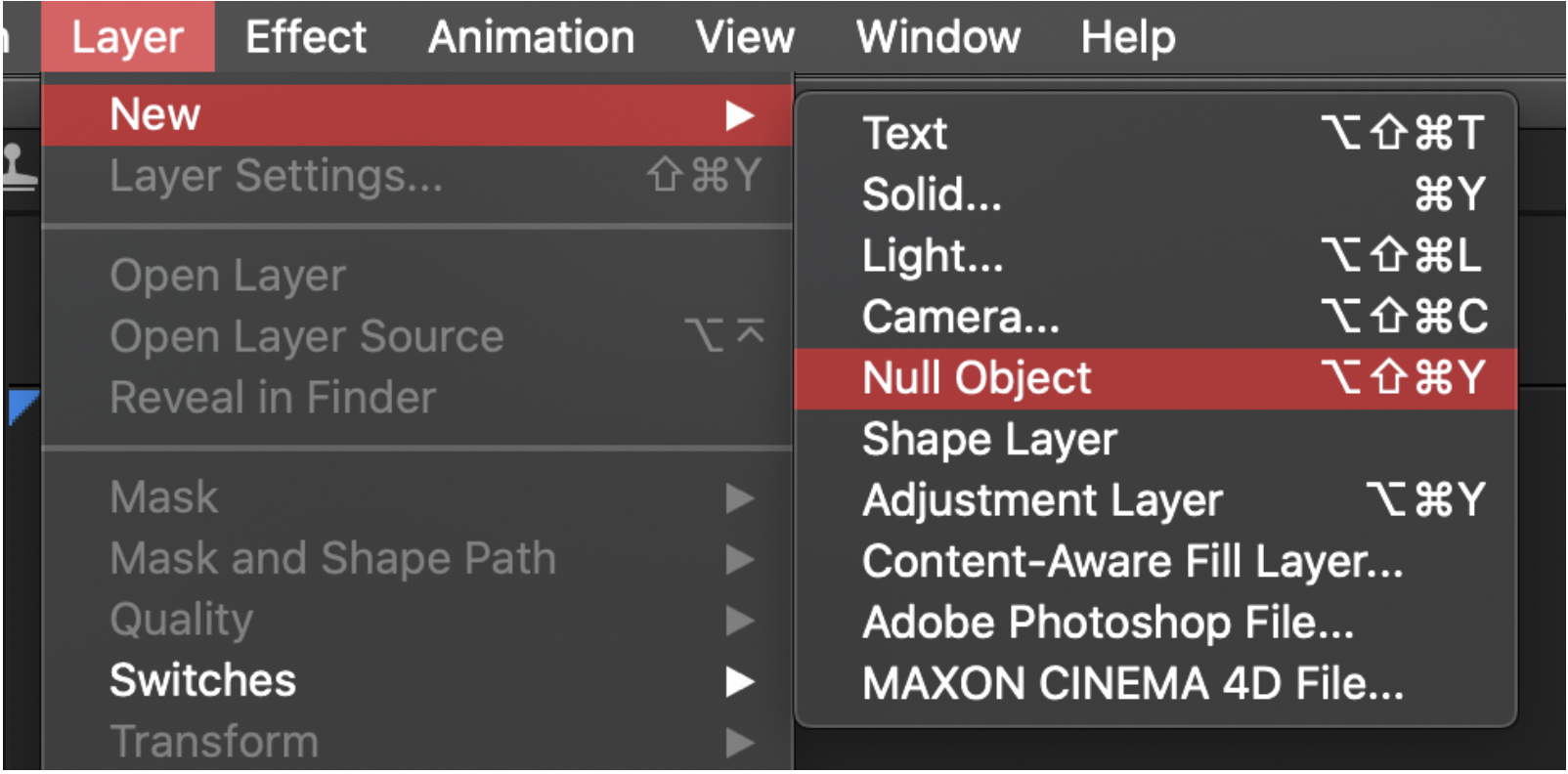
These 2 new layers will show up on the timeline layers. We have to also make the Null layer a 3D layer using the 3D toggle.

Now we need to position the 3D layers. We need to push the background layer back in 3D space using the Z Position property, changing the value to push the layer back.
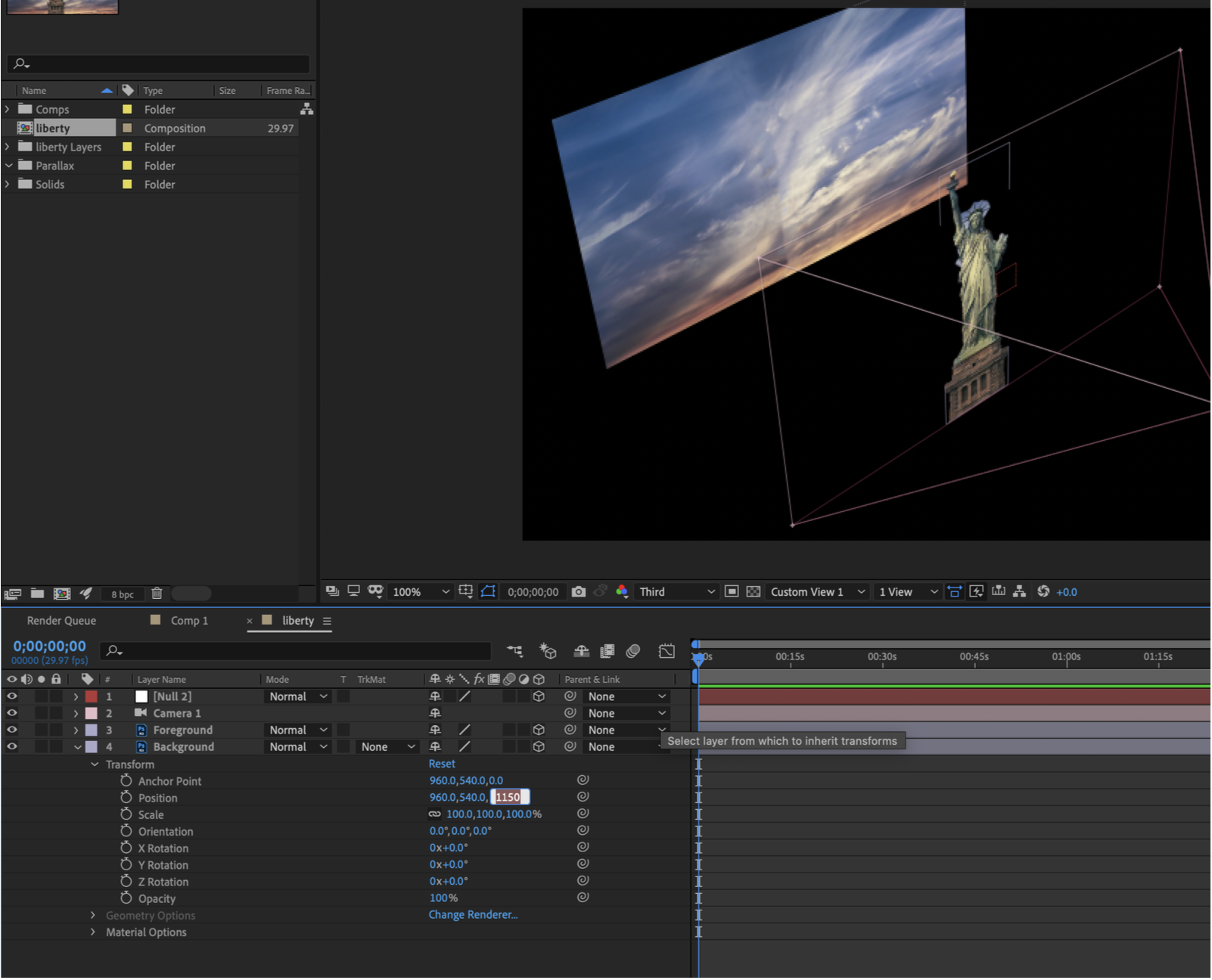
Once we do this, if we switch the camera view back, we will see that the background is moved back.
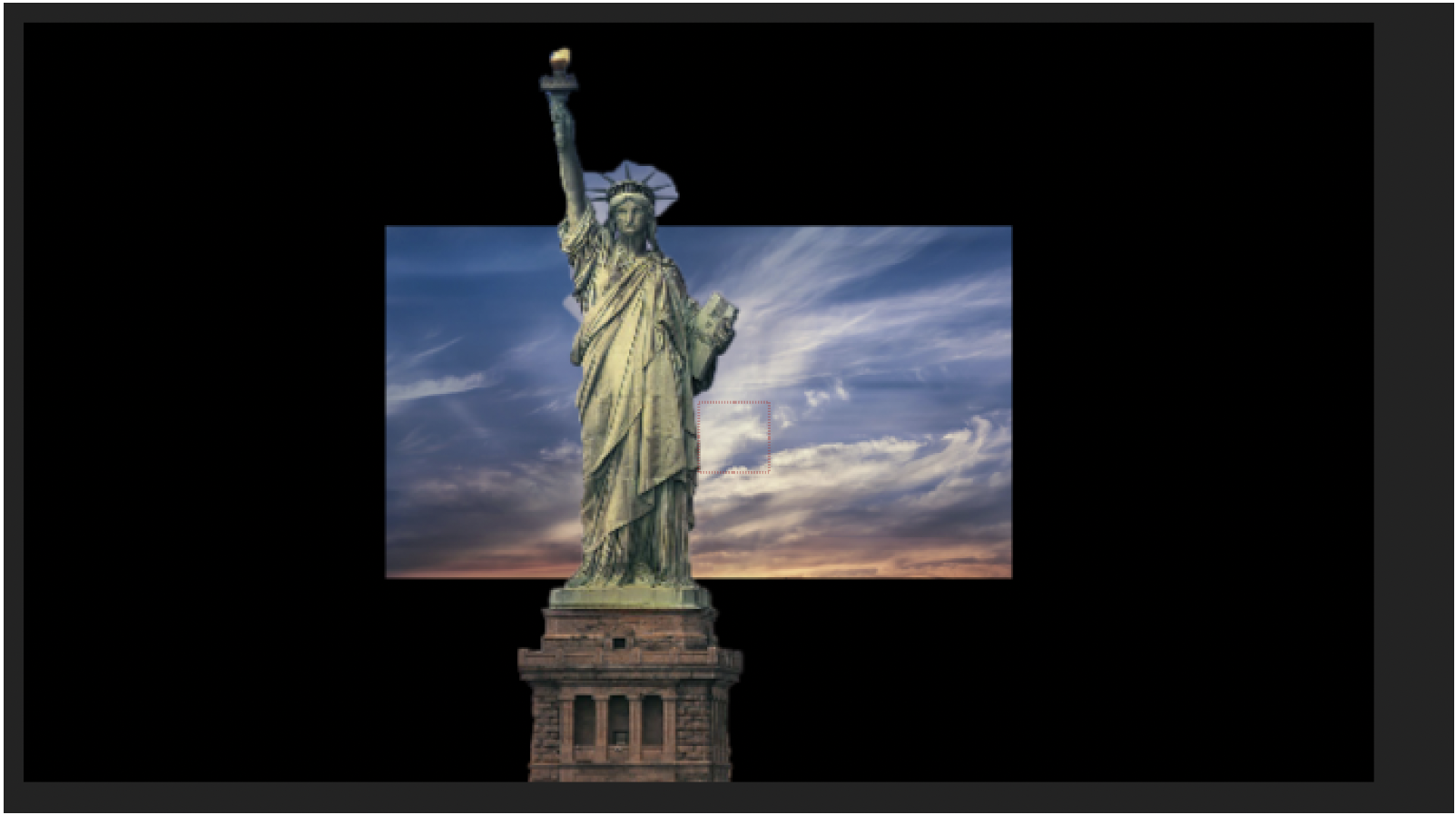
We now need to compensate for this. We can do this by scaling the background back up using the scaling property.
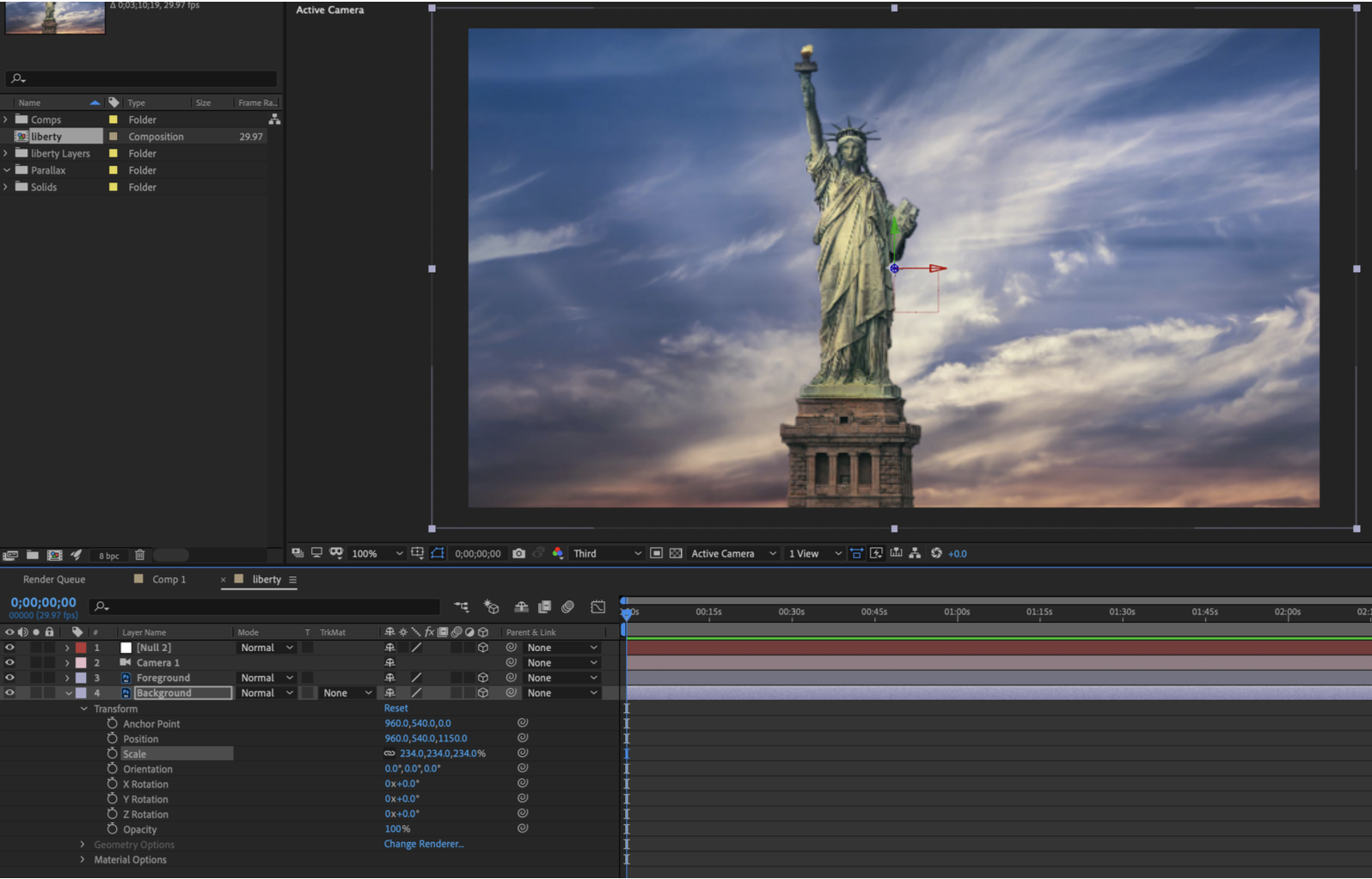
Now we need to parent the camera to the Null Object. We can do this by using the pick whip or simply selecting the parent on the layer.

At this point, we can animate the Null layer, giving us the parallax effect of the foreground moving at a different rate than the background.

Categorised in: Lectures, MMDD 102
This post was written by amax