
MDCP 102 – BG Gradients & Logos
April 1, 2024 9:56 pm Leave your thoughtsBG Gradients & Logos
Background gradients
We can make background gradients very easily using CSS.
.header {
background: linear-gradient();
}
If we select an object, we can use the background property and give it the linear gradient rule.
.header {
background: linear-gradient(45deg, rgb(0, 115, 255), rgb(255, 0, 221));
}
After that, we need to give the gradient a value for the degrees the gradient will tilt and at least 2 color values. If we give more than one color value it will add that to the gradient.
<style>
.header {
height: 60vh;
background: linear-gradient(45deg, rgb(0, 115, 255), rgb(255, 0, 221));
}
</style>

<div class="header">
<h1>Header</h1>
</div>
Output:

Now with a 3rd color value in the gradient…
<style>
.header {
height: 60vh;
background: linear-gradient(45deg, rgb(0, 115, 255), rgb(0, 0, 0), rgb(255, 0, 221));
}
</style>

<div class="header">
<h1>Header</h1>
</div>
Creating a logo with Photoshop
If we need a logo we can make one with Photoshop. Let’s make a basic logo. Make a new file.
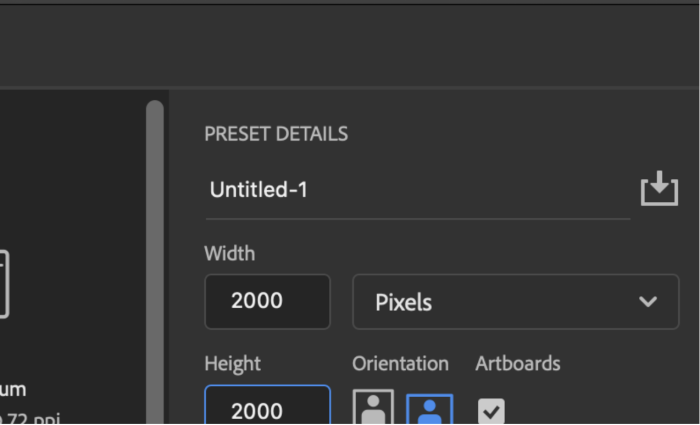
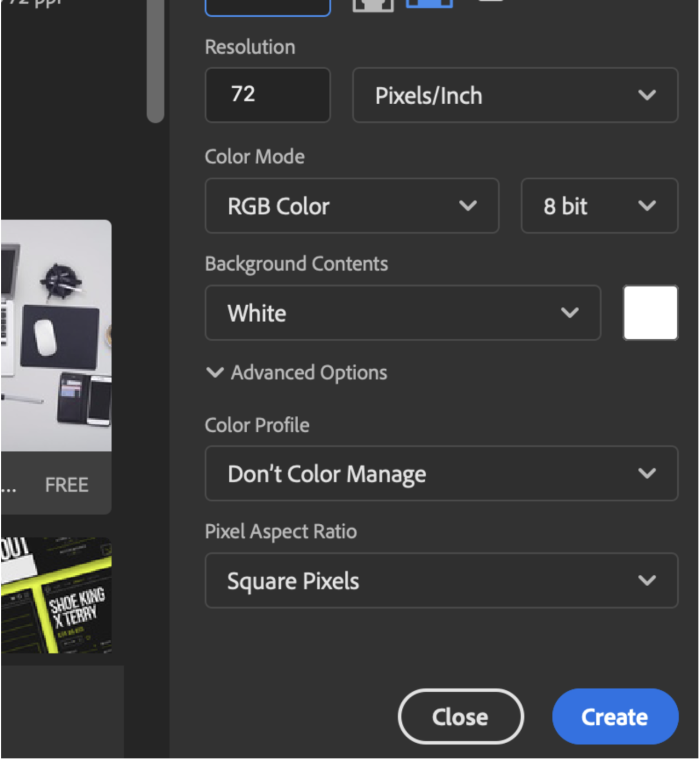
There are multiple ways we can make shapes. One of them is to use the pen tool.
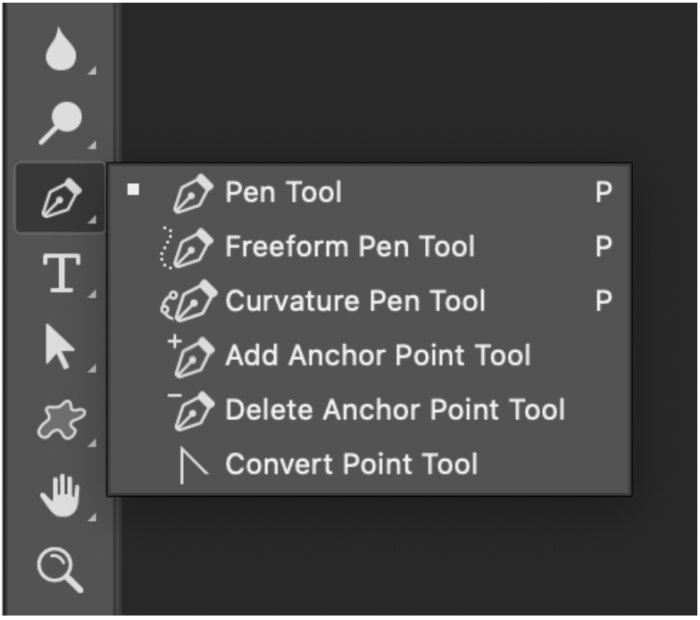
Draw out some shape. Then turn it into a shape layer.
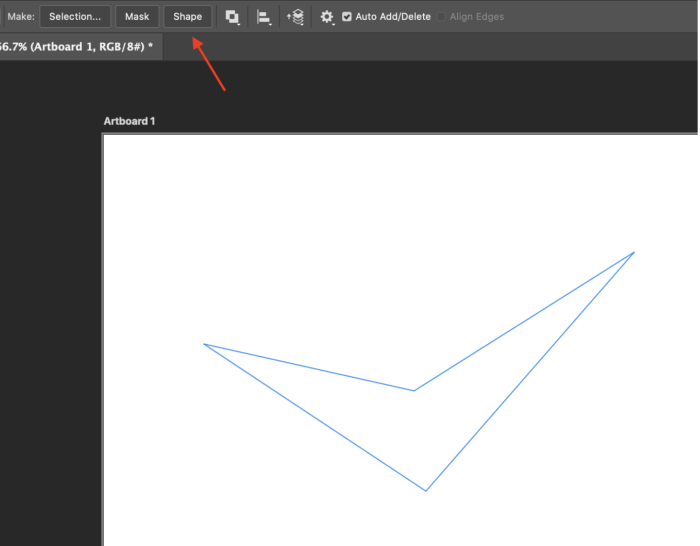
Give it some color, gradient or a pattern.
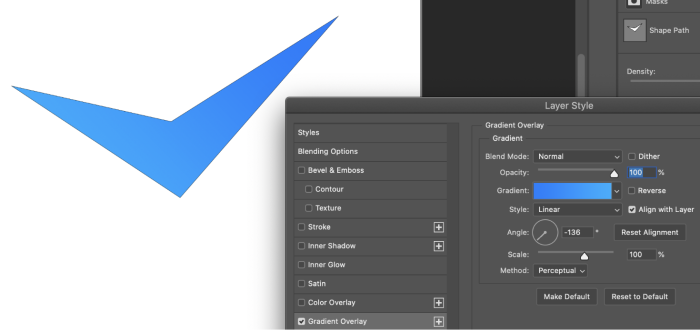
In this case, we want to duplicate the layer.
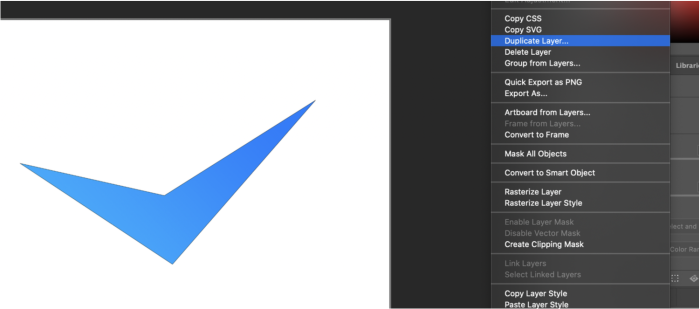
Here is the duplicated layer. We must position it now.
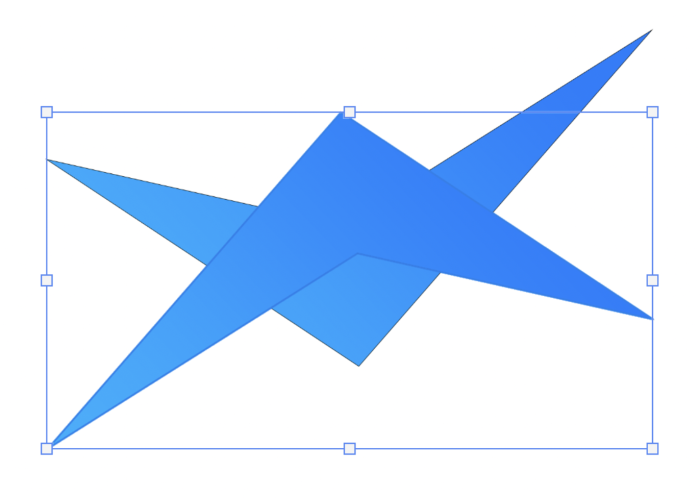
Position it and we can add the vertical line to give it some depth of dimension. We can also add some company name.

As we can see, it is not hard to make a logo in Photoshop. This is a very simple example but you could get more complex with it. Regardless, we want our logos to be simple and able to be vectorized. We also want logos to be able to be monochrome and also printed in solid colors.
Background images for bulleted list
We can make custom bullets for list items if we want, or need to.
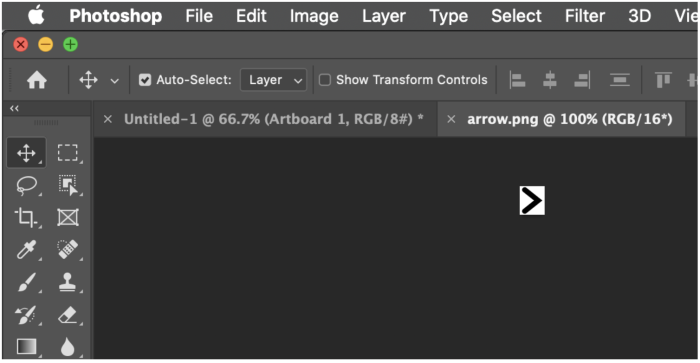
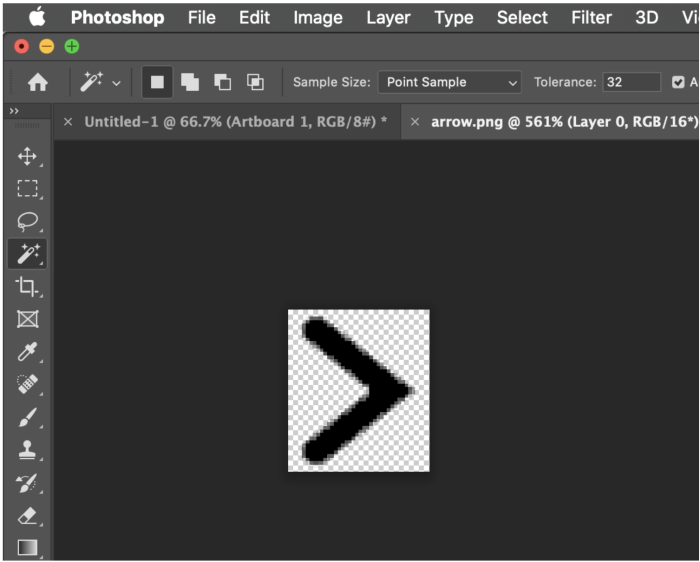
1st we need to get or make the custom bullet. Make sure the size of the image is small and save it as a PNG with no background color.
Once we have the asset we can deploy it:
HTML
<ul>
<li><a href="#">Link</a></li>
</ul>
CSS
ul {
/* Make sure to get rid of the
default list style type on the UL
tag */
list-style-type: none;
}

li {
/* On the list items
themselves:
set the background image
then set the size
then make sure it does not
repeat
the position will be set at 0
which will place it right to the
left
then you need some padding to
move the actual list item over so
its
not sitting on top of the
custom bullet
*/
background-image: url(img/arrow.png);
background-size: contain;
background-repeat: no-repeat;
background-position: 0px;
padding-left: 20px;
}
Categorised in: Lectures, MDCP 102
This post was written by amax