
COMP 10041 Week 3
October 2, 2024 5:56 pm Leave your thoughtsIntro to Users and Groups
Module
Module Objectives
- Understand authentication methods
- Understand the terms domain, tree, and forest
- Know the advantages of single sign-on and different ways to logon
- Understand group account types and scopes
- Become familiar with commonly used default users and groups
- Understand the function of special identity groups
Activity – Prepare the Environment
- Boot the computer at your seat – this is your local host
- Login
- Navigate to
D:\Courses\COMP-10041\ - Open the folder
AcmeCoreDC2019 - Double Click on
AcmeCoreDC2019.vbox(the blue icon) to open your domain controller - Open the folder
Client10-PC.vbox - Double Click on
Client10-PC.vbox(the blue icon) to open your client machine - Start the
AcmeCoreDC2019, and then start theClient10-PC - Login to the workstation as
Anthony.Green@acmeusing the passwordAdminP@ss. Anthony Green is the Domain Administrator
Perform this procedure immediately at the start of every class unless told otherwise.
User Accounts
User accounts are needed to authenticate users, which in turn allows the user to:
- Log on to the network
- Access network resources
You CAN log on with a user account.
You CANNOT log on using a group account.
Group Accounts
Group accounts can ease administration and management of multiple users. Typically, multiple users need the same access to various network resources so managing can be done more efficiently by the following procedure:
- Make multiple users members of a group
- Assign resource access to the group
Modifying group access immediately impacts all group members.
Two Types of User Accounts
Windows Server supports 2 types of user accounts:
- Domain user accounts: Accounts created and maintained in Active Directory
- Local user accounts: Accounts created and maintained on a local computer in SAM
User Authentication
In a Windows Server domain, authentication is a 2-part process:
- Interactive logon
- Network authentication
Authentication: Interactive Logon
The first authentication stage happens at logon:
- Press
CTRL + ALT + DELthen enter username and password. - System verifies the user by username and password BEFORE being allowed to log on.
- If user specifies logon to the local computer, then a local username and password must be used which gives access only to this local computer.
- If user specifies logon to the domain, then a domain user account and password must be used which gives access to network resources.
Interactive Logon VS Non-Interactive Logon
- Interactive Logon:
- When you are sitting at the keyboard of the computer you are logging in on.
- Non-Interactive Logon:
- When you connect to a network resource and are authenticated across the network.
Authentication: Network Authentication
Successful interactive logon gets the user “in the door,” but this process doesn’t provide any access to network resources.
Network authentication (second part of authentication process) is used to determine whether the user has permission to access a given network resource.
Network authentication process happens automatically whenever the user tries to access network resources. User is NOT asked for a username and password.
Single Sign-on
Single Sign-on is a feature that allows the user to enter an appropriate domain username and password once (at logon) then the following occurs:
- User is logged onto the network.
- User is automatically allowed to access various network resources without having to provide a username and password again during that logon session.
- Access success is subject to the user having appropriate permissions to access the resource.
- Access is also subject to the Windows Firewall settings.
Start Menu Screen: Search for Windows Firewall with Advanced Security
Windows Firewall Properties: Inbound connections: Block
Activity: Confirming the Single Sign-on Feature
Here we will confirm that if logged on with a domain account, you can access network resources without having to re-enter a domain username and password.
From the Windows 10 Virtual Machine:
- If necessary, logon to
acme.comwith the domain Administrator accountAnthony.Green@Acme - Open Computer Management
- Connect to
acmeserver(i.e. domain controller). Notice you didn’t have to provide a domain username and password. - Log off and then log back on to the local computer with the local administrator user account:
- User:
Client10-PC\Tony - Password:
P@ssword
- User:
- Open Computer Management and attempt to connect to the domain controller (i.e.
acmeserver) - At first this seems to work, but try to open Event Viewer (
System Tools \ Event Viewer). You will get an “Access denied” message. - Close the Computer Management console.
Logon Names
All user accounts are associated with a logon name which has two parts:
- User name
- Domain
Logon Name Formats
You can combine these two when logging on using one of two formats:
username@domain(e.g.,tony.green@acme)
This works only for domain accounts, not local accounts.domain\username(e.g.,acme\tony.green)
This format is referred to as the Pre-Windows 2000 logon name and follows the logon name format used in Windows NT domains.
Activity: Logging On Using the Logon Name Format
- Log off, select Switch User, and then Other User.
- Log on using
Anthony.Green@acme(caps are optional). Note that as soon as the@is pressed, the “Log on to:” field changes from the local computer name to the acme domain name.- You cannot log on to a local account with this method (
acmeclient@client10-pcdoes not work).
- You cannot log on to a local account with this method (
- Log off.
- Log on using
acme\Anthony.Green(caps are optional). Note that as soon as the\is pressed, the “Log on to:” field changes from the last domain used to the acme domain name.- You can log on to a local account with this method (
client10-pc\tonydoes work).
- You can log on to a local account with this method (
Domains, Trees, Forests
Domain / Tree / Forest Analogies
Microsoft uses the terms domain, tree, and forest when describing the organization of network resources. These terms will be used in this module when discussing group membership.
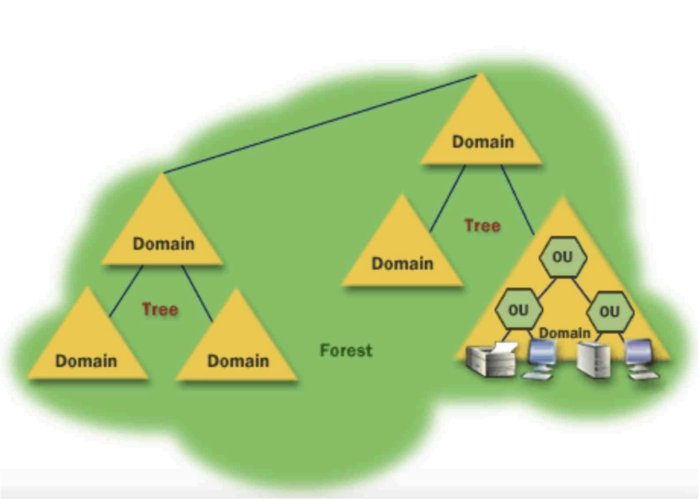
Domain Analogy
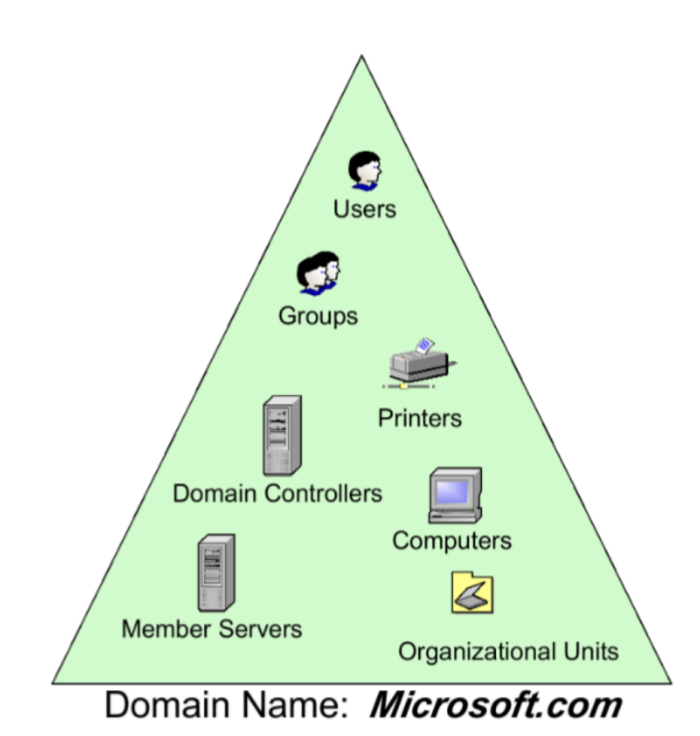
Consider a domain to be like a sapling (i.e. a young tree) and each leaf represents a unique AD object.
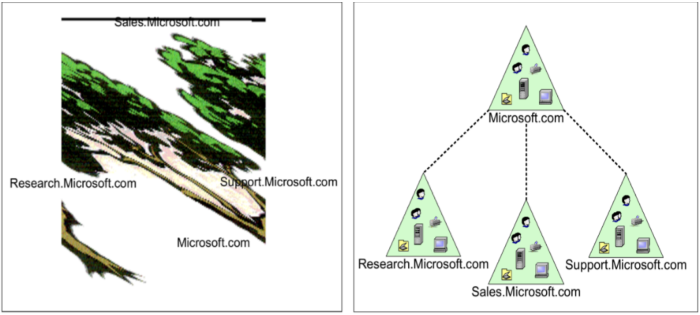
Typical Domain Tree
As a sapling grows into a mature tree, new main branches develop. Similarly, as a company’s network grows, other domains may be added.
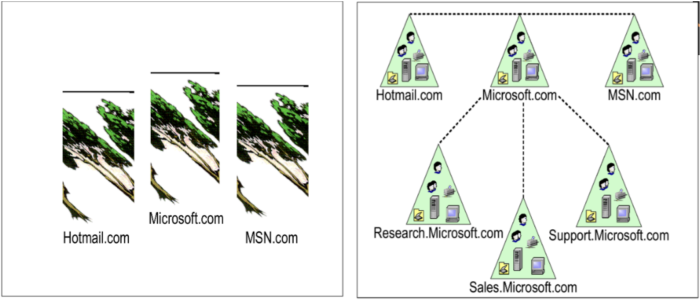
Typical Forest
Just as a real forest is made up of a collection of trees, a Microsoft Server forest is typically made up of several Microsoft Server trees (e.g., Hotmail.com, Microsoft.com, MSN.com).
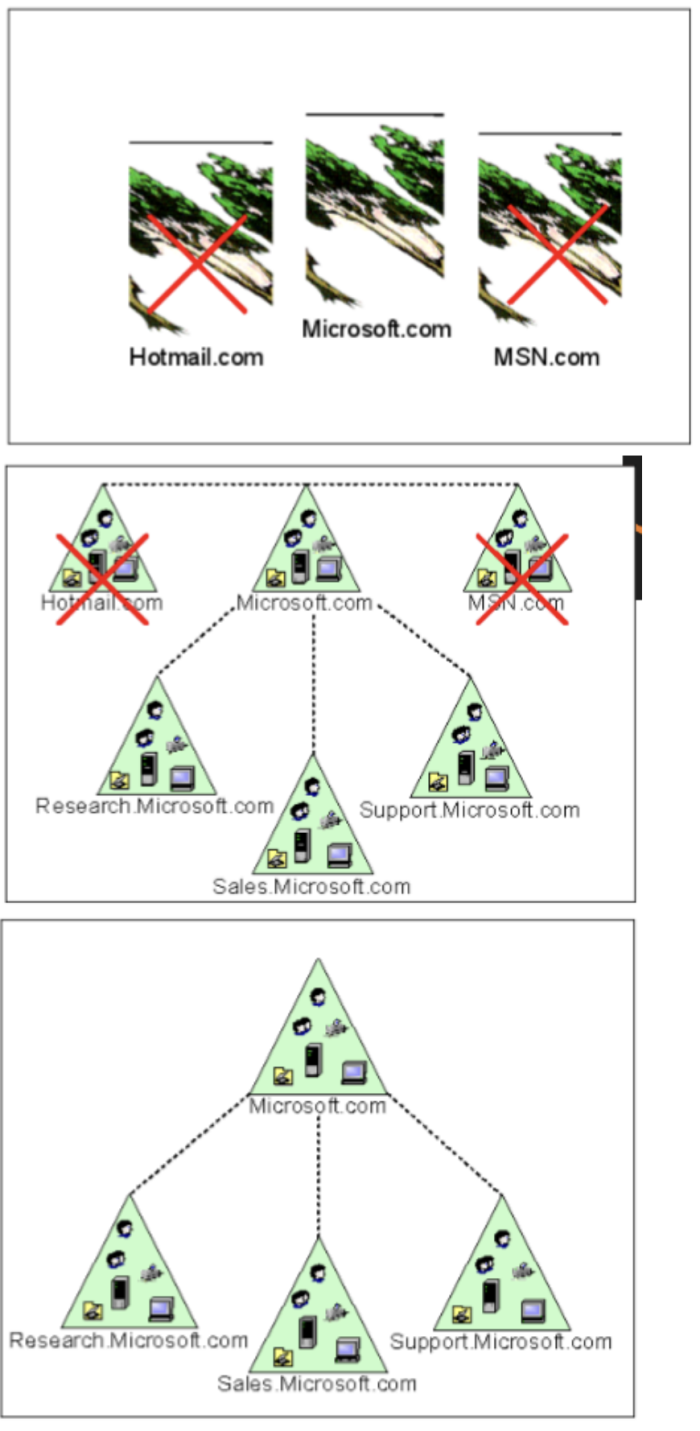
A Forest of One Tree
If all of the trees in a forest are cut down except for one, then you are left with a forest made up of one tree. When Microsoft uses the term forest, it could be that the forest has only one tree.
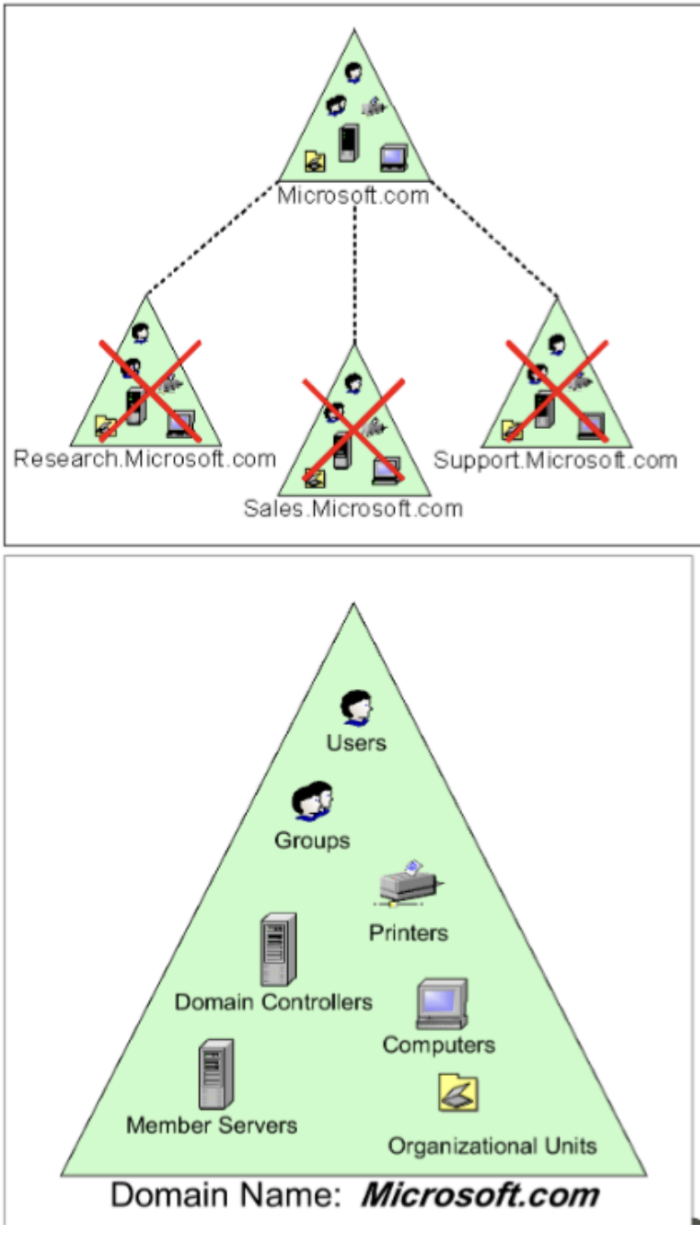
A Tree with One Domain
Just like a Microsoft Server forest can be made up of only a single tree, a tree might have only a single domain (e.g., Microsoft.com).
Groups
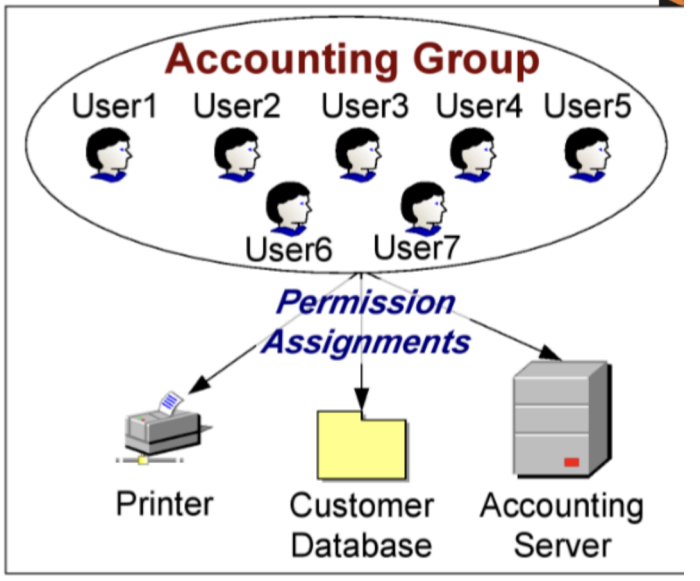
You use groups to grant permissions to users that have similar job functions or access requirements. If a group has permission to access a given resource, you can give a user the same access by making the user a member of the group.
Which is the more efficient way to assign users permissions to resources?
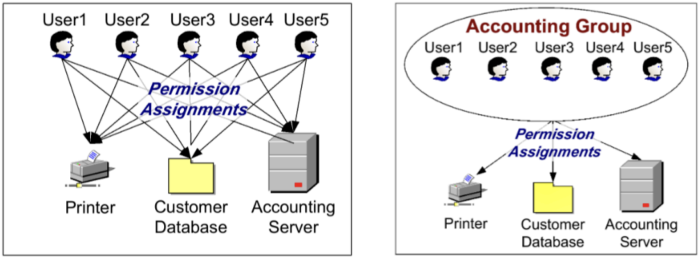
Giving 5 users permissions for 3 resources on an individual user basis means 15 assignments, but only 3 when assigned to a group. Imagine how much work it would take if there were a lot more users.
Adding Users to a Group
Simply making users members of a group automatically gives them permissions for all resources to which the group has been given permissions. Adding User6 and User7 to the Accounting Group now gives them permissions for all three objects just by making them group members.
Removing Users from a Group
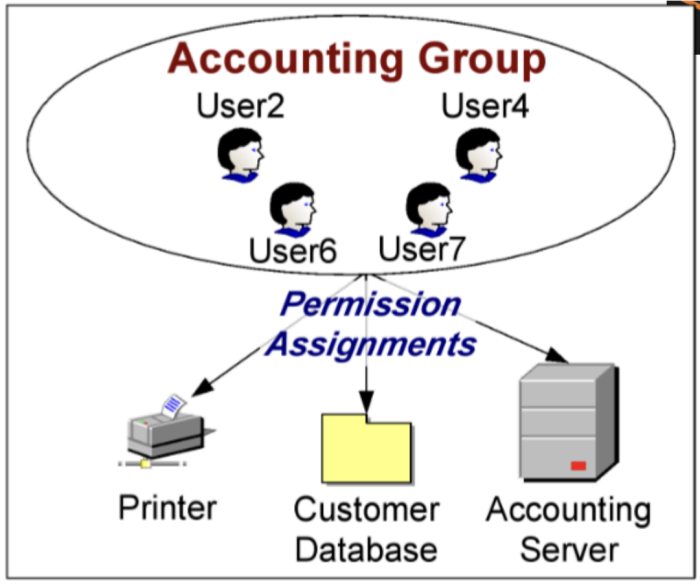
Removing users from the group’s membership automatically takes away their permissions for all resources to which the group has been given permissions.
Removing User1, User3, and User5 means they no longer have the permissions they had for the three objects.
Objects and Access Control Entries
In Active Directory, Users, Computers, Groups, and shared resources are defined as objects.
Access controls can be assigned to these objects through the use of Access Control Entries (ACEs). Access control entries define the users and groups that are granted access to other objects and list the permissions these users and groups have been assigned.
Inheritance
Active Directory objects can inherit permissions from their parent object. Inheritance allows the child object to obtain the same permissions as the parent without any action having to be taken by the network administrator.
Domain Group Types
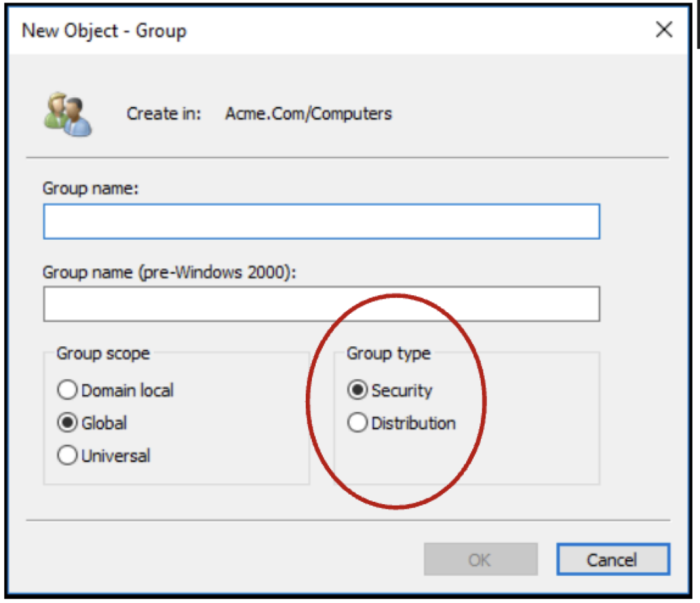
There are two types of domain groups:
- Security groups: Groups that can be given permissions to a domain resource.
- Distribution groups: Groups used for e-mail distribution lists. Cannot be used to give permissions to domain resources.
Group Scope
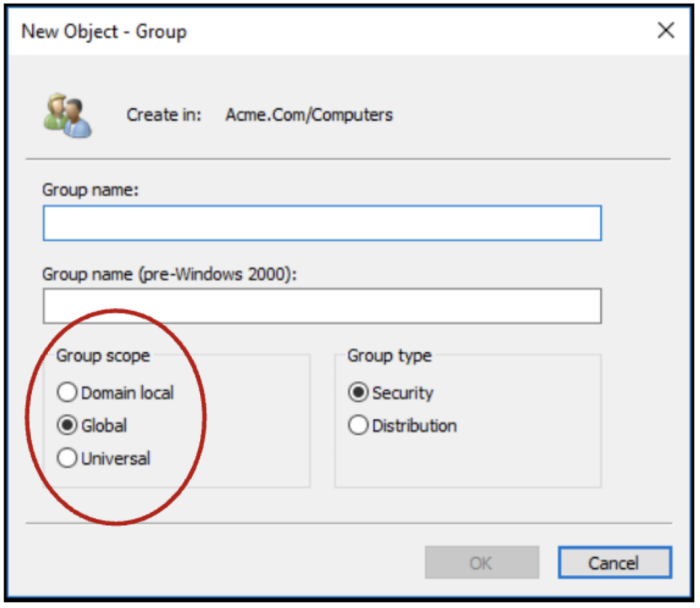
A group’s scope defines the breadth or range of access that the group can be given to network resources. Different types of groups can have different scopes. In some cases, a group’s scope can be limited to access to resources within that group’s domain. In other cases, a group’s scope may allow access to resources anywhere in the forest.
Group Scope Options
When creating a group, there can be up to three group scope options to choose from:
- Domain local
- Global
- Universal
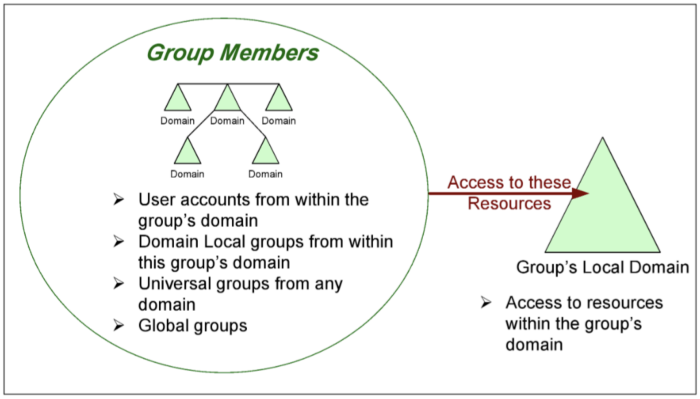
Domain Local Groups
- Scope: A domain local group can be given permissions to resources only within the domain where this group is created.
- Membership: Members of a domain local group can include:
- User accounts from within the group’s domain
- Domain Local groups from within this group’s domain
- Universal groups from any domain
- Global groups from any domain
- Resource Access: Access to resources within the group’s domain.
Builtin Local Groups
There is another special group type called Builtin local. All groups in the Builtin container (location of Builtin local groups) effectively have the same scope as domain local groups. They are almost identical to domain local groups except they are created during installation.
A user account cannot be used to create a Builtin local group (not even Administrator).
Activity: Properties of Builtin Local Groups
- If necessary, log out and log back on with the domain Administrator account:
- User name:
acme\Anthony.Green - Password:
AdminP@ss
- User name:
- Open Active Directory Users and Computers.
- If necessary, expand the
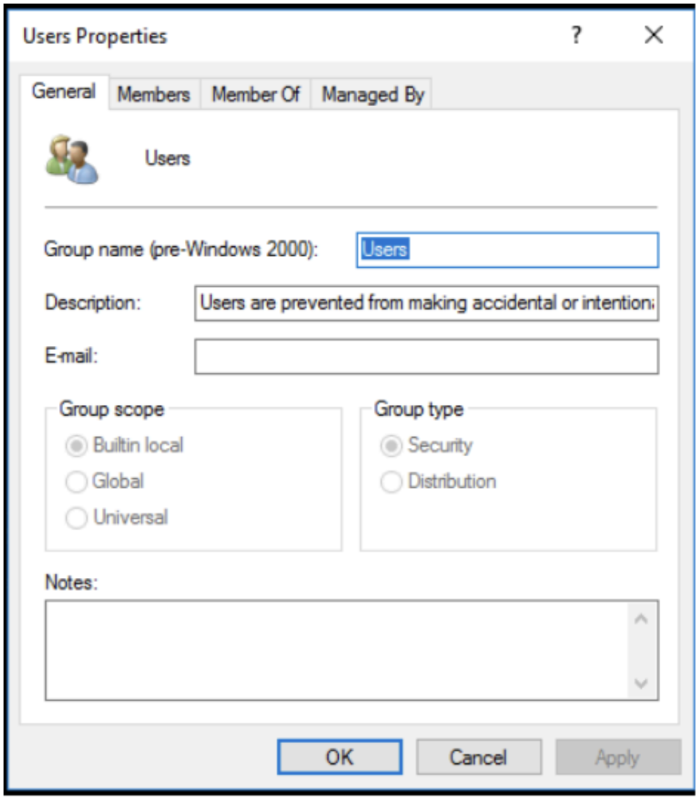
acme.comcontainer and select theBuiltincontainer.- Builtin local groups also have a special distinction – they cannot be deleted.
- Right click on the
Usersgroup. Notice there is no Delete option. - Select Properties. The group’s scope will be listed under the General tab as “Builtin local”. Also notice the Group scope and Group type areas are greyed out and cannot be changed.
- Close the Properties window.
- Right click on the
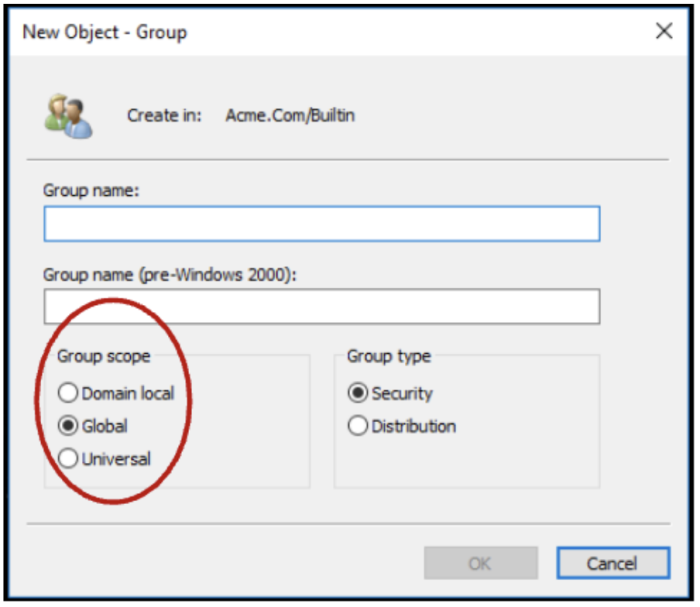
Builtincontainer. - Select New / Group. Notice that Builtin local is not an option for the group scope property. Click Cancel to close the window.
- Builtin local accounts can only be created by the system when Active Directory is installed.
- Builtin local groups have the same scope as Domain local groups.
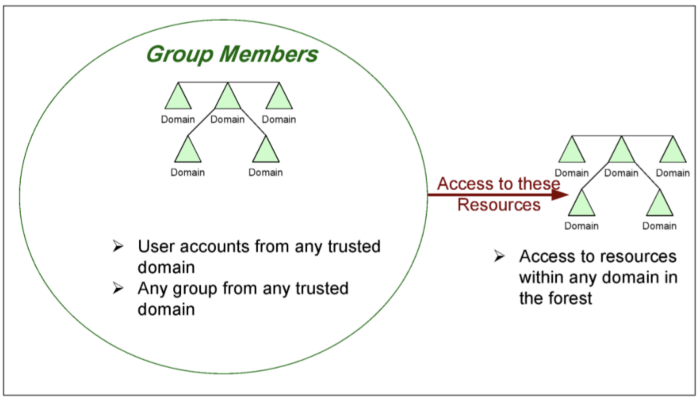
Global Groups
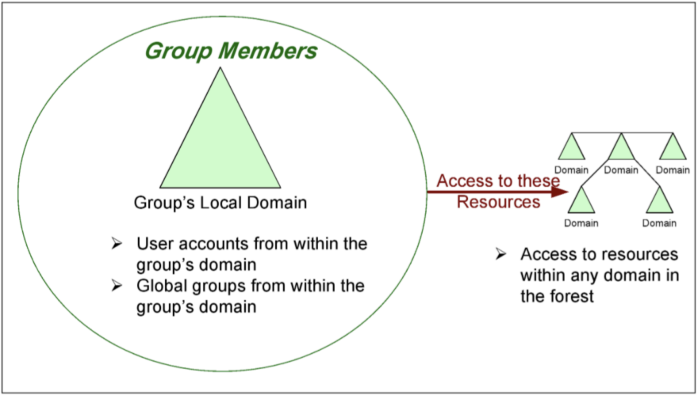
- Scope: Global groups are used to grant permissions to objects in any domain in the domain tree or forest.
- Membership: Members of global groups can only include user accounts and global groups from the domain where the global group is created.
- Resource Access: Access to resources within any domain in the forest.
Activity: Identifying a Global Group
- In Active Directory Users and Computers, select the
Userscontainer. - Right click the
Domain Usersgroup. - Select Properties.
- Notice this group has a scope of Global. This means that this group of users (which includes all
acme.comdomain user accounts) can be given access to resources in another domain.
- Notice this group has a scope of Global. This means that this group of users (which includes all
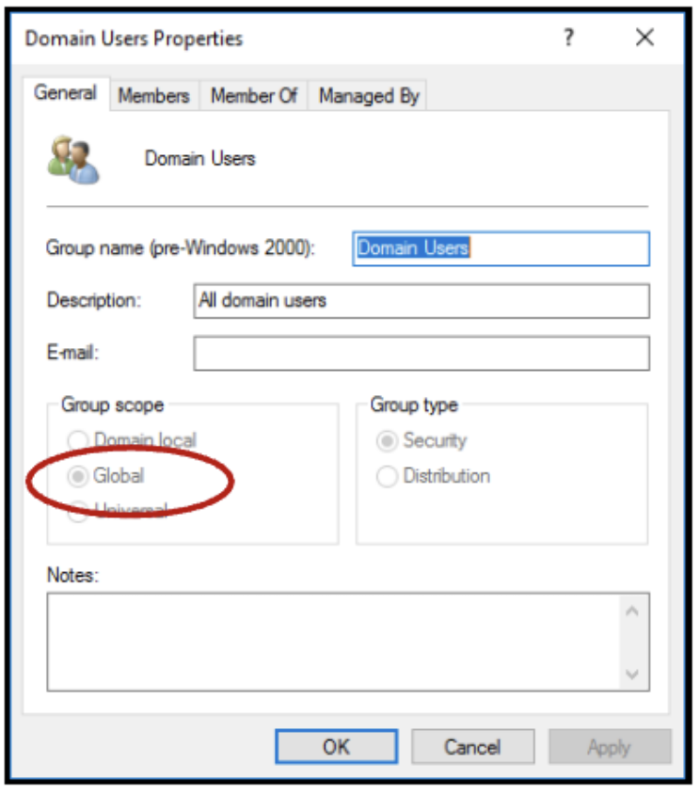
Identifying Global Groups Scenario:
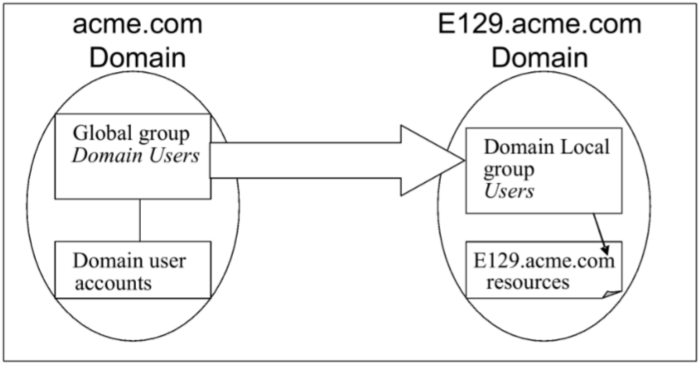
An acme.com global group Domain Users can be added to the E129.acme.com domain’s Domain Local group Users, which can then be given permission to all of the E129.acme.com domain resources. acme.com Domain Users would inherit all the same permissions that the E129.acme.com Domain Local group Users has.
Universal Groups
- Scope: Universal groups are used to grant permissions on a wide scale throughout a domain tree or forest.
- Membership: Members of universal groups can include user accounts, global groups, and other universal groups from any domain in the domain tree or forest.
- Universal security groups are only available when the domain’s Active Directory is running in Windows 2000 native mode or higher (functionality level).
- Resource Access: Access to resources within any domain in the forest.
Activity: Determining Operations Mode
- If necessary, open Active Directory Users and Computers.
- In order to determine which mode Active Directory is currently functioning in, right click on the
acme.comcontainer. - Select Properties.
- What mode (functionality level) is the
acme.comdomain functioning in?
- What mode (functionality level) is the
- Close the
acme.comdomain’s Properties window. - Right click the
Userscontainer then select New / Group.- Is it possible to create a Universal group if the Group type is set to Security? Why?
Universal groups are not practical in an organization with only one domain.
Default User and Group Accounts
Windows Server 2019 creates numerous predefined default user and group accounts. We will discuss some of the more commonly used default user and group accounts further.
Administrator Domain User Account
Administrator account:
- By default, provides complete access to all files, directories, and resources in the entire domain.
- Can be disabled.
- Cannot be deleted.
For security reasons, you may want to disable the Administrator account. Anyone trying to break into the network will go after that account first.
Administrative Level Groups
The main administrator-level groups include:
Administrators
- Group Scope: Builtin Local
- Used to administer the local computer/domain
- Members have full access to all resources, but are limited to the local domain
- Administrator is a member of this group by default
Domain Admins
- Group Scope: Global
- Used to administer all computers in the domain
- Can be given access to computers in other domains within the domain tree
- Making a domain user account a member of the pre-defined Domain Admins global group gives that account the same privileges as the Administrator account
- Administrator is a member of this group by default
- For those who are responsible for administering the domain, add their user accounts to the Domain Admins group
Enterprise Admins
- Group Scope: Universal
- Used to administer all computers in a domain tree or forest
- The Administrator account is a member of Enterprise Admins by default. This means that someone logging on as Administrator on a computer that belongs to the domain has complete access to the forest
- You may want to remove Administrator as a member of Enterprise Admins for this reason
Activity: Adding chad.baker to the Domain Local Administrator’s Group
- Open Active Directory Users and Computers.
- Expand the
acme.comdomain icon. - Select the
Builtincontainer. - Right click on the
Administratorsgroup. - Select Properties.
- Select the Members tab and click Add.
- In the “Enter the object names to select” field, enter the
chad.bakeraccount name. - Click OK then click Apply to apply the changes to the group membership.
The chad.baker account now has all the privileges that the Administrators group has.
Administrative Groups Comparison Matrix
| Attribute | Administrators | Domain Admins | Enterprise Admins |
|---|---|---|---|
| Administrator a member? (Yes/No) | Yes | Yes | Yes |
| Administrators a member? (Yes/No) | X | No | No |
| Domain Admins a member? (Yes/No) | Yes | X | No |
| Enterprise Admins a member? (Yes/No) | Yes | No | X |
| Group Scope | Builtin Local | Global | Universal |
| Description | Administrators have complete and unrestricted access to the computer/domain | Designated administrators of the domain | Designated administrators of the enterprise |
Delegating Administrative Duties
Sometimes you want to delegate certain administrative duties to others, but you don’t want to give them full administrative access. Based on the level of administrative access you wish to give, add them to the appropriate builtin pre-defined groups. Remember Builtin groups cannot be deleted.
Activity: Determining a Builtin Group’s Administrative Capabilities
- Open Active Directory Users and Computers.
- Select the
Builtincontainer. - Double click on the
Account Operatorsgroup to display the Properties window. - Read the Description field on the General page.
Activity: Determining Privileges for Builtin Group Members
Determine the privileges that members for each of these groups would have:
- Account Operators: Members can administer domain user and group accounts.
- Backup Operators: Members can back up and restore all files on the computer, regardless of the permissions that protect those files.
- Print Operators: Members can manage domain printers.
- Server Operators: Members can manage domain servers.
Guest Domain User Account
- The Guest account is designed for temporary or occasional access to domain resources.
- Although by default, Guest has few system privileges, Guest’s privileges should be limited since it can be a security risk.
- Guest is disabled by default.
- Keep it disabled if there is no need to allow access to the network.
- Restrict its privileges if it is activated.
- Apply a password to the account and change the password regularly.
- Consider renaming it.
Activity: Determining What Groups a User Account Belongs To
- Open Active Directory Users and Computers.
- Select the
Userscontainer. - Double click on the
Guestuser account. - Select the Member of tab.
- Which groups does the Guest account belong to?
In order to restrict the Guest account access, you would have to also monitor these groups as well.
Implicit Groups and Special Identities
Implicit groups are another set of special predefined groups that cannot be created with any user account (not even with Administrator). Implicit (i.e. implied) groups originated with Windows NT domains.
In Windows NT:
- You could not view the membership of Implicit groups.
- Implicit groups membership was assigned automatically based on how a user accessed network resources.
In Windows 2000 through to 2019:
- You still cannot view the membership of Implicit groups, and membership still cannot be manually assigned.
- However, you can now manually assign access permissions to these groups explicitly.
- Due to this change, Windows Server 2019 refers to Implicit groups as special identities.
Special Identity Group Examples
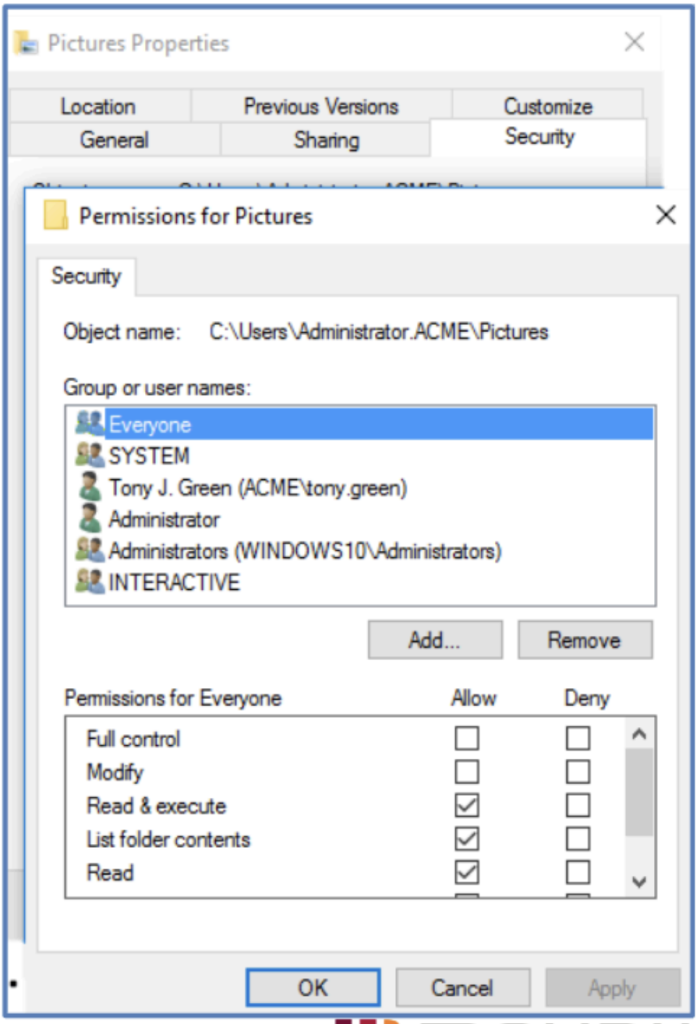
If you check the Member Of page for an account, you will never see these entries since these groups do not have any permanent members. Special identities can be assigned rights and permissions to resources, however.
Interactive
If you access a resource through an interactive logon, your account would be assigned membership to the Interactive group. Any user logged onto the local system is automatically given the interactive identity. This identity is used to allow only local access to a resource.
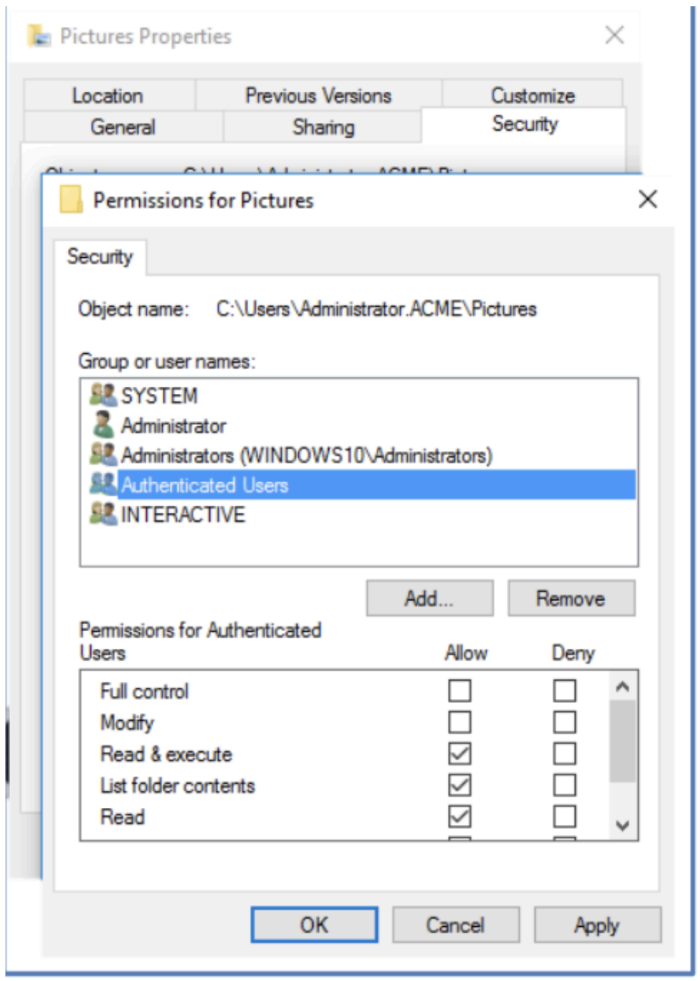
Authenticated Users
The Authenticated Users identity includes all users accessing the system through a successful logon process (interactive or otherwise). This identity can be used to grant access to shared resources for all valid users in the domain.
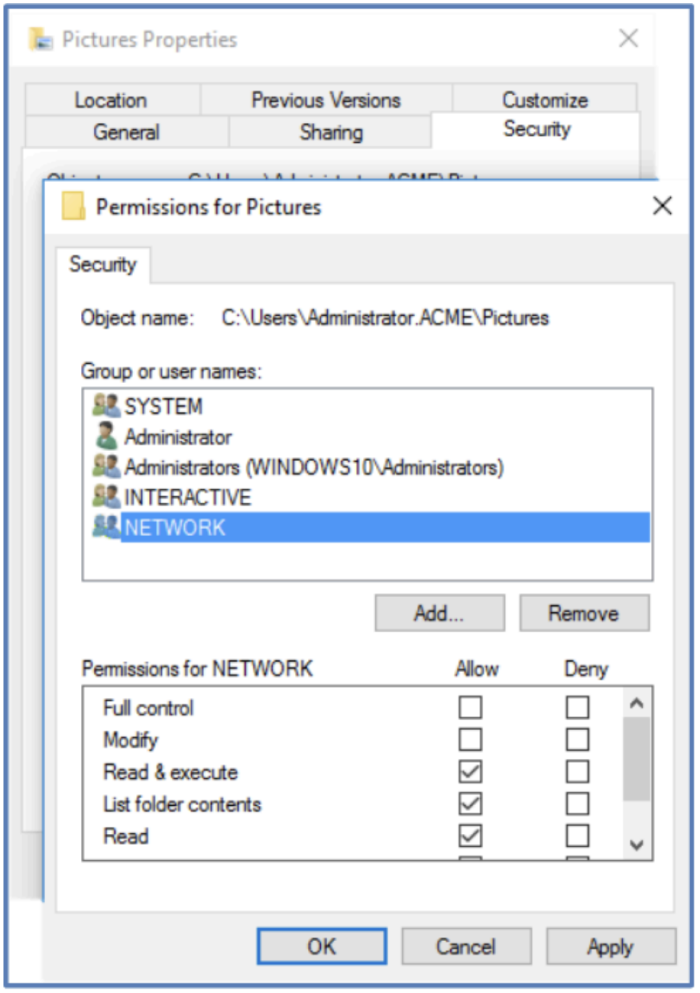
Network
The Network identity includes any user accessing the system through the network. This identity can be used to allow or remove the ability of a user to access resources across a network.
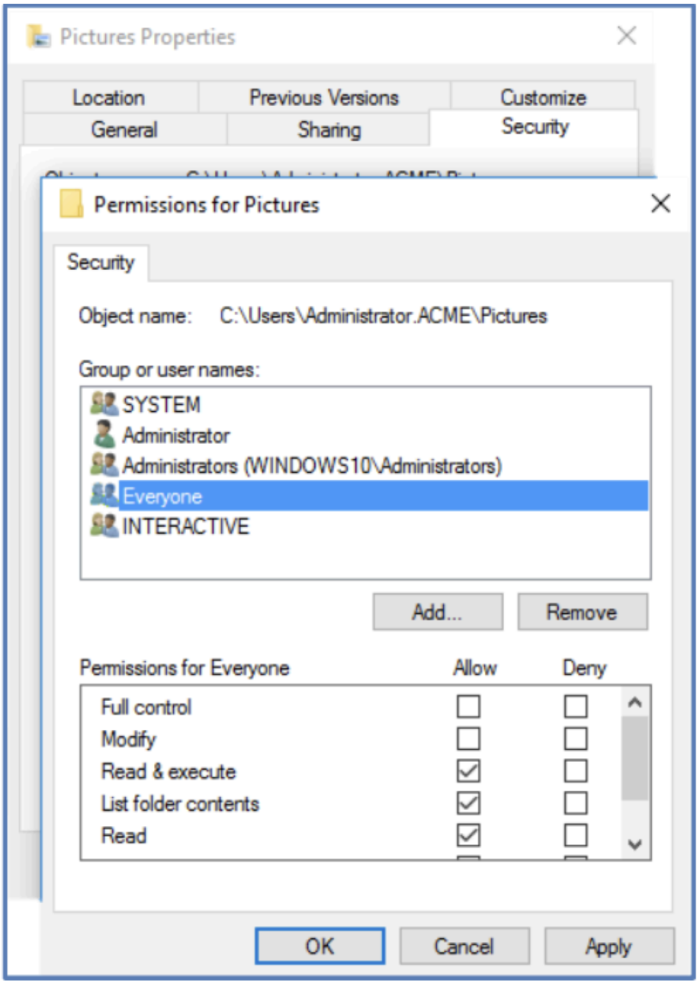
Everyone
The Everyone identity includes all interactive, network, and authenticated users. Essentially, this group includes every currently active user.
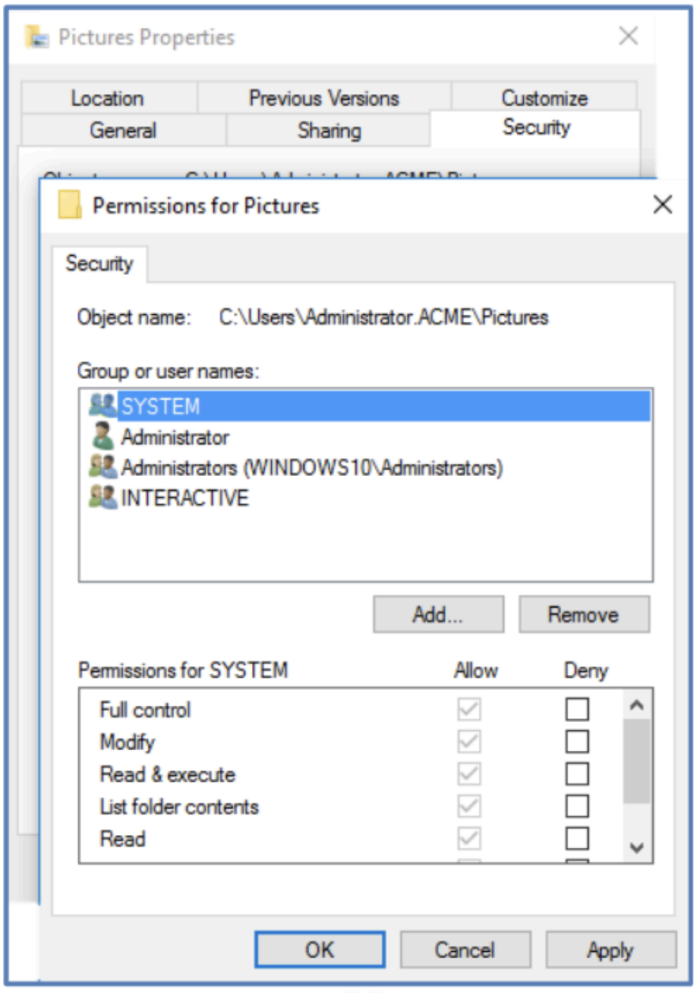
System
System is a highly privileged identity used by the operating system in order to perform system-level operations.
Other Special Identity Groups
- Anonymous Logon
- Batch
- Creator Group
- Creator Owner
- Dial-Up
- Enterprise domain controllers
- Proxy
- Restricted
- Self
- Service
- Terminal Server User
Special Identities are discussed in the Implicit Groups and Identities section of the chapter “Understanding User and Group Accounts”.
Categorised in: COMP 10041, Lectures
This post was written by amax