
COMP 10041 Week 2
September 25, 2024 6:04 pm Leave your thoughtsIntro to Active Directory Domains
Module Objectives
- Install a new Windows 2019 Server in a Virtual Machine
- Identify differences between a domain controller, a member server and a standalone server
- Install Active Directory thereby promoting the system to a domain controller and creating a subdomain (child domain)
- Obtain an overview of Active Directory administrative tools
- Demote a domain controller and removing a subdomain (child domain)
- Create a member server
Activity: Prepare the Environment
- Boot the computer at your seat – this is your local host
- Login
- Navigate to D:\Courses\COMP-10041\
- Open the folder AcmeCoreDC2019
- Double Click on AcmeCoreDC2019.vbox (the blue icon) to open your domain controller
- Open the folder Client10-PC.vbox
- Double Click on Client10-PC.vbox (the blue icon) to open your client machine
- Start the AcmeCoreDC2019, and then start the Client10-PC
- Login to the workstation as Anthony.Green@acme using the password AdminP@ss. Anthony Green is the Domain Administrator
- Perform this procedure immediately at the start of every class unless told otherwise
Note: This environment differs from our standard preparation
- Create a second Windows virtual server
- Create the virtual machine using:
- Name: Windows
- OS Type: Windows 2016 (64 bit)
- Hard Disk: Create new hard disk – Windows2019
- CD\DVD-ROM: Mount using ISO Image File D:\Courses\ISO\en_windows_server_2019_updated_march_2019_x64_dvd_2ae967ab
- Network: Host Only Network
- Create the virtual machine using:
Activity: Install Windows Server 2016
- The virtual machine just created represents the hardware of a brand new computer without a previously installed operating system
- The virtual CD\DVD ROM drive is configured to use the Windows Server 2019 Installation ISO image
- When booted, the Setup program will run automatically
- Start the new Windows Server virtual machine
- The Oracle VirtualBox startup screen appears for a few seconds
- The Setup program will start
- Click Next to accept default language, time and currency format values
- Click Install now to start the installation
- Enter the Product key. This is a trial install. Choose “I don’t have a product key”
- On the Select the operating system you want to install page, choose the Windows Server 2019 Standard (Desktop Experience) (GUI) option and click Next
- Accept the license terms and then click Next
Activity: Install Windows Server 2019
- On the Which type of installation do you want page, choose the Custom: Install Windows only (advanced) option
- On the Where do you want to install Windows page, the default hard drive is already selected, so click Next
- You do not need to partition or format the drive as the virtual machine was created using the Windows 2019 (64-bit) option
- Installation of the operating system will now start
- Setup copies the full disk image to the hard drive and expands it
- Setup then installs features based on the computer’s configuration and detected hardware
- Set the Administrator’s password to AdminP@ss, click Finish
- Log on to your new Windows Server 2019 as:
- User: Administrator Password: AdminP@ss
Server Manager
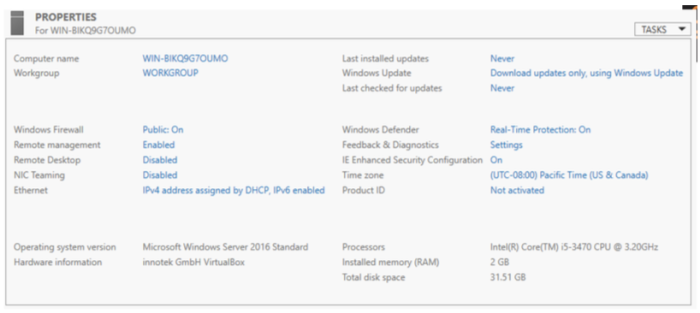
- This virtual image is the result of a typical Windows Server 2019 installation and is known as a stand-alone server
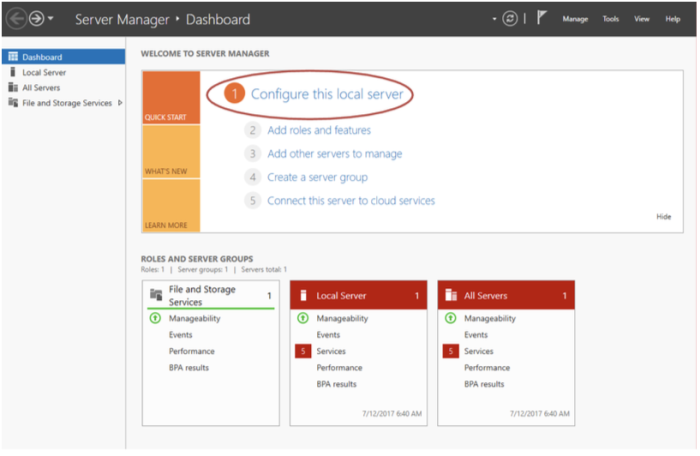
- Server Manager is Automatically displayed at logon after new installation
- Command center for performing many administrative tasks
- Interface to many Server Role configuration utilities
- Functionality similar to Add/Remove Programs option in the Control Panel
- Screen doesn’t provide all available options for the configuration and management of some server roles
We will NOT use this interface very often in this course
Activity: Viewing Server Roles and Features
- On the Dashboard, under the Configure this Local Server section, select Add roles and features
- Read the section, Before You Begin
- Select Server Roles
- Examine the list of possible server roles
- Select Features
- Examine the list of possible server features
- Click Cancel to close the Add Features Wizard
- Select menu item Manage
- Select Server Manager Properties
- Check the Do not start Server Manager automatically at logon box
- Click OK
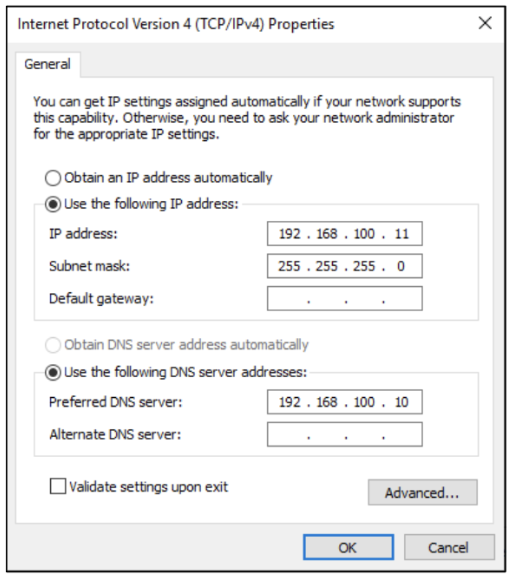
Activity: Configuring your Network IP Address
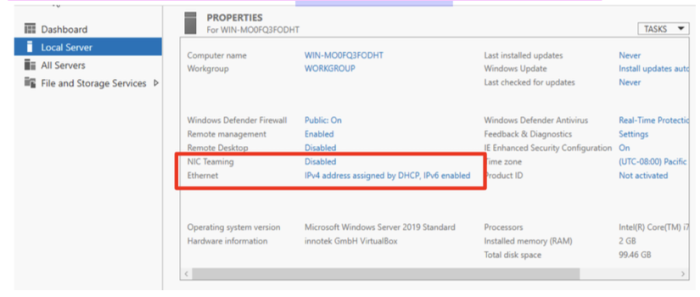
- Choose the ethernet setting:

- Double click ethernet:
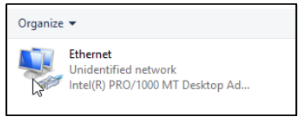
- Choose Properties
- Select Internet Protocol Version 4 (TCP/IPv4) and choose properties
- Configure the system’s TCP/IP (Ethernet) settings as follows:
- IP Address: 192.168.100.11
- Subnet Mask: 255.255.255.0
- Default Gateway:
- Preferred DNS Server: 192.168.100.10
- Click OK to exit TCP/IPv4 Properties
- Click Close to exit Ethernet Status
- Exit out of the Network Connections
Activity: Configuring your Computer’s Name Settings

- Change the computer name to Finance
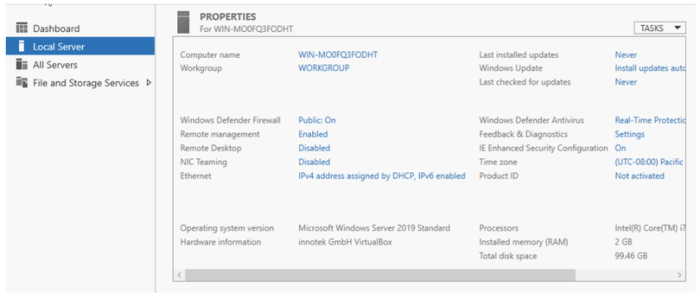
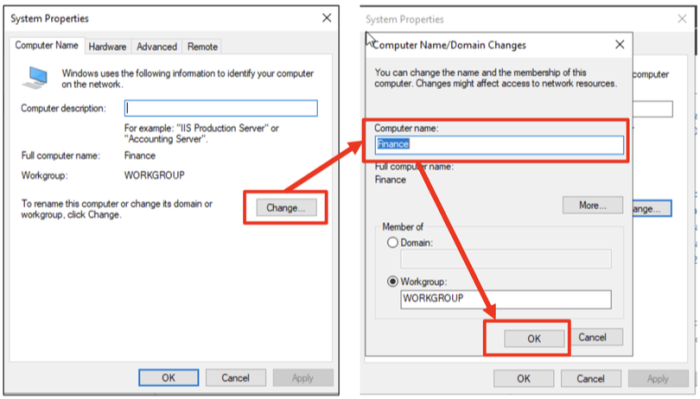
- Restart your computer to complete the renaming process
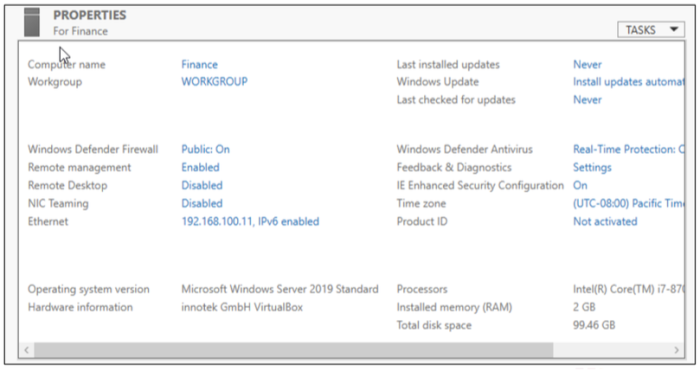
We now have our standalone server configured and ready to join the Acme Domain
Activity: Identifying a Standalone Server’s Default User and Group Accounts
- Right click on the Start Menu and choose Computer Management or click on the start menu and type Computer Management
- Expand the Local Users and Groups folder which is located under System Tools
- Select the Users folder and note the default user accounts
- Select the Groups folder and note the default group accounts
- Close all open windows
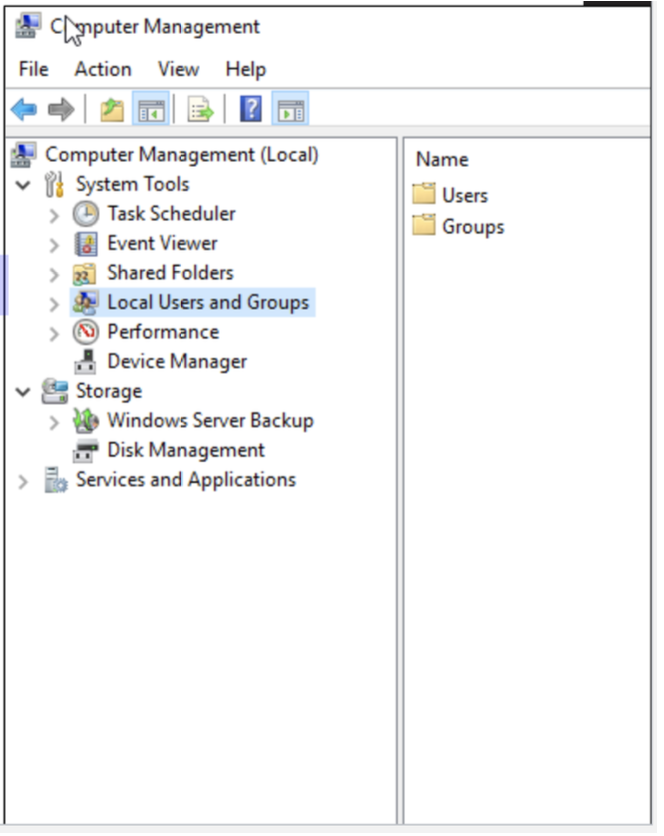
Standalone Server Accounts
- User and group accounts on a standalone server are stored in the computer’s Security Accounts Manager (SAM) database
- These are NOT domain accounts
- Cannot be used to access domain resources
- SAM accounts are deleted when Active Directory is installed on the standalone server
Installing Active Directory
- Installing Active Directory onto a standalone server or member server makes the server a Domain Controller
- Active Directory installation causes the server to be “Promoted” to a Domain Controller
- A new set of built-in group and user accounts are created
- SAM accounts are deleted
Domain Controllers and Domains
- Every domain must have at least one domain controller
- A domain requires an Active Directory database which is only stored on a Domain Controller
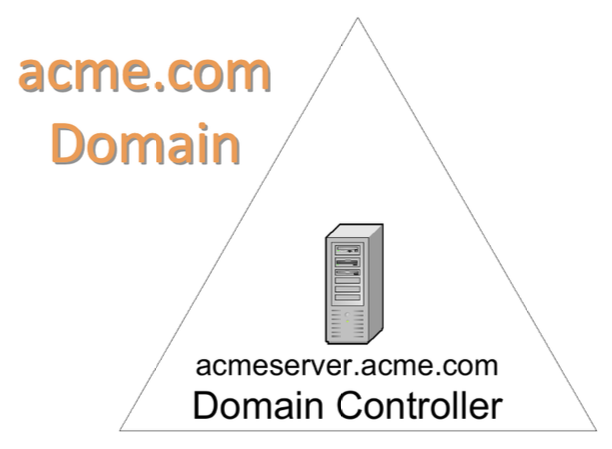
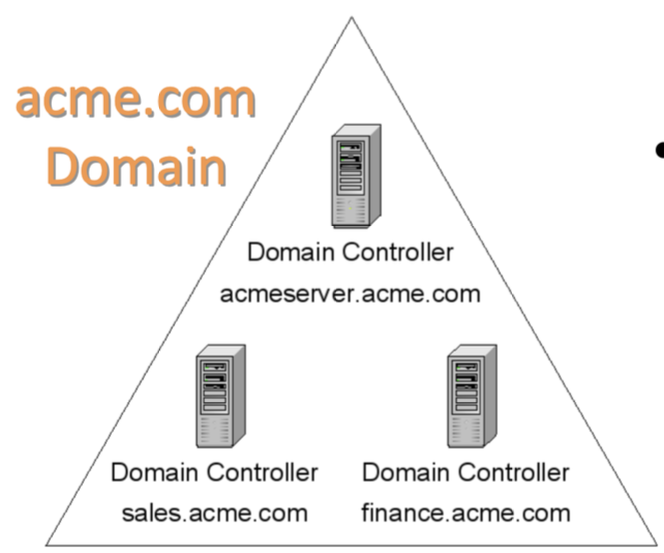
Domain with Multiple Domain Controllers
- A domain can have multiple domain controllers
- Recommended
- DC stores the all-important Active Directory
- Multiple DCs means duplicate copies of the Active Directory reside on each DC
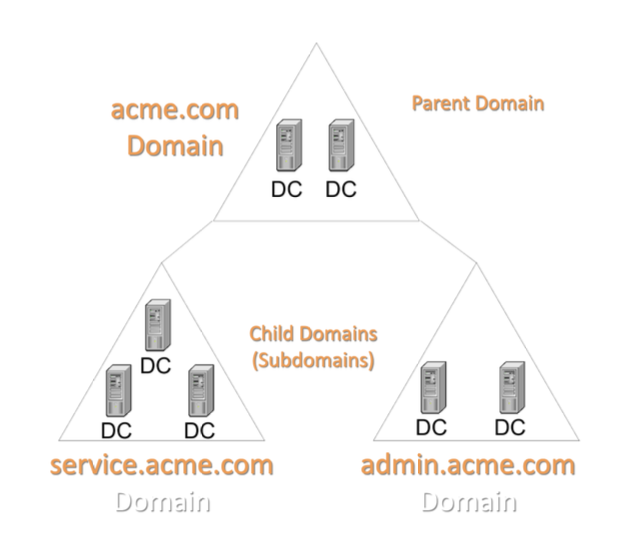
Parent Domains and Child Domains
Promotion and Sub-domain Creation
- The next activity will have the following results:
- Active Directory will be installed on the standalone server
- Standalone server will be promoted to a domain controller
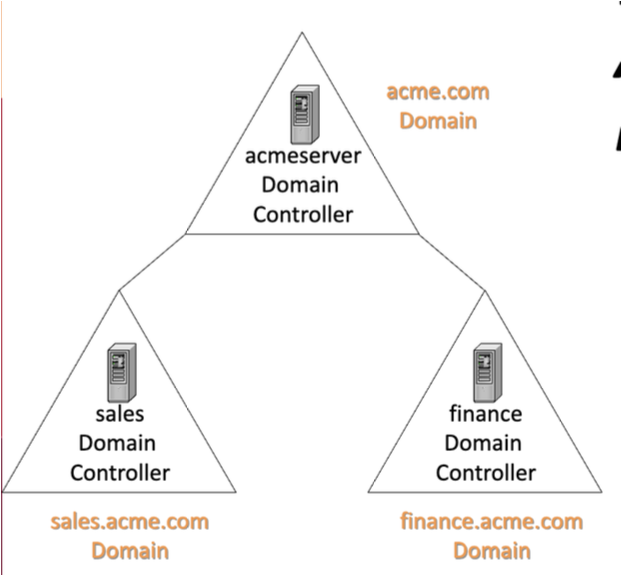
- Sub-domain (child domain) below acme.com domain will be created
- One wizard will do all of these procedures
- Steps a) and b) are linked in that you cannot perform one without the other also occurring
Target Domain Structure
- Next you will use the Active Directory Installation Wizard to:
- Promote your server to a domain controller
- Create a subdomain called Finance
Activity: Promotion and Subdomain Creation
- Start Server Manager
- Under Configure this Local Server choose Add roles and features
- Click Next 3 times accepting the defaults on each screen to advance to the Server Roles screen
- Click Active Directory Domain Services
- Click Add Features, click Next
- On Features, Click Next
- On AD DS, Click Next
- On Confirm Installation selections, click Install
- On Results, Click Close. Active Directory tools will be installed on this server
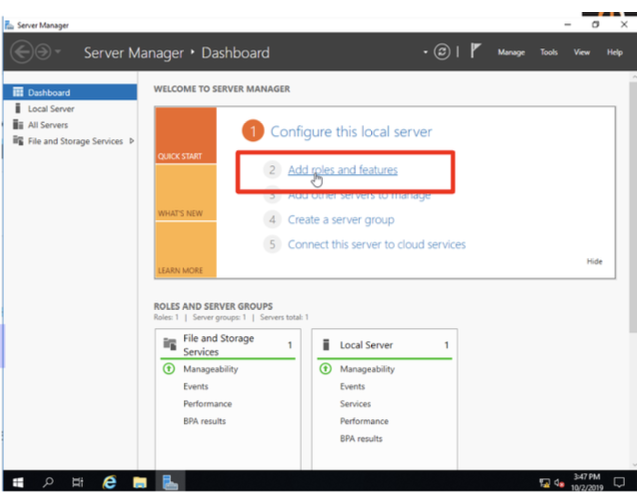
The next series of slides contain detailed instructions you are to follow for this procedure and also lists questions about information you are to obtain from the wizard screens. The answers to these questions should be recorded on the Supplemental Content document that you were supposed to bring to this class.
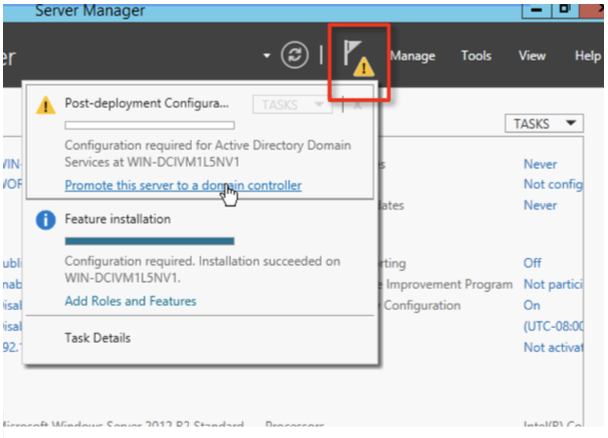
- Click on the Notifications emblem (the flag)
- Under Post-deployment Configuration choose Promote this server to a domain controller
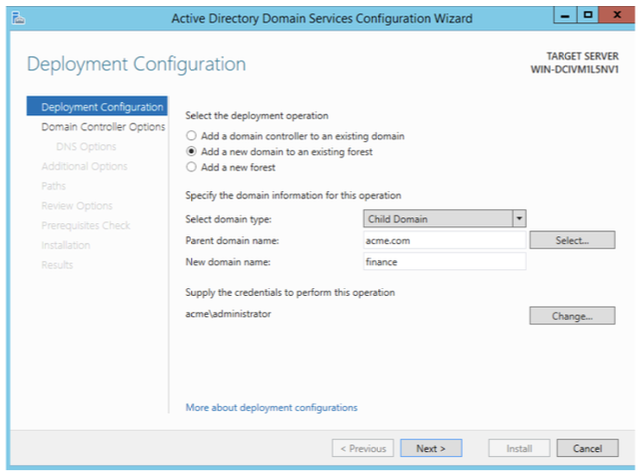
- Ensure you select the options that will create a Add a new domain to an existing forest
- Select domain type: Child Domain
- Parent Domain name: Acme.com
- New domain name: Finance
- Click Change under “Supply the Credentials to perform this operation” and supply:
- User Name: Anthony.Green@acme (Acme Domain Administrator)
- Password: AdminP@ss
- This account has the privileges necessary to install Active Directory onto this computer, as a Sub-Domain Controller
- Click Next
- Set the domain functional level at Windows Server 2016
- What operating systems can be used as domain controllers at this level?
- What operating systems can be used as domain controllers at this level?
- On Domain Controller Options Use Adminf1nance as the Directory Services Restore Mode Administrator password, click Next
- On DNS Options accept defaults, click Next
- On Additional Options verify the NetBIOS domain name, accept the default, click Next
- On Paths Use the default Active Directory folder locations, click Next (make note of this information in your notes)
- On Review Options click Next
- Review Prerequisites Check click Install
- What is the recommended storage drive configuration with regard to the Active Directory database and Active Directory log files?
- What is the default path to the folder where the Active Directory database will be stored?
- What is the default path to the folder where the Active Directory log file will be stored?
- What is the default location of the SYSVOL folder?
- What is stored in the SYSVOL folder?
- Is the restore mode Administrator account the same as the domain Administrator account?
- On the Summary page, note that the password for the administrator of this new domain will be the same as the password for the administrator of this local computer
- What is the NETBIOS name of the new domain?
- Note that the Active Directory configuration may take a few minutes to complete
- When prompted, restart the computer
- When prompted, log on using the administrator account for the Finance subdomain you just created
- The password for this administrator account is still AdminP@ss as it was for the administrator account on this computer before it was promoted to a domain controller
Active Directory Administrative Tools
- Domain Controller promotion includes automatic installation of several Active Directory management console tools including:
- Active Directory Domains and Trusts – For managing domains, domain trees and domain forests
- Active Directory Sites and Services – For managing sites and subnets
- Active Directory Users and Computers – For managing domain users, groups, organizational units and computers
- Active Directory Administrative Center
- Active Directory Module for Windows PowerShell
Activity: Quick look at Active Directory Domains and Trusts
- Open Active Directory Domains and Trusts
- From the Start Menu select Administrative Tools
- Select Active Directory Users and Computers
- Expand acme.com domain
- Right click your finance.acme.com subdomain and select Properties
- Record the following default settings:
- Domain functional level:
- Forest functional level:
- Close this console
Domain and Forest Functional Level Settings
- “Windows 2000 mixed mode” supports DCs running Windows NT 4.0, Windows 2000 and Windows Server 2003
- Downside 1: Reduced AD management functionality
- Downside 2: Not able to use domain controllers running Windows Server 2016 and computers running Windows Server 2016 may have issues when working with Windows NT DCs
- “Windows 2000 native mode” supports DCs running Windows 2000, Windows Server 2003 and Windows Server 2008
- Upside: More AD management functionality than “mixed”
- Downside: Windows NT DCs are not supported
Description of a Site
- A site is made up of one or more reliable and fast TCP/IP subnets
- Creating sites allows AD access and AD replication frequency to be optimized in relation to network performance capabilities
- E.g. If two areas of a domain are geographically distant from each other and are connected by a relatively slow WAN link then each area could be placed in a different site
- AD replication frequency between sites can be reduced to minimize bottlenecks on the WAN link
- See the section under “Understanding Sites and Subnets” in the text for more details
Activity: Quick Look at Active Directory Users and Computers
- Open Active Directory Users and Computers
- Expand your finance.acme.com icon
- Select the Users folder
- Note the new set of predefined user and group accounts have been created (SAM accounts have been deleted)
- Note there is a Users folder but no Groups folder – recall prior to the promotion, Computer Management showed a Local Users and Groups folder that contained a Groups folder
- Close the ADUC consoles
NTDS.dit
- Domain accounts are stored in the Active Directory database on the domain controller
- NTDS.dit is the name of the Active Directory database file
- To remember this file name, think NT Directory Services.Directory Information Tree
Activity: Verifying SAM Accounts have been Deleted
- Open Computer Management
- Attempt to locate the Local Users and Groups folder
- Formerly under System Tools
- You should NOT be able to locate this folder
- Close the Computer Management console
Activity: Demoting a Domain Controller
- Server Manager is used to Demote a Domain controller to Standalone Server Status
- Choose Manage
- Remove Roles and Features
- Before You Begin Click Next
- Server Selection select the server you want to demote Click Next
- Server Role – Uncheck Active Directory Domain Services Click Remove Features
- Before the process can be completed you must Demote this Domain Controller
- The next series of slides contain detailed instructions you are to follow for this procedure and also lists questions about information you are to obtain from the wizard screens
Activity: Demoting a Domain Controller
- Deselect Active Directory Domain Services (Remove the checkmark) Click Next
- Click Remove Features
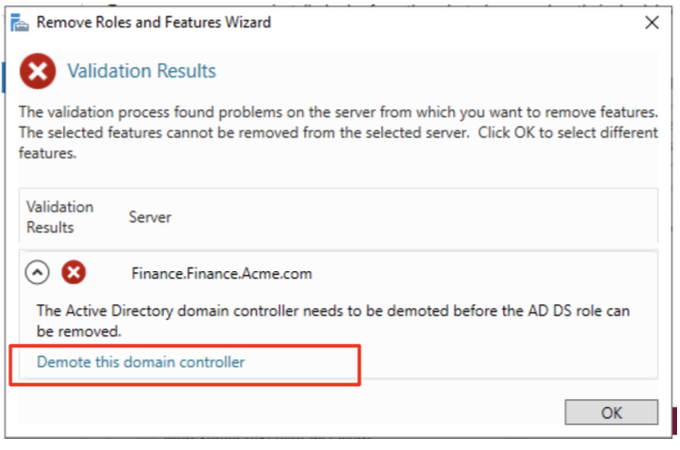
- The following warning message advises you that your credentials will not allow this demotion
- Click Demote this domain controller to continue
- Verify Proceed with removal
- Once Active Directory has been removed, the finance child domain will no longer exist because there is no other DC in the finance subdomain to support this domain
- What determines whether a demoted domain controller becomes a member server or a standalone server?
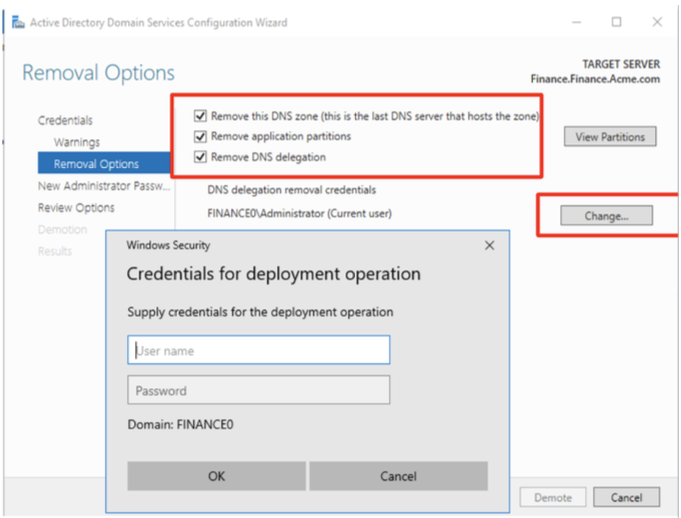
- Remove this DNS zone (this is the last DNS that hosts this zone)
- Remove Application Partition
- <No credentials Provided> Click on Change. When requested, use the acme.com domain administrator username and password (acme\Anthony.green, AdminP@ss), click Next
Activity: Demoting a Domain Controller (Continued)
- Supply New Administrator Password (Use P@ssword)
- Click Demote
- The server will restart
- Log on to the Stand Alone Server as Administrator, P@ssword
- In Server Manager Choose Manage
- Select Remove Roles And Features
- Click Next until Server Roles
- Uncheck Active Directory Domain Services, click Remove Features, click Next until Confirmation
- Click Remove
- When the process is complete, click Close
- Restart the Server
- Because AD has been deleted, a new SAM database is created so your Administrative password is reset to P@ssw0rd
- This server is now a stand alone server ready to be used in other capacities
Standalone Server Status
- Now that AD has been removed, your computer is a standalone Windows Server again
- Standalone servers are NOT part of the domain
- Standalone servers maintain their own set of local accounts in SAM
- Check Computer Management and verify the SAM Accounts and Groups
- The system is back to the same status as it had at the very beginning of this module when you first installed the OS
Standalone Server Accounts
- In the upcoming section, this server will be converted to a member server
- To identify some of the key differences between a member server and a standalone server, we will look at the membership of the Administrators group and the Users group for both the standalone server configuration and the member server configuration
- First let’s look at the standalone server membership
Activity: Active Directory Administrative Tools
- Select Start / Administrative Tools
- Note that the three Active Directory Administrative Tools (Active Directory Domains and Trusts, Active Directory Sites and Services, Active Directory Users and Computers) are not present
- During the DC demotion procedure, these tools were removed from the system as they would provide no functionality without being part of a domain
Activity: Standalone Server Users and Administrators Group Membership
- Open Computer Management
- Select the Groups folder under System Tools / Local Users and Groups
- Right click Administrators and select Properties
- Record the group member(s)
- Right click Users and select Properties
- Record the group member(s)
- In a few slides, the standalone server will be converted to a member server and you will check these memberships again
Activity: Determining the Computer’s Name
- Open File Manager
- Right-click on This PC and choose Properties
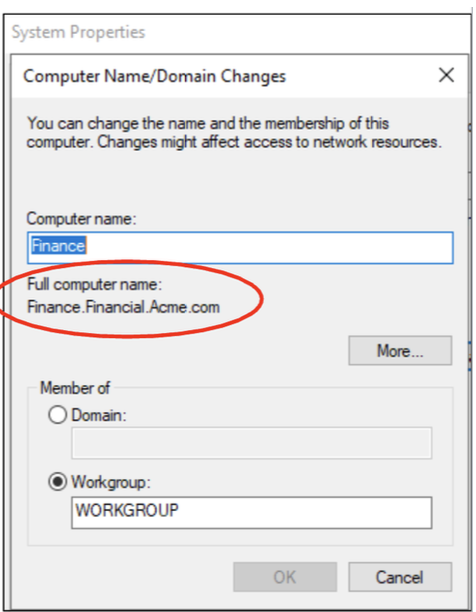
- Under the Computer name, domain, and workgroup settings section you can see the computer name
- Record the entry beside Full computer name:
- Click Change settings and then select Change
- Notice that although not in a domain, the full computer name still includes the name of the finance subdomain
- Click the More button, remove the entry for the Primary DNS suffix and click OK
- You will need to restart for the name change to take effect
- Log back in as Administrator, AdminP@ss and close the Server Manager console
Activity: Trying to Add Domain Accounts to Standalone Servers
Now we will try to add a domain user account to the standalone server’s SAM
- Open Computer Management, expand Local Users and Groups and select the Groups folder
- Right click Administrators and select Properties
- Click the Add button
- Look at the locations available in the From this location field
- You should only have access to this local computer (name matches the Full computer name you recorded on the previous page)
- You have no access to domain accounts so they cannot be added
- Close the console
Converting a Standalone Server to a Member Server
- Domain accounts cannot be added to the SAM account list for a standalone server
- In order to give a domain account access to the standalone server, this system must be converted to a member server
- By joining the domain, a standalone server becomes a member server
- Procedures for joining a domain are identical for both a Windows 10 workstation and a Windows Server 2016 standalone server
Activity: Converting a Standalone Server to a Member Server
- Right-click the Start menu select Settings
- Under Related settings select System info (This is an alternate method to see System Properties)
- Under the Computer name, domain, and workgroup settings section select Change settings
- Click the Change button
- Enter Finance in the Computer name field if the computer name is not already Finance
- Select the Domain radio button and enter acme.com as the domain name
- Click OK
- When prompted, enter the Anthony.Green user name (password is AdminP@ss)
- Click OK at the “Welcome to the acme.com domain” window
- You must restart the computer. Click Close and then Restart Now
- This system is now configured to be a member server
Determining Membership Changes
- Earlier you identified the default membership for the Administrators and Users groups on a standalone server
- Now that this system is a member server, we want to see if there are changes to these group memberships
Activity: Determine Which Domain Accounts are added to Member Servers
- At the logon window, use the local Administrator account with the P@ssw0rd password
- Open Computer Management and select the Groups folder located under System Tools / Local Users and Groups
- Right click Administrators and select Properties
- Record the group members not listed before
- Right click Users and select Properties
- Record the group members not listed before
Activity: Add Domain Accounts to Member Servers
Earlier we tried to add a domain user account to the standalone server’s SAM but it was NOT allowed. Now we will repeat this on a member server.
- While in Computer Management, select Local Users and Groups then select Groups
- Right click Administrators and select Properties
- Click the Add button
- Look at the locations available in the From this location field
- Now that this computer is part of the domain, you can give domain accounts access to this computer by adding them
- Because you are now logged on using a local account that doesn’t have domain permissions, you will be prompted to enter a user name and password with this authority – enter the acme.com administrator name and password (Anthony.Green, Adminp@ss)
- Set the From this location: to acme.com
- If you had been logged on with the acme domain administrator account when attempting this last activity, you would NOT have been prompted for a user name and password when adding an account
- Enter tony.green in the Enter the object names to select field
- Click on Check Names
- Click OK then Apply to save the changes
- Close the console
Tony.Green Account Status
- The tony.green account is an existing account on the acme.com domain
- You will use this account in many of the subsequent labs
- tony.green now has the same authority on this member server as that of the local administrator and the domain administrator account
- A member of the Administrators group for this local computer
- NOT a member of the domain Administrators group
Activity: Confirming Tony.Green has Authority on the Member Server
- Log off and log back on using Other User as Anthony.green@acme with the AdminP@ss password. (make sure that the acme domain is used)
- Because this is the initial logon to this computer for the Anthony.green account it will have a new user profile which includes a fresh Desktop, My Documents folder and other default startup policy settings
- Because of this new policy, the Server Manager console will also start
- Close the Server Manager console
- To verify the domain account Anthony.Green has administrative control of this member server, we will use it to create a user account
- Start Computer Management
- Expand the Local Users and Groups folder
- Right click the Users folder
- Select New User and enter a user name and password of your choice (Password must meet the password complexity rules)
- You should be successful in creating this account
- Close the New User dialog box (The New User dialog box remains open for adding more users)
- Close the console
Account Database Storage
| Server Type | Account Storage Location |
|---|---|
| Domain Controller | Active Directory database |
| Member Server | SAM database |
| Standalone Server | SAM database |
- SAM accounts only provide access to the computer on which the SAM is stored
- Active Directory accounts provide access to resources across the domain system
Supplemental Content
The Supplemental Content document for this module (located on the course web page) includes the following:
- Questions that can be answered by performing the Activities in this module
- Questions related to the theory covered in this module
- Questions from the reading assignments
- A list of hands-on tasks covered in the module
You are responsible for knowing all of this information.
Categorised in: COMP 10041, Lectures
This post was written by amax