
COMP 10041 Week 1
September 18, 2024 5:44 pm Leave your thoughtsCOMP 10041 Week 1 – Course Intro Course Requirements
- Computer capable of running a virtual machine
- Oracle VirtualBox – PC and Mac
This course uses premade virtual machine images, all images are created from fresh installs.
Azure Dev Tools for Teaching
Full versions of Windows Server 2016 and Windows 10 are available free of charge to students taking this course.
This is optional, you can complete this course with the CSAIT provided images.
The free versions are made possible through an agreement between Mohawk and Microsoft.
Link to get free OS:
https://azureforeducation.microsoft.com/devtools
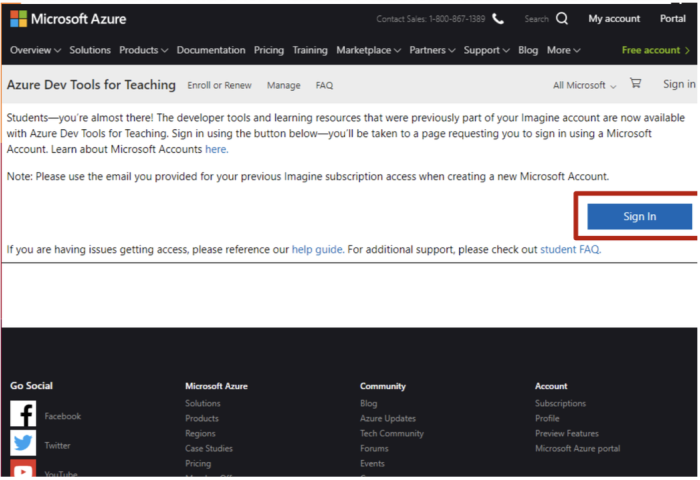
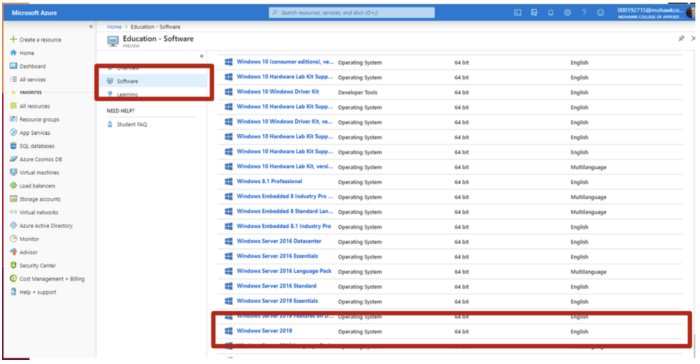
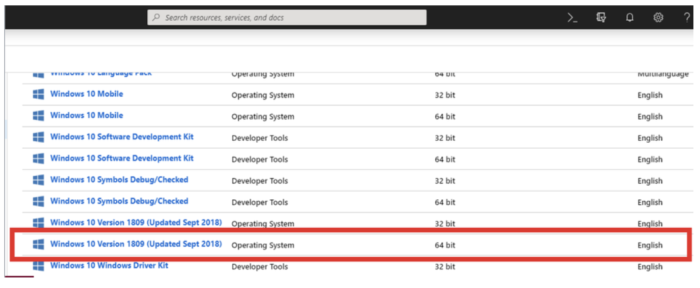
Azure Dev Tools for Teaching
Download:
- Microsoft Windows Server 2019 Standard 64 bit (eng)
- Microsoft Windows 10 Version 1809 64 bit (eng)
Oracle VM VirtualBox
Download:
https://www.virtualbox.org/wiki/Downloads
Also download the Extension Pack
Course Delivery
COMP 10041 will be held every Wed in the virtual class room at 6PM.
Typically we will have a lecture and after you can go on to do your self study lab. We will usually cover 2 modules every week.
There are 2 quizzes every week which you have the full week to do the 2 quizzes.
There will be a mid term and a final.
Evaluations and Weighting
- Midterm Hands on and Theory Exam 35%
- Hands on Final Exam 35%
- Written Final Exam 20%
- Lab Quizzes 10%
Course Text Book and Class Notes
Course Text Book:
- Microsoft Windows Server 2012 Pocket Consultant – By William R. Stanek
- Windows Server 2016: Essentials for Administration – By William R. Stanek
These books are only a suggestion.
Also remember to cover the supplemental content, it is available in each week’s module as the docx files. These contain lab config information, reading assignments, hands on tasks/instructions to follow, theory questions and so on. These are self study.
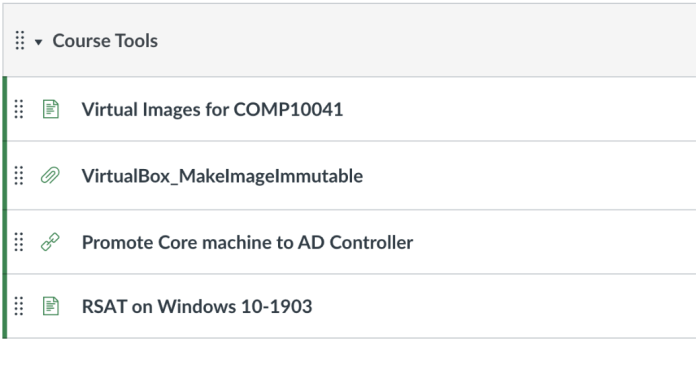
Be sure to go over the course tools, make sure to cover the VirtualBox MakeImageImmutable. This will make it so that every time you start the VM it will revert back to stock.
If you don’t do this, eventually you will get compounding errors.
The prof will lecture the PPTX each class.
Windows Server 2019 Platforms
The Windows 2019 server family consists of 4 versions, all of which are only available in 64bit versions:
- Windows Server 2019 Hyper-V – Free edition designed for VMs, bare bones host with no additional Windows Server roles or features.
- Windows Server 2019 Essentials – small companies 25 users and 50 devices, lacks advanced features, simplified server roles for easier management.
- Windows Server 2019 Standard Edition (This is what we will use in this course) – Best for smaller organizations or less virtualized environments. It supports up to 2 VMs and limited Hyper-V containers, offering essential features like storage replication and basic VM management.
- Windows Server 2019 Datacenter Edition – Designed for large-scale data centers and highly virtualized environments. It supports unlimited VMs, Hyper-V containers, and features like Storage Spaces Direct and Software-Defined Networking.
The evolution of Windows Clients and Servers
Windows Client Versions:
- Windows 1.0 (1985) – First graphical user interface (GUI) based OS.
- Windows 2.0 (1987) – Enhanced GUI, overlapping windows.
- Windows 3.x (1990) – Popular version, first wide adoption of Windows.
- Windows 95 (1995) – Introduced the Start Menu, taskbar, and Plug-and-Play.
- Windows 98 (1998) – Improved multimedia and web integration.
- Windows ME (Millennium Edition) (2000) – Enhanced home user features, but had stability issues.
- Windows XP (2001) – One of the most popular versions; unified the home and business editions.
- Windows Vista (2006) – New Aero UI, but criticized for performance issues.
- Windows 7 (2009) – Widely praised for its performance and stability.
- Windows 8 (2012) – Introduced the Start screen and touch-focused interface.
- Windows 8.1 (2013) – Improved on Windows 8 with the return of the Start button.
- Windows 10 (2015) – Unified platform across devices, continuous updates with Cortana integration.
- Windows 11 (2021) – New design, enhanced performance, support for modern hardware.
Windows Server Versions:
- Windows NT 3.1 Server (1993) – First version of Windows Server.
- Windows NT 3.5 Server (1994) – Improved networking features.
- Windows NT 4.0 Server (1996) – Brought the Windows 95-style GUI to the server.
- Windows 2000 Server (2000) – Introduced Active Directory and better security.
- Windows Server 2003 (2003) – Improved scalability and performance.
- Windows Server 2008 (2008) – Introduced Server Core, Hyper-V, and PowerShell.
- Windows Server 2008 R2 (2009) – Built on the Windows 7 kernel, enhanced virtualization.
- Windows Server 2012 (2012) – Introduced a new UI and advanced virtualization features.
- Windows Server 2012 R2 (2013) – Enhancements in cloud integration and performance.
- Windows Server 2016 (2016) – Focused on hybrid cloud, Nano Server, and containers.
- Windows Server 2019 (2018) – Improvements in hybrid cloud, security, and Hyper-V.
- Windows Server 2022 (2021) – Enhancements in security, hybrid cloud, and container management.
Windows 10 Versions and Windows Server 2019
Only workstations running Professional or enterprise versions of Windows clients can join a Windows domain.
Windows 10 (Home Edition) and RT clients (ARM) processors cannot join a Windows Server 2016 Domain.
These 2 editions can only participate in a workgroup, not a domain.
Major Windows Domain Concepts
Active Directory
Active Directory is a directory (database) service that uses naming convention based on the DNS (domain name system).
Basically it is a set of services that connects users to the network resources they need to get work done. It controls who has the permission to do what.
Active Directory plays a very large part in Windows Server Administration. You will use it a lot.
A solid understanding of Active Directory structures and procedures is essential to your success as a Windows Server System admin.
Workgroups VS Domains
Servers are generally assigned to be part of a workgroup or a domain.
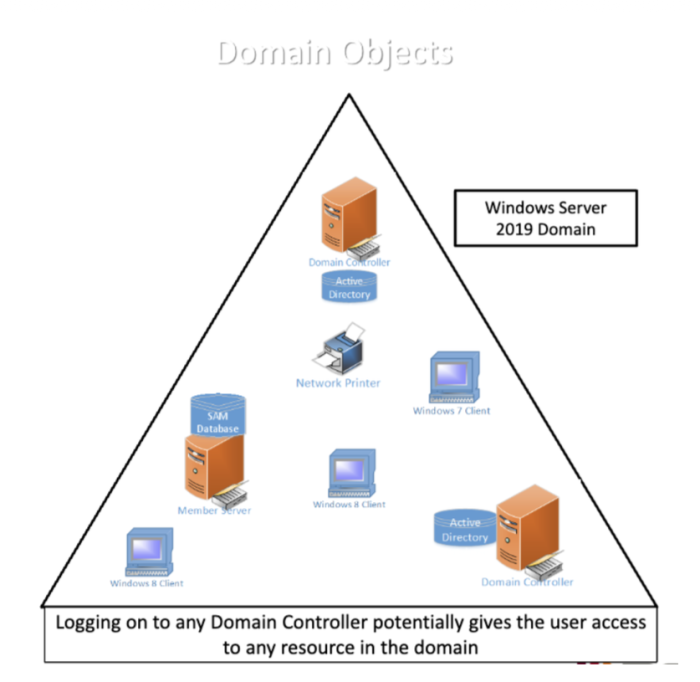
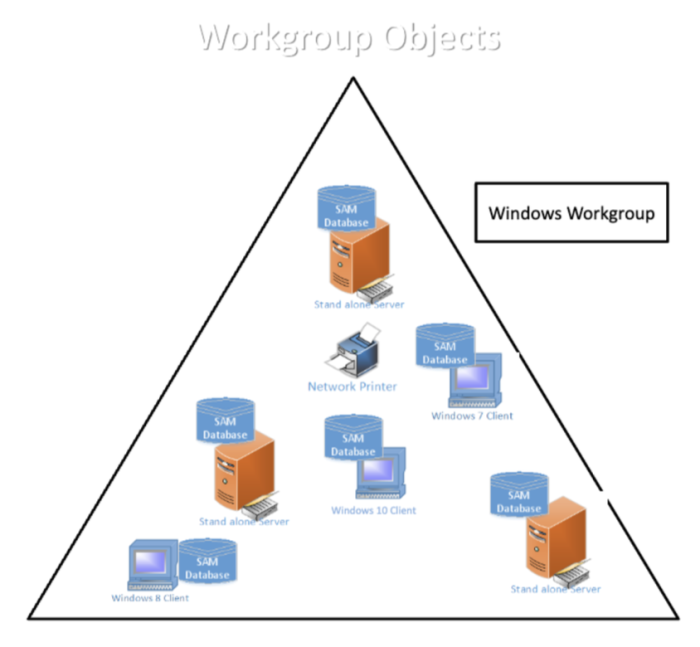
Workgroups are groups of computers that share resources where each individual computer is managed separately.
Domains are collections of computers that you can manage collectively as a single unit through domain controllers.
Domain controllers are Windows server systems that manage access to:
- The network
- The directory database (IE Active Directory)
- Shared Network resources
Domain Controllers and Member Servers
Member Servers
In a domain environment, when a Windows Server is installed, it can be configured to be a member server or a domain controller.
- Member servers are a part of a domain but don’t store Active Directory information.
- Member servers maintain a Security Accounts Manager (SAM) database for local accounts (users and groups).
Domain Controllers
Domain controllers store Active Directory information and provide authentication and directory services for the domain.
- All domains since Windows 2000, use a multi-master domain replication model.
- Any domain controller can process directory changes and then replicate those changes to other domain controllers automatically.
The Active Directory database is also referred to as the Data Store.
Data Store
The data store contains information about domain objects such as:
Account information for:
- Users
- Groups
- Computers
Shared resources information for objects such as:
- Servers
- Folders and files
- Printers
Active Directory Changes
With Server 2008, Active Directory has had its functionality realigned into a family of related services which remain the same in 2008 and Server 2019.
Active Directory Domain Services (AD DS)
A directory is a hierarchical structure that stores information about objects on the network. A directory service, such as Active Directory Domain Services (AD DS), provides the methods for storing directory data and making this data available to network users and administrators. For example, AD DS stores information about user accounts, such as names, passwords, phone numbers, and so on, and enables other authorized users on the same network to access this information.
Active Directory Certificate Services (AD CS)
Active Directory Certificate Services (AD CS) is a Windows Server role for issuing and managing public key infrastructure (PKI) certificates used in secure communication and authentication protocols.
Active Directory Federation Services (AD FS)
Active Directory Federation Service (AD FS) enables Federated Identity and Access Management by securely sharing digital identity and entitlements rights across security and enterprise boundaries. It makes a single sign on service.
Active Directory Lightweight Directory Services (AD LDS)
Active Directory Lightweight Directory Services (AD LDS) is an independent mode of Active Directory, minus infrastructure features, that provides directory services for applications.
Active Directory Right Management Services (AD RMS)
Active Directory Rights Management Services (AD RMS) encompasses all of the server and client technologies that are required to support information protection through the use of rights management in an organization.
Active Directory Domain Services
AD DS is the foundation for distributed networks built on Windows Server 2019 operating systems that use domain controllers.
AD DS provides secure, structured, hierarchical data storage for objects in a network such as users, computers, printers, and services.
AD DS provides support for locating and working with these objects.
Active Directory Certificate Services
AD CS provides customizable services for creating and managing public key certificates used in software security systems employing public key technologies.
Organizations can use AD CS to enhance security by binding the identity of a person, device or service to a corresponding private key.
AD CS also includes features that allow the management of certificate enrolment and revocation in a variety of scalable environments.
Active Directory Federation Services
AD FS helps administrators enable organizations to share a user’s identity information securely by addressing some of the commonly faced challenges.
Federated systems operate across organizational boundaries and connect processes that are using different technologies, identity storage, security approaches, and programming models.
Within a federated system, an organization needs a standardized and secure way of expressing not only the services it makes available to trusted partners and customers, but also the policies by which it runs its business, such as which other organizations and users it trusts, what types of credentials and requests it accepts, and its privacy policies.
Active Directory Lightweight Directory Services
AD LDS is an independent mode of Active Directory that provides dedicated directory services for applications.
Although AD LDS independently provides directory storage and access for applications, it uses the same standard application programming interfaces (APIs) as Active Directory to manage and access the application data.
This makes AD LDS ideal for applications that require directory services, but do not require the complete infrastructure features of Active Directory.
Active Directory Rights Management Services
AD RMS protects information via the use of encryption and a form of selective functionality denial for limiting access to documents such as e-mail, documents, and web pages.
Protected documents can be encrypted and prevent the content from being decrypted except by specified people or groups, in certain environments, under certain conditions, and for certain periods of time.
Specific operations like printing, copying, editing, forwarding, and deleting can be allowed or disallowed for individual pieces of content.
2020 Active Directory Rights Management Services
AD RMS protects information via the use of encryption and a form of selective functionality denial for limiting access to documents such as e-mail, documents, and web pages.
Protected documents can be encrypted and prevent the content from being decrypted except by specified people or groups, in certain environments, under certain conditions, and for certain periods of time.
Specific operations like printing, copying, editing, forwarding, and deleting can be allowed or disallowed for individual pieces of content.
Stand-Alone Servers
- In a workgroup environment a Windows Server must be configured as a Stand-alone server
- Stand-alone servers are NOT a part of a domain and have their own user database
- Stand-alone servers authenticate logon requests using their local SAM database for access to local resources
Local and Domain Logon Procedures
TCP/IP Configuration Information
This information is also located on the Workstation and Server Configuration Information document.
Windows 2019 Server: Core Install
- Name AcmeServer
- IP Address: 192.168.100.10
- Subnet Mask: 255.255.255.0
Windows 10 Client:
- Name Client10-PC
- IP Address: 192.168.100.1
- Subnet Mask: 255.255.255.0
- Default Gateway: 192.168.100.10
- Preferred DNS Server: 192.168.100.10
Domain Configuration Information
This information is also located on the Workstation and Server Configuration Information document.
Domain Configuration
- Computer Name acmeserver
- Domain Name: acme.com
- Domain Controller Name: acmeserver.acme.com
- DNS Server: acmeserver.acme.com
- Domain Administrator Account: Anthony.Green@acme
- Domain Administrator Password: AdminP@ss
Activity: Prepare the Environment
- Boot the computer at your seat – this is your local host
- Login
- Navigate to D:\Courses\COMP-10041\
- Open the folder AcmeCoreDC2019
- Double Click on AcmeCoreDC2019.vbox (the blue icon) to open your domain controller
- Open the folder Client10-PC.vbox
- Double Click on Client10-PC.vbox (the blue icon) to open your client machine
- Start the AcmeCoreDC2019, and then start the Client10-PC
- Login to the workstation as Anthony.Green@acme using the password AdminP@ss
Anthony Green is the Domain Administrator.
Perform this procedure immediately at the start of every class unless told otherwise.
Domain Accounts
You will work with several user accounts in this course:
Anthony.Green
- Full control over all domain resources with the password AdminP@ss
Tony.Green (same person as Anthony except no Administrative Membership)
- Tony is the I.T. Manager for the Acme Corporation
- Tony is a member of the Server Operators Group
- Tony has some administrative authority in the domain but he is not a full administrator
- His password is P@ssw0rd
Other Users (as needed)
- The rest of the employees for the Acme Corporation are capable of logging on but they are just regular users with no special abilities
- These accounts all have the password P&ssw0rd which must be changed the first time they log on (0 is zero, not capital ‘O’)
Primary Domain User Accounts
- The Administrator account will be used throughout this course to perform domain-level administrative tasks
- At times there will be tasks that need to be done as a regular domain user
The acmeclient user account can’t be used since it is strictly a local user account and can’t access domain resources (not stored in Active Directory).
Two account types will be used throughout this course to perform domain-level regular user type tasks:
- Anthony.Green and any of the other Acme employees
- Circumstances will dictate when each is used
Tony Green’s Account
tony.green is, for the most part, a regular user account that has already been created in the acme.com Active Directory.
As an attempt to model a real-world company, Tony has been given some moderate domain administrative authority but he has nowhere near the power of Administrator.
Tony has been given two added capabilities:
- Delegated Control over the Acme Organizational Units
- Can create and manage objects in these OUs
- Member of Server Operators group
- A local group that allows a user to perform general server level administrator tasks such as sharing server resources, performing file backup and recovery, logging on to a server locally and shutting it down
Anthony Green’s Account
Anthony.Green is, the same person as Tony, but with administrative rights. This account has already been created in the acme.com Active Directory.
To model a real world situation, this account represents the same person as Tony but with administrative rights.
Anthony can modify and control all aspects of the Domain.
We will be using the Anthony.Green account throughout this course.
Password Complexity Rules
The default password policy for Windows Server user accounts specifies that passwords meet the following minimum specifications:
- At least 7 keystrokes long
- NOT contain your username or parts of your full name
- Different from past 24 passwords used
- NOT been changed within the last day
- Contains at least three of the following four restrictions:
- English uppercase letters A-Z
- English lowercase letters a-z
- Westernized Arabic numerals 0-9
- Non-alphanumeric punctuation marks and other symbols
Administrative Tools
RSAT – Remote Server Admin Tools
- The Windows 10 Remote Server Administration Tools Pack is required to be installed on your workstation’s Windows 10 Professional client
- The WindowsTH-RSAT_WS2016-x64.msu installation file.
- Made up of utility programs we will use throughout this course to administer the Windows Server domain controller
- RSAT tools are already installed on the Client10-PC
- A Windows 10 installation would NOT include these Administrative Tools by default
- The RSAT Pack is available for free download from Microsoft:
RSAT – Remote Server Admin Tools
https://www.microsoft.com/en-ca/download/details.aspx?id=45520
Administrative Tools Compatibility Issues
- RSAT for Windows 10 can be installed ONLY on computers that are running the Professional editions of Windows 10
- RSAT for Windows 10 ARE compatible with Windows Server 2003, 2008, 2008 R2, 2012 and 2016
- RSAT for Windows 10 enables IT administrators to manage roles and features that are installed on remote computers that are running Windows Server 2016, 2012, 2012 R2, 2008 R2, 2008 (and, for some roles and features, Windows Server 2003) from a remote computer that is running Windows 10
- RSAT — (Remote Server Administrative Tools)
Categorised in: COMP 10041, Lectures
This post was written by amax