
WEBD 150 – Intro to Servers 1
April 4, 2024 12:41 pmIntro to Servers 1 (Linux Servers)

What is a server?
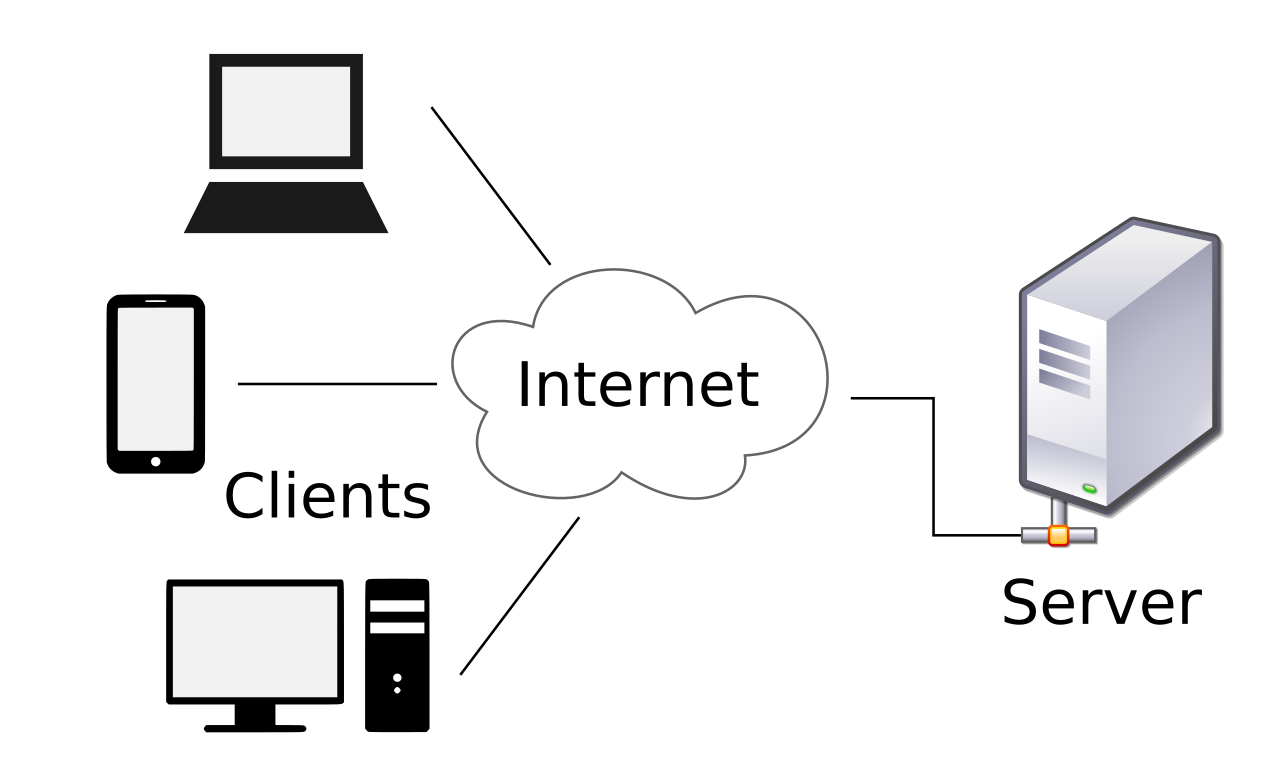
A server is a machine that can host resources and allow clients to access said resources. Physically, servers are tall racks of machines. They run operating systems and you as a developer can choose what OS you want to work with. You must keep in mind that depending on what you want to do will correlate with what server you will choose. For the most part, linux servers are the norm.
What is a client?
A client is software that (usually) connects to the server to perform actions. The client provide a user interface that allows users to carry out actions. It forwards these requests to the server, which carries out the action and returns a response.
Server Connection – FTP (File Transfer Protocol)
At first, connecting to a server can seem like a pain and depending on your server you might have different instructions to connect. Once you get the hang of it, it will be a snap. Repetition and becoming familiar with how FTP connections work will be more than half the battle.
First off. When connecting to the server you can use the IP address, or alternatively, the web address. Sometimes you may have to use a username.
When logging in you will need:
- Host/FTP Address
- Username
- Password
Host/FTP =
- The sites IP address – 00.000.000.000
- The sites Web address – www.yousite.com
- The sites Web address with FTP instead of WWW – ftp.yoursite.com
Username = Your FTP username that you make in Cpanel/ Admin Panel
Password = Your FTP Password you create in Cpanel/ Admin Panel
Some servers may be set up in a different way. For example they may have a special address for you to use to login correctly. If this is the case you should be able to find out in the admin panel of your server or by the hosting provider.
Hosting Providers
Examples of hosting providers:
- godaddy.com
- web.com
- hostgator.com
- bluehost.com
- netfirms.ca
These are places where you can register domains, buy hosting packages for shared, Virtual Dedicated, and fully dedicated servers.
Buying your hosting
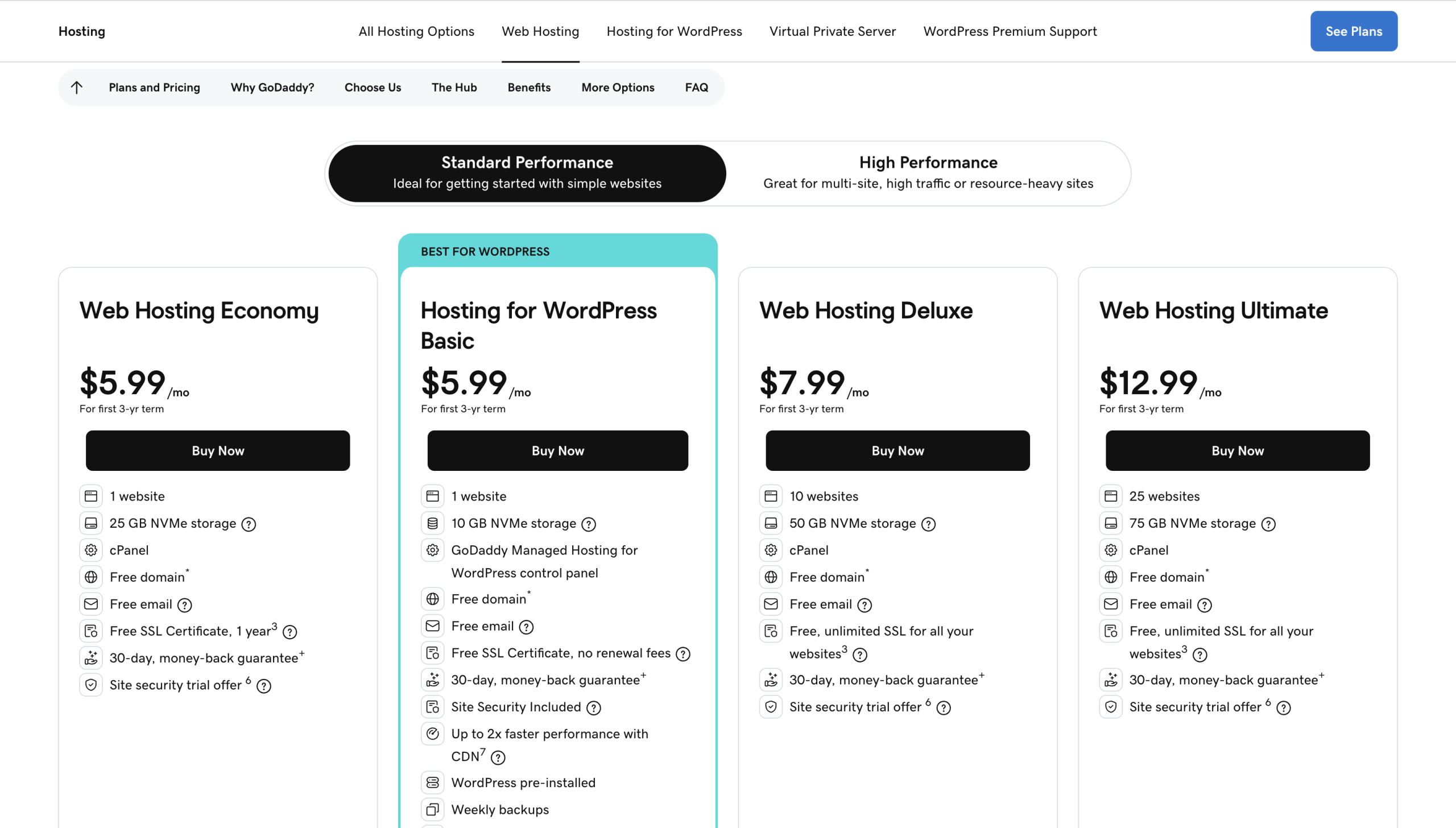
Buying your hosting is easy. All you need to do is choose the hosting you want to work with and than pick the hosting plan that is right for you and what you need to do. Hosting companies usually have different plans that will range in price.
Godaddy shared Hosting plans
Blue host shared Hosting plans details
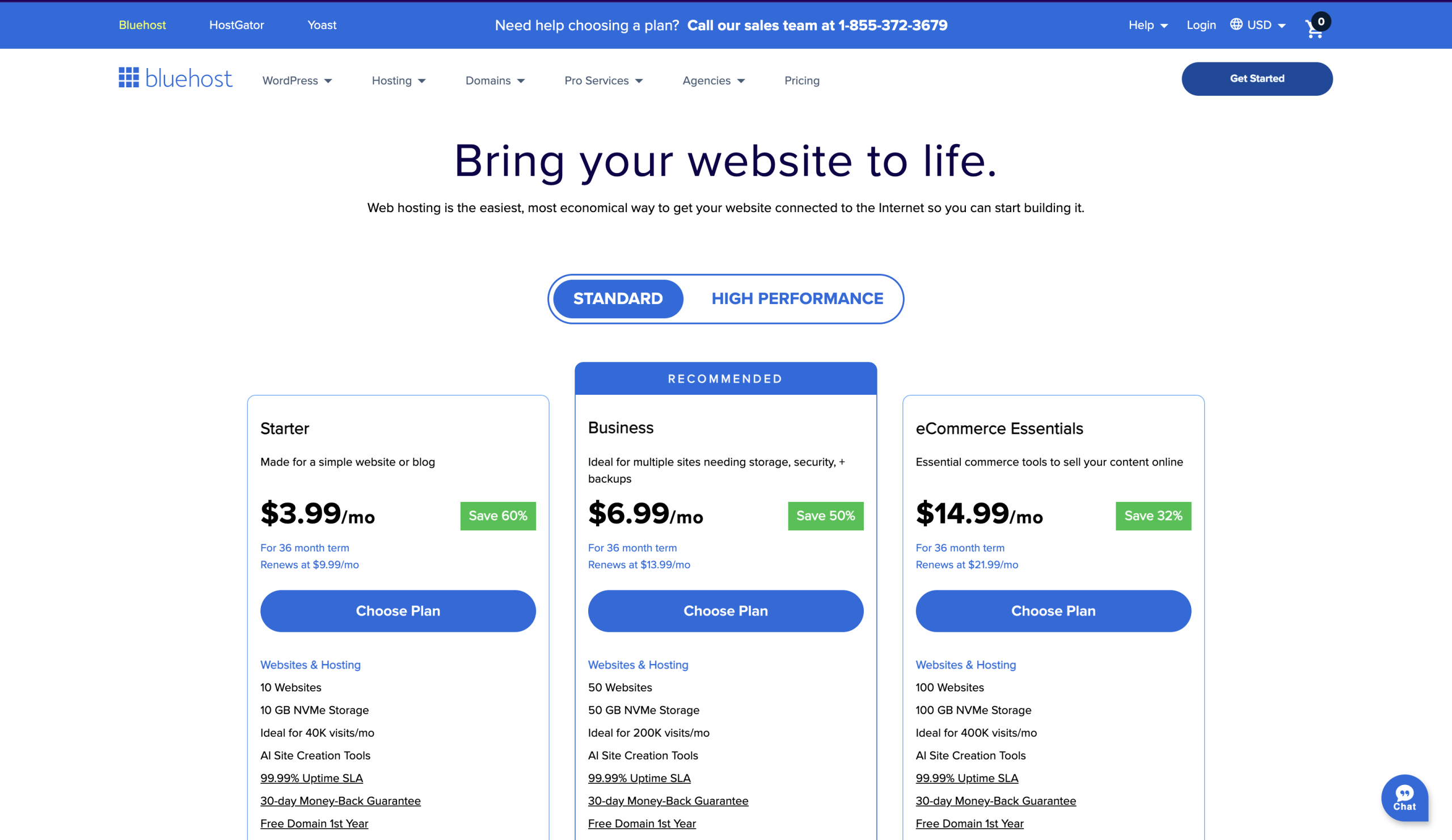
From here you will need to know what you need. For example, if you need to host multiple sites you need a hosting plan that allows this. If you need a database you will also need a plan that allows this (for example if you are going to be hosting a content management system). The amount of storage and bandwidth will also vary with the price.
For the sake of this course you will most likely be okay using the cheapest plans with the hosting company of your choosing but I would suggest using the middle one. In the above example the extra dollar isn’t much and will allow you more room. I would also suggest to use a hosting package that supports cPanel.
Once you have made a choice, you will need a credit card, paypal or, depending on the hosting company they may allow the use of various payment gateways to be used such as skrill, Union Pay, your checking account, gift cards or even cryptocurrencies.
Hosting payments are usually made on:
- A monthly basis
- A quarterly basis
- A 6 month basis
- A yearly basis
Depending on how frequent you pay it may lower the price. For example if you pay every year the monthly price may decrease.
Things you want in a good host
- Reliable up time – 99.9% Up time
- cPanel
- Reliable support – 24/7 365 contactable support
- Reasonable Prices
- Scalable Plans for future growth
- Ability to host more than one domain is a plus
- Ability to have/create databases – MySQL (this is done in cPanel)
- Linux
- Ability to have your own email (IE [email protected])
Server Types
Servers are the backbone of every website/ web application. There are several types of servers you can work with. This lecture will focus on linux servers which are most common. However, it is good to know that there are options and what those options are, and for future reference out in the field as a developer, designer, webmaster or admin.
- Linux/Apache Servers: The most common and what we will be focusing on. Widely used because of the versatility and running PHP with ease. These servers have been the “norm” since 1994/1995 and will be going forward. These servers usually have cPanel as well. Which is also widely used to manage hosting. In cPanel you can create email accounts, manage files on the server and easily accomplish various admin tasks on the server. We will discus this later more in depth.
- Windows Servers: These are known for running ASP.net windows servers are not as widely used as linux, but are pretty much just as readily available for purchase. However, the cost of running a windows server may be more expensive and more work. These servers can run php, but not as easy and smoothly as a linux server, running php on a windows server will also result in limitations.
- Mac Servers: Just don’t bother lol. All jokes aside. These servers are out there if you want to check them out through your career. These can run apache but if you are running live sites you may as well just use an actual apache server. They are also expensive to buy from a provider. On the flip side though people use mac servers for home applications and some businesses use it. Chances are you will never need to run or work on a mac server whilst working on an online environment.
Service Categories
Now lets take a look at the types of servers you will come across in your career as a multimedia dev. This is important to know the differences and dabble in using the different kinds of servers down the road as your future employers or business endeavours may call on you to work with or even run one of these.
- Shared servers: These are the common server space. A shared server is the cheapest monthly fee and quickest way to deploy a site. But, it has its draw backs. With a shared server your control will vary. You may have to contact an admin at the hosting provider to allow you to run certain server side scripts. You may only be able to run 1 or a specific amount of different websites on the shared server space. You will also have a small amount of web space depending on the package you buy. Lastly, your shared hosting is shared with an array of other people as well as the IP for the server. The shared server is what we will be learning on in this course.
- Virtual Dedicated Servers (VPS): “VDED” also known as “Virtual Private Servers” or “VPS” are virtual machines that run on physical machines that have many “virtual machines” on them. In essence its a computer that virtually runs individual “machines” on it. You get your own IP, server and you have total root control over it. You can host as many sites as you can house for the space you have, host your own emails, make your own nameserver, and power cycle the server when needed. With a machine like this you will be using WHM, cPanel, Plesk or similar.
- Fully Dedicated Servers: A fully dedicated server is the next notch up. Again you have full root access to the software on the machine and the machine itself. The fully dedicated server is your own physical machine.
*Note: virtual dedicated and fully dedicated servers usually will have an option to have someone at the hosting company manage it for you so that you don’t need to learn linux and how to run a server.
Domains
A domain name is what we use to remember web addresses. Without going into too much detail, we have to register domain names and resolve them to ip addresses or name servers. Domains are registered with a registrar. Having hosting without a domain is possible but for all intents and purposes useless, as you would be forced to use the IP address to access resources. Some hosting providers offer deals such as a free domain with purchase of a hosting account.
How to register a domain
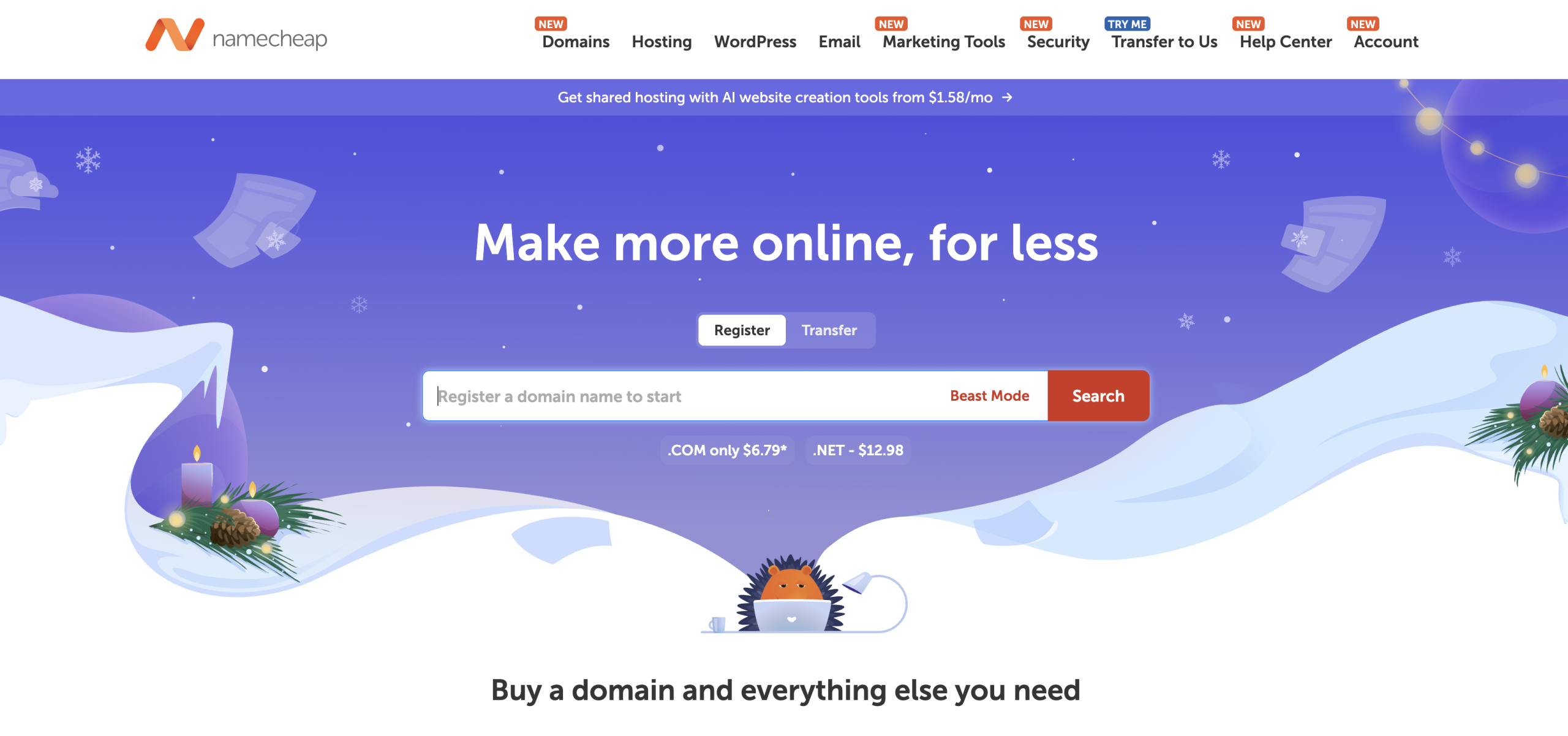
To register a domain you have to create an account with the registrar and go to the domains section. Here you can type in the domain you want and if it is taken already it will notify you and give you other similar domains. Once you have the domain you want you can add it to your cart and complete the purchase.
Choosing a good domain name
As it stands now short domain names are hard to come by. You may have to be creative. Generally .com and .net are the best and most recognized, though .co is becoming popular. Never over complicate your domain. Stay away from hyphens and numbers if possible. It should be as simple and memorable as it possibly can be. For the sake of this course I recommend something like your first and last name.com
Pointing a Domain
Depending on the set up you can point the domain different ways. In some cases you can just use the name server (NS1 and NS2). In other cases you might have to set the A Record and IP (hostname ‘www’ and the destination IP of the server). We will explore this more in detail in part 2 of this lecture.
Structure
For now you will be learning on a shared server. In shared servers you may or may not have access above the public_html folder. You will see this as soon as you login via FTP (File Transfer Protocol). This is the folder we need to concentrate on for now as this is where all the files being published to the web will go.
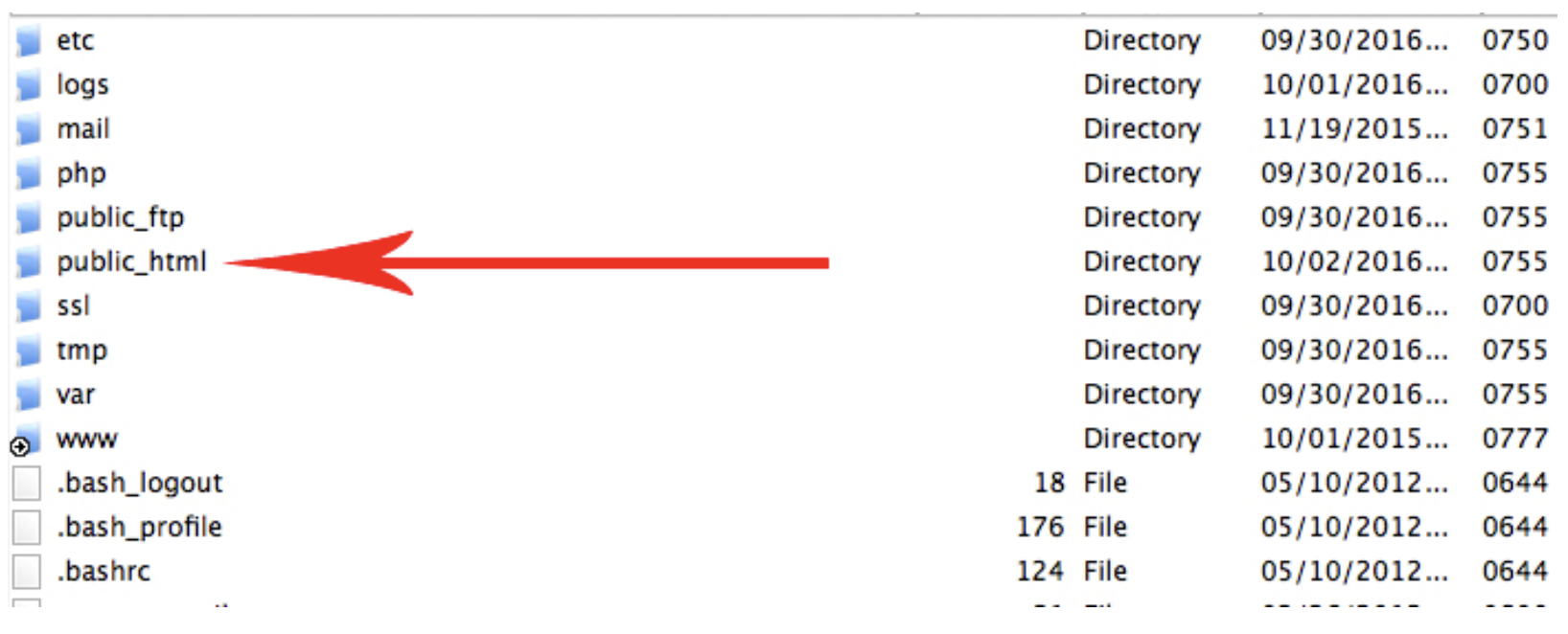
*Note: some shared servers use a different name (like “htdocs”) but for the most part it will be named “public_html”. The “WWW” folder is a mirror of the public_html account.
Uploading Your First Site
Lets imagine a simple website with 3 pages: Home, About Us and Contact us. The home page in a static website is always named “index.html” (or index.php). This tells the server and browser that this is the default page for your URL.
When you go to www.humber.ca the home page is actually www.humber.ca/index.php. This will be the first page we work on and upload.
File Structure in FTP
In the end the files on the server (using Filezilla) will look like this:
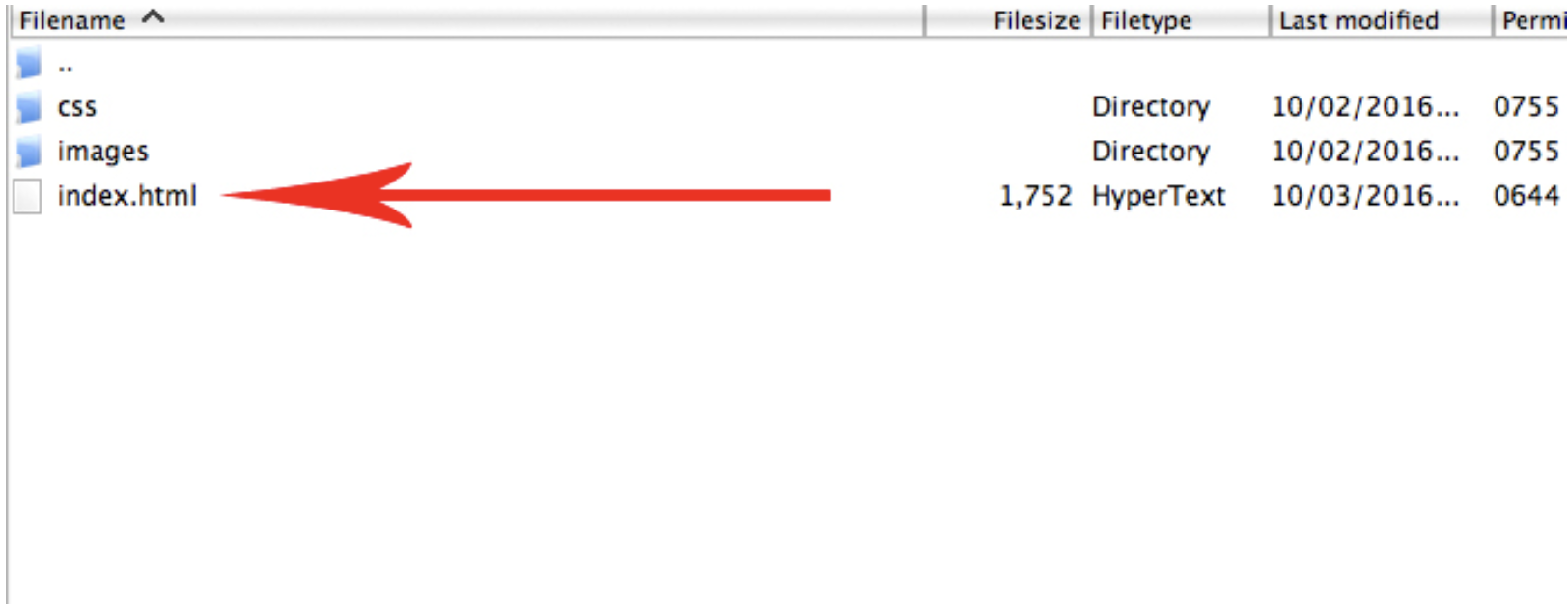
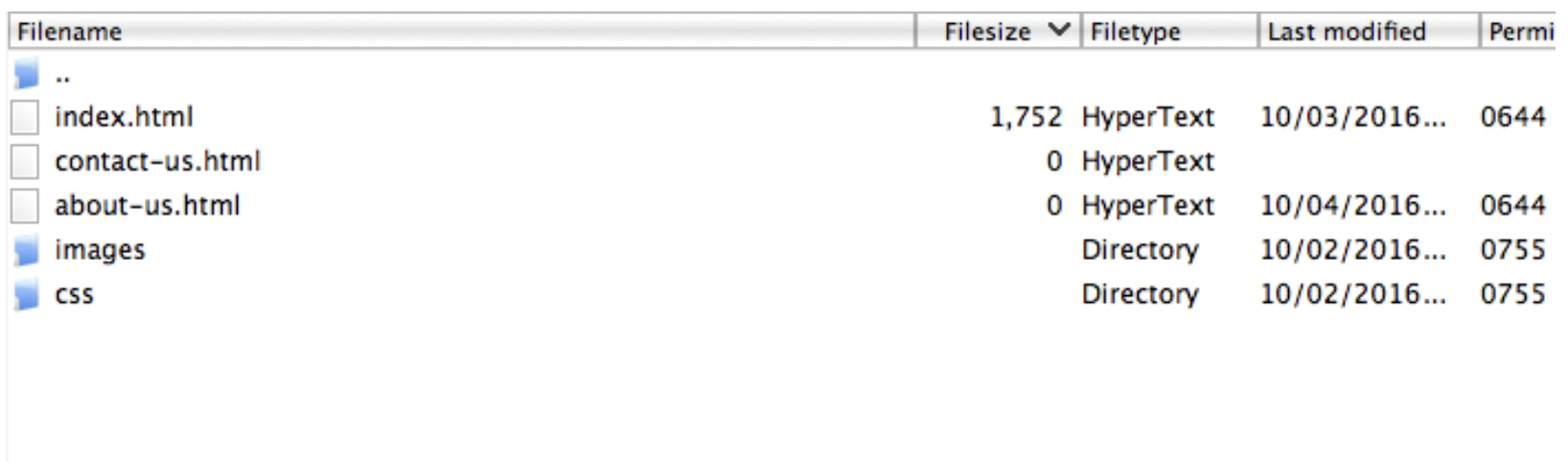
To keep things organized it is good practice to make a folder named “images” or “img” and a folder called “css”. This folder will contain all the css scripts you will be using and then a folder named “js” for any js files and so on. Also any other web pages that are siblings to the index.html file will be stored in the root folder.
Password storage
Keep your passwords safe and secure, stored all in one location. KeePassX is one of many available tools to do this.
- Once you open the program, enter a password and press OK (ignore the “key file” section).
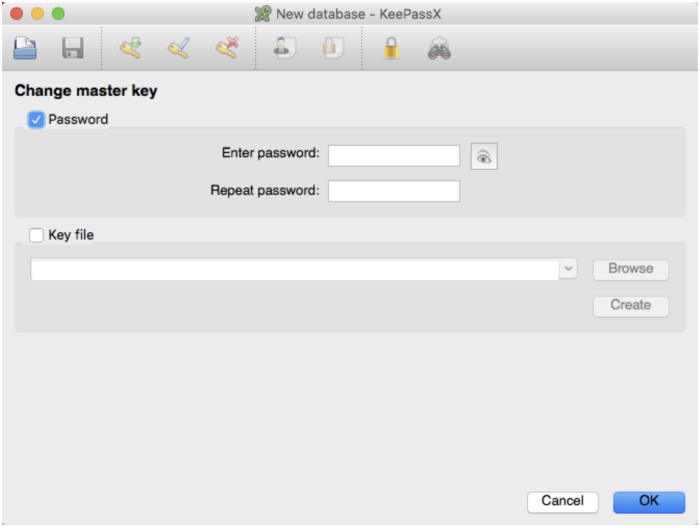
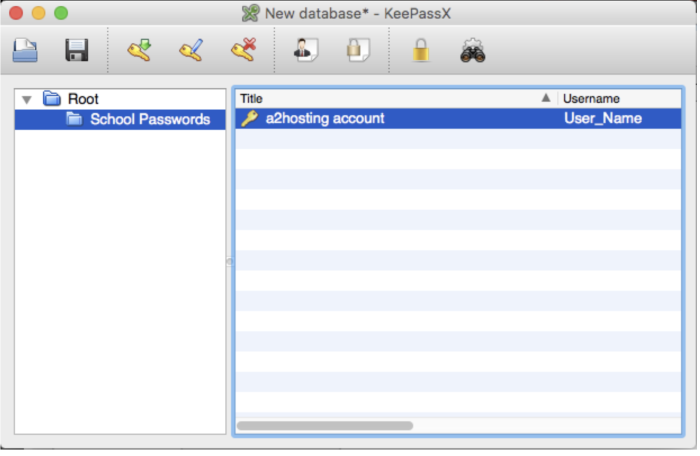
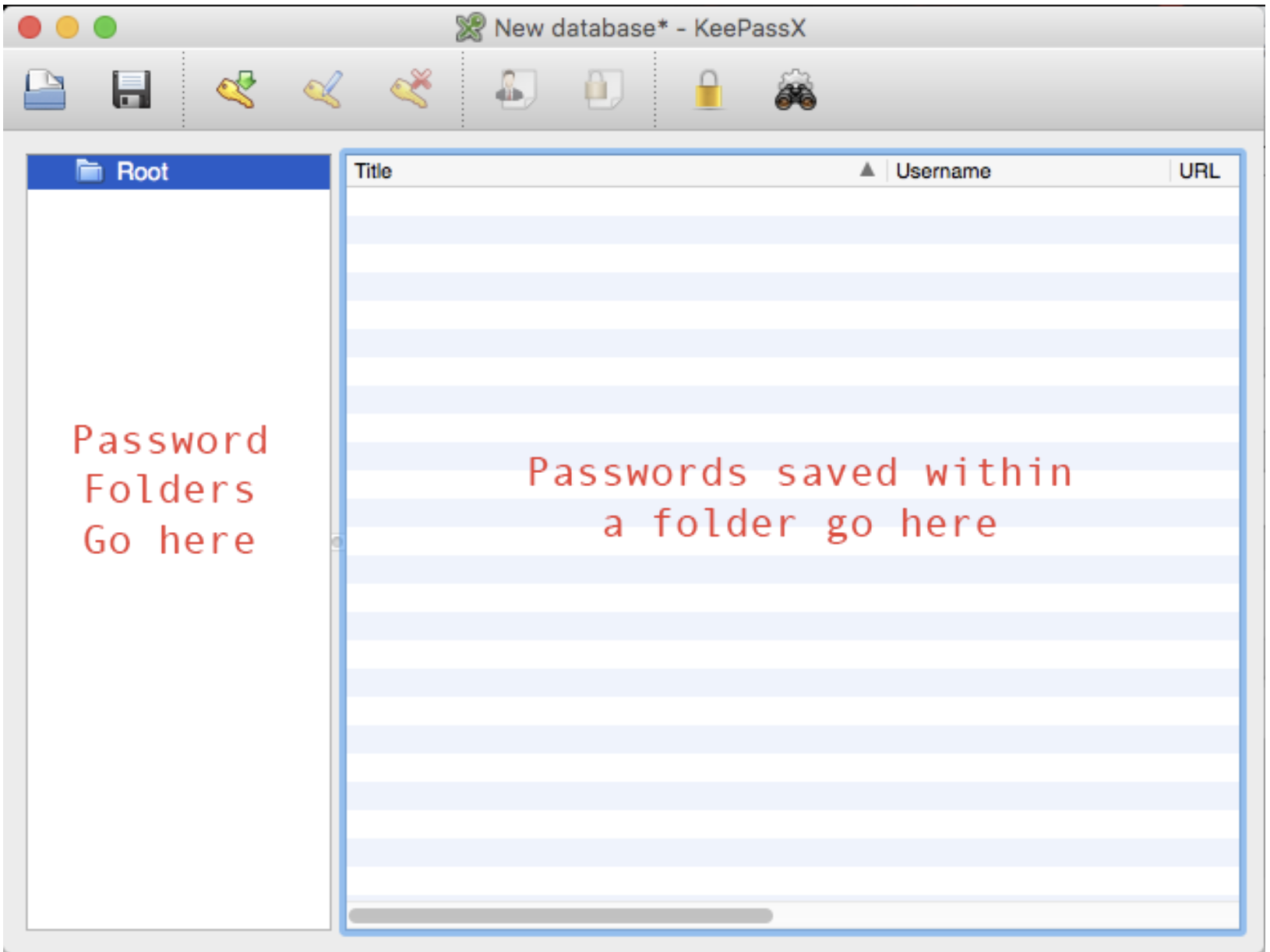
- Once you do it will open a new database. You can either make a new folder or just start saving them in the root folder.
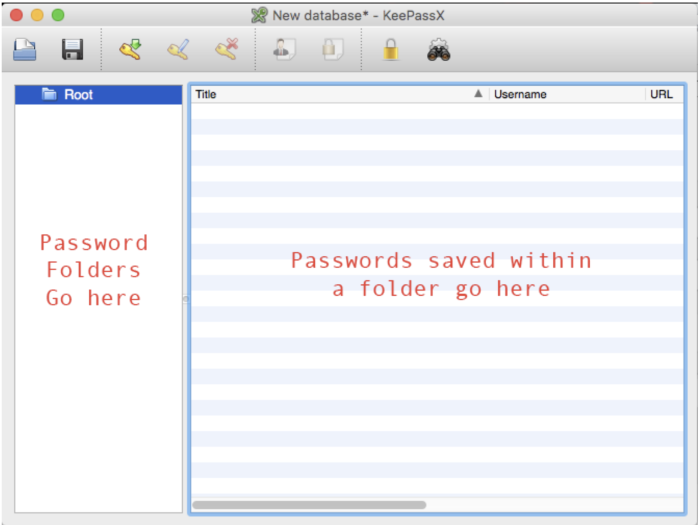
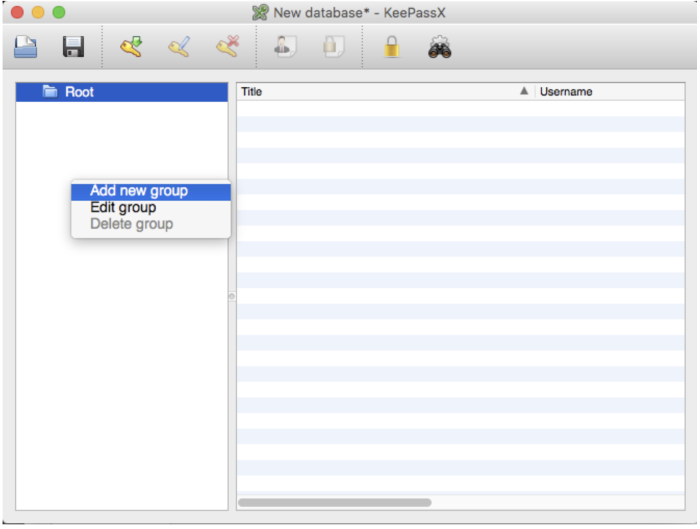
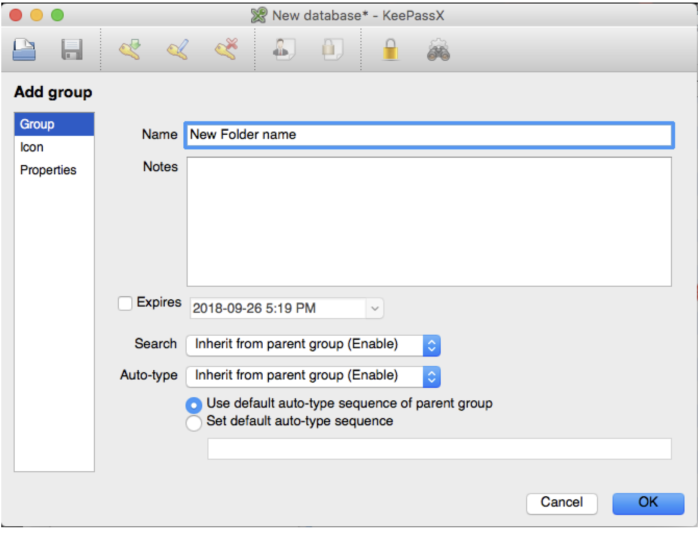
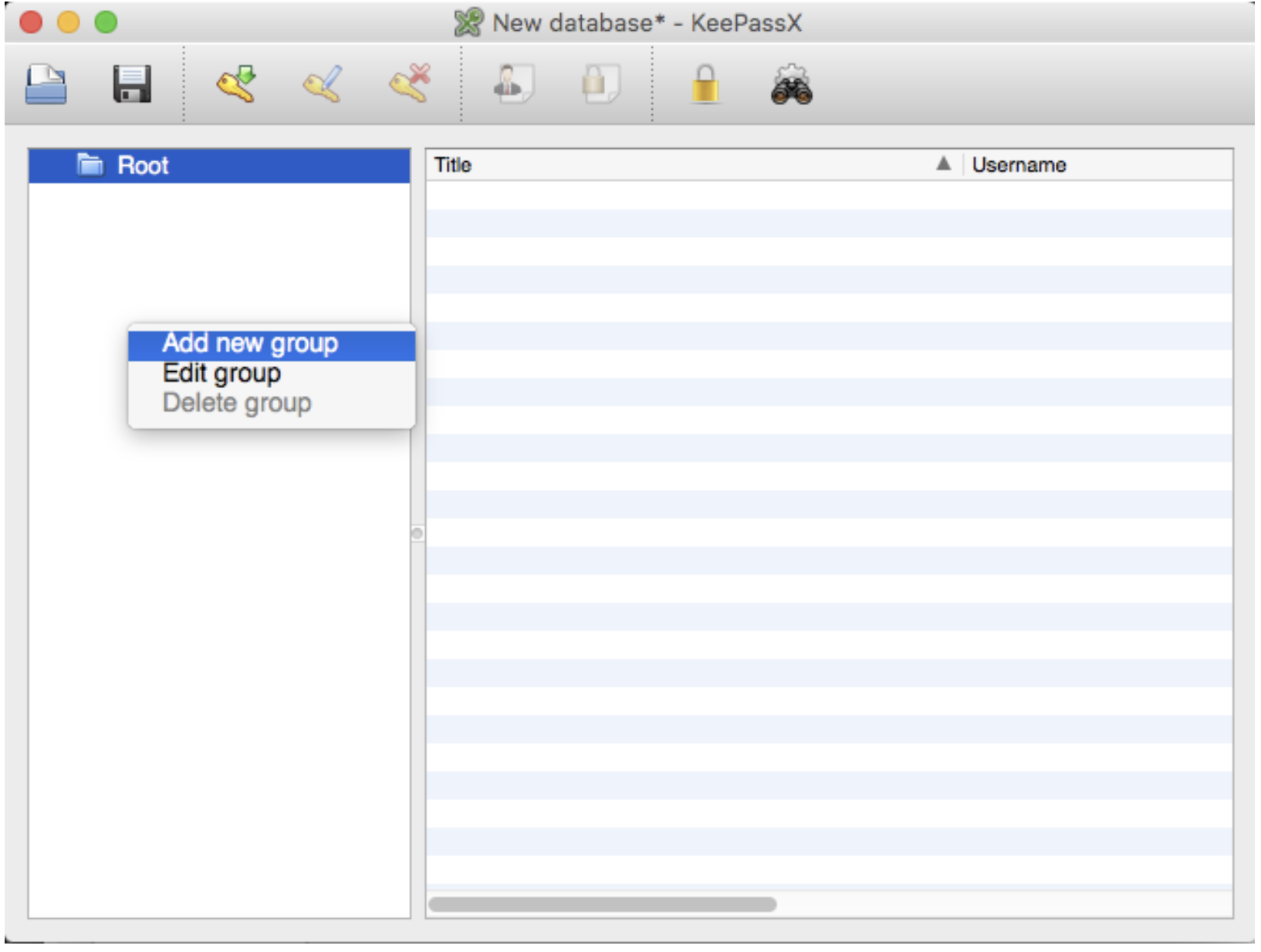
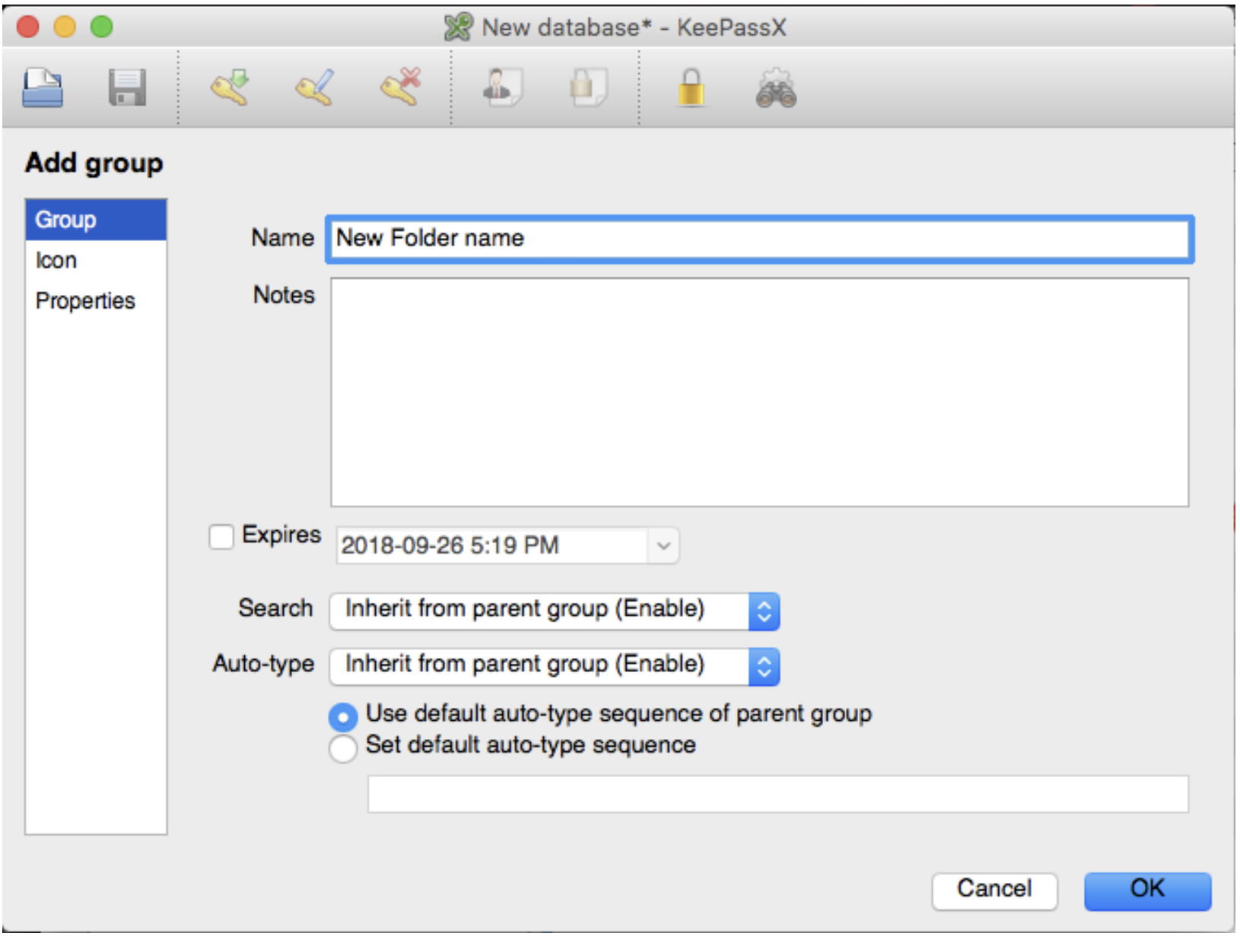
- To make a new folder right click on the whitespace and click “add new group”. Give it a name and press OK.
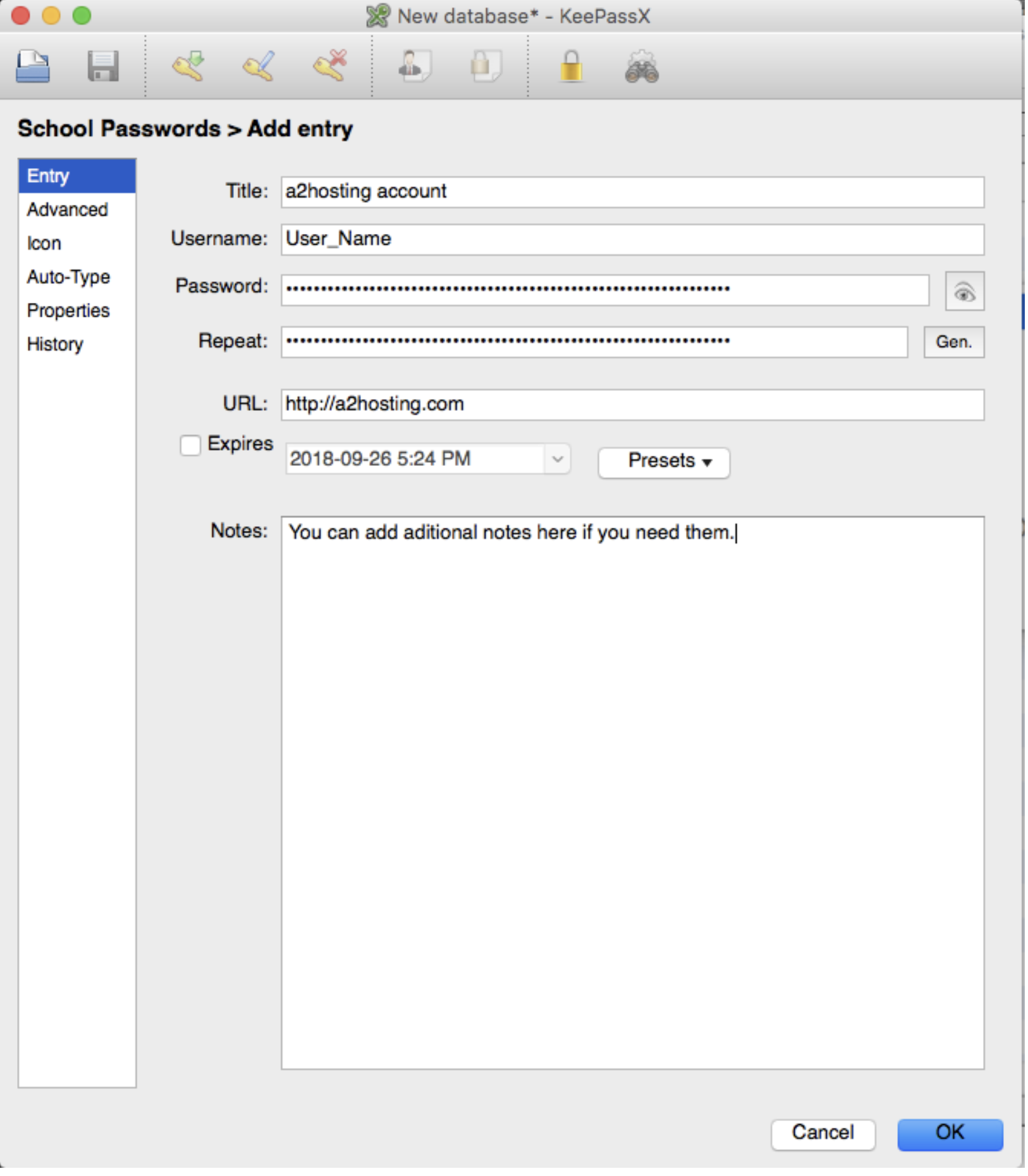
- To add a 1st entry, right click in the white space and click “Add new entry”.
- The eye icon will show the password so you can copy and paste it. The “Gen” button is a password generator that you can use to generate strong passwords.
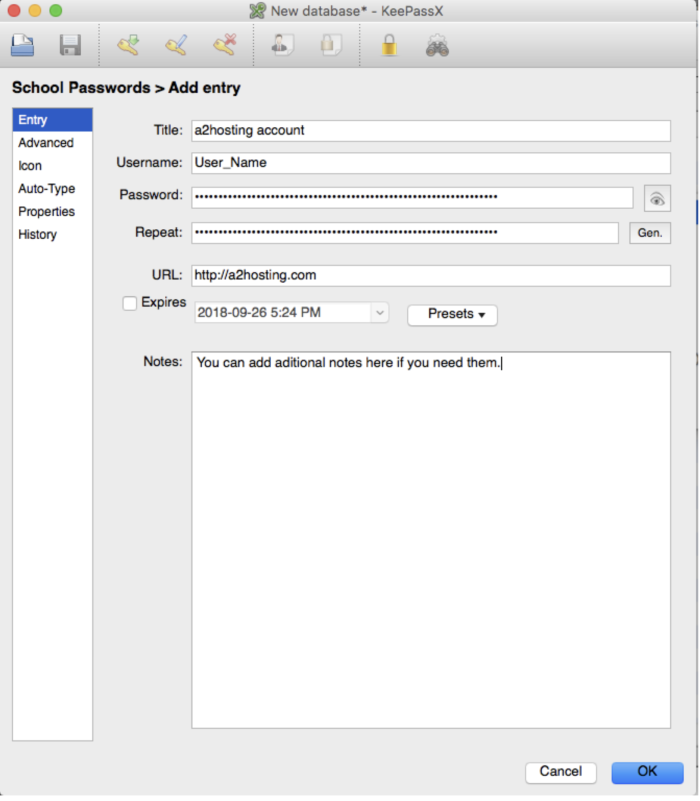
- Once done press ok and your password will be saved. You can save as many as you need within any folder.
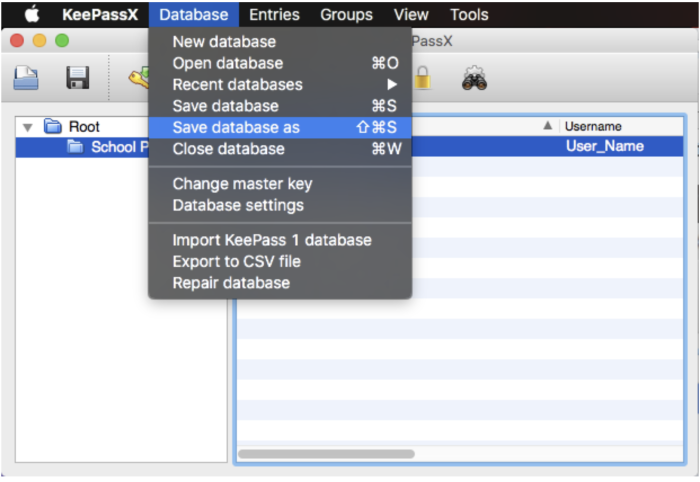
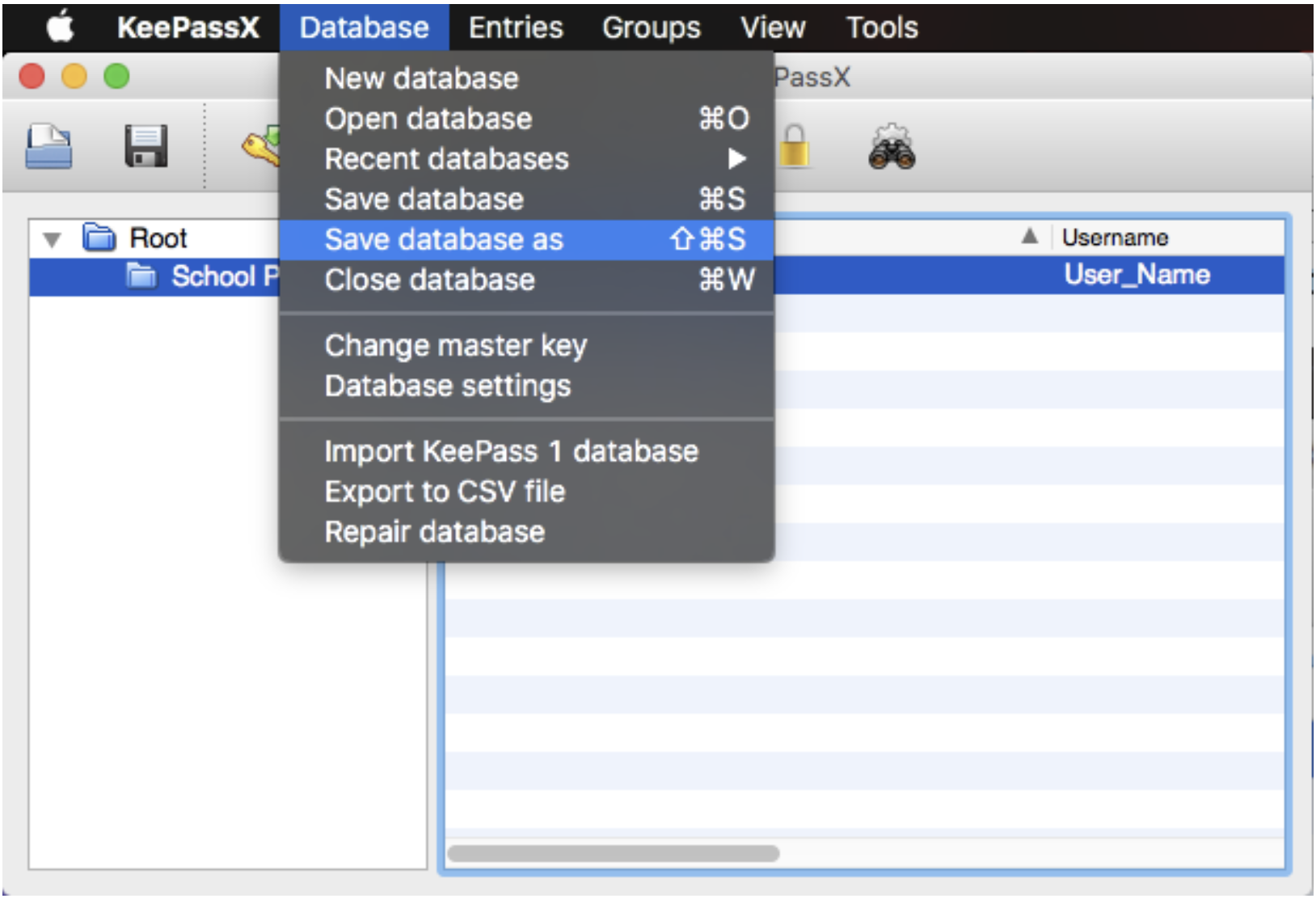
- Important: You must save the database before closing. Go to “Database” and click “save database as”. Save the file in a secure location.

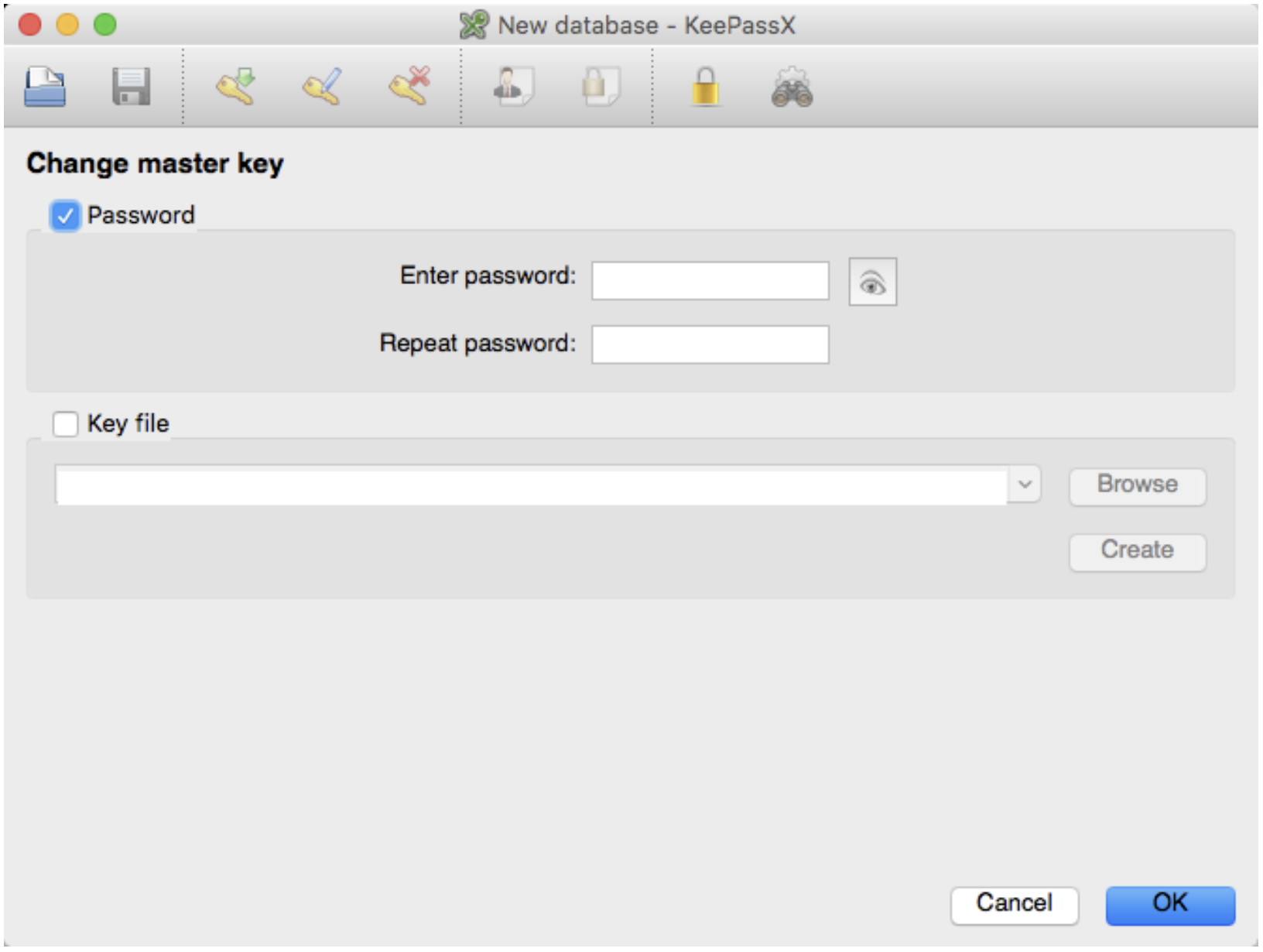
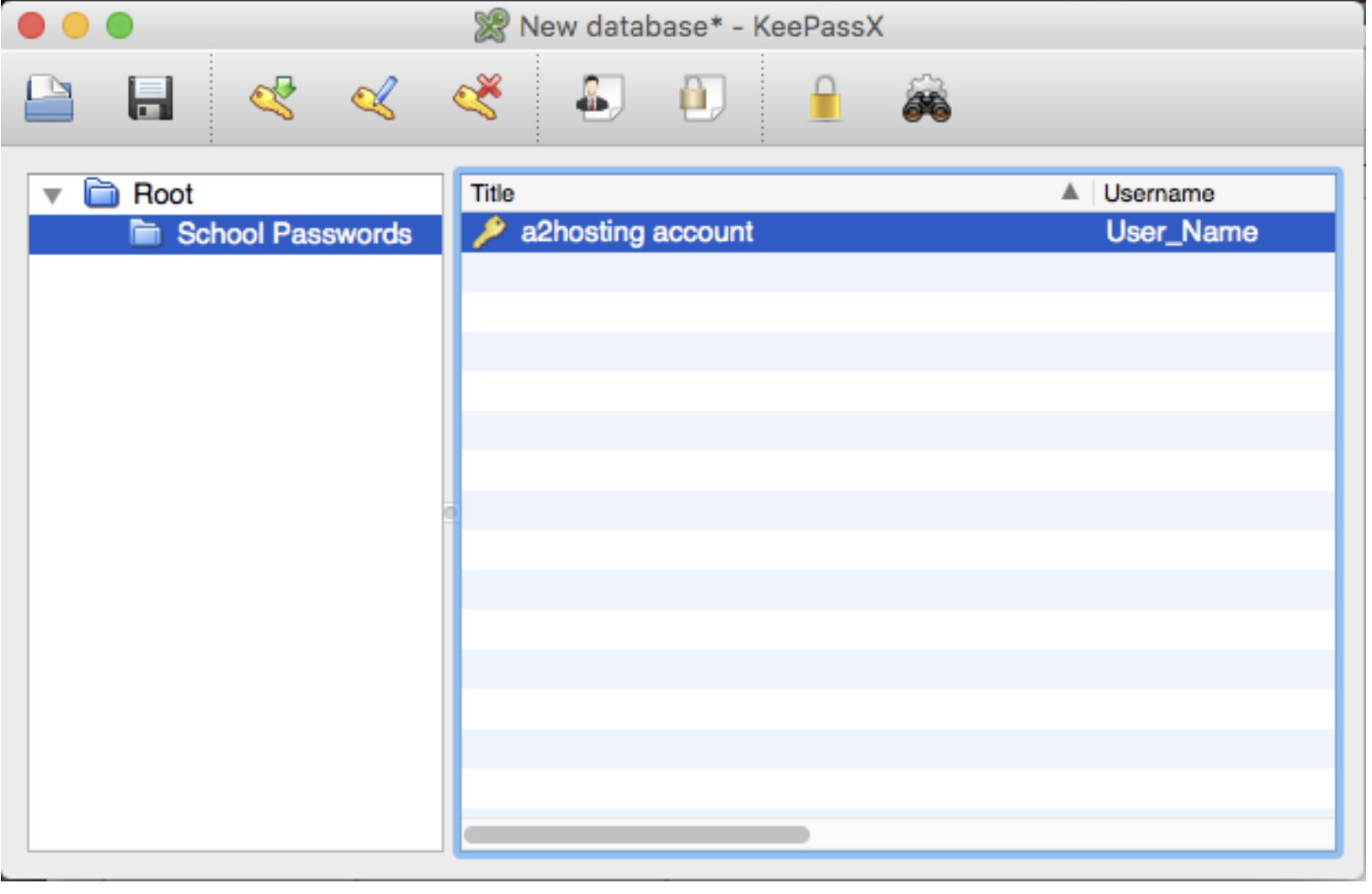

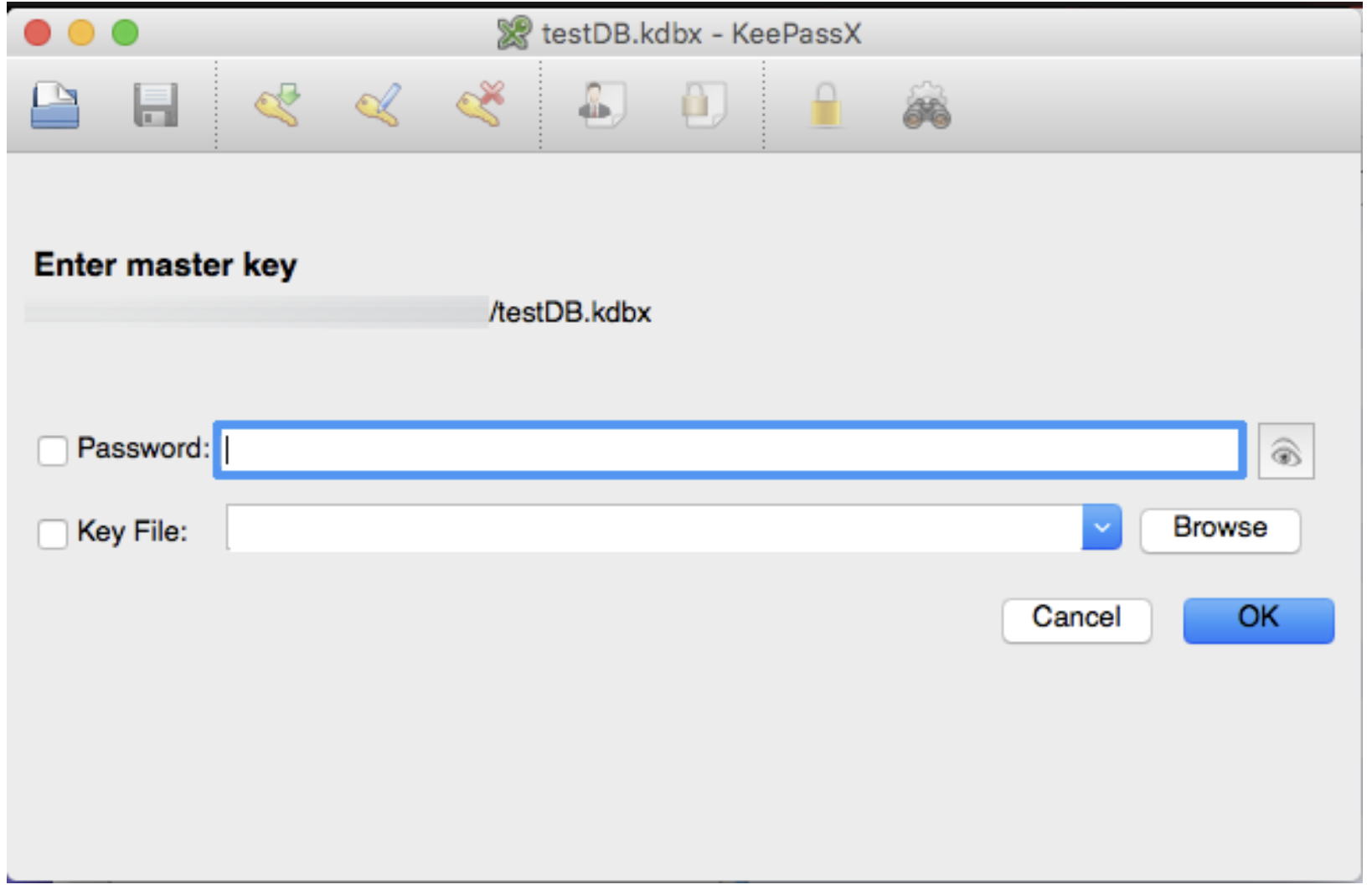
The next time you open the program, the database you made should already be loaded. Simply enter your master password to open your vault.
Categorised in: Lectures, WEBD 150
This post was written by amax
Comments are closed here.