
WEBD 150 – Fluid Design
April 4, 2024 1:42 pm Leave your thoughtsFluid Design
Fluid Layout & Typography
Using fluid layouts we can deploy responsive layouts before even running media queries. We can do this using methods we have already dabbled in such as using % widths and relative units for the bigger parts of the page, on top of using things like flexboxes and CSS Grids. You should always use fluid units of measure when building the layout. Refrain from using px amounts on bigger layout elements when you can. We can also add some fluidity with text sizes using relative units. Also, we can use min and max width to control a range of size in elements. In this short lecture we will explore these options.
Relative units
The name “relative units” suggests exactly what it sounds like. We are using a unit of measure that is relative to something else. Each are different but knowing what they are and how they work will help you use them. There are a few of these we will go through, rem units, em units, vw and vh units. Remember, these units of measure can be used in any case that you could use a px value.
!important Keep in mind that the default px amount for font size is 16px keep this in mind as we go through the explanation.
rem and em units are relative units of measure in CSS when you use them they allow for more usability and a more accessible experience by the user. If you use rem or em units for a font size or border size for example, the user can than increase the font size by changing the font settings in their browser, this is a great tool to use for inclusion as many people with vision issues can use this to change the size of the things you use relative units for.
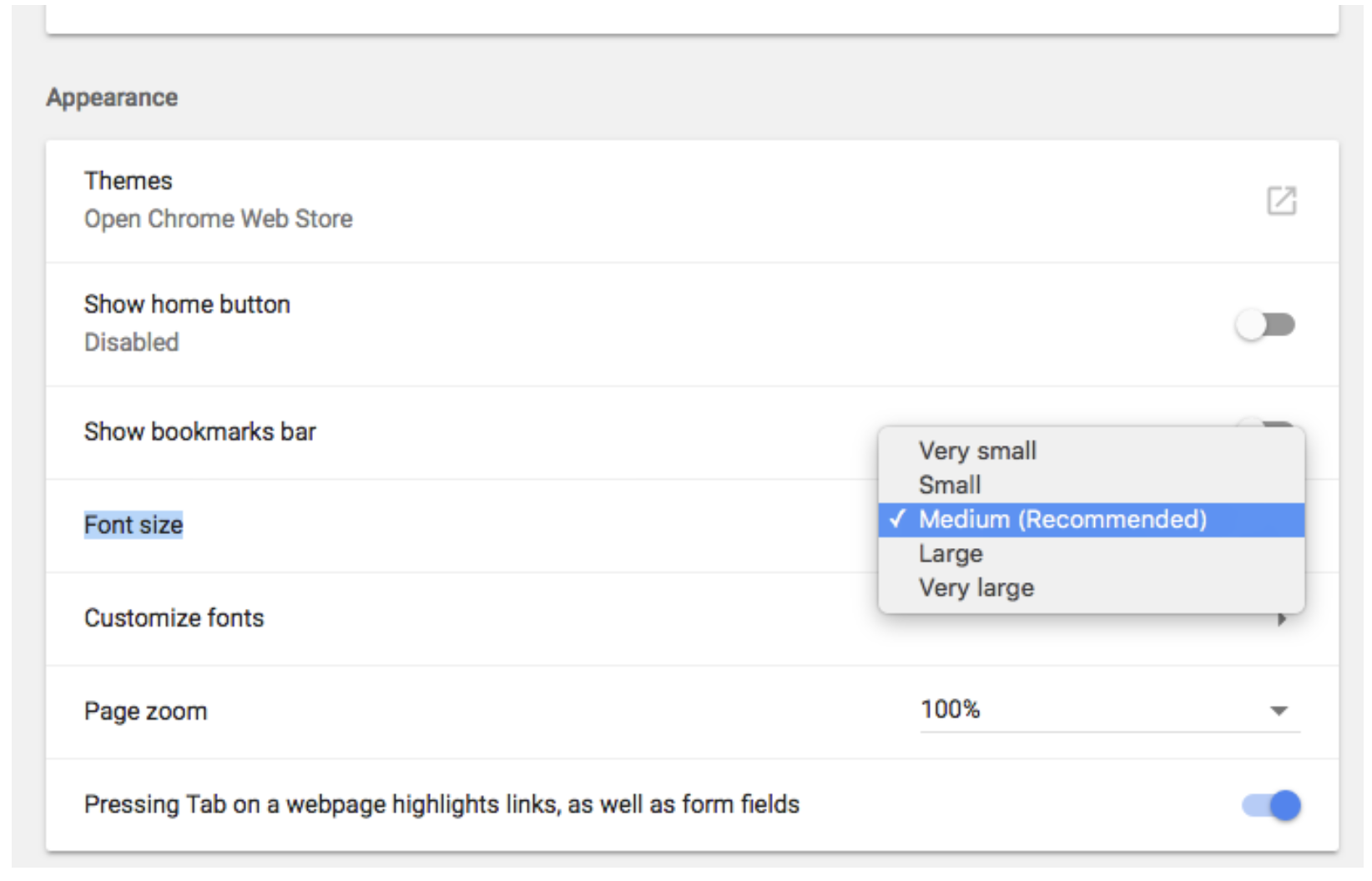
Now as stated earlier the default px amount of font in HTML is 16px, so if you tell your CSS to make the text 1rem it will not change from the default. However if you tell your css to make the text 2rem it will be double the size in other words 32px as these units are multipliers. You can use decimal amounts like 1.1em.
rem units
Are relative to the root element, AKA the HTML element. As you know, you can change the font size for the html selector. If you did and changed it to say, 12px than 1rem would equal 12px.
Example: font-size: 1.2rem;
Lets take a look at the percents folder and examine.
Refer to the folder rem.
em units
Are relative to the parent element. As you know, you can change the font size for a parent elements selector. If you did and changed it to say, 24px than 1em would equal 24px in that particular case.
Example: font-size: 1.2em;
    <div class="container">

        <p>Lorem ipsum dolor sit amet consectetur, adipisicing elit. Iste expedita facilis recusandae nemo tempora vitae, ipsa odit laudantium. Doloremque, explicabo! Vel harum ut libero veniam reiciendis a voluptate esse. Labore?</p>

        <div class="div1">
            <p>Lorem ipsum dolor sit amet consectetur adipisicing elit. Dicta optio blanditiis, placeat exercitationem sapiente quis beatae sunt ipsum officiis obcaecati, nesciunt fuga delectus impedit itaque explicabo et commodi eum quaerat.</p>
        </div>

        <div class="div2">
            <p>Lorem ipsum dolor sit amet consectetur adipisicing elit. Dolore, deleniti blanditiis? Dolorum non impedit, amet nulla, tenetur voluptatem accusantium perspiciatis explicabo corrupti autem, iusto quisquam facilis fugit aliquam est odio?</p>
        </div>

    </div>

    <style>

    html {
        font-size: 10px;
    }

    .container {
        font-size: 20px;
    }

    /* Set this to 1rem and it will adhere to the HTML size.
    Set this to 1em and it will adhere to the container size.
    This is because rem is relative to the ROOT (HTML)
    and em is relative to the parent.
    */
    .container p {
        font-size: 1rem;
    }

    </style>
VH
Viewport height units measure the size of an element relative to the viewport so, if you made a <div class=”header”> for example and told the CSS .header { height:50vh; than no matter what you resized the window to, the div would always stay 50vh or half of the height of the viewport.
Example: height: 100vh;
VW
Viewport width, works the same as VH but for width.
Example: height: 100vw;
Percent Widths
As you know, we can also use % values to increase responsiveness of web pages/apps. Pixel amounts are rigid, they never change. We can mitigate this using @media yes, but we can also mitigate this using % amounts. Not only for structure items but also for sizes of other aspects of a page.
Lets take a look at the percents folder and examine.
Refer to the folder percents.
When it does come to structure elements however, we can easily deploy responsive elements using % amounts which will be relative to its parent element, if no parents element is there than it will be relative to the html selector. Using these units will increase the responsiveness of any page without having to run @media queries.
Max Width Images & Other Elements
We can also use max-width on images as well as anything else we need to to limit the maximum size allowed for it to be. In the event you use a % amount for a width of an image for example, the image will be scaled down and up as the window resizes but if you set a max-width than this would be the maximum size it could get. Remember this works for height as well.
Example:
.wrapper img {
max-width: 400px;
}
Min Width Images & Other Elements
We can do the opposite and use a min width on anything we want to limit how small it can get. We can combine min and max with as well with the same block of code to give limits for both.
<div class="wrapper">
(contents)
</div>

.wrapper {
max-width: 100%;
min-width: 320px;
}
Lets take a look at the overflow example and examine.
Refer to the folder min-max-width.
Categorised in: Lectures, WEBD 150
This post was written by amax