Demystifying how bash transforms your commands before execution
What is the Shell?
The shell is a program, a command interpreter. It reads input from the keyboard (or a file), decides what to do, and runs other programs. Think of it as the wrapper around the operating system’s core.
We’re focusing on bash (Bourne Again SHell), the default on most Linux distributions but keep in mind that there are other shells that can be installed like ZSH or Oh My ZSH
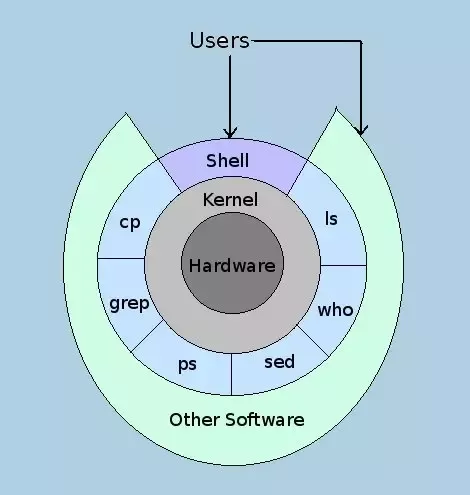
Why “shell”? Just as a kernel is the core of an OS, the shell is the outer layer that interacts with users. The kernel manages hardware; the shell manages you.
Quick Review: The Unix Kernel
The kernel is the heart of the OS and is loaded at boot, it controls all hardware resources: CPU, memory, disks, network, etc. The shell talks to the kernel on your behalf.
Shell → Kernel → Hardware
The Nine Expansions
Before executing a command, bash processes it in this exact order:
1. Brace 2. Tilde 3. Parameter 4. Command 5. Arithmetic 6. Process 7. Word Splitting 8. Filename 9. Quote Removal
Let’s explore the most important ones in detail.
Tilde Expansion ~
The tilde ~ is a shortcut for home directories.
You type
Shell expands to
~
your home directory (value of $HOME)
~bob
Bob’s home directory
~/Documents
/home/you/Documents
$ echo ~ # /home/alice (if you’re alice)
$ ls ~bob/*.txt # list all txt files in bob’s home
$ cp ~/music/*.mp3 . # copy your mp3s to current dir
Filename (Globbing) Expansion
Special pattern characters * ? [] are replaced with matching filenames.
Pattern
Meaning
*
any string of characters (including none)
?
any single character
[abc]
any one character from the set
Example: Files in /tmp/car_files:
m3.jpg
m3.mp3
m5.jpg
m5.mp3
race_video.mv4
vette.jpg
vette.mp3
$ ls *.mp3 # m3.mp3 m5.mp3 vette.mp3
$ ls m?.jpg # m3.jpg m5.jpg
$ ls m[35].jpg # same: m3.jpg m5.jpg
$ ls *.[mj]* # tricky: matches any file with .m or .j
WARNING! Be careful:ls *m* matched everything containing ‘m’ — including .jpg files! Why? Because ‘m’ appears in the name. To narrow, use patterns like *.m?? or *.[mp][34]*.
A Note on Dot Files (.)
Files starting with a dot (.bashrc, .profile) are hidden files, meaning they don’t show in the finder. By design, filename expansion ignores leading dots unless the pattern itself begins with a dot.
$ ls * # shows only non-hidden files
$ ls .* # shows hidden files (and . and ..)
This prevents accidental matches on . and .. — imagine if rm -rf * tried to delete parent directories!
Brace { }
Generate arbitrary strings — not limited to existing filenames.
Expression
Expands to
a{1,2,3}b
a1b a2b a3b
{one,two}.txt
one.txt two.txt
file{A,B}.bak
fileA.bak fileB.bak
Great for quick backups or creating multiple directories:
Command substitution: $(date) or `date` — runs command and inserts output.
Arithmetic expansion: $((2+2)) → 4.
Process substitution: <(cmd) — treat command output as a file (advanced).
Word splitting: after expansions, bash splits results into words (based on IFS).
$ echo “Today is $(date +%A)” # Today is Monday
$ echo “The answer is $((6*7))” # The answer is 42
Environment Variables – A Preview
Every Unix process has a block of memory for environment variables. In the shell, they work like parameters, but are inherited by child processes.
$ export VAR=value # makes it an environment variable
$ echo $PATH # typical environment variable
To truly understand environment variables, we need to discuss processes: forking, parents, children, and (oh my) zombies. That’s a lecture for another day.
Putting It All Together
When you hit Enter, bash follows these steps:
Reads input (from keyboard/script)
Breaks into words and operators
Performs expansions (brace → tilde → parameter → command → arithmetic → process → word splitting → filename)
Removes quotes
Executes the command
Understanding this order helps you predict how any command will behave.
Shell Expansions — Practice Lab
Hands-on exercises to tame tilde, brace, filename globbing, variables, and quoting.
Open a terminal and follow each step. (Assumes bash)
📁 Lab Setup: Create Practice Files
First, let’s build a playground with different file types.
$ cd ~ $ mkdir -p lab_files/car_files $ cd lab_files/car_files $ touch m3.jpg m3.mp3 m5.jpg m5.mp3 race_video.mv4 vette.jpg vette.mp3 $ mkdir hidden stuff $ touch .secret.txt .hidden.jpg stuff/regular.txt $ cd ../.. # back to home area $ echo “Ready.”
This gives us a mix of files to test expansions.
1. Tilde Expansion
~ is your home sweet home.
🔹 Task 1: Display your home directory path using echo.
$ echo ~ /home/your_username (or /Users/your_username on Mac)
🔹 Task 2: List contents of your home directory using ls ~. Then list only the lab_files folder with ls ~/lab_files.
$ ls ~ $ ls ~/lab_files
🔹 Task 3: Try echo ~root (if you have permission). This shows root’s home. Also try a user that doesn’t exist: echo ~notreal.
$ echo ~root /root $ echo ~notreal ~notreal (no expansion)
Remember:~ alone = $HOME. ~user = that user’s home (if known).
2. Filename (Globbing) Expansion
Patterns with *, ?, [] match files.
First, go to our test directory:
$ cd ~/lab_files/car_files
🔹 Task 4: List all .jpg files.
$ ls *.jpg m3.jpg m5.jpg vette.jpg
🔹 Task 5: List all files with exactly 4 characters before extension (e.g., m3.jpg, m5.jpg) using ?.
🔹 Task 6: Use [ ] to list only m3.jpg and m5.jpg (two ways).
$ ls m[35].jpg m3.jpg m5.jpg $ ls m?.jpg # same effect here
🔹 Task 7: List all mp3 files plus the video (.mv4) in one pattern.
$ ls *.mp3 *.mv4
🔹 Task 8: List files that have “m” followed by anything, then a dot, then anything starting with ‘m’ or ‘j’ — see what happens.
$ ls *m*.[mj]*
WARNING! Observation: That command matched more than you expected? Because *m* matches any name containing ‘m’, and .[mj]* means a dot, then m or j, then anything. Pattern matching can be tricky.
3. Hidden Files (dot files)
🔹 Task 9: List all files (including hidden) in the current directory (car_files).
$ ls -a
🔹 Task 10: Try to match hidden .secret.txt using *.txt. Does it appear? Why?
$ ls *.txt (no .secret.txt — because leading dot is not matched by *)
🔹 Task 11: Match hidden files explicitly.
$ ls .* # lists ., .., and hidden files (be careful) $ ls .secret.txt
Rule: Filename expansion ignores leading dots unless the pattern starts with a dot.
4. Brace Expansion
Generate arbitrary strings — not limited to existing files.
🔹 Task 18: Print the string She said “Hello” using escape and quotes.
$ echo She said \”Hello\” $ echo ‘She said “Hello”‘
🔹 Task 19: Demonstrate the difference between single and double quotes with a variable.
$ NAME=alice $ echo ‘My name is $NAME’ # My name is $NAME $ echo “My name is $NAME” # My name is alice
🔹 Task 20: Use a backslash to echo a $ sign literally.
$ echo “The price is \$5.00”
🔹 Task 21: Try to list a file with a space in its name (create one first).
$ touch “my important file.txt” $ ls my important file.txt # fails: three arguments $ ls “my important file.txt” # works $ ls my\ important\ file.txt # also works (backslash escapes space)
Always quote or escape spaces, otherwise the shell splits them into separate arguments.
7. Mixed & Challenge Tasks
Combine what you’ve learned. Work in ~/lab_files/car_files.
🔹 Challenge 1: List all files that have exactly one character between ‘m’ and ‘.’ (like m3.jpg, m5.jpg) but not others.
$ ls m?.??? # works here because all extensions are 3 chars
🔹 Challenge 2: Copy all files that start with ‘vette’ to a new folder ~/lab_files/vette_backup using brace expansion to create the folder.
🔹 Challenge 3: Use a single echo with brace expansion to print the following three words: apple-piebanana-piecherry-pie.
$ echo {apple,banana,cherry}-pie
🔹 Challenge 4: Display the message: Your home is $HOME but with $HOME expanded (using double quotes). Then again with single quotes so $HOME is not expanded.
$ echo “Your home is $HOME” $ echo ‘Your home is $HOME’
🔹 Challenge 5: List all files that start with a dot (hidden) in your real home directory, but not . or .. (use a pattern like .[!.]* — advanced).
$ ls -d ~/.[!.]* # lists hidden files but not . or ..
This uses a negated character class [!.] meaning “not a dot”.
8. Cleanup (Optional)
When you’re done experimenting, remove the lab folder:
$ rm -rf ~/lab_files
WARNING! Be absolutely sure you want to delete before running rm -rf.


Comments are closed here.